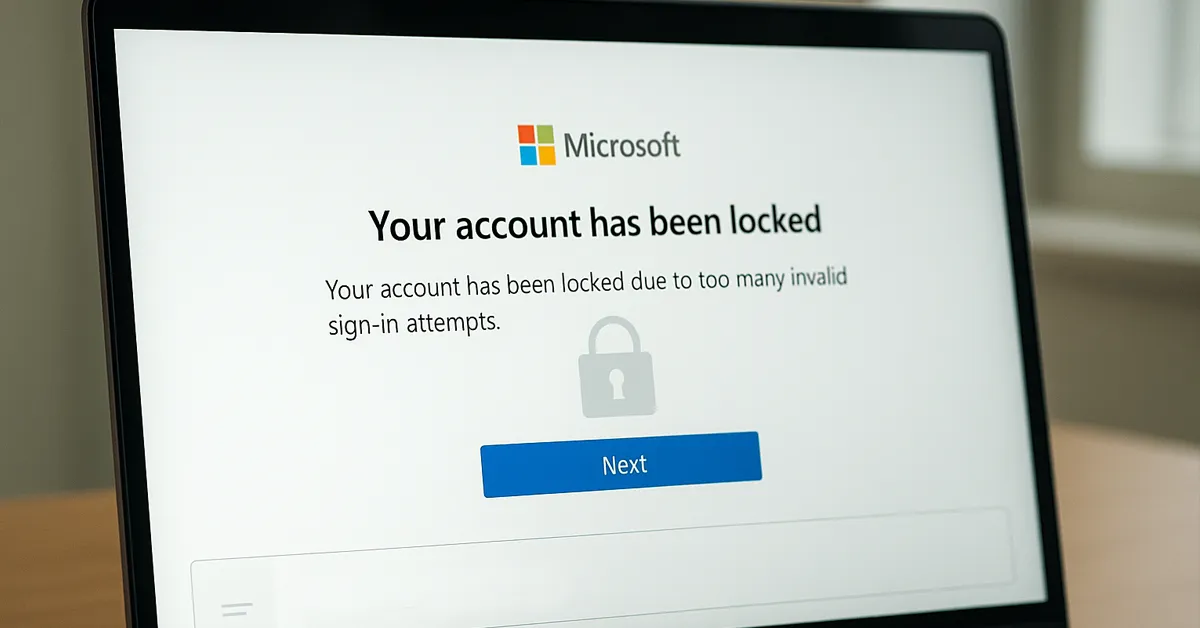
Few issues cause more frustration than trying to log in and seeing “Password incorrect” or “Your account has been locked due to too many attempts.” Whether you’re using Windows, macOS, Microsoft 365, Google, Apple ID, or enterprise VPN/Wi-Fi — password lockouts remain one of the most common problems reported to IT support.
This comprehensive guide explains why lockouts happen, how to fix them across all major platforms, and what steps IT admins can take to diagnose the root cause. You will also find prevention tips, visuals, and real-world examples that reduce repeated lockouts.
How Password Resets & Account Lockouts Work
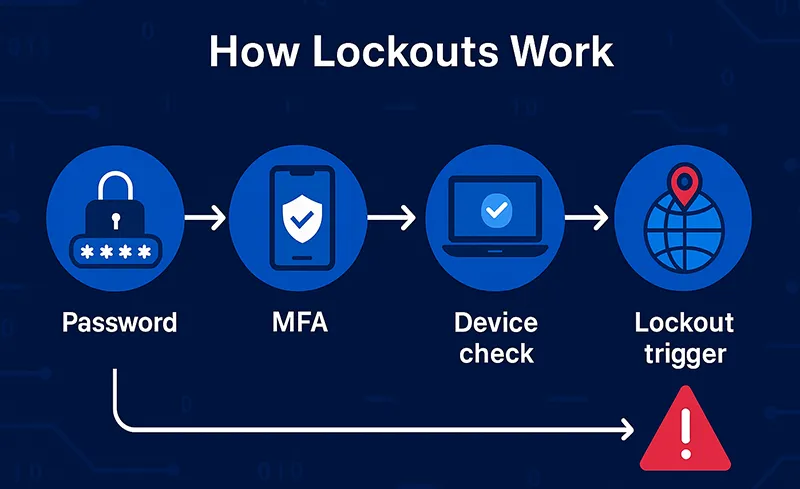
Every major operating system and cloud provider uses automated security controls to protect your account. These systems track failed attempts, suspicious activity, password changes, and MFA failures. If something looks unsafe, your account is temporarily blocked.
- Too many incorrect passwords triggers a lockout.
- Password changes force re-authentication across all devices.
- Mismatched cached credentials cause repetitive background failures.
- MFA failures can block access even if the password is correct.
- Location & device anomalies (Microsoft / Google risk detection) may force verification.
Common Reasons for Account Lockouts
- Forgotten passwords or typing errors (Caps Lock, keyboard layout).
- Password recently changed on another device.
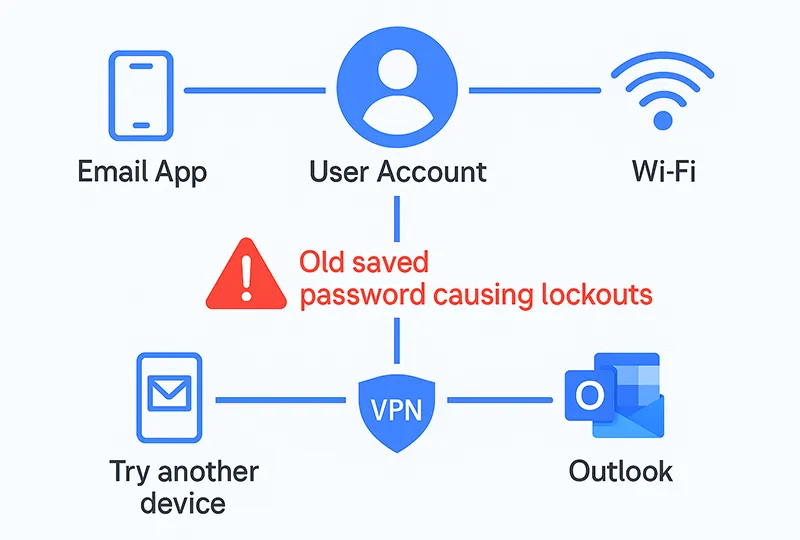
- Old password stored in background apps like Outlook, OneDrive, or VPN.
- Expired password in corporate Active Directory or Azure AD.
- MFA not available or incorrect verification code.
- Suspicious-sign-in protection triggered by Microsoft, Google, or Apple.
- Account disabled or suspended by IT, HR, or security systems.
Returning from vacation, device replacement, recent password changes, and new MFA enrollment are common triggers.

Quick Universal Checklist (Try These First)
- Confirm you’re using the correct email/username.
- Re-type your password slowly — check Caps Lock & keyboard language.
- Sign in from another device or incognito browser.
- Use Forgot Password on the login screen.
- Check recovery email or phone for alerts.
- Restart your device to clear cached credentials.
This solves 30–40% of lockouts instantly.

Fix Password Problems on Windows 10 & 11
1. Determine if It’s a Local Account or Microsoft Account
- Local account: Username looks like
AdminorJohn. - Microsoft account: Email like
example@outlook.com.
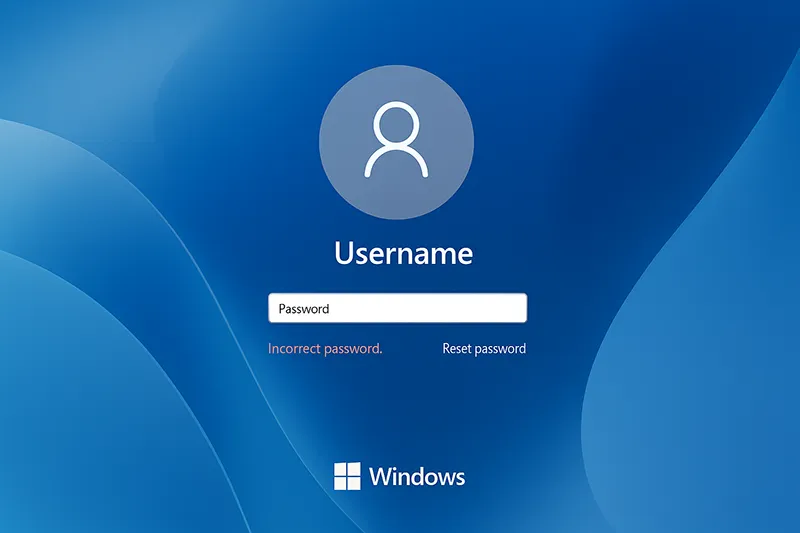
2. Reset a Local Windows Account Password
- If security questions are enabled → click Reset password.
- If it’s a work PC → your IT admin must reset it via Azure AD or ADUC.
3. Reset a Microsoft Account Password
Use Microsoft’s official password reset:
https://account.live.com/password/reset
You may also refer users to your simplified internal guide: Reset a Forgotten Password – Comprehensive Guide
Fix Password Issues on macOS
1. Reset Using Apple ID (if enabled)
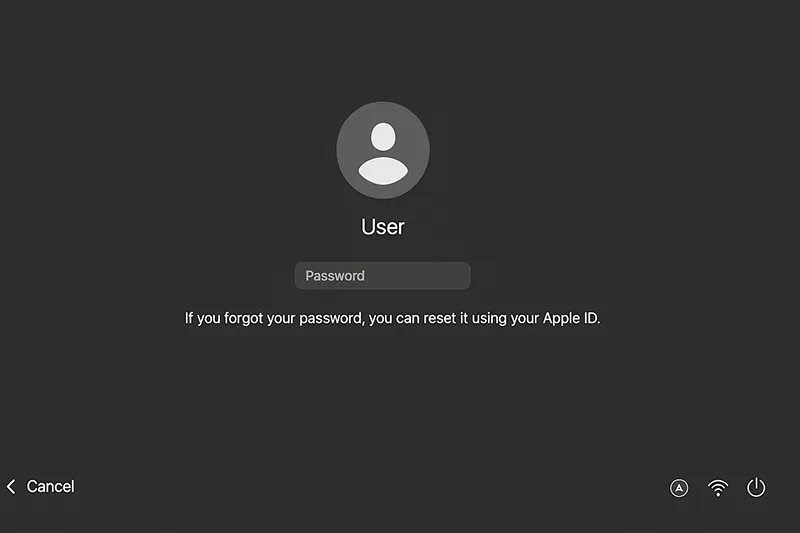
After several failed attempts, macOS may show “Reset using Apple ID.” Follow prompts and confirm identity.
2. Reset Using Recovery Mode
- Turn off the Mac.
- Intel: Hold Command + R. M-Series: Hold power until “Options” appears.
- Select Utilities → Terminal.
- Type
resetpassword→ press Enter.
Apple’s full procedure: Reset your Apple account password
Microsoft 365 & Azure AD (Work & School Accounts)
Reset via Self-Service Password Reset (SSPR)
Use Microsoft’s official recovery portal:
passwordreset.microsoftonline.com
Unlock Suspicious or Blocked Accounts
Microsoft may block sign-in attempts due to risk alerts. Users can confirm identity at:
Admin Fixes in Azure AD
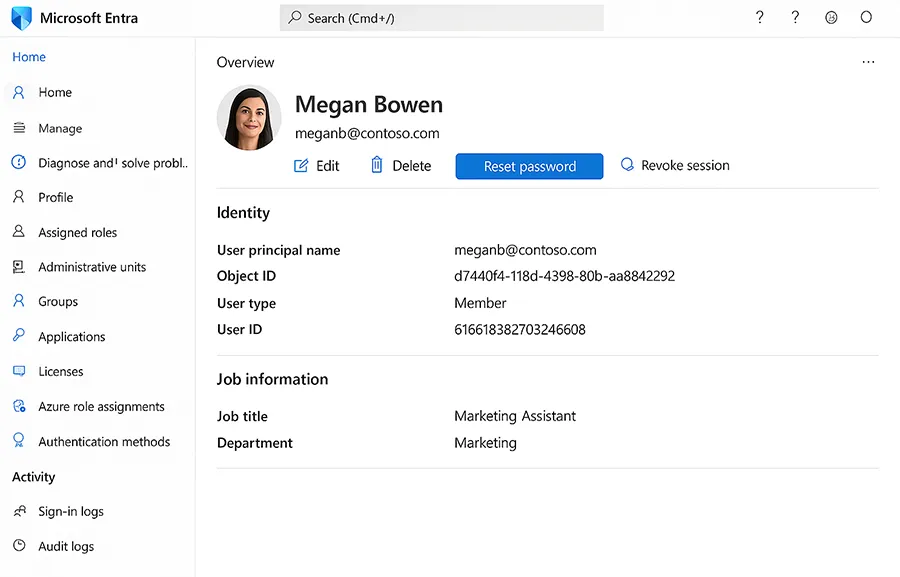
IT Admins → Azure Portal → Entra ID → Users → Reset Password
Admins may also review sign-in logs for issues like:
- Incorrect MFA
- Device compliance failures
- Old tokens in mobile apps
- Risky sign-in attempts
Useful reference article for users: Best Practices for Implementing MFA
Google / Gmail Account Lockouts
Use Google’s Official Recovery Tool
Common Fixes
- Use last known password
- Verify via recovery email or phone
- Confirm recent sign-in alerts
- Remove suspicious app access
For more security tips, link users to: 5 Cybersecurity Tools You Need to Know

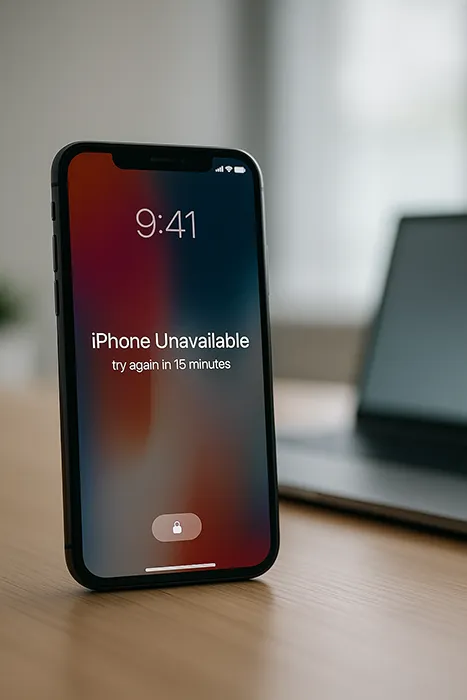
Apple ID & iPhone Lockouts
1. Reset From Trusted Device
Go to: Settings → Apple ID → Sign-In & Security → Change Password
2. Account Recovery (If Locked)
Apple may require 24–72 hours depending on risk score.
Corporate VPN, Wi-Fi, and Active Directory Lockouts
For Users
- Update password on your phone’s email app
- Update VPN clients (GlobalProtect, Cisco AnyConnect, etc.)
- Forget and re-add enterprise Wi-Fi
- Sign out/in on Teams & Outlook
For IT Admins
- Check domain controllers → Event ID 4740
- Trace lockout source machine
- Reset AD or Entra ID password
- Disable problematic legacy services
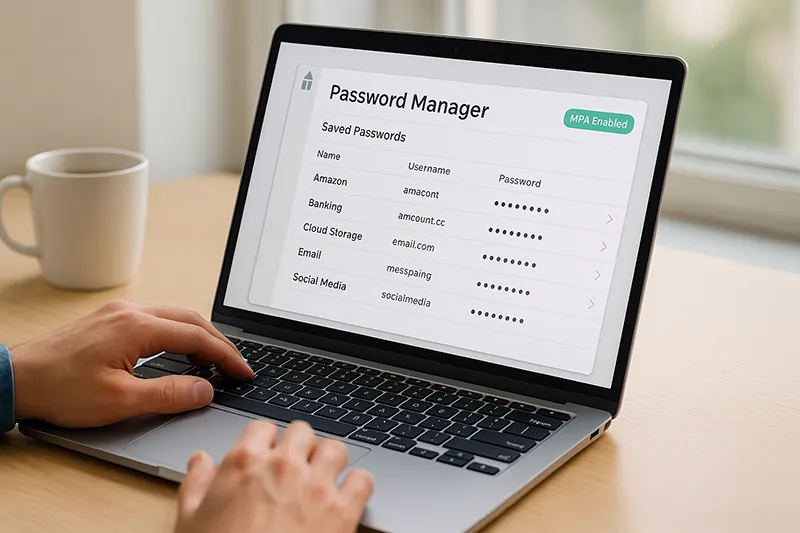
Improve password safety using: Using Password Managers
How to Avoid Future Lockouts
- Use a password manager
- Enable MFA across all accounts
- Update recovery phone & email
- Rotate passwords only when required
- After any password change → update all devices
- Review security alerts monthly
Additional reading on better password habits: Creating Strong and Memorable Passwords
About the Author
Waheed Burna is specializing in enterprise identity, cybersecurity, and cloud infrastructure. He writes practical IT troubleshooting guides for MagnetClicks.com to help users and professionals solve real-world technical problems quickly.
Frequently Asked Questions (FAQ)
1. Why does my password show “incorrect” even when I’m sure it’s right?
This usually happens when you recently changed the password on another device, your keyboard layout switched, or you’re typing an older saved password. Try typing slowly, check Caps Lock, and attempt login from another browser or device. If still stuck, use the password reset option.
2. How long does an account stay locked?
Most systems lock accounts for 15–30 minutes after too many failed attempts. Apple ID, Google, and Microsoft may extend this wait if they detect suspicious activity. Corporate Active Directory lockouts depend on IT policy.
3. Why does my account keep getting locked repeatedly?
Almost always because an old password is saved in:
- Your phone’s email app
- VPN auto-connect settings
- Enterprise Wi-Fi profile
- Outlook desktop cached credentials
Update all devices immediately after you change your password.
4. I forgot my recovery email/phone — what can I do?
Use the platform’s advanced account recovery:
- Apple → iforgot.apple.com
- Google → Account Recovery
- Microsoft → Identity Verification
These flows may take 1–3 days to verify ownership.
5. How can IT admins trace where a lockout is coming from?
Active Directory admins should review Event ID 4740 on domain controllers to find the machine causing the lockout. Azure AD admins can view Sign-in Logs for repeated failures, MFA issues, or device compliance problems.
6. After resetting my password, do I need to update all devices?
Yes. Any device or app using the old password will continue failing and lock you out again. Update phones, tablets, email apps, Wi-Fi profiles, VPN settings, Teams, and Outlook.
7. Can someone else trigger a lockout on my account?
Yes. If attackers repeatedly try guessing your password, the system may lock the account. This is a security feature — enable MFA and change the password immediately.
8. What is the safest way to reset passwords?
Do NOT click links in emails. Instead, go directly to the provider:
- Microsoft: account.microsoft.com
- Google: accounts.google.com
- Apple: iforgot.apple.com
This avoids phishing attacks.