

Outlook sharing looks straightforward—until your users switch devices. In 2026, the experience differs across Classic Outlook for Windows, New Outlook for Windows, and Outlook for macOS. On top of that, the way admins configure access also matters: giving permissions inside Outlook is not the same as granting them in Exchange Online.
This updated guide combines end-user steps (how a delegate actually opens a calendar or mailbox) with admin methods (how to assign access correctly using Exchange Online PowerShell on a desktop or using Cloud Shell inside Exchange Admin Center).
If you’re tightening identity and access controls, it helps to align mailbox access with least privilege and governance. For a practical security mindset, review
Zero Trust Security
and sign-in protections like
Multi-Factor Authentication (MFA).
What Changed or Is New Since Older Delegate Access Guides
Many Delegate Access articles written a few years ago no longer match what users see today. Here are the key 2025–2026 changes that cause confusion—and what this guide includes to fix it:
- New Outlook experiences (Windows and Mac) have UI differences, and some legacy options are moved or reduced compared to Classic Outlook.
- macOS Outlook does not behave like Windows for auto-populating shared mailboxes/calendars. In most cases, Mac users must add shared resources manually.
- Best practice shifted toward Exchange-managed permissions for email scenarios: use Full Mailbox Access for inbox needs and use calendar folder permissions for calendar-only access.
- Exchange Online PowerShell (EXO v3) is now the standard for reliable mailbox permission automation and troubleshooting, including clearer behavior around AutoMapping.:contentReference[oaicite:0]{index=0}
- Cloud Shell (browser PowerShell) reduces dependency on local installs, especially for admins using macOS/Chromebook.
Delegate Access vs Full Mailbox Access (Know the Difference)
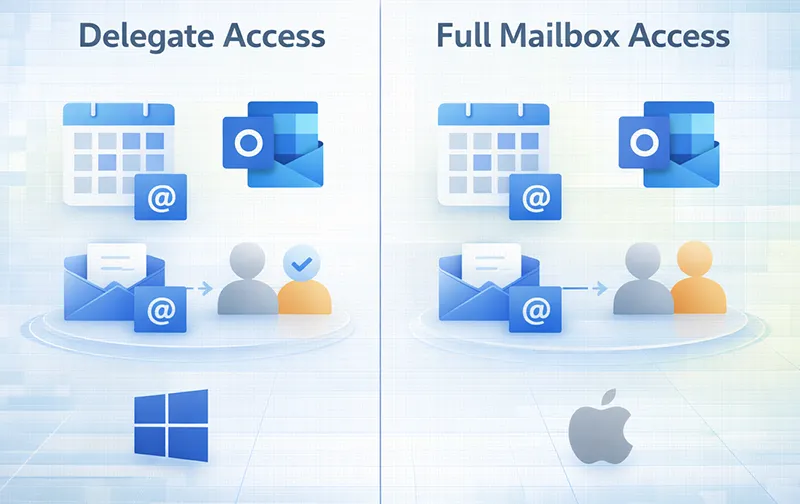
This is the most important concept: Delegate Access is primarily about folder permissions (especially the Calendar). If the requirement is “Nicole needs to manage Nitin’s inbox,” the reliable admin solution is Full Mailbox Access. Microsoft documentation explains Full Access and AutoMapping behavior, including how to disable AutoMapping when needed.:contentReference[oaicite:1]{index=1}
If your organization documents access requests and approvals (recommended), tie mailbox permissions into your operational standards and incident readiness. Helpful background:
Cybersecurity Incidents: Real-World Lessons
and
5 Cybersecurity Tools.
Delegate Role Types Explained (Calendar, Inbox, Tasks, Contacts, Notes)
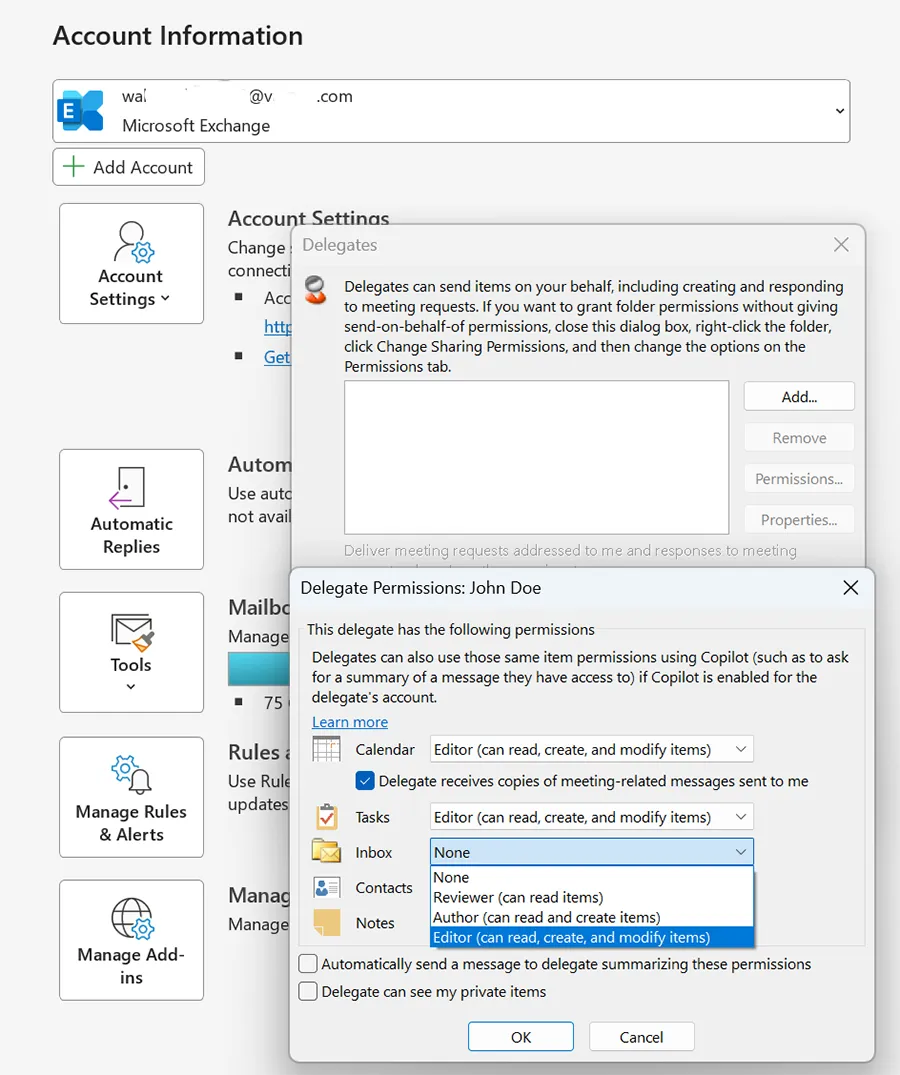
In Classic Outlook for Windows, the Delegate Permissions dialog shows a familiar set of role types:
None, Reviewer, Author, Editor. These roles appear across multiple folders, but their practical impact differs.
Calendar
- Reviewer: can view items (read-only).
- Author: can create new items (meetings) but may have limited edit control depending on item ownership and client behavior.
- Editor: can read, create, modify, and delete items (best for assistants).
Inbox (Email)
Inbox permissions in the delegate UI are often misunderstood. They can behave like “Inbox folder only,” and do not provide consistent full-mailbox behavior on macOS or New Outlook. If the goal is real email management, use Full Mailbox Access in Exchange Online instead.
Tasks, Contacts, Notes
These are legacy delegation areas. Some orgs still use Contacts sharing for executive assistants; Tasks and Notes have weaker modern support and are not consistent across all Outlook apps.
End-User: How Delegates Open the Shared Calendar on Windows
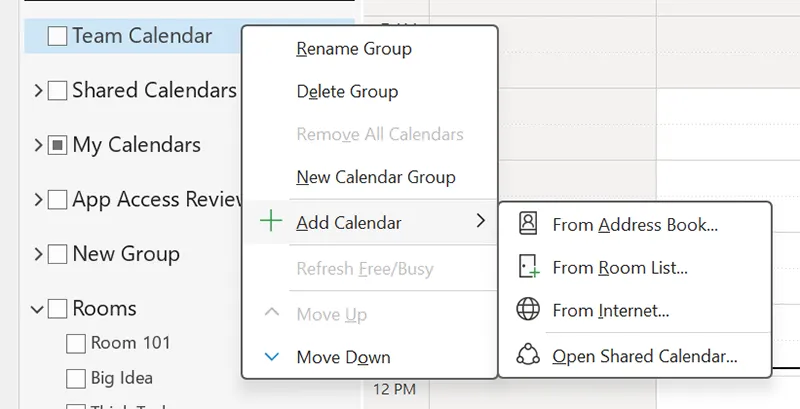
Even with correct Exchange permissions, delegates usually need to add the calendar manually in Outlook on Windows.
Steps (Windows Outlook)
- Open Outlook on Windows.
- Go to Calendar.
- Select Add Calendar (or Add depending on version).
- Choose From Address Book or Open Shared Calendar.
- Search for the calendar owner and click OK.
End-User: How Delegates Open the Shared Calendar on macOS
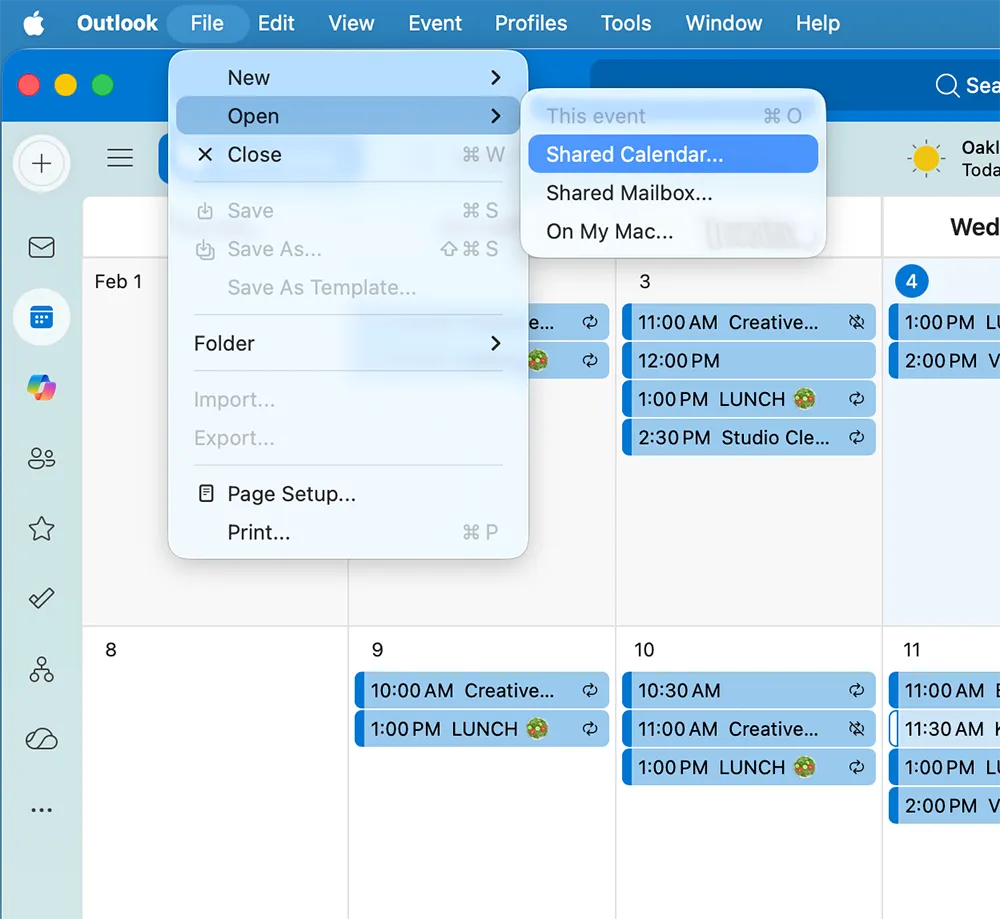
On macOS, delegates should expect to open shared calendars manually. Microsoft’s Mac support guidance covers opening shared folders in Outlook for Mac.:contentReference[oaicite:2]{index=2}
Steps (macOS Outlook)
- Open Outlook on macOS.
- Go to Calendar.
- Use File > Open > Shared Calendar (wording varies by version).
- Search for the calendar owner and click Open.
Inbox Access for Delegates: Will It Auto-Populate on Windows or Mac?
This is where many teams lose time: the delegate expects the owner’s mailbox to “just show up.” The behavior depends on whether the admin granted Full Mailbox Access and whether Outlook uses auto-mapping. Microsoft documentation explains Full Access and auto-mapping behavior, including how to disable it when needed.:contentReference[oaicite:3]{index=3}
Windows Outlook
- May auto-populate if Full Access + auto-mapping is enabled.
- If it doesn’t appear, the delegate can add it manually as an additional mailbox/account (method varies by Classic vs New Outlook).
macOS Outlook
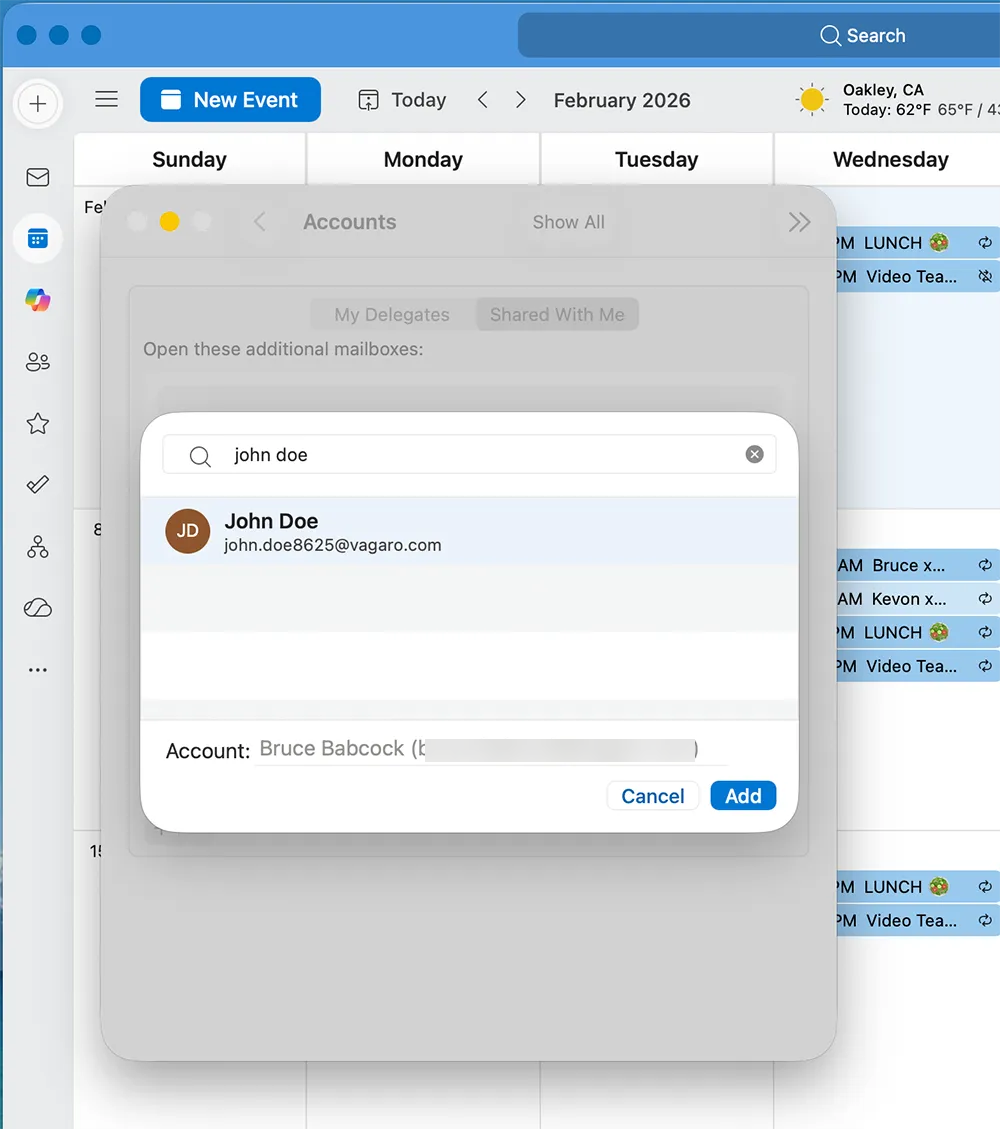
- Shared mailboxes often require manual addition even when permissions are correct.
- Expect “add shared mailbox” steps in Outlook settings.
For mailbox-add behavior and shared mailbox configuration in Outlook desktop, Microsoft provides guidance for adding a shared mailbox as an additional account.:contentReference[oaicite:4]{index=4}
Admin Methods: Configure Access Using Exchange Online PowerShell on a Desktop
If you want consistency, auditing, and easy repetition, Exchange Online PowerShell is the best method—especially when you need calendar-only access (no inbox), or when you must troubleshoot why a delegate can’t see something.
Step 1: Install and Load the Module (Windows/macOS Desktop PowerShell)
Install-Module ExchangeOnlineManagement -Scope CurrentUser -Force
Import-Module ExchangeOnlineManagement
Step 2: Connect (MFA supported)
Connect-ExchangeOnline -UserPrincipalName admin@company.com
If you use an enterprise password policy, review:
Password Management Solution
and
Memorable Passwords Techniques and Tools.
er
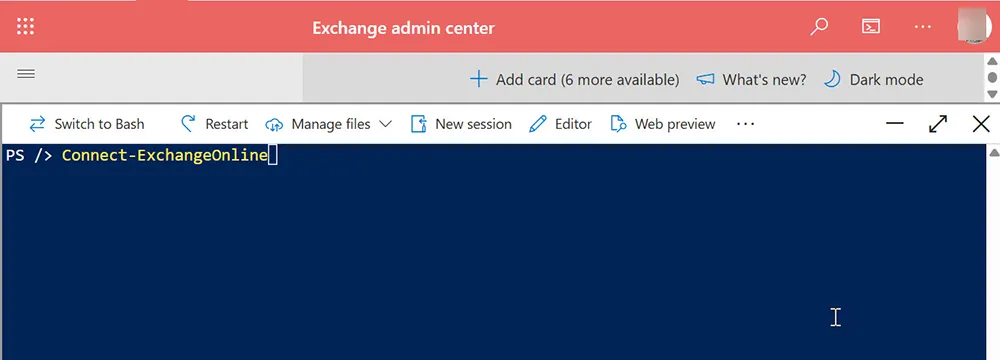
Admin Methods: Use Exchange Online PowerShell in the Browser (Cloud Shell)
If you don’t want to install anything locally (especially if you’re on a Mac and want a quick admin session), use Cloud Shell from within the Microsoft admin portals. This is the method you were using when you ran Connect-ExchangeOnline and saw the EXO v3 module message.
Cloud Shell steps (browser-only)
- Open the admin portal and launch Cloud Shell (PowerShell).
- Run
Connect-ExchangeOnline. - Run your permission commands (calendar-only, Full Access, Send As, etc.).
How to Grant “Full Access” to Calendar Only (No Inbox) Using PowerShell
If your requirement is: “Give Nicole full access to Nitin’s calendar only”—the correct solution is calendar folder permission (Editor), not Full Mailbox Access.
The relevant cmdlet is documented by Microsoft for Exchange PowerShell.:contentReference[oaicite:5]{index=5}
Add calendar permission (first time)
Add-MailboxFolderPermission -Identity owner@company.com:\Calendar -User delegate@company.com -AccessRights EditorVerify calendar permission
Get-MailboxFolderPermission "owner@company.com:\Calendar"Change calendar permission (when an entry already exists)
If you see an error like: “An existing permission entry was found for user…”, it means the delegate already has an entry.
Use Set-MailboxFolderPermission to change it.
Set-MailboxFolderPermission -Identity "owner@company.com:\Calendar" -User delegate@company.com -AccessRights EditorIf you see a warning like: “completed successfully but no permissions have been modified”, it typically means the permission was already set correctly (no changes needed).
Optional: allow viewing private items
Set-MailboxFolderPermission -Identity "owner@company.com:\Calendar" -User delegate@company.com -SharingPermissionFlags Delegate,CanViewPrivateItems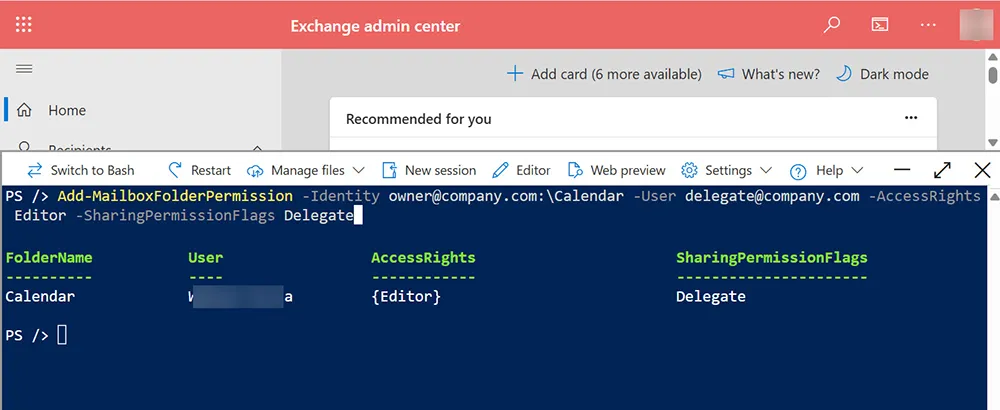
How to Grant Inbox Access (Full Mailbox Access) Using PowerShell
If the delegate needs access to the owner’s emails—not just meetings—you typically grant Full Mailbox Access. Microsoft documentation describes Full Access permissions and auto-mapping behavior.:contentReference[oaicite:6]{index=6}
Add-MailboxPermission owner@company.com -User delegate@company.com -AccessRights FullAccess -InheritanceType AllIf you want to avoid the mailbox auto-opening in Windows Outlook (AutoMapping), many orgs disable AutoMapping for specific scenarios.:contentReference[oaicite:7]{index=7}
Add-MailboxPermission owner@company.com -User delegate@company.com -AccessRights FullAccess -InheritanceType All -AutoMapping $falseHow Delegates Send Meeting Invites “On Behalf Of” the Owner
A common question is: Can the delegate create and send meeting invites for the owner? If the delegate has Calendar Editor and the entry shows delegate-style flags, they can create meetings on the owner’s calendar and send invites “on behalf of” the owner—especially in Classic Outlook for Windows.
Windows tip (important): Nicole must create the meeting on Nitin’s calendar (not her own calendar). Otherwise the invite will come from Nicole directly.
Create Meeting Invites “On Behalf Of” the Owner:
- Open Outlook > Calendar.
- Select the owner’s shared calendar in the left pane.
- Click New Meeting.
Troubleshooting: “Existing permission entry found” and “No permissions modified”
These are the two most common Exchange Online PowerShell messages admins see when assigning calendar permissions:
- An existing permission entry was found: the delegate already had an entry. Use
Set-MailboxFolderPermissioninstead ofAdd-MailboxFolderPermission. - No permissions have been modified: the permission was already set to the same value (nothing to change). This is typically a harmless informational warning.
If the delegate still can’t see the calendar in Outlook after permissions are correct, it is usually an end-user step: they must manually add/open the shared calendar.
On macOS, this is expected behavior.:contentReference[oaicite:8]{index=8}