When an employee leaves a company, their Microsoft OneDrive often still contains important business files such as project handoff notes, spreadsheets, reports, exported data, documentation, HR records, and department files that another employee may need to continue the work. In many Microsoft 365 environments, the easiest solution is not manually downloading everything right away, but assigning the right person access so the files can be reviewed and moved properly. If HR or Legal also need mailbox or Teams content from the same person, that is handled through Purview eDiscovery rather than a OneDrive permission change.
If you are an IT admin, Microsoft 365 admin, SharePoint admin, or helpdesk technician, this is one of the most practical offboarding tasks you will handle. The good news is that Microsoft 365 gives you a straightforward way to grant access through the SharePoint admin center and then open the former employee’s OneDrive directly from the Microsoft 365 admin center.
In this guide, you will learn how to give another employee access to a former employee’s OneDrive in Microsoft 365, how to open that OneDrive after permissions are assigned, and what to do next to keep business files in the right place.
This process also fits nicely with broader employee transition tasks. If you also need to hand over mailbox or calendar access during offboarding, see our related guide on Outlook delegate access for inbox and calendar.
Why this task matters
Former employees often leave behind files that are still needed by their manager, replacement employee, finance team, HR, operations team, or other departments. Those files may still be stored in OneDrive instead of a shared SharePoint document library or Microsoft Teams site.
This becomes especially important when:
- A manager needs access to documents after an employee resignation or termination.
- A replacement employee needs the previous employee’s working files.
- IT is completing an offboarding request and must preserve business continuity.
- A department needs quick access to business-critical files before the OneDrive retention period expires.
- An internal audit or legal request requires temporary review of former employee content.
What this method does
When you use the Manage site collection owners option for a former employee profile, you are adding another user as a Site Collection Administrator on that former employee’s OneDrive site.
That means the newly assigned person gets elevated access to the OneDrive site collection associated with the ex-employee’s account. In practical terms, this usually allows them to open the OneDrive, browse folders, recover files, and move needed business content into a shared location.
This is different from sharing one file or one folder. You are assigning administrative access at the site level.
Before you begin
Before starting, make sure the following are true:
- You have access to the Microsoft 365 admin center.
- Your account has the proper permissions, ideally SharePoint admin.
- The former employee’s OneDrive still exists and has not been removed beyond your organization’s retention period.
- You know which employee should receive access.
- The request has been approved internally according to your company’s offboarding or access control process.
If the former employee’s account was deleted too long ago, their OneDrive may no longer be available. In that case, this workflow will not help because the personal site may already be gone.
How to give another employee access to a former employee’s OneDrive
Step 1: Open Microsoft 365 admin center
Sign in to the Microsoft 365 admin center using an administrator account. In the left navigation pane, go to Admin centers and click SharePoint.
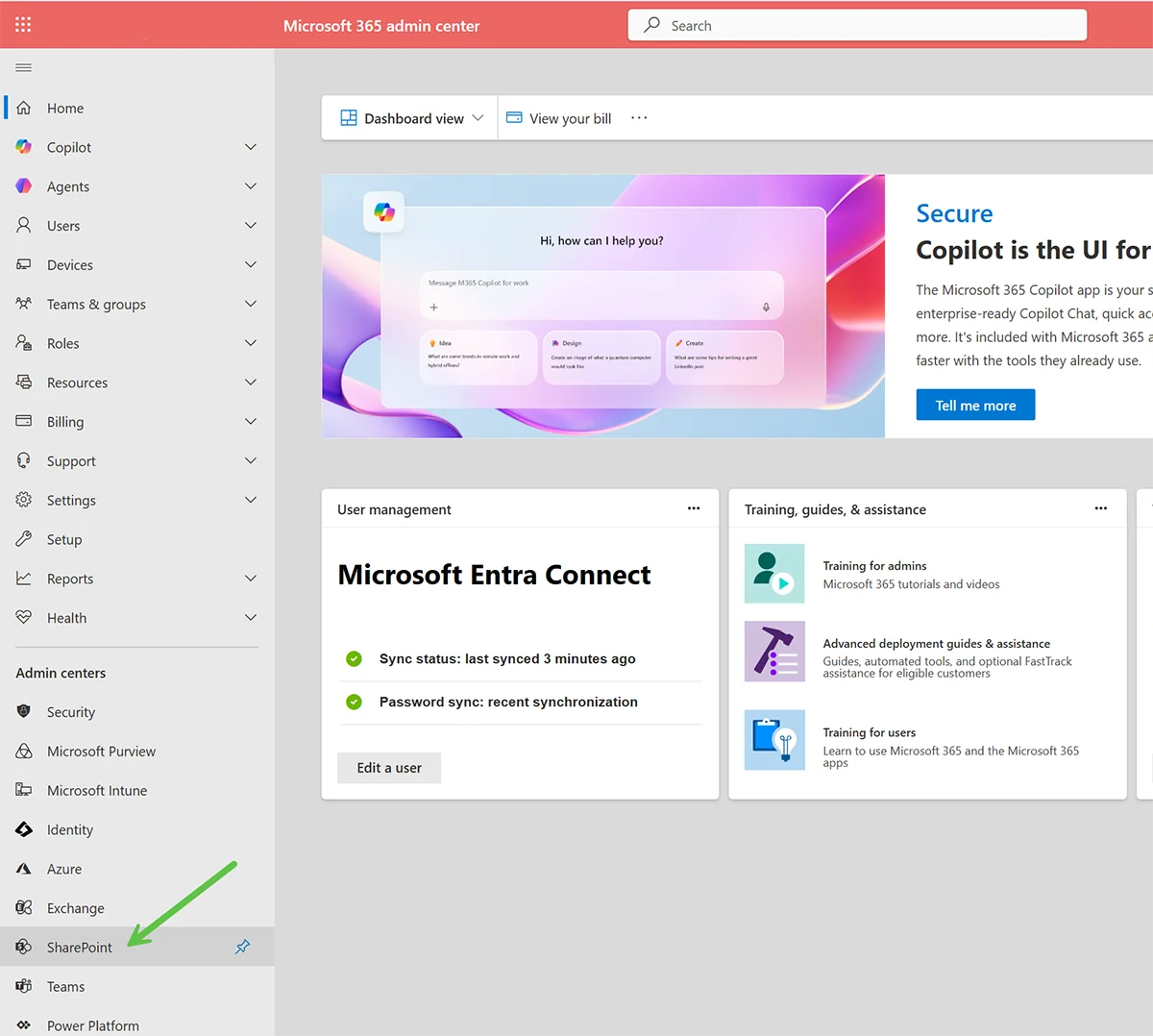
This is the main starting point for SharePoint Online and OneDrive administrative tasks.
Step 2: Open More features
After the SharePoint admin center opens, look at the left-side navigation and click More features.
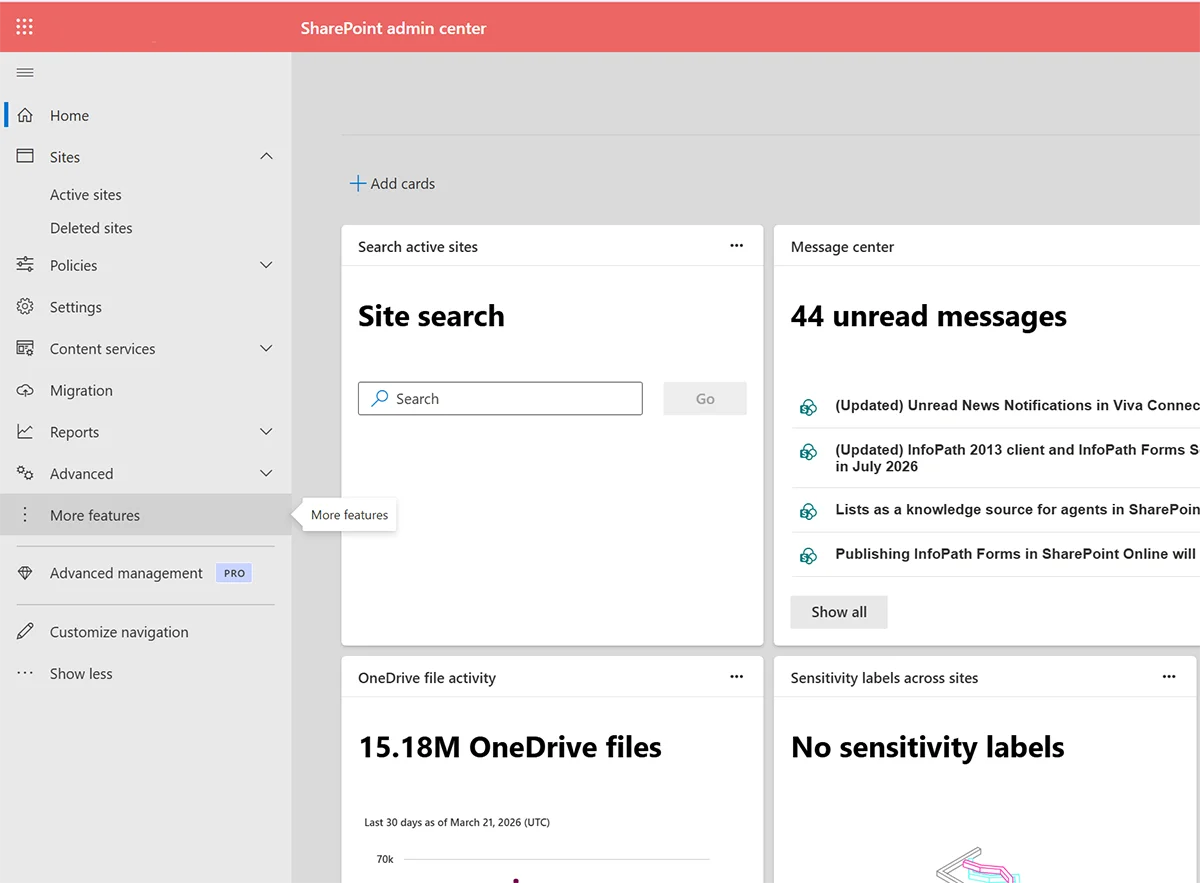
This section contains several classic administrative tools that are still used for tasks such as OneDrive ownership changes and user profile administration.
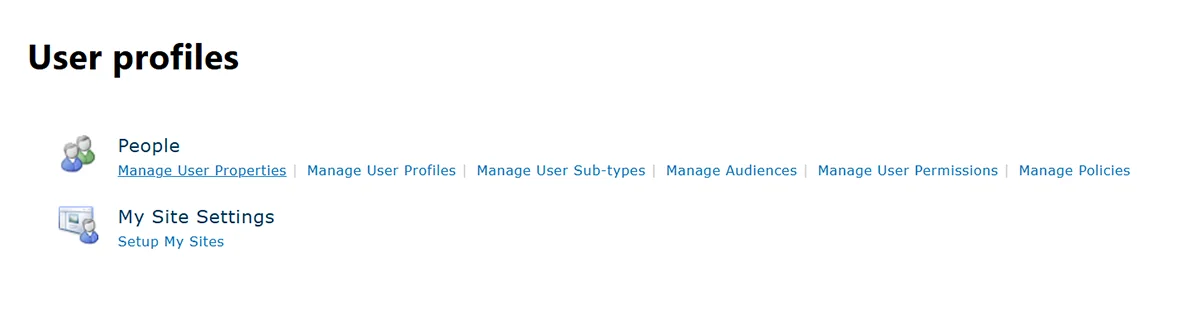
Step 3: Open User profiles
Inside More features, find the User profiles tile and click Open.
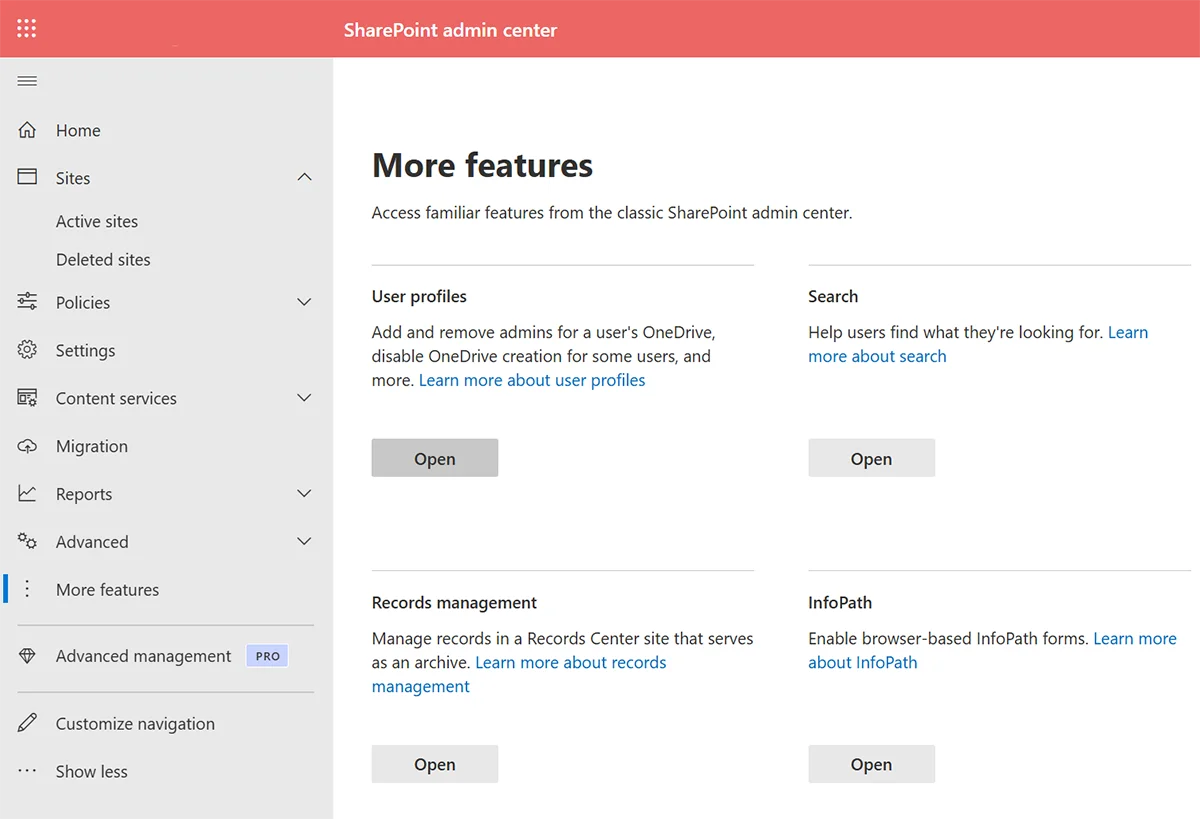
The User Profiles area is where you can locate the former employee and manage their personal site settings. In this case, the personal site is the employee’s OneDrive for Business site.
Step 4: Search for the former employee
On the User profiles page, use the Find profiles search box to search for the former employee. Enter the name and click Find.
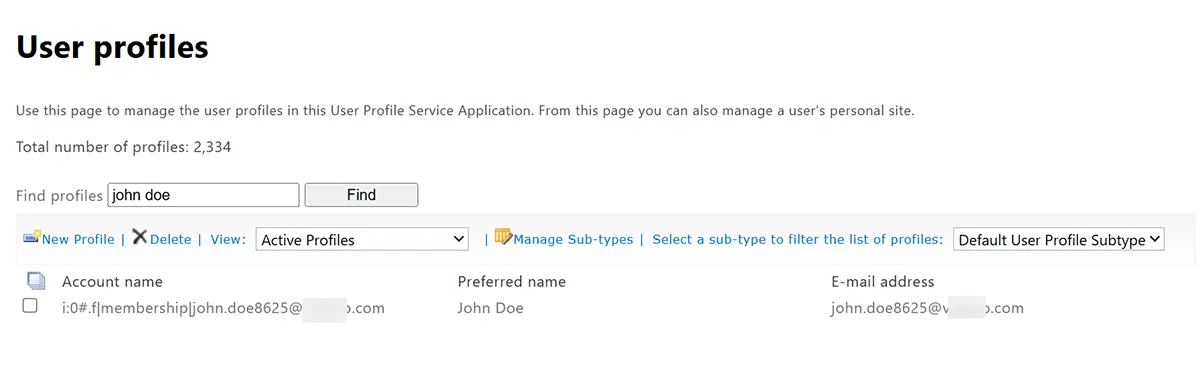
Once the results appear, you should see the employee profile row along with the display name and email address.
Step 5: Open the profile actions menu
After locating the former employee profile, click the dropdown or context menu next to the result. In the menu, choose Manage site collection owners.
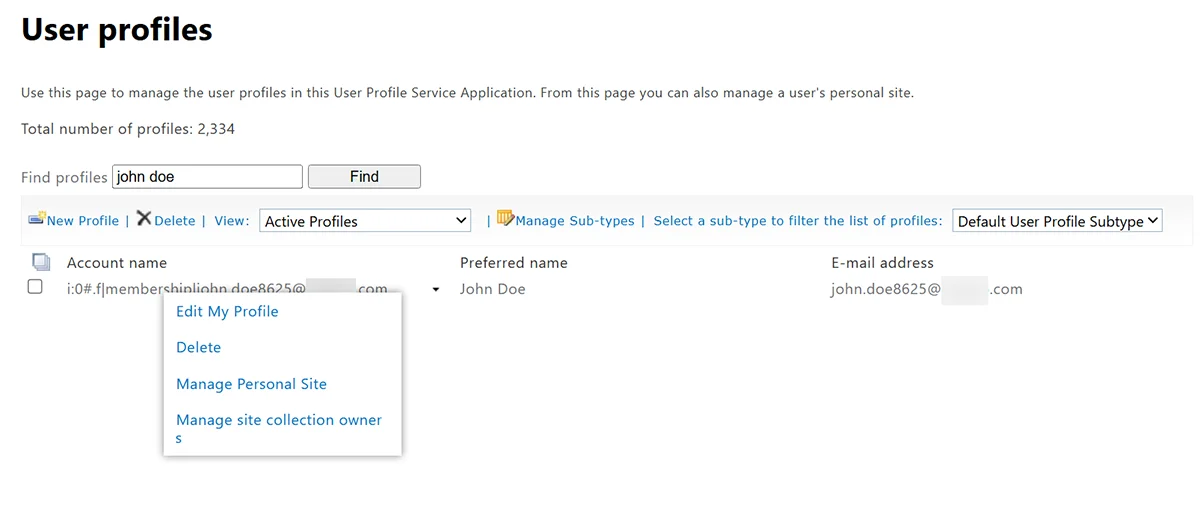
This opens the permission dialog for the former employee’s OneDrive site.
Step 6: Add the new employee as Site Collection Administrator
A site collection owners window opens. In the Site Collection Administrators section, add the employee who should receive access to the ex-employee’s OneDrive.
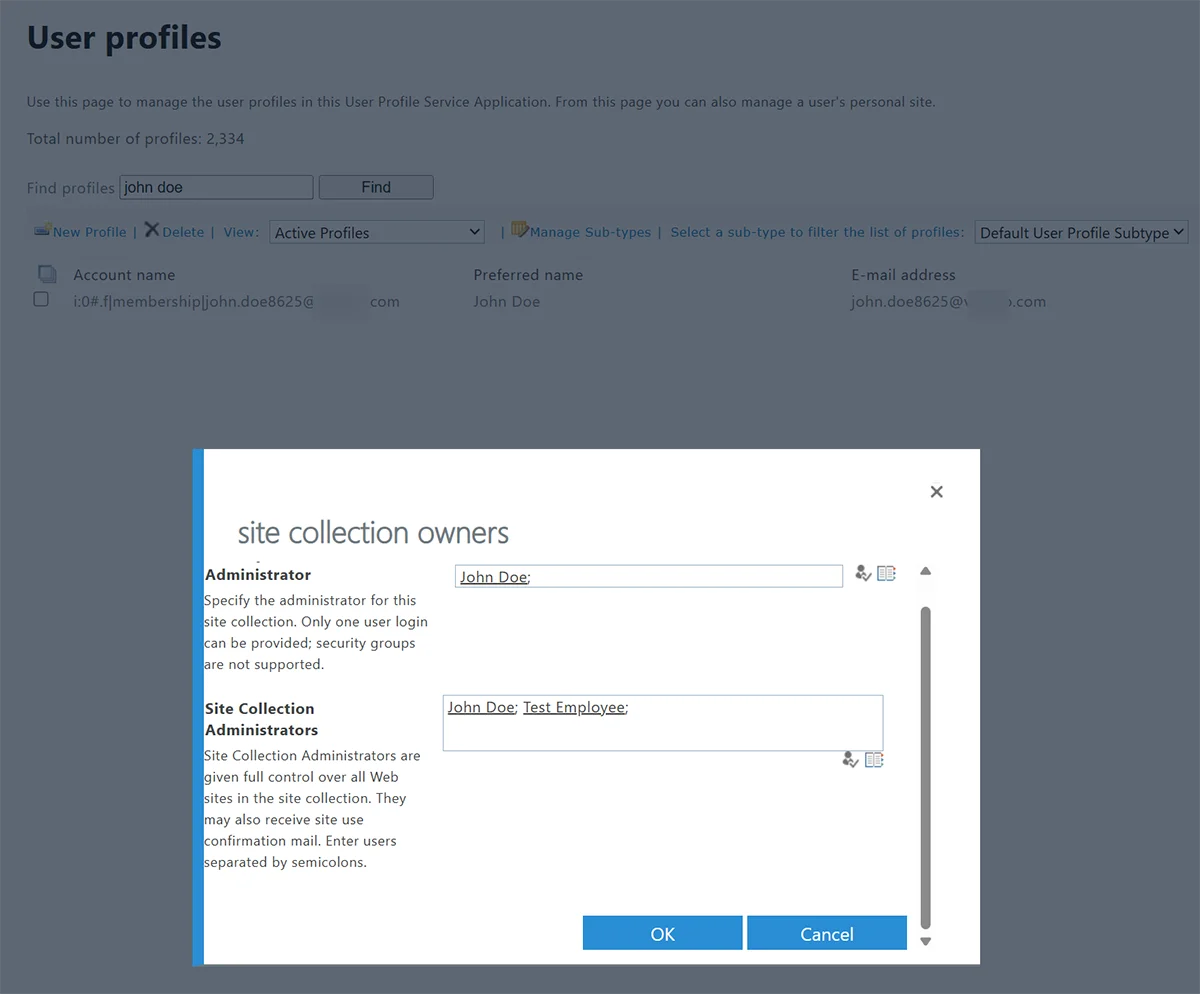
If the name resolves correctly, it will appear in the field automatically. If it does not resolve, use the people picker to search manually.
Step 7: Use the people picker if needed
Click the people picker icon if you need to search for the employee manually. In the Select People and Groups dialog, search for the person, select the correct result, and add them.
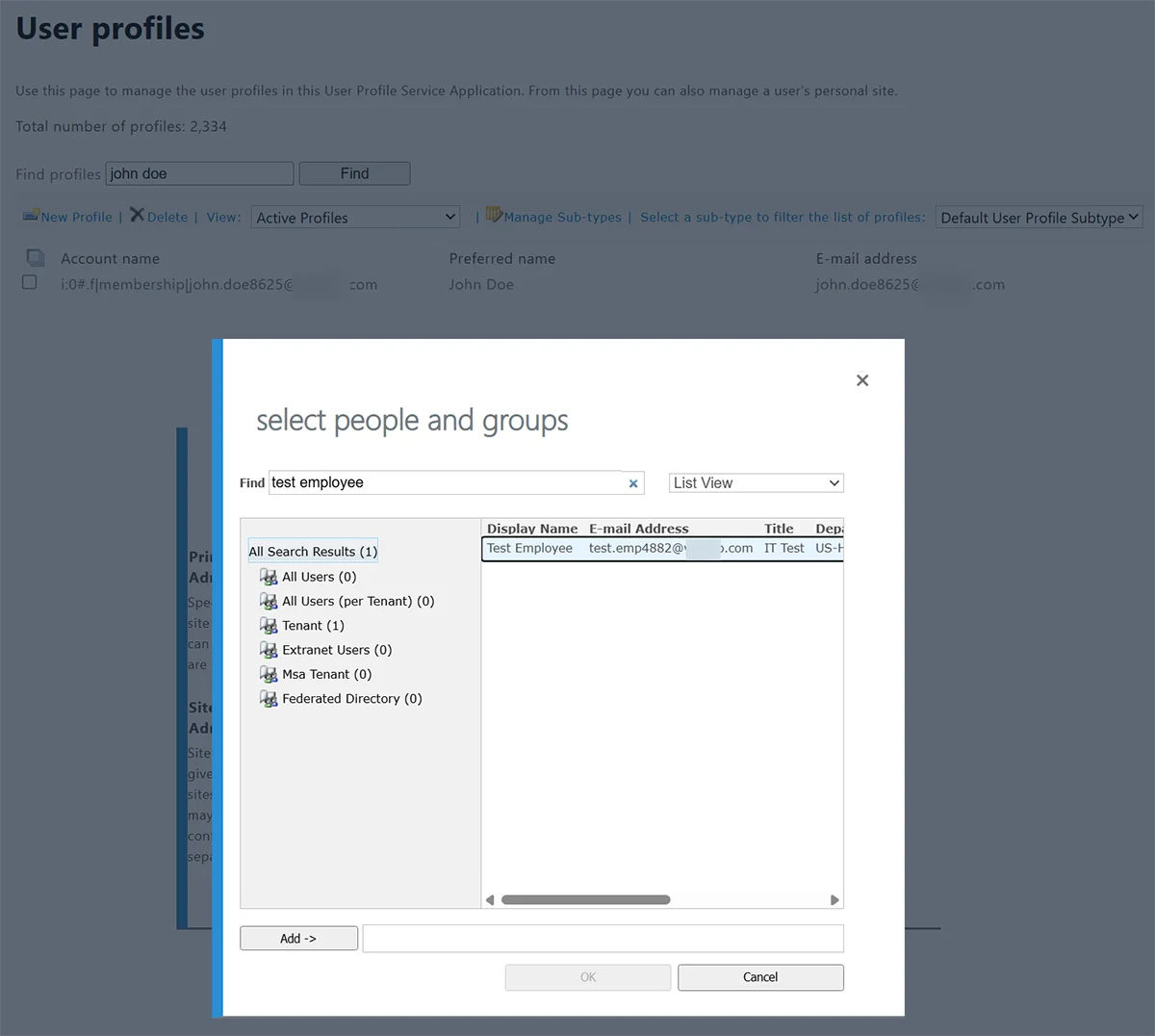
Once the employee has been added to the list, click OK to save the change.
How to access the former employee’s OneDrive files after giving access
After you assign the new employee as a Site Collection Administrator, the next step is opening the former employee’s OneDrive site so the files can actually be reviewed, downloaded, or moved.
If the former employee account still exists in Microsoft 365, the fastest and easiest way is through the Microsoft 365 admin center. This method is useful because it provides the direct OneDrive access link without forcing you to guess the personal site URL manually.
Step 1: Open Active users and search for the former employee
In the Microsoft 365 admin center, go to Users > Active users. Search for the former employee and open their user profile.
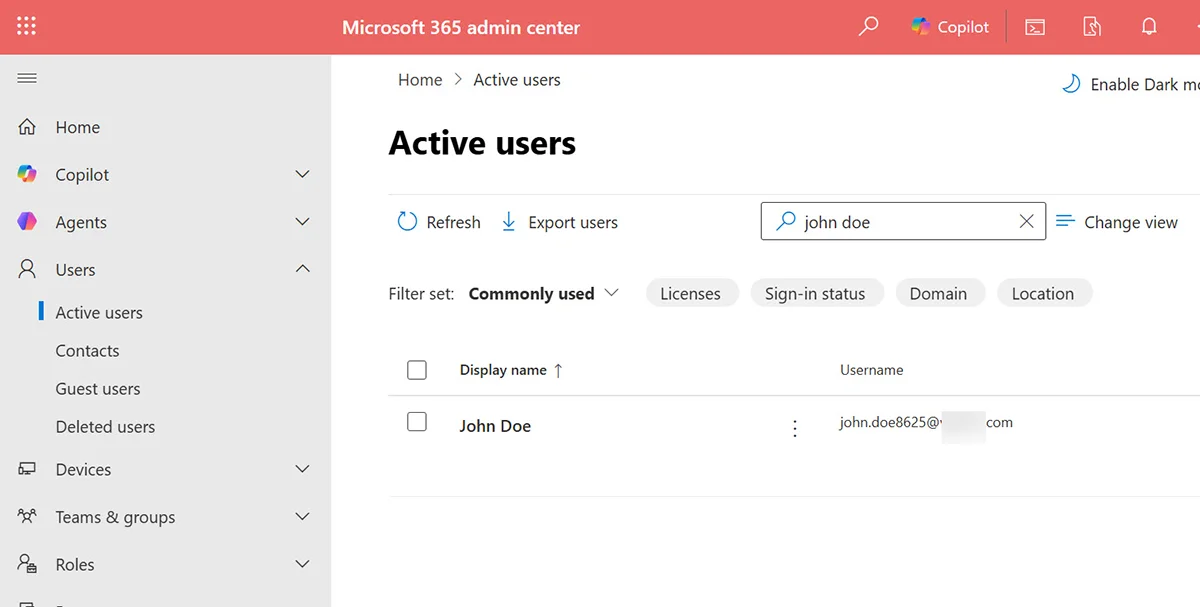
Once you select the user, Microsoft 365 opens their profile page where you can review account settings, devices, licenses, mail, and OneDrive details.
Step 2: Open the OneDrive tab and use the file access link
Inside the former employee’s profile, click the OneDrive tab. In the Get access to files section, Microsoft 365 displays a direct link to that employee’s OneDrive location.
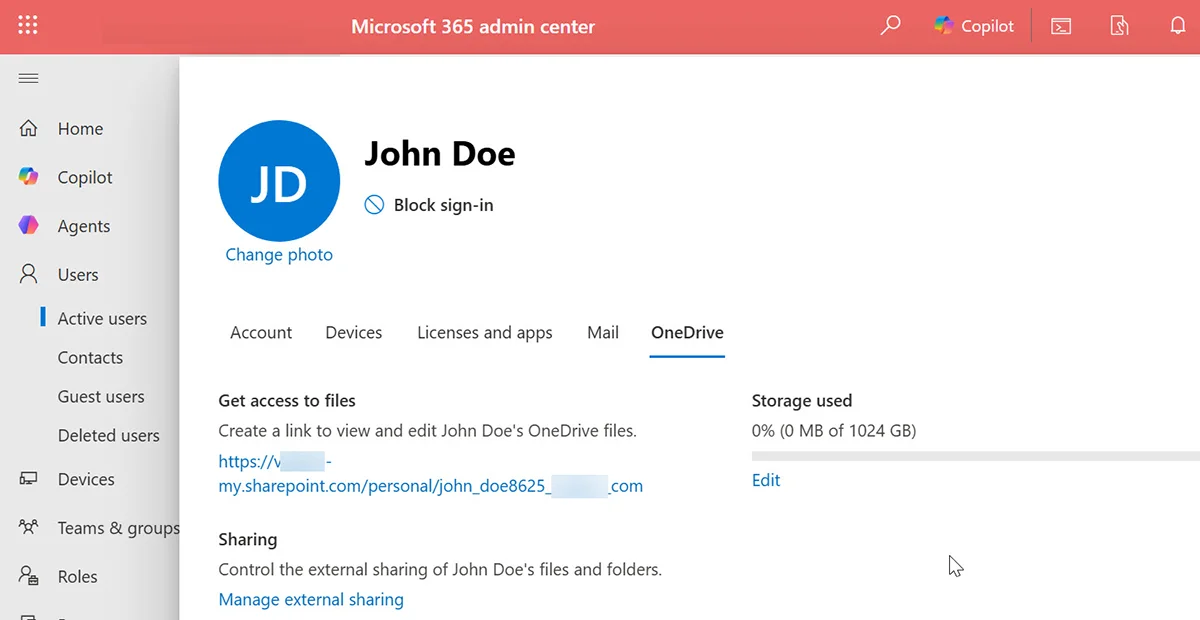
Click that OneDrive link to open the former employee’s OneDrive site. If the permissions were assigned correctly through Manage site collection owners, the authorized employee or admin should now be able to access the files stored there.
Who can open the former employee’s files after access is granted?
After you grant access, the authorized employee you added as a Site Collection Administrator should be able to open the OneDrive files. In many cases, IT may open the link first to verify the permissions are working correctly, then share the approved path or guide the manager or replacement employee to the site.
Depending on your internal process, the person accessing the files might be:
- The former employee’s manager
- The replacement employee
- An HR-authorized staff member
- A department lead
- An IT admin performing the handoff
Even though this is technically possible, access should always follow your internal approval and least-privilege process. Personal OneDrive storage may contain sensitive files that should not be exposed beyond what is necessary.
What to do after opening the OneDrive
Once the OneDrive opens successfully, the new employee or manager can review the files and decide what needs to be kept, downloaded, moved, or archived. In most organizations, the best long-term approach is to move important business content into a department SharePoint library, a Microsoft Teams-backed document library, or another company-managed storage location.
That is usually better than leaving business files inside a departed employee’s personal OneDrive.
This approach helps reduce future dependency on personal storage and makes file ownership cleaner for the business.
What the new employee can do after access is granted
Once the new employee has been added as a Site Collection Administrator, they can typically:
- Open the former employee’s OneDrive site
- Browse folders and files
- Download required documents
- Move important business files into a shared SharePoint location
- Help managers recover information needed for business continuity
Because this is administrative access, the user may be able to see more than just one specific folder. That is why this method should be used carefully and only for approved business reasons.
Common issues and troubleshooting
The user profile appears, but the OneDrive content is missing
If the OneDrive opens but is empty or inaccessible, the retention window may have expired, or the personal site may already have been cleaned up according to your tenant lifecycle rules.
The newly added employee still cannot access the files
Permission changes can take a little time to apply. Wait a few minutes, then test again in a new browser session.
The wrong employee was added
Return to Manage site collection owners, remove the incorrect entry, add the correct employee, and save again.
The former employee does not appear in Active users
If the former employee no longer appears in Active users, their account may already be deleted. In that case, you may need to rely on the SharePoint admin method and retention availability instead of the user profile page in Microsoft 365 admin center.
You cannot open User profiles
This usually points to a permissions issue. Make sure the admin account performing the task has the proper SharePoint administrative rights.
Security and governance considerations
Although this is a very useful administrative process, it should be treated as a controlled access workflow rather than a casual shortcut. Former employee data may include HR, finance, legal, or confidential operational information.
It is a good idea to document:
- Who requested access
- Why access was needed
- Who approved it
- When it was granted
- When it should be removed
This becomes especially important if the OneDrive contains sensitive company records or personal employee data.
If you manage other Microsoft 365 access transitions too, it is worth standardizing them across the same offboarding workflow. For mailbox and calendar delegation, review how Outlook delegate access works for inbox and calendar so your process stays consistent across files, mail, and scheduling.
Best practice after completing this task
The best outcome is not leaving business content inside a departed user’s OneDrive forever. Instead, use this access as a short-term bridge.
A practical offboarding workflow looks like this:
- Grant temporary administrative access
- Confirm the correct files are identified
- Move them to a shared SharePoint site or document library
- Notify the manager or business owner
- Remove the temporary administrative access when finished
This improves security, reduces future confusion, and keeps important company files in the proper business-owned location.
Final thoughts
Giving another employee access to a former employee’s OneDrive in Microsoft 365 is a common but important SharePoint admin task. The key path is SharePoint admin center > More features > User profiles > Manage site collection owners, followed by opening the former employee’s OneDrive from Microsoft 365 admin center > Users > Active users > OneDrive.
Once the new employee is added as a Site Collection Administrator, they can access the OneDrive files, review the content, and move business documents to a shared location where they belong.
If you build this into your Microsoft 365 offboarding checklist, your team will handle file transitions faster, more securely, and with much less stress.
Frequently Asked Questions
Can I give another employee access to a former employee’s OneDrive?
Yes. A SharePoint administrator can add another employee as a Site Collection Administrator for the former employee’s OneDrive site.
Where do I manage a former employee’s OneDrive access?
Go to SharePoint admin center, open More features, then open User profiles. Search for the former employee and choose Manage site collection owners.
How do I open the former employee’s OneDrive after giving access?
If the account still exists, go to Microsoft 365 admin center, open Active users, select the former employee, open the OneDrive tab, and use the direct file access link.
What permission is assigned in this process?
The new employee is added as a Site Collection Administrator, which gives elevated access to the former employee’s OneDrive site collection.
Should the new employee keep permanent access?
Usually no. It is better to use temporary access, move business files to a shared location, and then remove the extra permissions afterward.