This guide explains how to enable or disable Windows Sandbox in Windows 11 using multiple methods, how to fix common issues when the option is missing or greyed out, what changed in recent Windows 11 versions (including 24H2), and how to secure Sandbox networking in enterprise or security-conscious environments. If you’re testing files you received through suspicious messages, it also helps to understand how email exposure in a breach can lead to malware delivery.
What Is Windows Sandbox and When Should You Use It?
Windows Sandbox is a lightweight, disposable Windows instance that runs on top of Microsoft’s hypervisor technology. It launches in seconds, uses a clean Windows image every time, and leaves no trace behind once closed.
You should use Windows Sandbox when you need to:
- Test untrusted applications or installers
- Open suspicious files safely
- Verify scripts or tools before running them on your host system
- Perform one-time testing without creating a full virtual machine
Windows Sandbox is not designed for long-term workloads, persistent environments, or nested virtualization scenarios. If you need a persistent lab, use a full VM instead (see how to create a Hyper-V virtual machine and Hyper-V vs VMware).
What Changed in Windows 11 Version 24H2
Starting with Windows 11 version 24H2, Microsoft introduced a notable behavioral change inside Windows Sandbox. Several inbox applications that normally ship with Windows are no longer present by default inside the Sandbox environment.
Users commonly notice that the following apps are missing:
- Calculator
- Notepad
- Photos
- Windows Terminal
This change affects only the Sandbox environment, not the host operating system. Microsoft has indicated that these apps will be restored in future updates, but as of current 24H2 builds, their absence is expected behavior and not a configuration issue.
Importantly, the prerequisites, installation steps, and overall functionality of Windows Sandbox remain unchanged in 24H2. If you’re troubleshooting Windows features after upgrades or you suspect a licensing-related issue, confirm your activation state first (see check Windows activation status and Windows activation status explained).
Before You Enable Windows Sandbox
Before enabling Windows Sandbox, verify that your system meets all requirements. Most “Sandbox missing” or “checkbox greyed out” issues stem from one of these prerequisites not being met. It also helps to confirm whether your system has been running for a long time without a reboot (see how to check computer uptime), especially after Windows Updates.
Edition Requirements
- Windows 11 Pro
- Windows 11 Enterprise
- Windows 11 Education
Windows Sandbox is not supported on Windows 11 Home. If you are running Home edition, the feature will not appear even if your hardware supports virtualization.
Hardware and Firmware Requirements
- 64-bit (x64) or ARM64 CPU
- Virtualization enabled in BIOS or UEFI
- At least 4 GB RAM (8 GB recommended)
- At least 2 CPU cores (4+ recommended)
- SSD storage recommended for performance
On managed or security-hardened devices, features such as Core Isolation or Memory Integrity may also impact Sandbox availability. If your system has update-related instability or corruption symptoms, repair Windows first using DISM and SFC repair steps. If storage is tight, freeing space can also help (see clean up disk space on Windows 11 and delete temporary files in Windows 11).
How to Enable Windows Sandbox in Windows 11
Windows Sandbox can be enabled using multiple supported methods. Choose the method that best fits your environment.
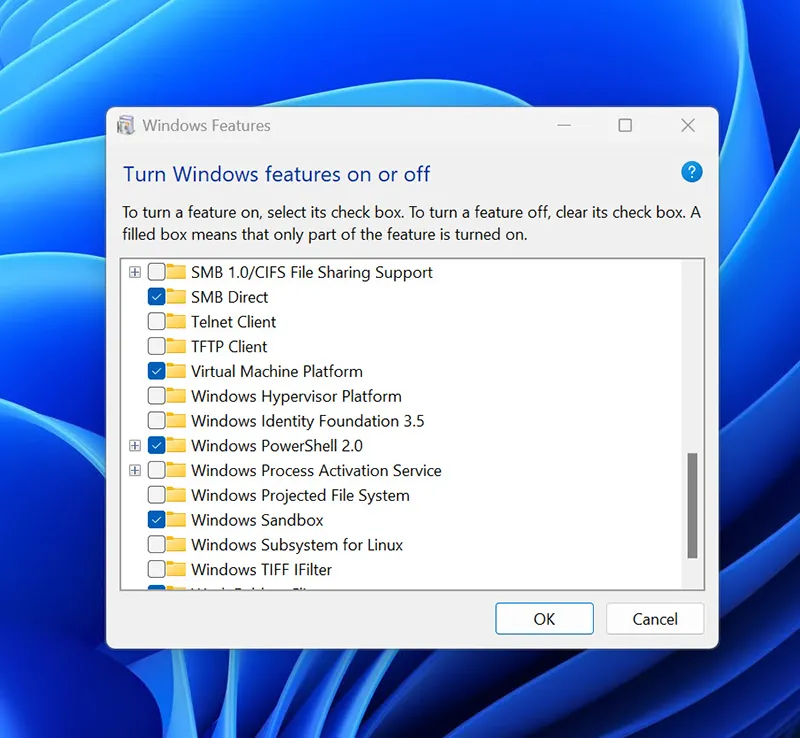
Method 1: Enable Windows Sandbox Using Optional Features (GUI)
- Open the Start menu and search for Turn Windows features on or off.
- In the Windows Features dialog, locate Windows Sandbox.
- Check the box next to Windows Sandbox.
- Select OK and allow Windows to apply the changes.
- Restart the system when prompted.
Method 2: Enable Windows Sandbox Using PowerShell
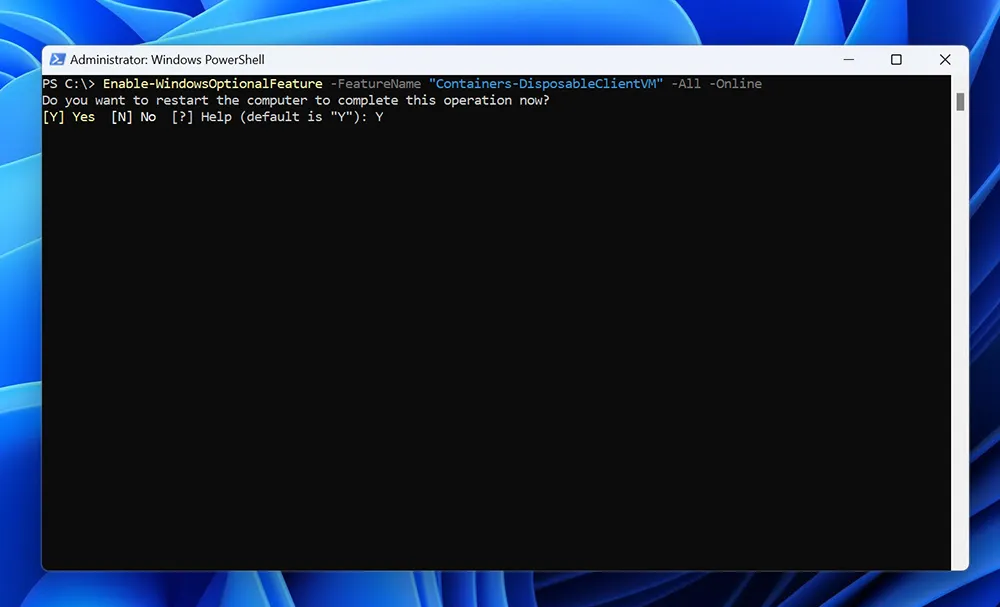
PowerShell is commonly used by administrators for scripted or remote enablement.
Enable-WindowsOptionalFeature -FeatureName "Containers-DisposableClientVM" -All -OnlineAfter the command completes, restart the device to finalize the installation. If this fails with component or servicing errors, run a repair pass first (see how to use DISM/SFC to repair Windows 11).
Method 3: Enable Windows Sandbox Using DISM
Deployment Image Servicing and Management (DISM) is useful for enterprise imaging and advanced troubleshooting scenarios.
DISM /Online /Enable-Feature /FeatureName:Containers-DisposableClientVM /AllThis method is frequently used in task sequences, offline images, or repair scenarios. If you see DISM errors during feature enablement, follow a structured repair workflow in this DISM/SFC guide.
Why Windows Sandbox Is Missing or Greyed Out
If Windows Sandbox does not appear or cannot be enabled, use the checklist below to identify the root cause.
Windows Edition Is Not Supported
Windows Sandbox does not work on Windows 11 Home. Upgrading to Pro or higher is required.
Virtualization Is Disabled in BIOS or UEFI
Even if your CPU supports virtualization, it must be enabled in firmware. Common options include Intel VT-x, AMD-V, or SVM Mode.
CPU Does Not Support Virtualization
Older processors or low-power CPUs may lack required virtualization extensions.
Hypervisor Is Not Available
If Hyper-V platform components cannot load, Sandbox will fail to initialize. If your device is unstable after updates, resolve the underlying Windows issues first (see fix Windows 11 update error codes).
Conflicting Virtualization or Security Features
Third-party hypervisors or advanced security features may interfere with Sandbox initialization on some systems. If your system is sluggish or stuck after recent updates, review common causes like high disk usage after update and Windows 11 slow performance after update. If you’re using encryption features, understanding BitLocker vs Device Encryption can also help with troubleshooting policy restrictions.
How to Disable or Remove Windows Sandbox
Windows Sandbox can be safely disabled if it is no longer required.
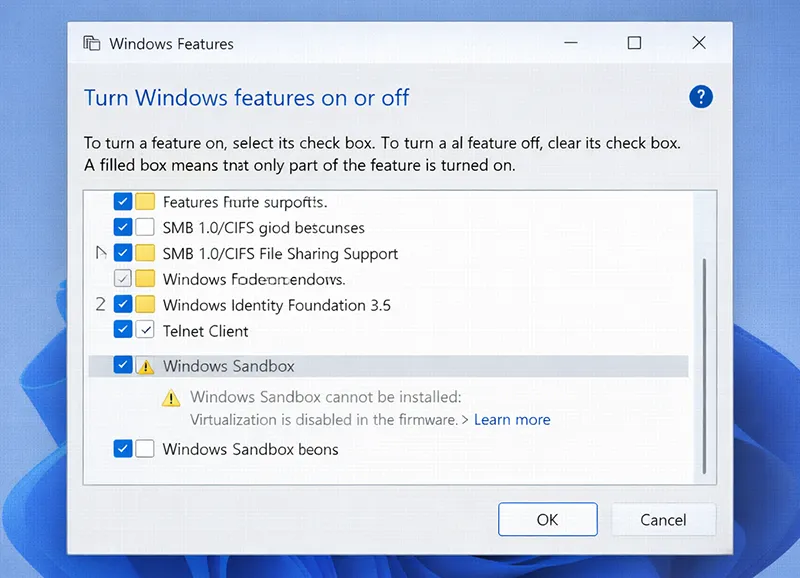
Disable Using Optional Features
- Open Turn Windows features on or off.
- Uncheck Windows Sandbox.
- Apply changes and restart.
Disable Using PowerShell
Disable-WindowsOptionalFeature -FeatureName "Containers-DisposableClientVM" -OnlineDisabling Sandbox does not remove user data, as the environment is disposable by design. If you’re cleaning up Windows components during troubleshooting, you may also want to repair or reset Microsoft Store if Store apps are failing after updates.
Windows Sandbox Security Considerations
Although Windows Sandbox is isolated, it is not completely disconnected from your system or network by default.
Networking Is Enabled by Default
By default, Windows Sandbox has network access. This allows apps inside Sandbox to reach the internet and potentially communicate with internal network resources.
Microsoft warns that enabling networking may expose your internal network if untrusted software is executed. If you want a safer default posture for unknown files, apply a Zero Trust mindset (see what is Zero Trust security).
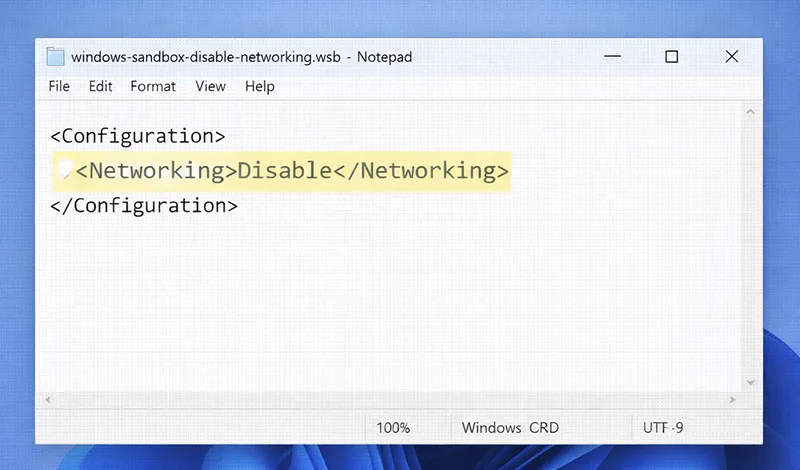
Disabling Networking Using a Windows Sandbox Configuration File
Windows Sandbox supports custom configuration files with a .wsb extension. These files allow administrators and advanced users to control behavior such as networking.
Disabling networking is a recommended best practice when testing unknown or potentially malicious files. If Sandbox testing confirms a threat, follow a full remediation workflow (see how to remove malware and viruses and remove malware from your computer).
Managing Windows Sandbox Networking in Enterprise Environments
In managed environments, Microsoft provides a Mobile Device Management (MDM) Policy CSP that allows administrators to control Windows Sandbox networking behavior across devices.
This approach is commonly used in organizations that rely on centralized security and compliance controls. Strong identity security is also critical in real environments, so consider enabling MFA where possible (see multi-factor authentication).
When You Should Not Use Windows Sandbox
Windows Sandbox is not suitable for:
- Persistent development environments
- Running Linux virtual machines
- Nested virtualization scenarios
- Long-running workloads
For these use cases, full virtual machines or host-based virtualization solutions are more appropriate. If you need a permanent lab setup, start with creating a Hyper-V virtual machine.
If you are specifically trying to run Linux or experiment with nested virtualization, Windows Sandbox is not the right tool. See Can You Run Linux Inside Windows Sandbox? What Works, What Doesn’t, and Better Alternatives for a detailed breakdown and supported options.
Frequently Asked Questions
Is Windows Sandbox safe to use?
Yes. Windows Sandbox provides a strong isolation boundary and automatically discards all data when closed. However, network access should be disabled when testing unknown software. If you are concerned about remote-control threats, see how to protect your computer from remote access trojans.
Does Windows Sandbox affect my main system?
No. Applications and files run inside Windows Sandbox do not persist or modify the host system after the Sandbox is closed. Keeping the host clean also helps performance and troubleshooting (see delete temporary files in Windows 11).
Why does Windows Sandbox not appear on my PC?
The most common reasons are unsupported Windows edition, disabled virtualization in BIOS, or unsupported CPU hardware.
Can malware escape Windows Sandbox?
Windows Sandbox is designed to prevent persistence and system modification. While no security boundary is absolute, Sandbox significantly reduces risk compared to running untrusted software directly on the host. If you suspect infection on the host, follow these malware removal steps.