The January 2026 Windows 11 update chain created a frustrating recovery scenario for some users. The sequence most people ran into started with KB5074109, then moved to the out-of-band updates KB5077744 and KB5078127. If your PC began freezing after sign-in, refusing to restart properly, showing black screens, or becoming unstable right after Windows Update, this guide walks through the safest fixes in the correct order.
Instead of guessing at one universal root cause, the smarter approach is to treat this like a standard cumulative-update failure. That means checking which KB is installed, uninstalling the newest problematic update first, repairing leftover system damage, and then preventing the same update from coming right back before Microsoft ships a more stable cumulative release. The same diagnostic order worked for the earlier KB5065426 update error, which is worth reading if your device stalled on the September 2025 build.
This article is written for regular users, support technicians, and IT admins who need a practical step-by-step recovery process. It avoids the exaggerated claims that often spread in forums and focuses on actions that make sense whether your system still boots normally, only works in Safe Mode, or refuses to reach the sign-in screen.
If your mouse pointer settings reset themselves after a later update, that is a different bug with a different cause — see our fix for the Windows 11 KB5120998 mouse cursor problem.
Which Windows 11 Builds Are Affected?
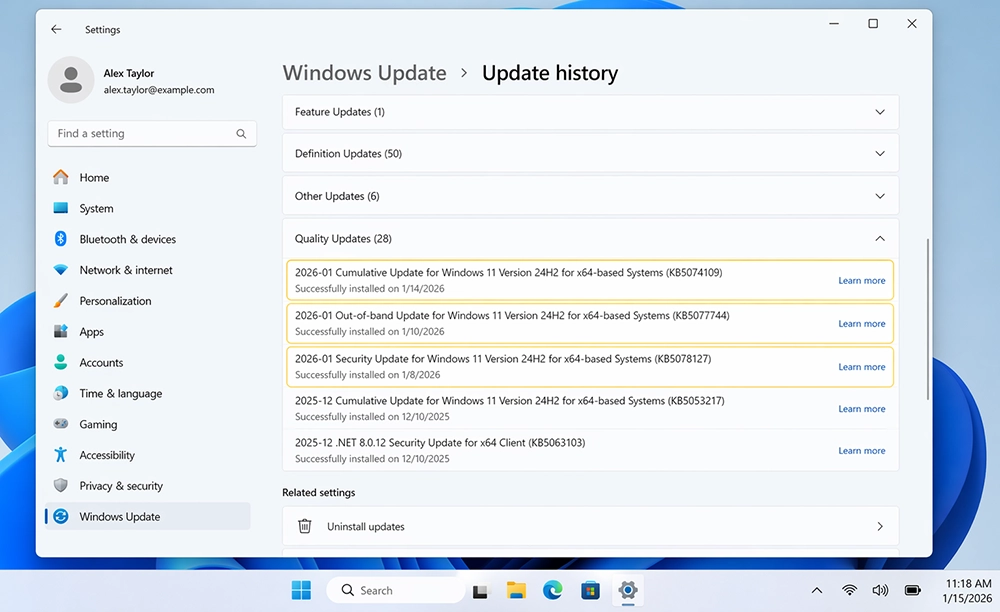
The KB numbers covered in this guide belong to the same January 2026 update chain for Windows 11 24H2 and 25H2. That distinction matters because many online posts mix these updates together with different releases for other Windows 11 versions. If your system shows KB5074109, KB5077744, or KB5078127 in Update History, and you are on 24H2 or 25H2, this troubleshooting process is the right fit.
- KB5074109 — the original January 2026 cumulative update in this chain
- KB5077744 — an out-of-band follow-up update released shortly after
- KB5078127 — a later out-of-band update intended to address remaining issues
If you are not sure what version of Windows 11 you are running, press Win + R, type winver, and press Enter. The version number will appear in the About Windows dialog. Confirming the release first helps prevent unnecessary troubleshooting on systems that are dealing with a different update altogether.
Expert Tip: Before changing anything, take a photo or screenshot of your current Update History. If you need to reverse course later, you will have a clean record of which KB installed first and which one appeared just before the problem began.
Common Symptoms After KB5074109, KB5077744, or KB5078127
These updates do not break every machine in the same way. Some PCs still load to the desktop but become unstable within a few minutes. Others fail during restart or hang during shutdown. In more severe cases, Windows may never reach the sign-in screen.
Signs the January 2026 update chain is the likely trigger
- The issue started immediately after a Windows Update install or forced restart.
- Your Update History shows one or more of the three KB numbers from this guide.
- The PC was stable before the update.
- The system behaves better in Safe Mode than in normal startup.
- Uninstalling the newest quality update improves system stability.
If your machine is only slow and not actually freezing or crashing, begin with general performance cleanup too. For example, readers dealing with broader slowdown can also check how to speed up your computer with Windows OS. But when the timing clearly lines up with a recent cumulative update, rollback should still be the first priority.
If your system locks up completely and you cannot move the mouse or open any apps, this companion guide on how to fix a frozen Windows and macOS computer is also useful for forced shutdown best practices and general recovery steps.
Fix #1: Uninstall the Latest Problem Update from Settings
If Windows still boots and you can reach Settings, uninstalling the latest January update is the fastest and safest first move. Most users should start here before trying advanced repair commands or driver changes.
How to uninstall the update
- Press Win + I to open Settings.
- Go to Windows Update > Update history.
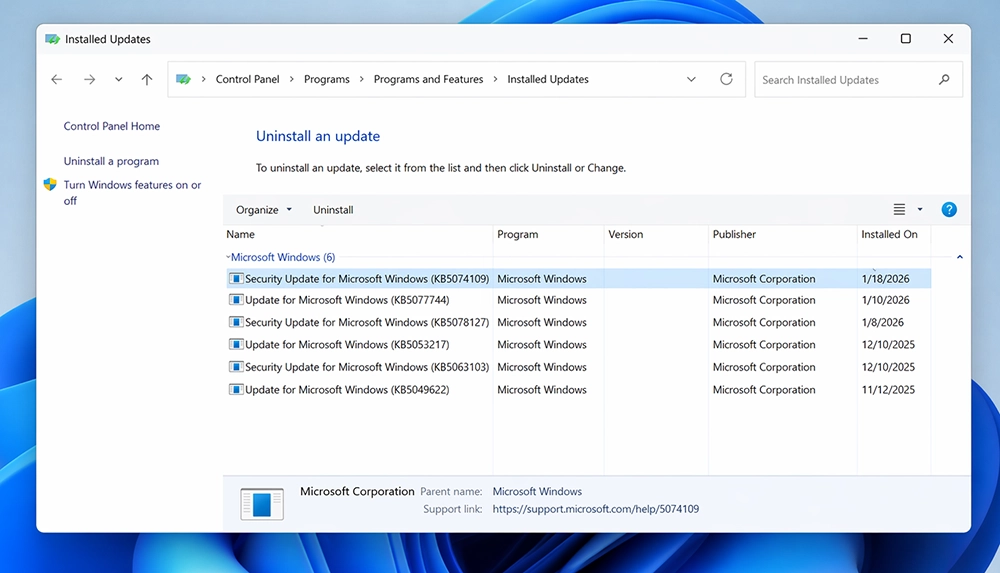
- Scroll down and select Uninstall updates.
- Find the newest January 2026 update installed on your system.
- Click Uninstall and restart the computer.
If more than one of these January updates appears in the list, remove the newest one first. Because Windows cumulative updates stack on top of each other, uninstalling the most recent one often resolves the issue without requiring you to remove every earlier update manually.
Once the system restarts, test it for at least ten to fifteen minutes. Open File Explorer, launch your browser, try a restart, and confirm that the freezing or shutdown issue is gone before moving on. If the PC becomes stable again, you have a strong indication that the update chain was the cause.
Fix #2: Use Safe Mode if the Desktop Freezes Too Quickly
When the desktop loads but becomes unusable almost immediately, Safe Mode gives you a better environment to work in. It starts Windows with a minimal set of drivers and services, which makes it easier to remove problematic updates or run repair tools without the same crash pattern interrupting you.
How to boot into Safe Mode
- Hold Shift while clicking Restart.
- Choose Troubleshoot > Advanced options > Startup Settings.
- Select Restart.
- Press 4 for Safe Mode or 5 for Safe Mode with Networking.
Once in Safe Mode, remove the newest update from the uninstall list or use the built-in Windows Update Standalone Installer command. This is especially helpful when the Settings app refuses to load or the desktop becomes unstable before you can finish the uninstall process.
wusa /uninstall /kb:5078127 /quiet /norestart
wusa /uninstall /kb:5077744 /quiet /norestart
wusa /uninstall /kb:5074109 /quiet /norestart
Only uninstall the updates that are actually present on your computer, and always start with the newest installed package. That keeps the rollback clean and reduces the chance of removing more than necessary.
Fix #3: Use Windows Recovery Environment If Windows Will Not Boot
If your PC never reaches the desktop or even the sign-in screen, you need to work from the Windows Recovery Environment. This built-in recovery layer lets you remove the latest quality update even when normal Windows startup is no longer reliable.
Steps to uninstall the latest update in WinRE
- Interrupt startup three times in a row to trigger recovery, or boot from Windows installation media.
- Select Troubleshoot > Advanced options.
- Choose Uninstall Updates.
- Select Uninstall latest quality update.
- Allow the process to complete, then restart the PC.
This method is usually the best first recovery action when a cumulative update prevents Windows from booting. If the rollback works, pause updates immediately before reconnecting the system to normal update checks.
If the machine still refuses to boot after removing the latest quality update, the problem may involve file corruption, storage health, or a driver conflict that surfaced during the update cycle. At that stage, protecting important files becomes just as important as fixing Windows itself. For that scenario, guide readers to how to recover lost data before deeper repair work.
Fix #4: Run DISM and SFC After the Rollback
Sometimes the update itself is removed successfully, but the operating system still feels unstable afterward. In that case, Windows may have leftover servicing corruption or damaged system files. That is where DISM and SFC come in.
Open an elevated Command Prompt and run the following commands one at a time:
DISM /Online /Cleanup-Image /CheckHealth
DISM /Online /Cleanup-Image /ScanHealth
DISM /Online /Cleanup-Image /RestoreHealth
sfc /scannow
These commands check the health of the Windows image, repair damaged components, and restore protected system files. After they complete, restart the computer and test the system again under normal use.
This is also a good time to clean temporary files and reduce update leftovers. If you want to keep the article tightly integrated with your existing Windows content, you can point users to how to use Disk Cleanup to delete temporary files or how to delete temporary files in Windows 11.
Run DISM and SFC if you still notice any of these
- Windows Update errors after uninstalling the KB
- Apps crashing or hanging after login
- Strange restart or shutdown behavior
- File Explorer or system utilities loading slowly
Fix #5: Check Drivers, GPU Stability, and Peripheral Conflicts
Not every issue in a bad update cycle comes purely from Windows files. Sometimes the update exposes an existing driver problem, outdated chipset package, unstable GPU driver, or firmware issue. That is why one machine may freeze after the update while another system on the same KB installs fine.
- GPU drivers: download the latest stable package from NVIDIA, AMD, or Intel.
- Chipset and storage drivers: use your motherboard or PC vendor support page.
- Docking stations and USB accessories: disconnect nonessential devices while testing.
- BIOS or firmware: only update if your vendor specifically lists a stability fix.
Apply this step after the Windows rollback, not before. Troubleshooting becomes much harder when you change drivers and Windows updates at the same time, because you lose the ability to identify which action actually fixed the problem.
Comparison: Which Fix Should You Try First?
| Scenario | Best First Move | Time Needed | Skill Level |
|---|---|---|---|
| PC still opens Settings | Uninstall the newest January update from Update History | 5 to 10 minutes | Beginner |
| Desktop freezes after sign-in | Boot Safe Mode and remove the newest installed KB | 10 to 20 minutes | Intermediate |
| Windows does not boot | Use WinRE and uninstall latest quality update | 15 to 30 minutes | Intermediate |
| System boots but stays unstable | Run DISM and SFC after rollback | 20 to 40 minutes | Intermediate |
| Crashes continue after rollback | Update drivers, inspect storage, and isolate peripherals | 20 to 60 minutes | Advanced |
How to Stop Windows from Reinstalling the Same Update
After a successful rollback, do not let Windows immediately reinstall the same problem patch. Pause Windows Update right away, then hide the update if needed using Microsoft’s Show or Hide Updates troubleshooter.
- Open Settings > Windows Update.
- Pause updates for the maximum time available.
- Use the Show or Hide Updates tool if the same KB is offered again.
- Check Microsoft’s Windows update history before resuming updates.
This should be treated as a temporary hold, not a permanent solution. Security updates still matter. The goal is to skip the unstable release, then move to a newer cumulative update once Microsoft has shipped a more stable build.
Pro Tip: A temporary pause of one to two weeks after a major problem update is often enough to let Microsoft or your hardware vendor correct the most disruptive issues without leaving your PC unpatched for months.
What Not to Do During Recovery
- Do not disable Windows Update permanently.
- Do not install random third-party “repair” tools or registry cleaners.
- Do not remove drivers before first testing a Windows update rollback.
- Do not keep hard-powering the machine off without attempting recovery mode.
- Do not ignore signs of failing storage or repeated file-system errors.
Bad update cycles are frustrating, but the worst outcomes usually happen when users panic and make too many changes at once. A clean process gives better results: identify the update, uninstall it, test stability, repair the image, then review drivers only if the problem remains.
Preventing Future Windows Update Disasters
You cannot eliminate update risk completely, but you can reduce the damage when a bad release appears. These habits make recovery much easier for both home users and IT teams:
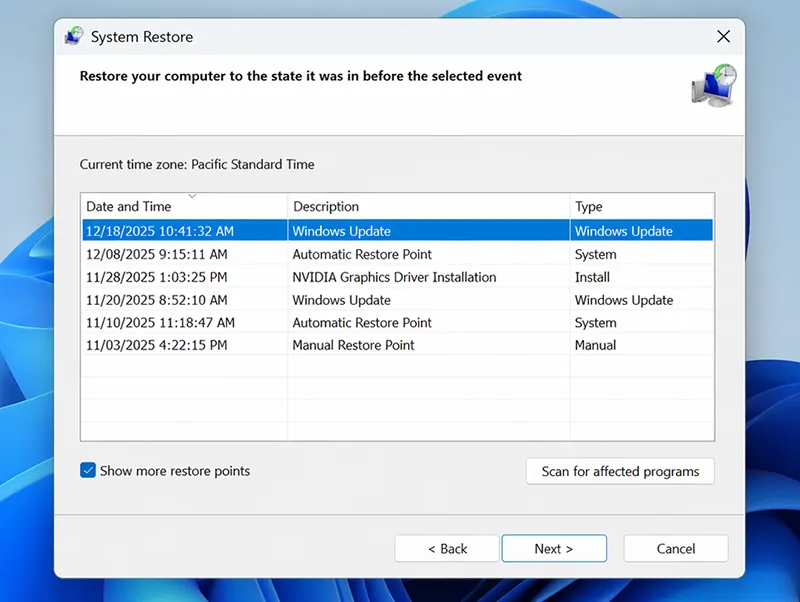
- Create restore points before Patch Tuesday on important systems.
- Keep a bootable Windows installation USB ready for recovery.
- Back up important files before major updates install.
- Delay optional updates until early user reports are available.
- Document driver versions on gaming PCs or workstation builds.
It also helps to keep your maintenance routine in shape. Basic cleanup articles like how to speed up your computer with Windows OS and storage-related cleanup guides support better overall stability and leave less room for update installs to fail under poor system conditions.
Final Thoughts
KB5074109, KB5077744, and KB5078127 created a confusing January 2026 update chain for Windows 11 users on 24H2 and 25H2. The good news is that the recovery path is straightforward when you follow the right order. Start by uninstalling the newest problem update, use Safe Mode or WinRE if normal startup is unreliable, repair the operating system afterward, and pause updates until a newer cumulative build is available.
For most users, the winning sequence is simple: rollback first, repair second, drivers third. That order gives you the best chance of restoring a stable Windows 11 system without turning one bad update into a full system rebuild.
Frequently Asked Questions
What do KB5074109, KB5077744, and KB5078127 apply to?
These January 2026 updates apply to Windows 11 version 24H2 and 25H2. They are cumulative updates in the same release chain.
Which fix should I try first if my PC started freezing after the update?
Start by uninstalling the latest quality update from Settings or WinRE. If the PC becomes stable afterward, pause updates and wait for a newer cumulative release.
Can I remove these updates from Safe Mode?
Yes. If the desktop is unstable, boot into Safe Mode or Windows Recovery Environment and uninstall the latest quality update there.
Should I install a newer cumulative update instead of staying on the broken one?
Usually yes. Windows cumulative updates supersede older ones, so a newer stable cumulative update can be a cleaner long-term fix than staying indefinitely on the January build.
How do I stop Windows from reinstalling the same update right away?
After uninstalling, pause Windows Update and, if needed, use Microsoft’s Show or Hide Updates troubleshooter so the same update does not return immediately.