When the Windows 11 Search bar stops working, it’s not just annoying—it can break your daily workflow. Search is tied to the taskbar, Start menu, Settings, File Explorer, and Windows indexing. So if Search won’t open, you can’t type, or results come back blank, the problem is usually deeper than “just the search box.”
In 2025, Windows 11 also went through major servicing changes across 23H2, 24H2, and the rollout of 25H2. Microsoft publishes update history pages and monthly cumulative updates that can change shell behavior (including Search and the taskbar), so it’s common to see Search issues right after a cumulative update, a preview update, or a feature upgrade. Windows 11, version 24H2 update history (Microsoft) • Windows 11, version 25H2 update history (Microsoft)
This guide is written for home users and IT teams and follows Microsoft-aligned troubleshooting. It also includes recent changes like Microsoft moving legacy troubleshooters toward the Get Help experience (and removing some old inbox troubleshooters). MSDT troubleshooter deprecation (Microsoft)
Symptoms: How Windows 11 Search Bar Problems Show Up
- Search won’t open when you click the taskbar search box/icon.
- You can’t type in the search box (cursor doesn’t appear, typing does nothing).
- Search opens but is blank (empty panel, missing UI, or a white/black empty window).
- No results for apps or files (indexing problem).
- Search crashes instantly or closes after a second.
Before you go deep: do a quick sanity check on basic system health. A frozen shell can look like “search is broken.” If your PC is sluggish or hangs, use this first: Fix Frozen Computer (Windows) and confirm Windows Explorer is responding.
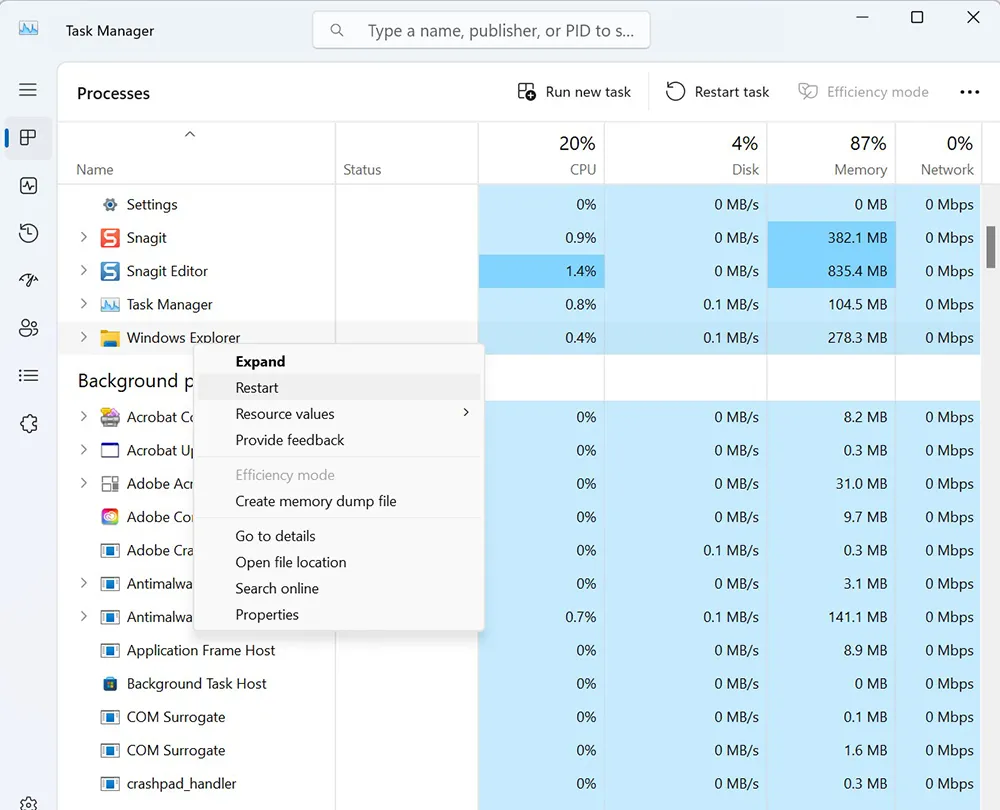
1. Restart Windows Explorer (Fastest Safe Fix)
Search is integrated with the Windows shell. Restarting Explorer reloads the taskbar and Start/Search UI without rebooting.
- Press Ctrl + Shift + Esc to open Task Manager.
- Find Windows Explorer (Processes tab).
- Right-click → Restart.
2. End and Restart SearchHost.exe
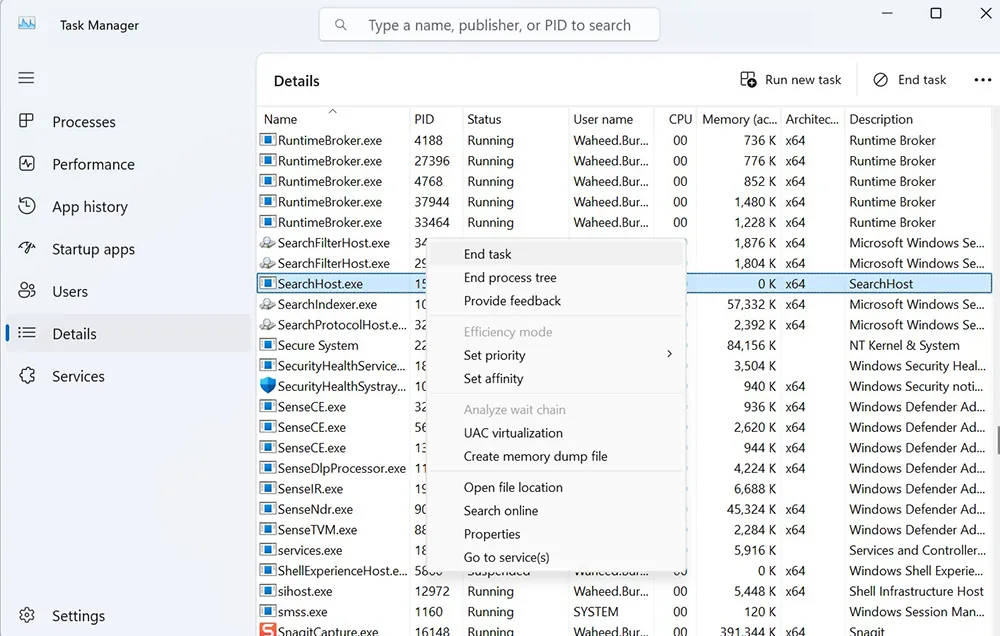
On many Windows 11 builds, Search runs under a SearchHost.exe process. If the UI is stuck, ending that process forces Windows to relaunch it.
- Open Task Manager (Ctrl + Shift + Esc).
- Go to the Details tab.
- Find SearchHost.exe.
- Right-click → End task.
- Click the Search box again and test.
3. Restart the Windows Search Service
Microsoft’s Windows Search guidance includes validating services and related dependencies when Search fails. Fix problems in Windows Search (Microsoft Learn)
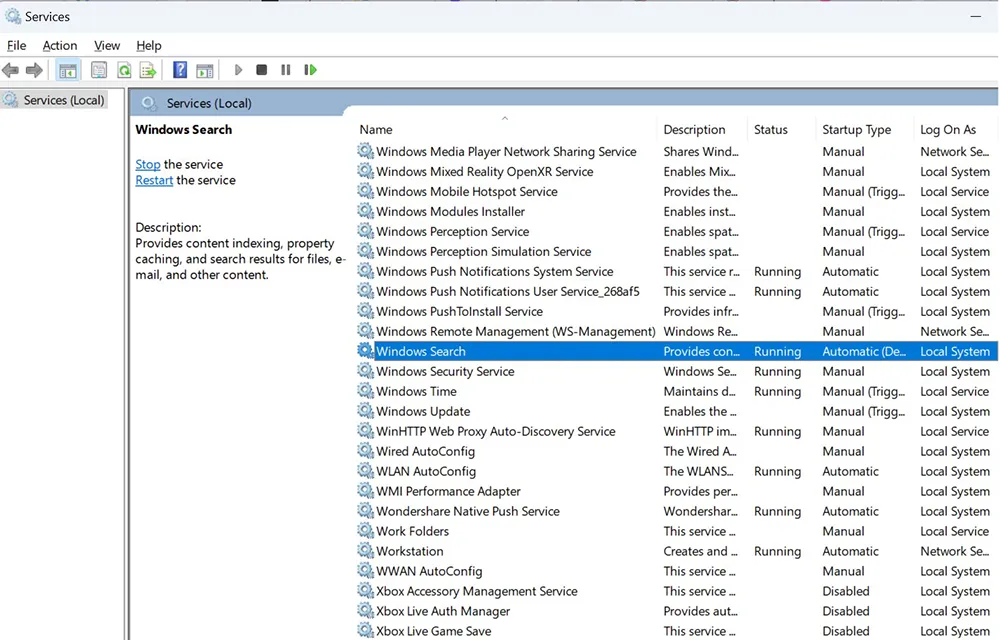
- Press Windows + R, type
services.msc, press Enter. - Locate Windows Search.
- Right-click → Restart.
- (Optional) Set Startup type to Automatic (Delayed Start).
4. Run the Search and Indexing Troubleshooter
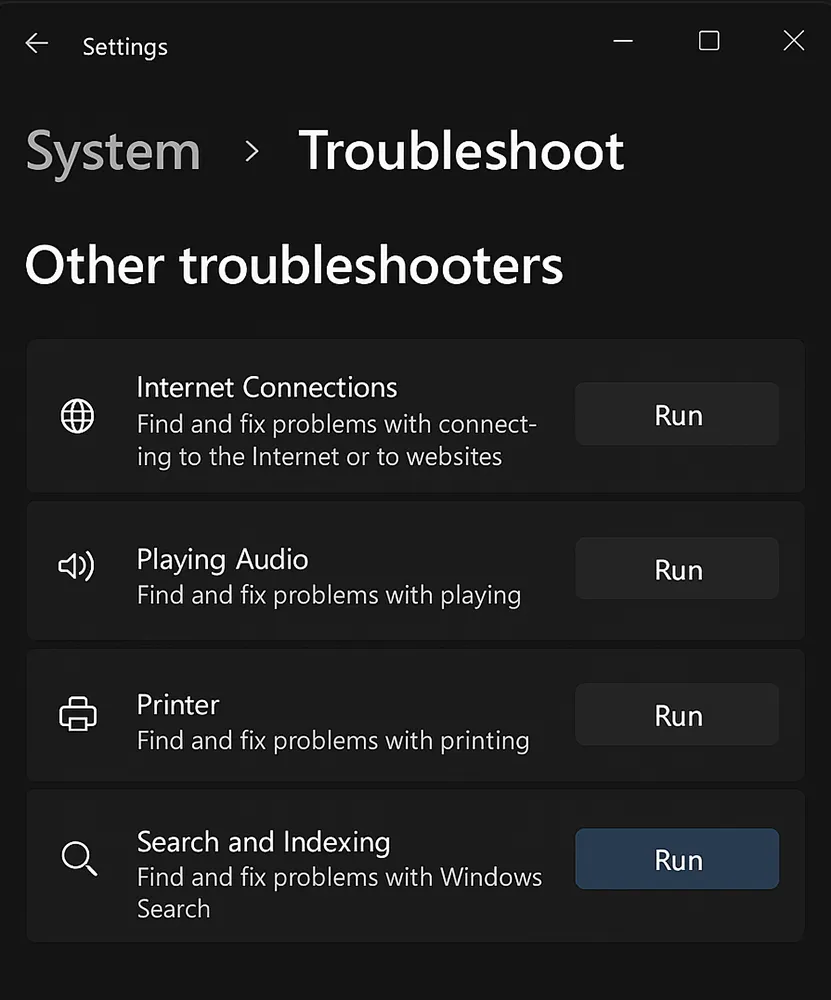
Microsoft recommends the Search and Indexing troubleshooter (or the newer Get Help flow) when Search stops working. Microsoft Learn: Fix problems in Windows Search • Windows troubleshooters / Get Help
- Go to Settings → System → Troubleshoot → Other troubleshooters.
- Run Search and Indexing.
- Select the symptoms you are experiencing and apply the recommended fixes.
5. Check Search Indexing Settings in “Searching Windows”
If Search opens but returns no files/apps—or results are incomplete—indexing is usually the cause. Windows 11 centralizes these options under Searching Windows. Search indexing in Windows (Microsoft Support)
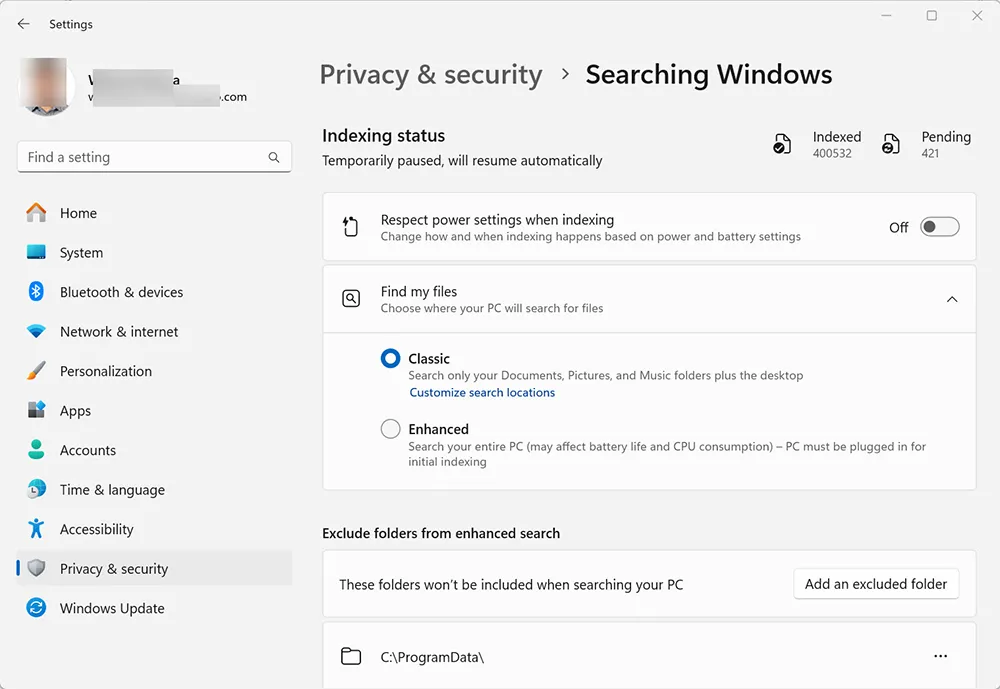
- Open Settings → Privacy & security → Searching Windows.
- Confirm whether you’re using Classic or Enhanced indexing.
- Review Find my files and indexed locations.
Indexing can also get sluggish when your system drive is full. If your SSD is running low, clean up space first: How to Delete Temporary Files in Windows 11 and Use Disk Cleanup to Delete Temporary Files.
6. Rebuild the Search Index
Rebuilding the index repairs corruption in the search database. Microsoft documents how indexing works and where to manage file types and indexing options. Search indexing in Windows (Microsoft Support)
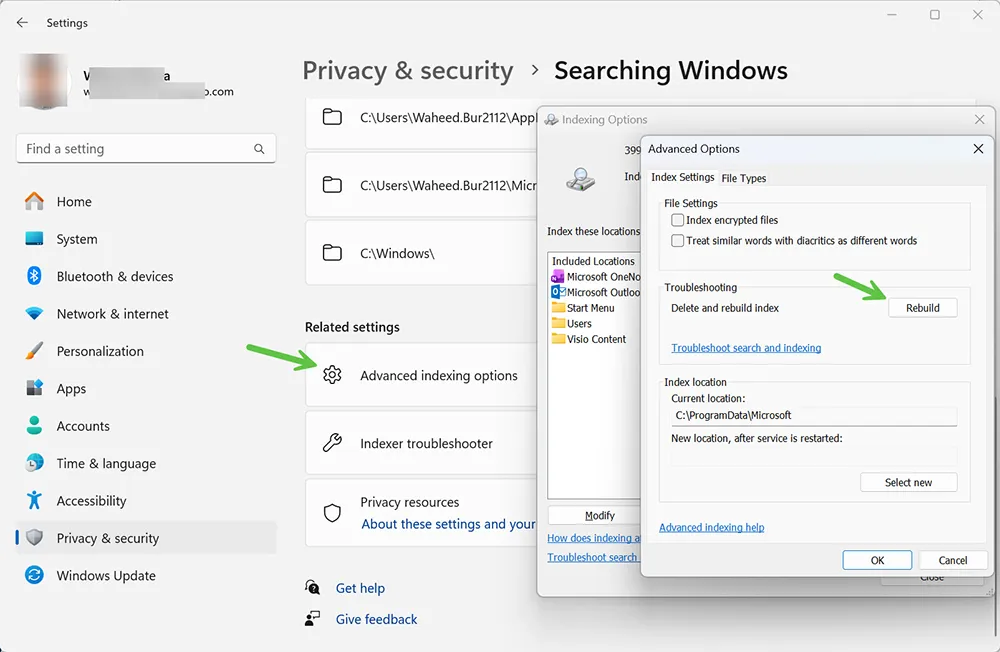
- Go to Settings → Privacy & security → Searching Windows.
- Select Advanced indexing options.
- Click Advanced.
- Under Troubleshooting, click Rebuild.
Pro tip: Index rebuild can take time after a feature upgrade. Keep the laptop plugged in and let it complete overnight if needed.
7. Repair System Files with DISM and SFC
If core Windows components behind Search are corrupted, Microsoft recommends DISM and System File Checker.
You can also follow your MagnetClicks deep-dive guide: How to Use DISM & SFC to Repair Windows 11.
- Right-click Start → Windows Terminal (Admin).
- Run:
DISM /Online /Cleanup-Image /RestoreHealth
sfc /scannow

8. Reset the Windows Search App Package
If Search opens but looks broken (blank UI, stuck loading), resetting the Search app package can help on many systems.
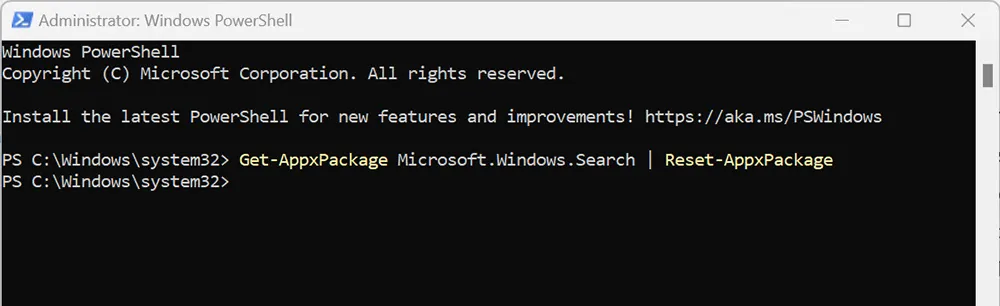
- Open Windows Terminal (Admin).
- Run:
Get-AppxPackage Microsoft.Windows.Search | Reset-AppxPackage
9. Repair or Reset Microsoft Store (If App Search Feels Broken)
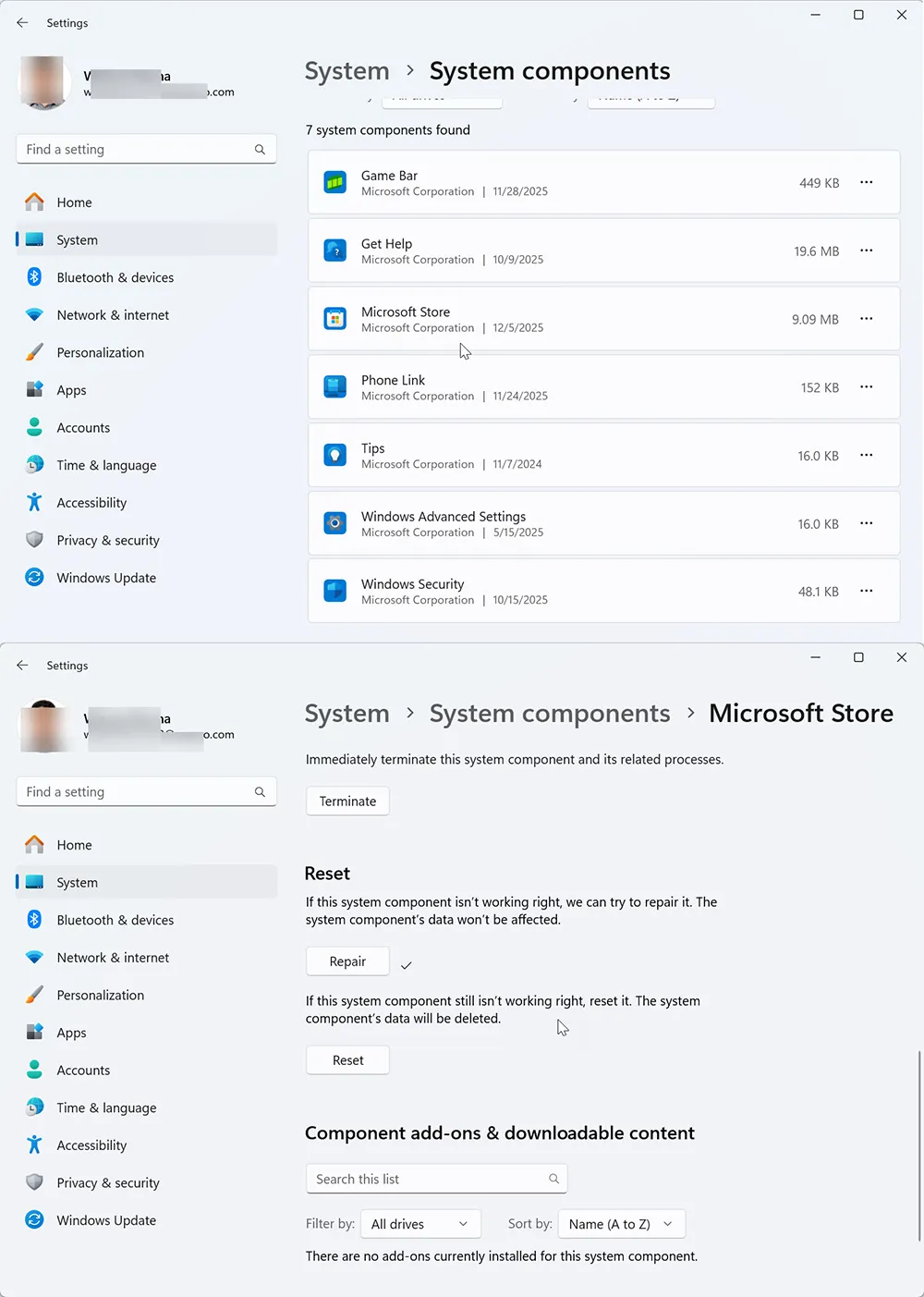
In some environments, Search issues show up as missing Store apps in results or “app not found” behavior. If Store components are unhealthy, repair them first:
How to Repair or Reset Microsoft Store • How to Install Microsoft Store in Windows • How to Uninstall Windows Microsoft Store
Microsoft also documents general app repair options: Repair apps and programs in Windows (Microsoft Support)
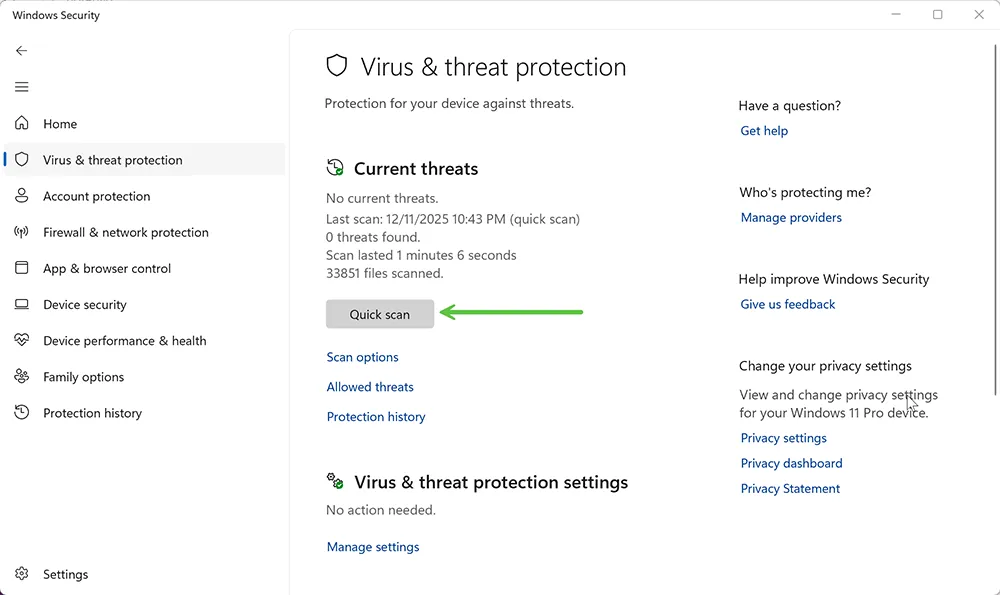
10. Scan for Malware and Remove “Optimizer” Tools
Search can be disrupted by browser hijackers, adware, or aggressive “system optimizer” tools that tweak services and permissions. If Search randomly breaks and the PC also feels slow or pop-ups appear, scan and clean first:
How to Remove Malware and Viruses • Remove Malware From Your Computer • Types of Malware and How They Infect Your Computer
11. Create a New Windows User Profile
If Search works for other users on the same PC, your current profile may be corrupted.
- Go to Settings → Accounts → Other users.
- Create a new local user.
- Sign in to the new account and test Search.

12. If Search Broke Right After an Update
If your Search issue started immediately after a Windows update, it may be linked to that specific build.
- Check update history for recently installed cumulative updates. 24H2 update history • 25H2 update history
- Review Windows release health for known Search or shell issues. Windows 11 24H2 known issues
- Avoid optional preview updates on production PCs unless you need a specific fix.
If Windows Update itself is failing or stuck, fix that first: Troubleshoot problems updating Windows (Microsoft) and your internal guide: Fix Windows 11 Update Error Codes.

Key Takeaways
To fix a Windows 11 Search bar that isn’t working, start with the shell (restart Explorer), then restart SearchHost and the Windows Search service. If results are missing, validate indexing settings and rebuild the index using Microsoft’s documented paths. For deeper corruption, run DISM + SFC and reset Search components. Microsoft Learn: Fix problems in Windows Search • Microsoft Support: Use SFC
For long-term stability, keep disk space healthy with regular cleanup (see Clean Up Disk Space on Windows 11), avoid aggressive “tweaks” tools, and review Windows release health before installing optional previews.
Frequently Asked Questions
Why is my Windows 11 search bar not working?
It’s usually caused by a stuck SearchHost process, a stopped Windows Search service, corrupted indexing, profile issues, or changes introduced by a recent update. Microsoft recommends structured troubleshooting using Search repair steps and troubleshooters. Microsoft Learn
Search opens but I can’t type—what should I do?
Restart Windows Explorer first. If that doesn’t help, end SearchHost.exe in Task Manager and restart the Windows Search service. These steps often restore typing instantly.
Does rebuilding the Search index delete my files?
No. Rebuilding only recreates the search database used to find files faster. Your files remain untouched. Microsoft documents indexing controls under “Searching Windows.” Microsoft Support
Are troubleshooters changing in Windows 11?
Yes. Microsoft has been deprecating MSDT-based troubleshooters and redirecting troubleshooting to the Get Help experience and newer Settings-based paths. Microsoft Support
Is it safe to run DISM and SFC?
Yes. Microsoft recommends DISM and System File Checker to repair corrupted Windows components. Microsoft Support