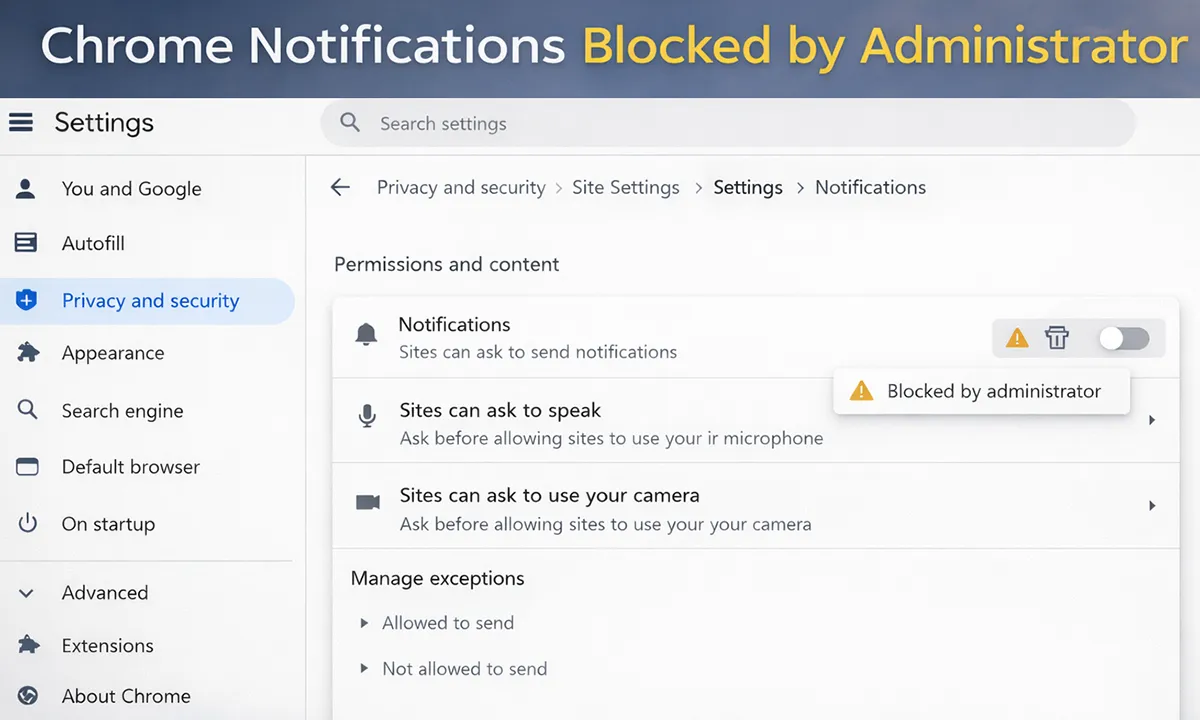
In enterprise environments, Google Chrome notifications are frequently blocked on managed Windows devices—often without any visible configuration by IT. Users may encounter messages such as “Blocked by administrator”, or find notification toggles greyed out even though Windows notifications are enabled.
This behavior is common on devices managed through Microsoft Intune, where Chrome enterprise policies override user-level settings. This guide explains why Chrome notifications are blocked, how to confirm the exact policy causing it, and how to properly enable or disable Chrome notifications using Intune without weakening security controls.
The steps below are based on real-world enterprise troubleshooting and align with Microsoft and Google-supported configuration methods.
Why Chrome Notifications Get Blocked on Managed Devices
Google Chrome uses its own enterprise policy engine, separate from Windows notification controls. Even if Windows toast notifications are enabled, Chrome notifications can still be blocked by:
- Machine-level Chrome policies deployed via Intune
- Legacy enrollment or inherited device configurations
- Wildcard notification blocks applied at the browser level
The most common policy responsible is:
NotificationsBlockedForUrls = ["*"]
This policy blocks notifications for all websites, overriding every user preference inside Chrome.
This behavior is similar to other policy-driven restrictions administrators encounter with identity and security controls, such as Windows Hello for Business configurations or account lockout scenarios.
How to Confirm Chrome Notification Policies
Step 1: Open the Chrome Policy Page
chrome://policy
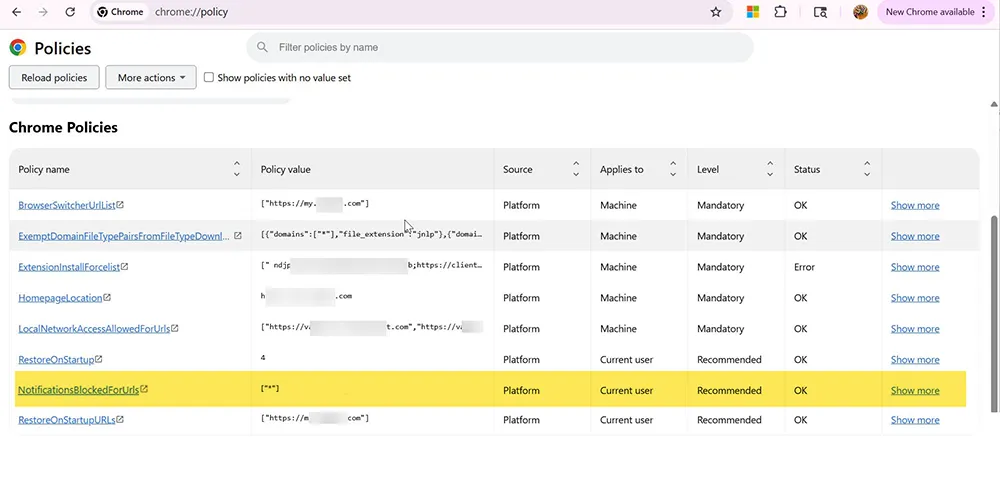
This page shows all policies applied to Chrome and whether they are enforced at the Machine or User level.
Step 2: Identify Notification-Related Policies
Scroll through the policy list and locate:
- NotificationsBlockedForUrls
- DefaultNotificationsSetting
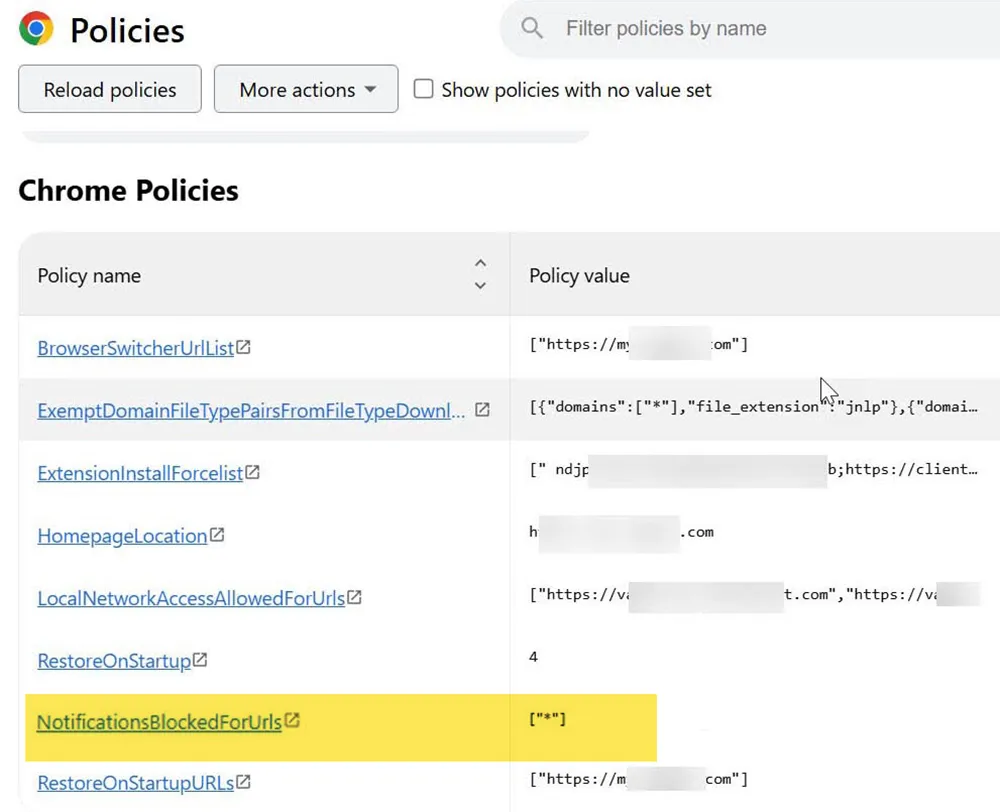
If NotificationsBlockedForUrls contains ["*"], Chrome notifications are blocked across the entire device.
Step 3: Compare With a Working Device
On devices where Chrome notifications function correctly:
- The wildcard block is absent
- Notification policies are either empty or explicitly allowed
This explains why only some users are affected—policy scope and enrollment timing can differ between devices. This inconsistency is similar to issues seen with device-based security enforcement such as password lockout policies.
Important: Windows Notification Policies Alone Are Not Enough
Many administrators attempt to fix this issue by adjusting:
- Windows toast notifications
- Focus Assist / Quiet Hours
While these settings are required for notifications to appear, they do not override Chrome content policies. Intune may report success, but Chrome will continue blocking notifications.
Microsoft confirms that application-specific policies must be configured at the app level:
Microsoft reference:
Windows Settings Catalog in Microsoft Intune
The Correct Way to Enable Chrome Notifications Using Intune
Step 1: Create a New Intune Configuration Profile
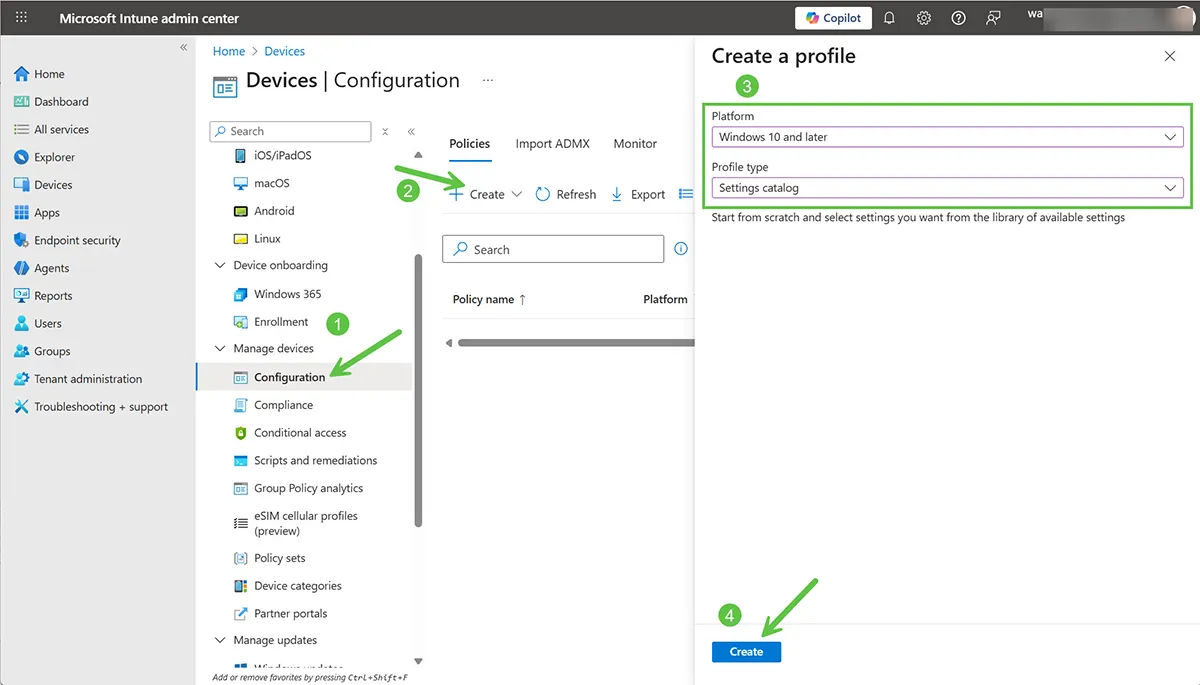
Use the Settings Catalog profile type to access Google Chrome enterprise settings.
Step 2: Add Google Chrome Content Settings
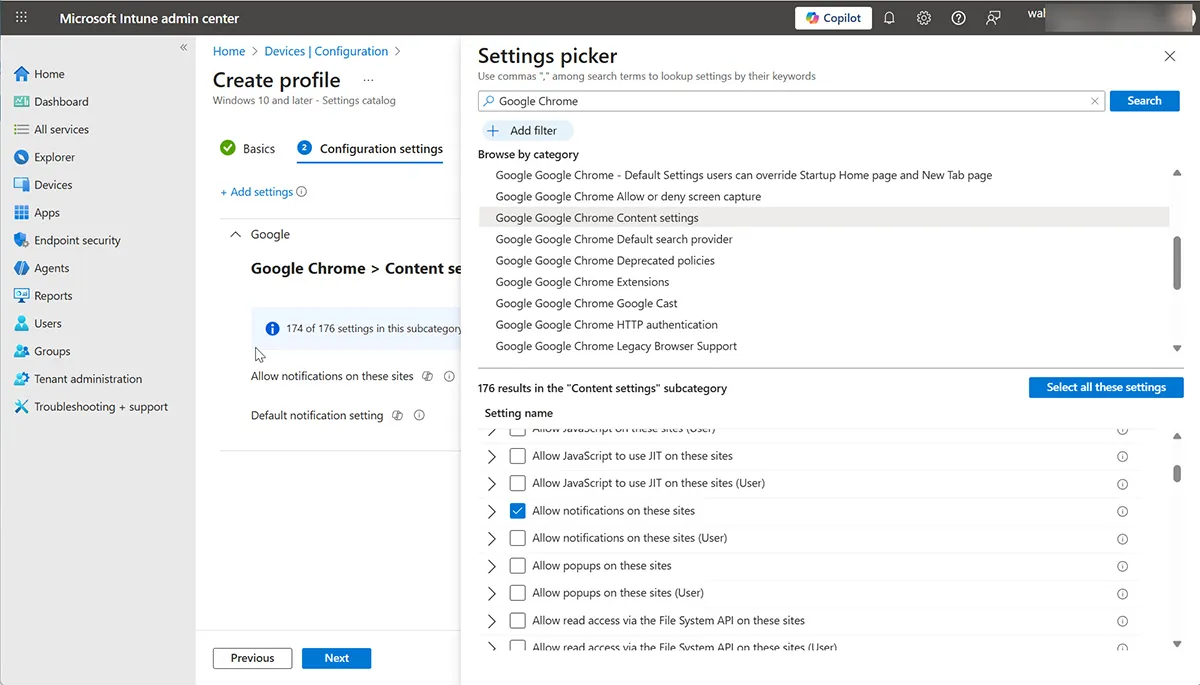
Search for Google Chrome and expand the Content settings category.
Step 3: Configure Chrome Notification Policies
https://magnetclicks.com
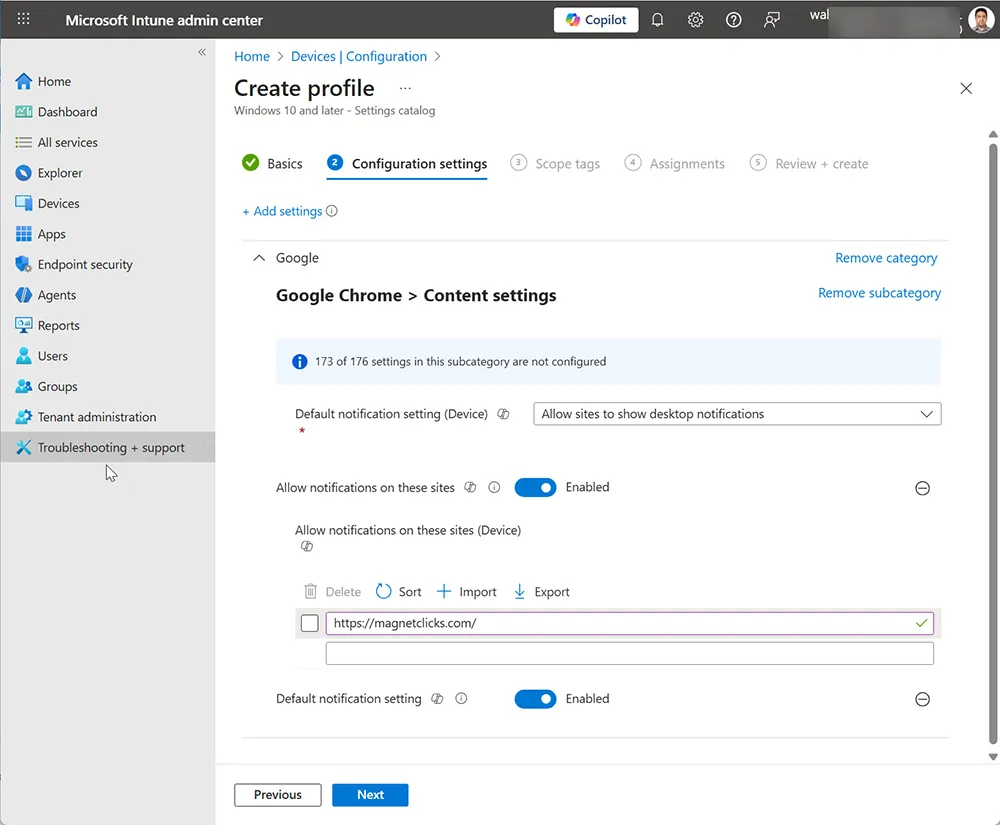
Important: Always use the Device variants of these settings. User-level policies cannot override existing machine-level restrictions.
Google Chrome authority reference:
Chrome Enterprise Policy – NotificationsBlockedForUrls
Assign and Deploy the Policy
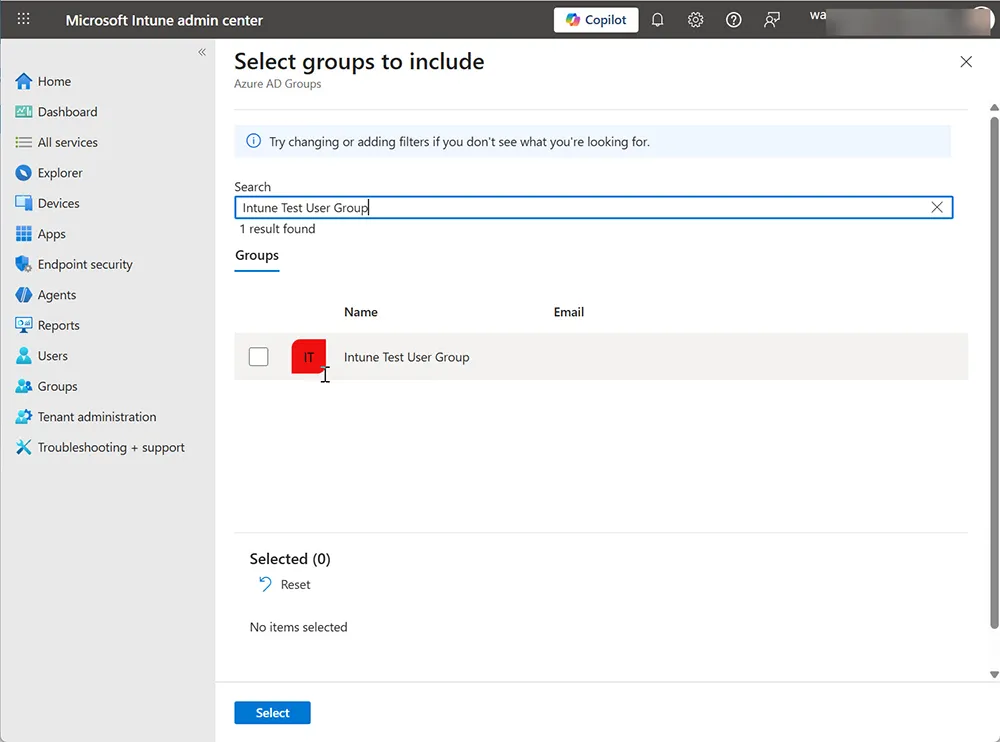
After assignment, allow the device to sync or manually trigger a sync from Intune.
Verify the Fix
Step 1: Verify Chrome Policy After Deployment
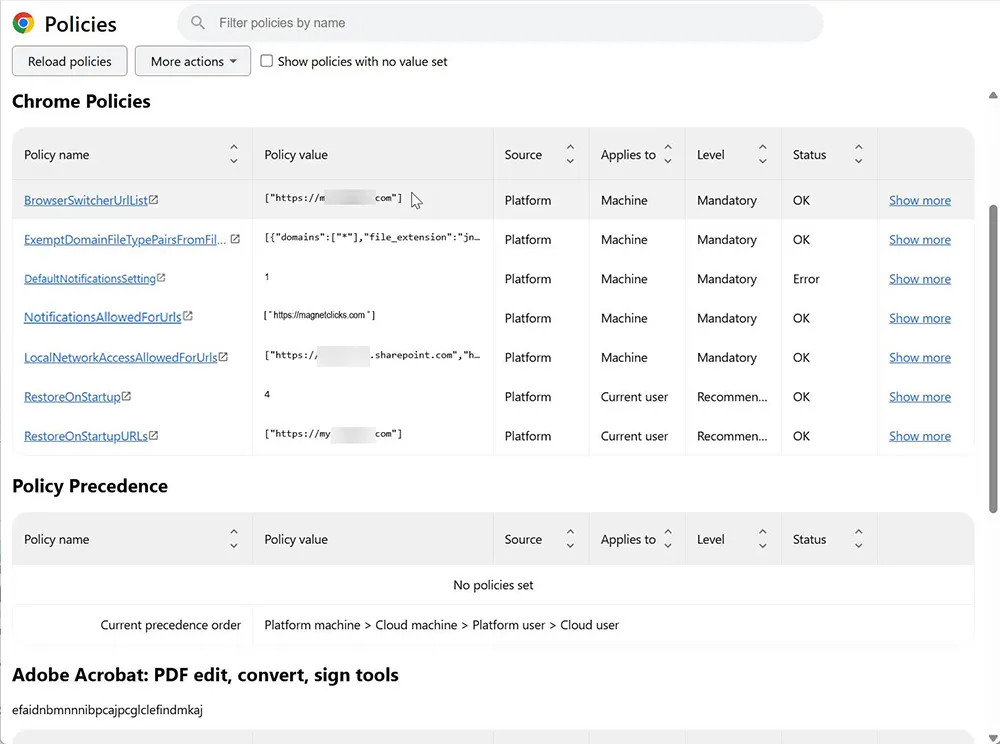
The wildcard block should be removed, and allowed notification policies should appear.
Step 2: Verify Site-Level Notification Settings
chrome://settings/content/siteDetails?site=https://magnetclicks.com
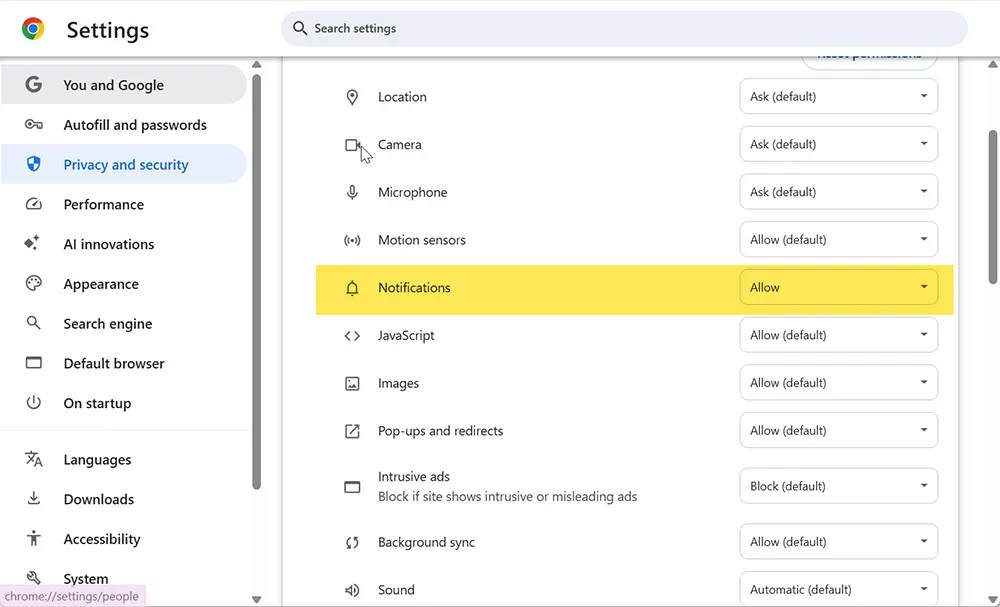
Notifications should now show as Allowed and no longer be greyed out.
How to Disable Chrome Notifications (Optional)
If your organization needs to restrict notifications:
- Block notifications only for specific sites
- Avoid wildcard blocks unless required by compliance
- Document the policy rationale for audits
Conclusion
Chrome notifications on Intune-managed devices must be controlled using Chrome enterprise content policies, not Windows notification settings alone. Applying device-level Chrome policies ensures consistent behavior across all managed endpoints while maintaining enterprise security and compliance.
For related troubleshooting guides, see:
Frequently Asked Questions
Why does Chrome say “Blocked by administrator” for notifications?
This happens when a Chrome enterprise policy is enforcing notification restrictions—most commonly NotificationsBlockedForUrls set to ["*"], which blocks notifications for all websites.
Why does Chrome show “Your browser is managed by your organization” even if notifications work?
That message only means Chrome is managed by enterprise policy (such as Intune). It does not automatically mean notifications are blocked.
How can I confirm if Chrome notifications are blocked by policy?
Open Chrome and go to chrome://policy. If you see NotificationsBlockedForUrls with a wildcard value like ["*"], notifications are blocked at the device level.
Do Windows toast notification settings fix Chrome notification blocks?
Not always. Windows notifications are required for Chrome pop-ups, but Chrome can still block notifications if a Chrome content policy is applied through Intune or another management tool.
Should I configure the Chrome notification policy as “User” or “Device” in Intune?
If the block is applied at machine level (Chrome policy shows it applies to “Machine”), you should use the “Device” variants in Intune so the new policy can override the device-level restriction.
How do I allow notifications only for one site (like Revenue.io / RingDNA) in Intune?
In Intune, configure Google Chrome Content settings: set Default notification setting (Device) to allow notifications and add the URL under Allow notifications on these sites (Device) (for example, https://softphone.revenue.io).
How do I verify the Intune policy actually applied?
After the device syncs, revisit chrome://policy and confirm the wildcard block is removed and your allowed site appears. Then check chrome://settings/content/siteDetails for the site and confirm Notifications shows “Allowed” and is not greyed out.
Why are only some users affected while others can still change Chrome notifications?
This usually happens due to differences in device-level policy scope, enrollment timing, or legacy Chrome policies applied to specific devices. Device-level Chrome content policies in Intune resolve the inconsistency.