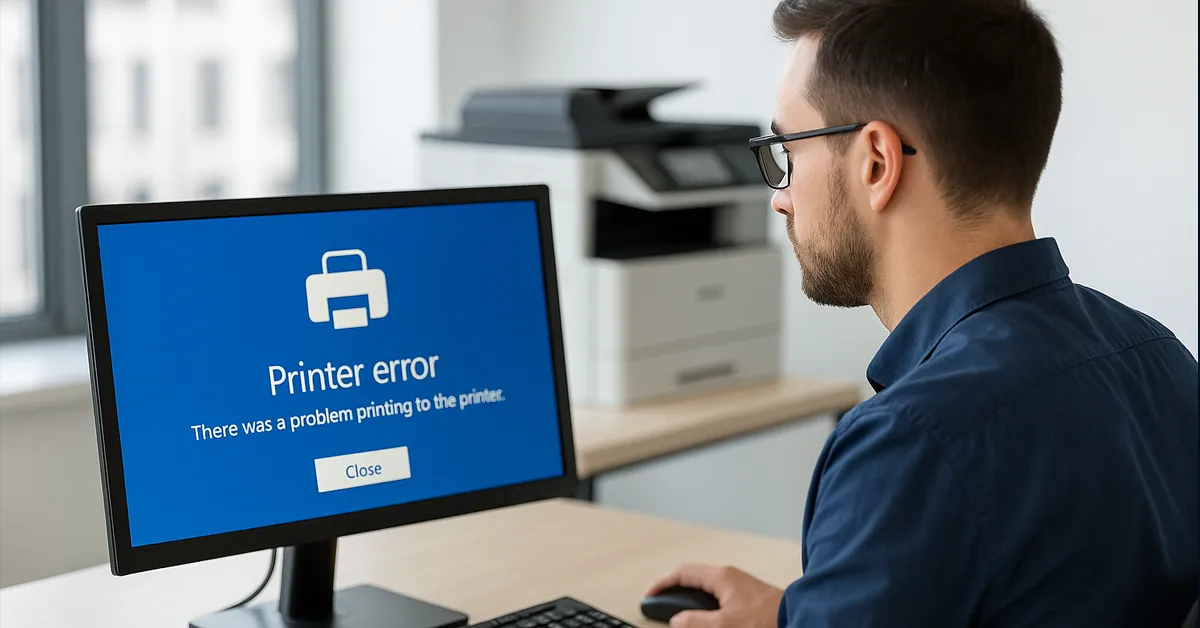
Error 0x0000011b is one of the most frustrating Windows printer errors, especially when you’re trying to print to a shared network printer from Windows 10 or Windows 11. It usually appears after a Windows security update and often affects office environments where printers are shared from a print server or another PC.
In this step-by-step guide, we’ll walk through all the practical ways to fix printer error 0x0000011b — from quick checks to advanced registry and Group Policy tweaks. This guide is written from a real IT operations perspective and is designed to be both a troubleshooting playbook and a visual reference you can follow screen-by-screen.
What Is Printer Error 0x0000011b?
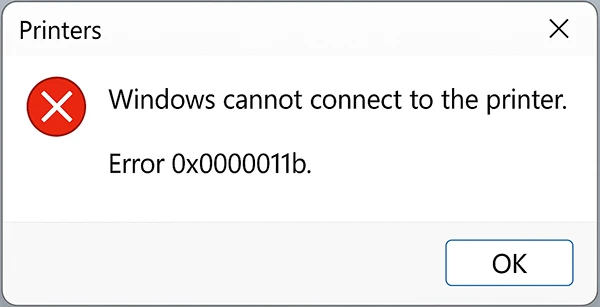
Error 0x0000011b usually appears when a Windows client tries to connect to a shared printer and Windows blocks the connection due to an RPC (Remote Procedure Call) security change. This became more common after Microsoft released security updates to harden Windows print protocols.
You’ll typically see messages like:
- “Windows cannot connect to the printer. Operation failed with error 0x0000011b.”
- Clients unable to add a network printer that previously worked
Main Causes of Error 0x0000011b
- Recent Windows security updates that hardened RPC authentication for print traffic
- Shared printer hosted on an older Windows 10 machine without the right patching or configuration
- Mismatched security settings between the print server and client PCs
- Point and Print restrictions enforced through Group Policy
- Occasionally, corrupt or outdated printer drivers
If you keep seeing 0x0000011b together with “Windows cannot connect to the printer”, you should also review your broader print setup. For example, start with our more general guide on
fixing “Windows cannot connect to the printer” errors
.
Before You Start: Quick Checklist
- Confirm that the printer works locally on the PC it is directly connected to
- Verify that file and printer sharing is enabled on the host
- Ensure both computers are on the same network / VLAN (or routed correctly)
- Make sure you’re using the correct share path, such as
\\PRINTSERVER\PrinterName

Step 1 – Run the Built-In Printer Troubleshooter
Start with the simplest option. The Windows Printer Troubleshooter can automatically detect some basic connectivity or spooler issues.
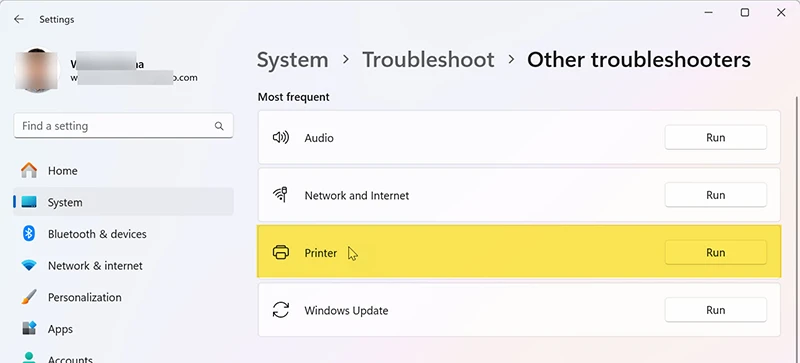
- Open Settings > System > Troubleshoot > Other troubleshooters (Windows 11) or Update & Security > Troubleshoot (Windows 10).
- Find Printer and click Run.
- Follow the on-screen recommendations and apply any suggested fixes.
Step 2 – Make Sure Windows Is Fully Updated
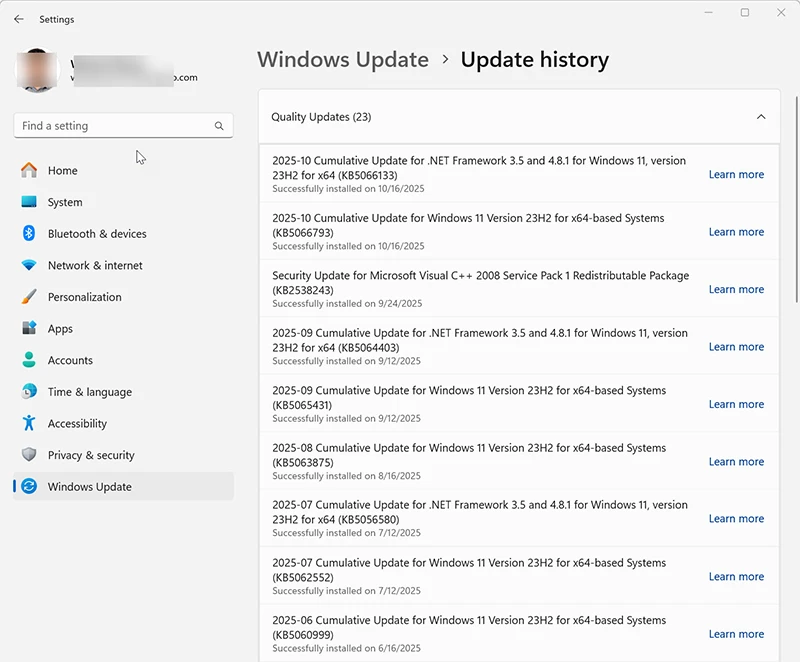
Microsoft has released multiple patches that both introduced and fixed printing issues. It’s important that both the print server and clients are up to date, especially if you’re running Windows 10 and Windows 11 together.
- Go to Settings > Windows Update.
- Click Check for updates and install all pending security updates.
- Restart the PC and test the printer connection again.
If 0x0000011b started immediately after a specific update, you may need to roll back that update temporarily on the print server while you test.
Step 3 – Fix 0x0000011b with the RpcAuthnLevelPrivacyEnabled Registry Value
On many networks, the most reliable workaround is to adjust the RpcAuthnLevelPrivacyEnabled registry value on the print server. This relaxes the new RPC privacy requirement that triggers 0x0000011b.
⚠️ Important: This change should be tested and approved by your security team, especially in regulated environments.
- On the print server, press Win + R, type
regeditand press Enter. - Navigate to:
HKEY_LOCAL_MACHINE\SYSTEM\CurrentControlSet\Control\Print - Right-click in the right pane and select New > DWORD (32-bit) Value.
- Name it
RpcAuthnLevelPrivacyEnabled. - Double-click the new value and set Value data to 0.
- Click OK and restart the print server.
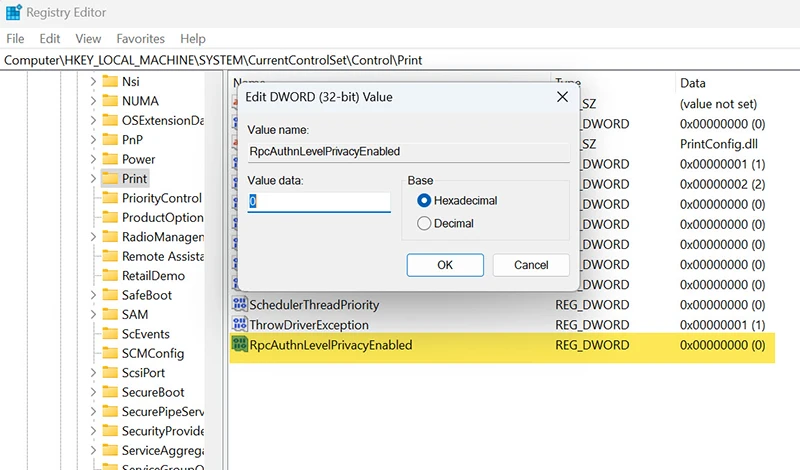
RpcAuthnLevelPrivacyEnabled to 0 on the print server is a common workaround for error 0x0000011b.Step 4 – Restart the Print Spooler Service
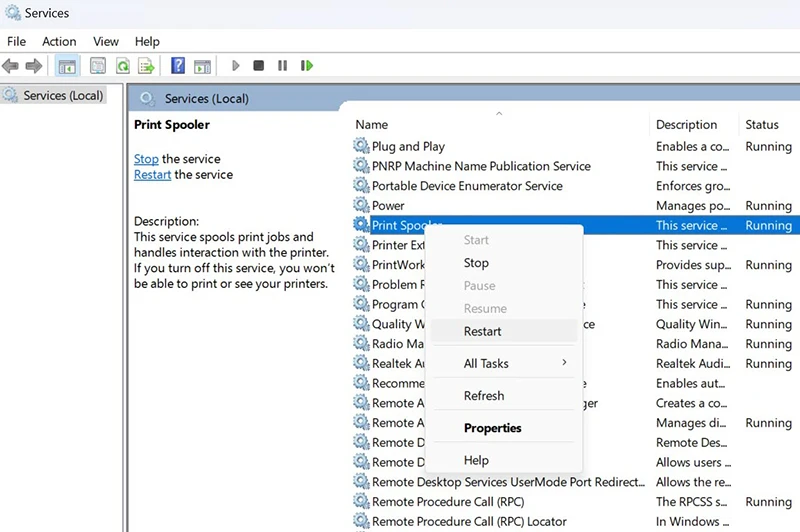
Print spooler glitches can also surface as connection errors, especially after registry or policy changes.
- Press Win + R, type
services.msc, and press Enter. - Scroll to Print Spooler.
- Right-click and choose Restart.
- Ensure the Startup type is set to Automatic.
Step 5 – Reinstall or Clean Up Printer Drivers
Network printer connections often rely on the driver hosted on the print server. If that driver is corrupt or mismatched, clients may fail with 0x0000011b or similar errors.
- On the print server, open
printmanagement.msc(Print Management). - Go to Print Servers > <ServerName> > Drivers.
- Right-click the problematic driver and choose Remove Driver Package.
- Download the latest Type 4 or vendor-recommended driver from the printer manufacturer.
- Reinstall the driver and re-share the printer.

Step 6 – Add the Printer Using a TCP/IP Port
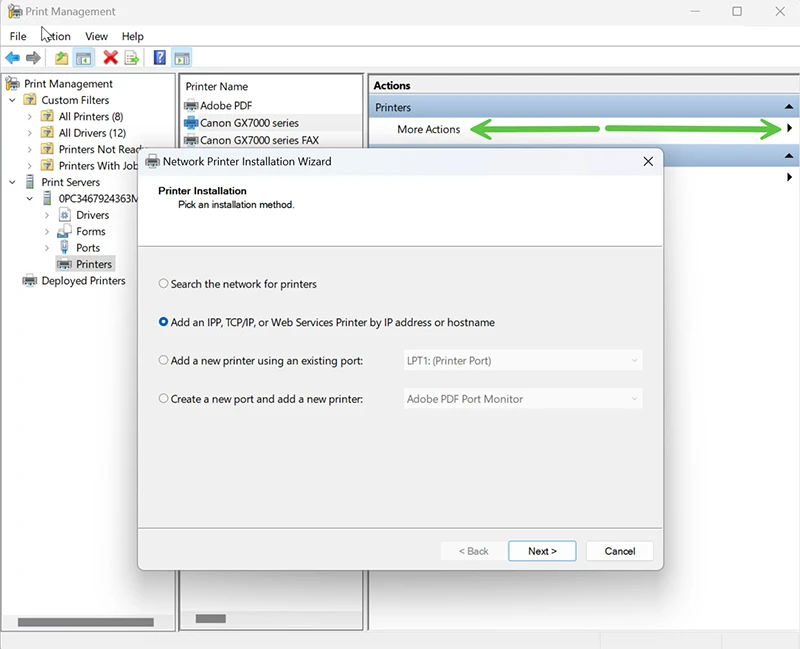
If browsing for shared printers fails, you can add the printer directly using its IP address. This is often more reliable in mixed or secured networks.
- Open Control Panel > Devices and Printers.
- Click Add a printer.
- Select The printer that I want isn’t listed.
- Choose Add a printer using a TCP/IP address or hostname.
- Enter the printer’s IP address and follow the wizard to select the driver.
Step 7 – Adjust Point and Print Restrictions via Group Policy
On domain-joined PCs, Point and Print Restrictions can block printer driver installation from a print server and indirectly trigger 0x0000011b or similar errors.
- On a domain controller or management workstation, open
gpedit.mscor the Group Policy Management Console. - Navigate to:
Computer Configuration > Administrative Templates > Printers - Edit Point and Print Restrictions.
- For testing, you can set it to Disabled or configure trusted servers and relaxed prompts.
- Run
gpupdate /forceon the client and re-test.
For production environments, align this setting with your wider Zero Trust and device management strategy.
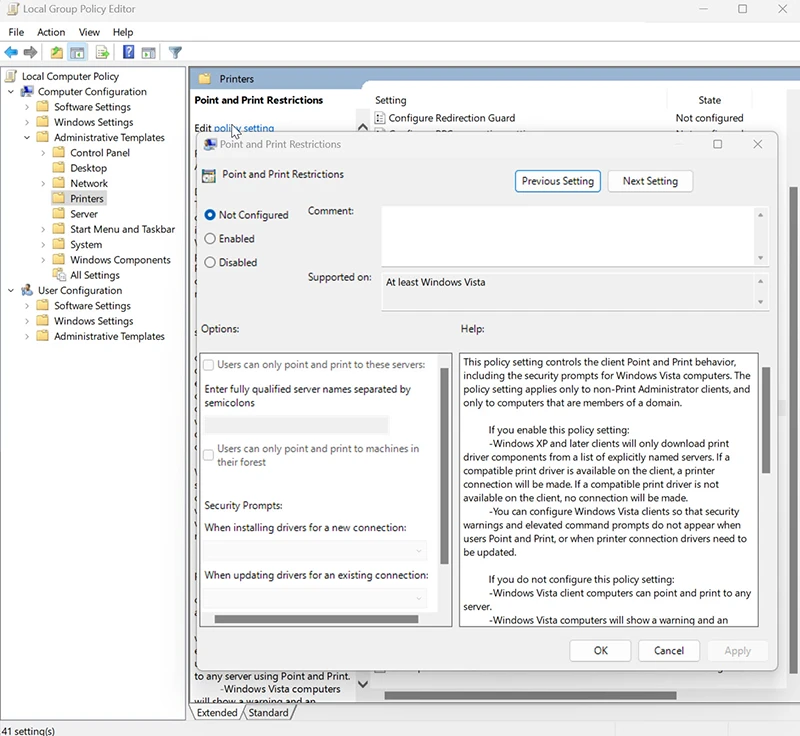
Step 8 – Check Windows Security Guidance from Microsoft
Microsoft regularly updates security guidance for Windows printing, especially around Print Spooler and RPC hardening. It’s worth reviewing their latest recommendations so your fix for 0x0000011b does not violate security baselines.
- Review official documentation on securing printing and RPC settings.
- Document any registry or Group Policy changes you make as part of your internal hardening standard.
- Test changes in a lab or pilot group before rolling out to the entire organization.

Step 9 – When to Consider a Print Server Refresh
If error 0x0000011b keeps coming back, it might be a signal that your overall print architecture needs an update. For example:
- Your print server is an old Windows 10 machine sitting under someone’s desk
- You rely entirely on local shares instead of a centralized print service
- There is no change control or patching cadence for your print infrastructure
In these cases, consider moving to a hardened Windows Server–based print server, cloud-managed print solution, or a vendor-managed print platform. This also helps reduce random user-visible errors such as 0x0000011b and other “cannot connect to printer” issues over time.
Related Windows Troubleshooting Guides
- How to Fix “Windows Cannot Connect to the Printer” Error
- Resolve Error 0x80004005 in Windows 10 & 11
- How to Clean Up Disk Space on Windows 11
Final Thoughts
Error 0x0000011b can be painful, especially if it suddenly appears after security updates and breaks printing across your office. The good news is that most cases can be resolved by:
- Ensuring Windows is fully patched on both print servers and clients
- Tuning the
RpcAuthnLevelPrivacyEnabledregistry key where appropriate - Cleaning up old drivers and adjusting Point and Print restrictions
Take a methodical approach, test each change with a small group of users first, and document what worked for your environment so you can reuse the same playbook the next time printing breaks after Patch Tuesday.
Frequently Asked Questions
What is printer error 0x0000011b?
Printer error 0x0000011b is a Windows error that usually appears when a client cannot connect to a shared network printer due to RPC security changes, driver issues, or print server misconfiguration.
Is it safe to set RpcAuthnLevelPrivacyEnabled to 0?
Setting RpcAuthnLevelPrivacyEnabled to 0 on the print server is a commonly used workaround, but it slightly relaxes the new RPC privacy requirement. You should review this change with your security team and test it in a lab before deploying broadly.
Do I need to change settings on the client or the print server?
Most fixes are applied on the print server (registry, drivers, Group Policy). Clients should still be fully patched and may need to refresh connections or clear cached printer drivers.
Can I fix 0x0000011b without editing the registry?
In some environments, updating Windows, reinstalling drivers, and mapping printers via TCP/IP ports is enough. The registry workaround is mainly for stubborn cases where other steps do not resolve the issue.
Does this error affect Windows 11 as well as Windows 10?
Yes. Error 0x0000011b has been reported on both Windows 10 and Windows 11, especially in mixed or partially updated environments where older print servers are serving newer client PCs.
What if none of these steps fix the problem?
If the error persists after trying these steps, consider setting up a new print server, testing with a different printer model, or engaging Microsoft or your vendor for deeper support. Persistent 0x0000011b errors may indicate underlying security or networking issues.