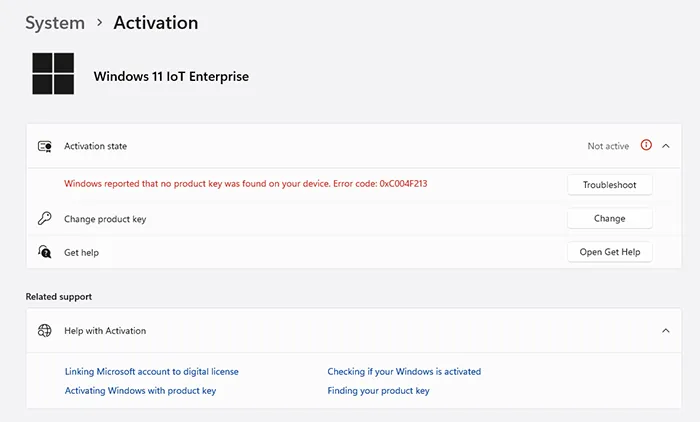
Error code 0xc004f213 is one of the most common Windows 11 activation errors. It usually appears with the message:
“We can’t activate Windows on this device because you don’t have a valid digital license or product key.”
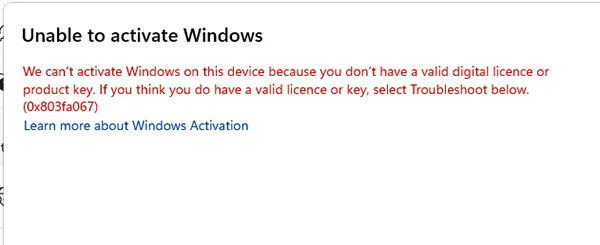
This means Windows cannot detect a valid license, often due to hardware changes, reinstallations, Microsoft account issues, or incorrect Windows edition. This guide gives you every fix—Level A (basic) and Level B (advanced)—to fully reactivate Windows 11.
What Causes Error Code 0xc004f213?
- Hardware changes such as motherboard or SSD replacement
- Incorrect Windows edition (Home vs Pro mismatch)
- Digital license not linked to your Microsoft account
- OEM key not detected from BIOS/UEFI
- Clean reinstall without restoring the license
- Invalid or expired product key
Fix #1 — Run the Windows Activation Troubleshooter
This is the fastest way to restore activation when Windows detects an issue with your license.
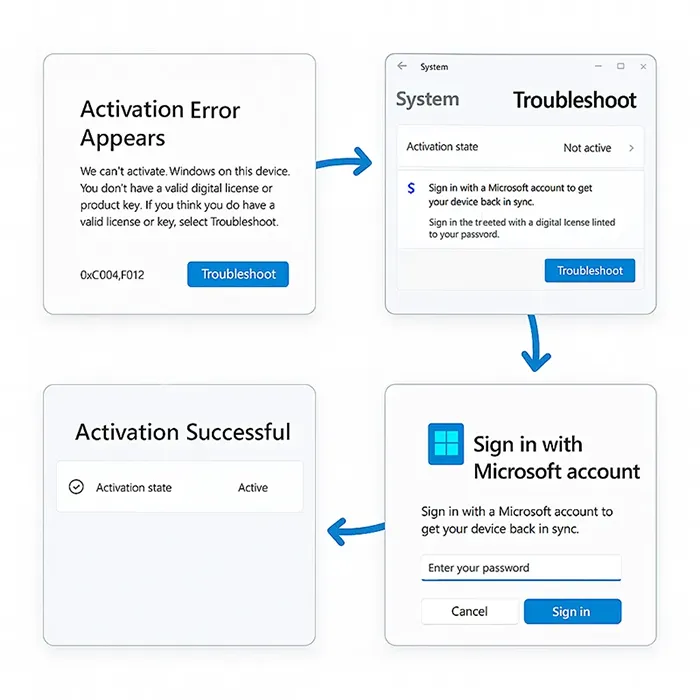
Steps:
- Open Settings.
- Go to System → Activation.
- Click Troubleshoot if the option is available.
- Sign in with your Microsoft account if prompted.
If a digital license exists on Microsoft’s servers, Windows will usually reactivate automatically.
Fix #2 — Sign in With the Correct Microsoft Account
A digital license is often linked to your Microsoft account. If you’re signed in with a local account or a different Microsoft account, Windows might not find your license.

- Open Settings → Accounts → Your Info.
- Confirm it shows: “You’re signed in with a Microsoft account.”
- If not, click Sign in with a Microsoft account instead and sign in.
- Go back to System → Activation and run the troubleshooter again.
If your previous activation was associated with this Microsoft account, Windows 11 should match the license and reactivate.
Fix #3 — Use “I Changed Hardware on This Device Recently”
If you have replaced major hardware—especially the motherboard or system drive—Windows may treat your PC as a new device, which can lead to error 0xc004f213.
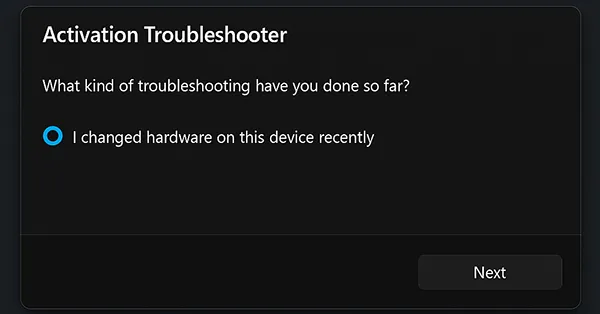
Steps:
- Open Settings → System → Activation.
- Click Troubleshoot.
- Choose “I changed hardware on this device recently” if you see the option.
- Sign in with the Microsoft account associated with your license.
- Select your device from the list of known devices.
- Click This is the device I’m using right now and follow the prompts.
If the digital license is assigned to this device, Windows should reactivate successfully.
Fix #4 — Verify Windows Edition Matches Your License
You cannot activate Windows 11 Pro using a Home license or vice versa. Edition mismatches are a common cause of 0xc004f213.
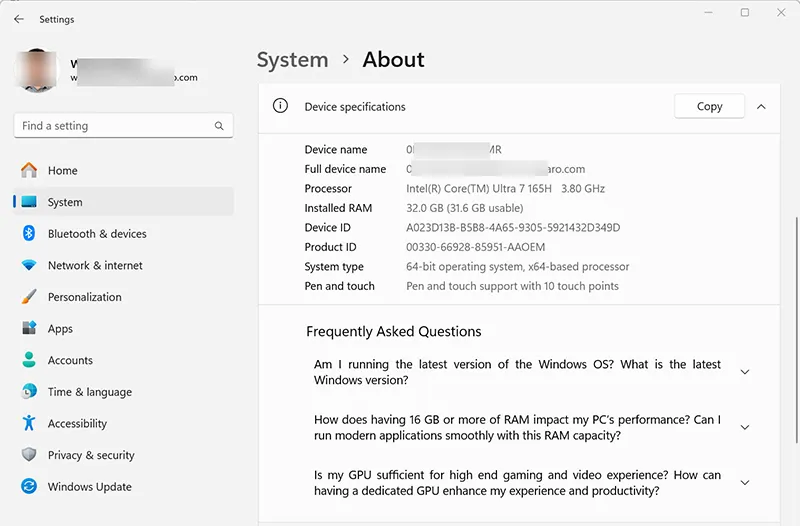
Check the installed edition
Go to Settings → System → About and look for the Windows specifications section. Note whether you have Windows 11 Home, Pro, Pro Education, or Pro for Workstations installed.
Check your underlying license (OEM / original edition)
Open Command Prompt or PowerShell and run:
wmic path softwarelicensingservice get OA3xOriginalProductKeyIf your device originally shipped with Windows 10/11 Home but you installed Pro, your current installation may not match the license and cannot activate with that digital entitlement.
Fix #5 — Check OEM Key Embedded in BIOS/UEFI
Most OEM systems store the Windows license in UEFI firmware instead of a printed key. Windows reads this key during setup and uses it to activate automatically.
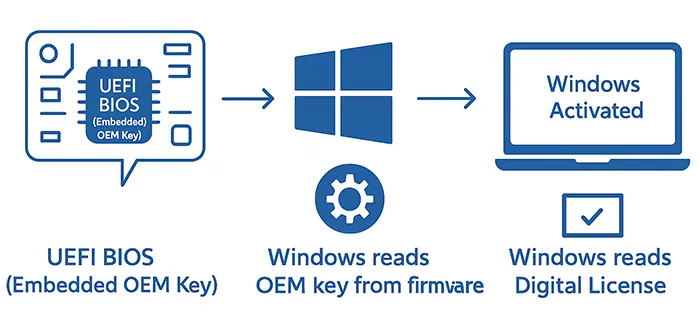
To query the OEM key via PowerShell:
(Get-WmiObject -query 'select * from SoftwareLicensingService').OA3xOriginalProductKeyIf a product key appears, your device has an OEM license. Windows 11 should automatically use this key, as long as you installed the matching edition (for example, Home vs Pro).
Fix #6 — Enter a Valid Product Key Manually
If you purchased a retail copy of Windows or a volume license, you can enter the product key directly in Settings.
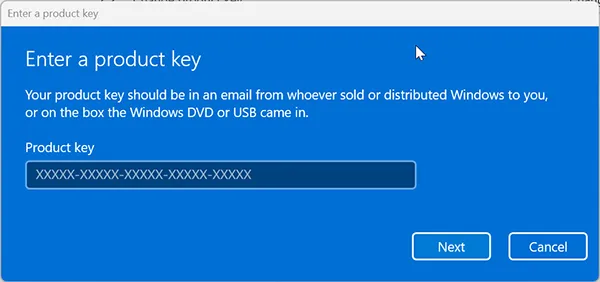
Steps:
- Open Settings → System → Activation.
- Click Change product key.
- Enter your 25-character product key in the format XXXXX-XXXXX-XXXXX-XXXXX-XXXXX.
- Click Next and follow the prompts to complete activation.
Fix #7 — Advanced Command-Line Activation (Level B)
If activation remains stuck or you see generic activation errors, you can use the slmgr tool for deeper diagnostics and repair.
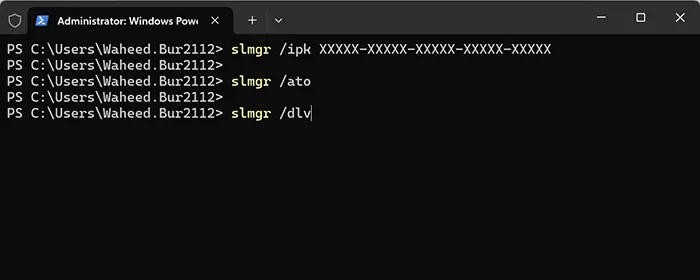
Install a product key
slmgr /ipk XXXXX-XXXXX-XXXXX-XXXXX-XXXXXAttempt online activation
slmgr /atoRepair activation files and reset the licensing state
slmgr /rearmView detailed activation status
slmgr /dlvUse these commands carefully. They are useful when activation services are stuck or after cloning a disk image.
Fix #8 — Contact Microsoft Activation Support
If none of the above solutions work and you have proof of a valid license (OEM, retail, or digital purchase), Microsoft can often help you reactivate manually.
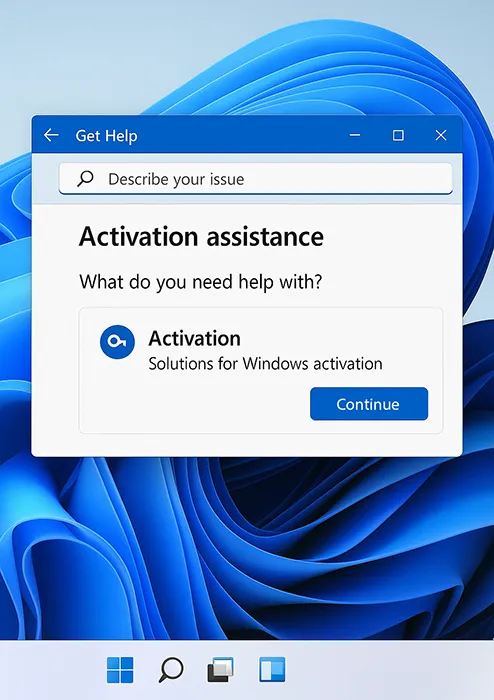
Steps:
- Open the Get Help app from the Start menu.
- Type Activation or Activation support in the chat box.
- Follow the guided troubleshooter or support agent instructions.
- Be ready to provide your Microsoft account, purchase proof, or device details.
Final Summary

Error code 0xc004f213 means Windows 11 cannot detect the digital license or product key it needs to activate. In most cases you can resolve it by:
- Running the Windows Activation Troubleshooter
- Signing in with the correct Microsoft account
- Using the “I changed hardware on this device recently” option
- Ensuring your Windows edition matches the license (Home vs Pro)
- Reading and using the OEM key stored in BIOS/UEFI
- Entering a valid retail or volume product key
- Using
slmgrcommands for advanced activation repair - Contacting Microsoft activation support when automated tools are not enough
Work through each fix from top to bottom and you should be able to successfully reactivate Windows 11 and clear error 0xc004f213.
Frequently Asked Questions
1. Can Windows 11 activate automatically after reinstalling?
Yes. If your digital license is linked to your Microsoft account or embedded as an OEM key in BIOS/UEFI, Windows 11 can often reactivate automatically once you’re online and signed in.
2. Will replacing my motherboard cause activation loss?
Yes, changing the motherboard is treated as a new device in many cases. You can usually fix this by using the “I changed hardware on this device recently” option in the Activation Troubleshooter.
3. Can I use a Windows 10 key to activate Windows 11?
In many cases, yes. A valid Windows 10 retail or OEM key can activate a corresponding edition of Windows 11 (Home for Home, Pro for Pro).
4. What if my BIOS key is missing or not detected?
If no BIOS/UEFI key is returned, your device may rely on a retail key or digital license linked to your Microsoft account. Check your purchase records or contact your OEM or Microsoft support.