When the macOS installer is not working, it can bring system upgrades, security patches, or clean installations to a complete halt. Many users experience symptoms such as the installer freezing mid-progress, quitting unexpectedly, displaying vague error messages, or refusing to launch at all. These failures often occur at the worst possible time—when a system upgrade is required for compatibility, security, or recovery.
Over the past few macOS releases, installation failures have become more noticeable. Apple has tightened system integrity checks, certificate validation, APFS snapshot handling, and security requirements—especially on Apple Silicon Macs. While these changes improve platform security, they also make the installer more sensitive to issues like disk errors, corrupted downloads, incorrect system time, or insufficient storage.
The good news is that most macOS installer problems are software-related and recoverable. In this guide, you’ll follow a structured, Apple-aligned troubleshooting process: confirm the failure type, identify the root cause, apply the correct fix, and validate a successful installation. No unsafe scripts, no third-party utilities—only supported macOS tools and best practices.
Common Symptoms of macOS Installer Failure
Before troubleshooting, it’s important to understand how installer failures typically present. macOS does not always provide clear error messages, which can make diagnosis confusing.
- The installer freezes or stops progressing for an extended period
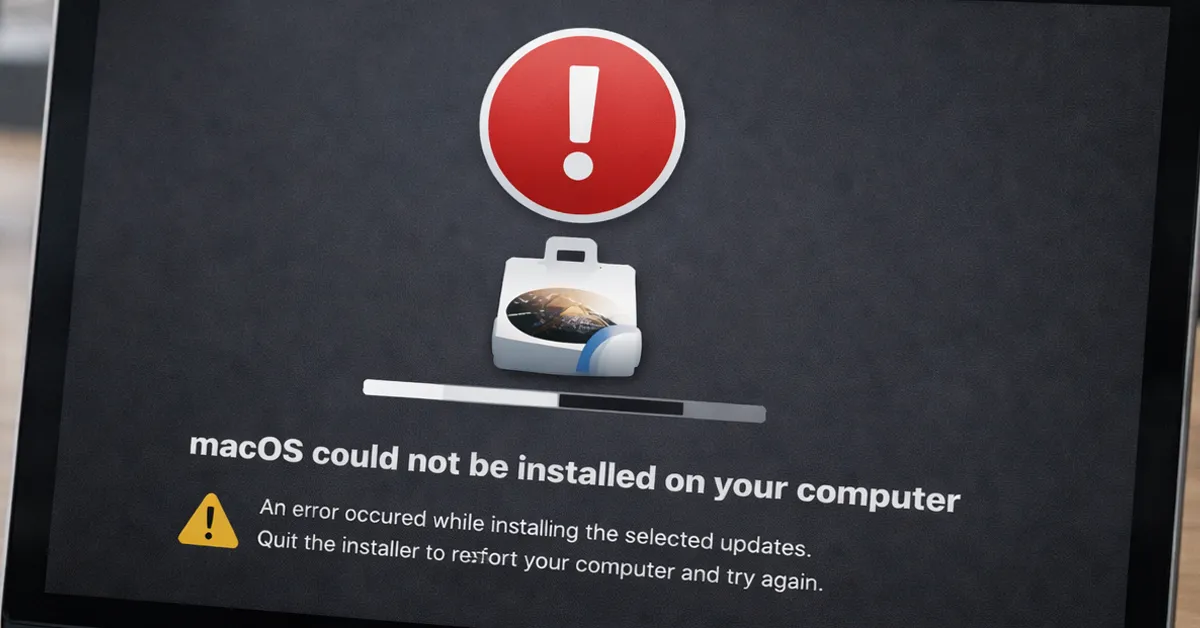
- A message appears stating “macOS could not be installed on your computer”
- The installer quits unexpectedly without explanation
- You see “An error occurred while preparing the installation”
- The installer opens briefly, then closes or never launches
If your Mac can still boot normally, start with the early steps below. If the system fails to boot entirely, jump directly to the Recovery Mode sections.
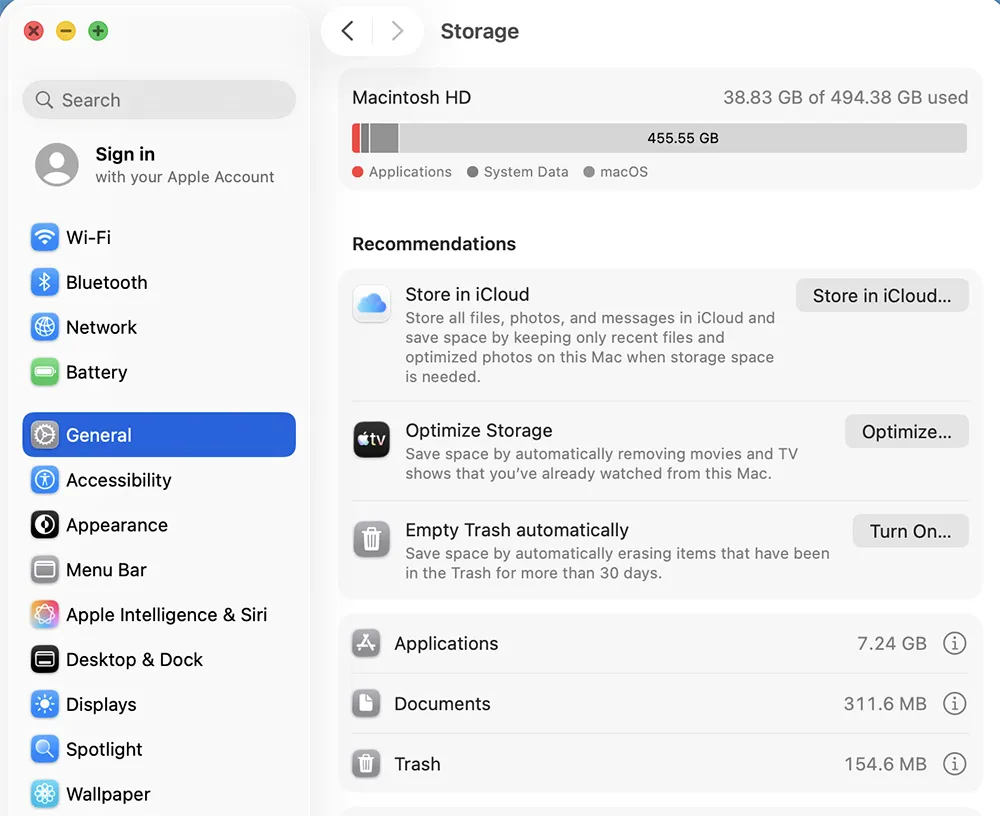
Step 1: Confirm macOS Compatibility and Available Disk Space
One of the most overlooked causes of macOS installer failure is insufficient disk space. Even if your Mac is technically compatible with a macOS release, the installer still needs room to download packages, expand files, create temporary snapshots, and finalize the system volume.
What to verify:
- Your Mac model supports the target macOS version
- You have at least 35–45 GB of free disk space
- The Mac is connected to reliable power (especially laptops)
When disk space is low, the installer may appear to hang indefinitely or fail late in the process. This often misleads users into assuming corruption when the real issue is storage pressure.
Step 2: Restart Before Installation to Clear Stalled Processes
macOS installers rely on background services, verification checks, and temporary system processes. If these services become stalled, the installer may fail repeatedly at the same point.
A restart clears:
- Hung installer services
- Temporary caches
- Background processes consuming disk or memory
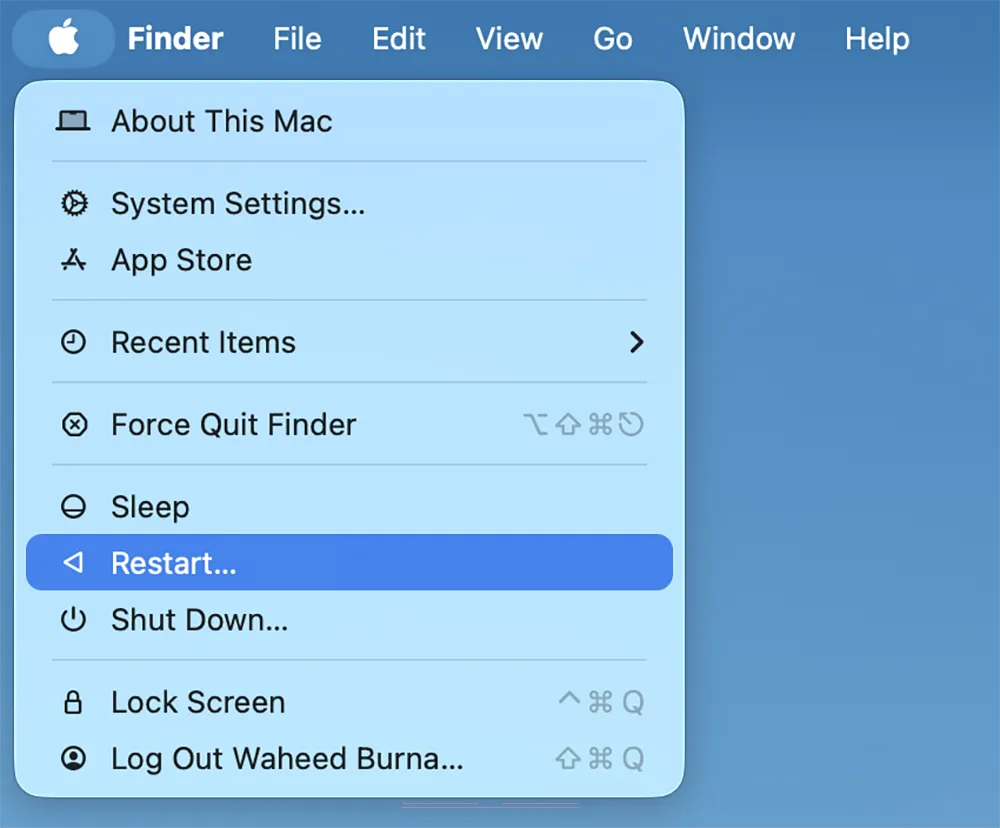
- Click the Apple menu
- Select Restart
- After reboot, log in and relaunch the installer
If the installer fails again immediately at the same stage, move on to targeted fixes instead of repeating the same attempt.
Step 3: Verify Date & Time Settings (Critical for Installer Validation)
macOS installers validate security certificates during installation. If your system date and time are incorrect—even by a few days—the installer may reject otherwise valid packages.
This issue is especially common on Macs that:
- Have been powered off for long periods
- Were recently erased or reset
- Lost network connectivity during setup
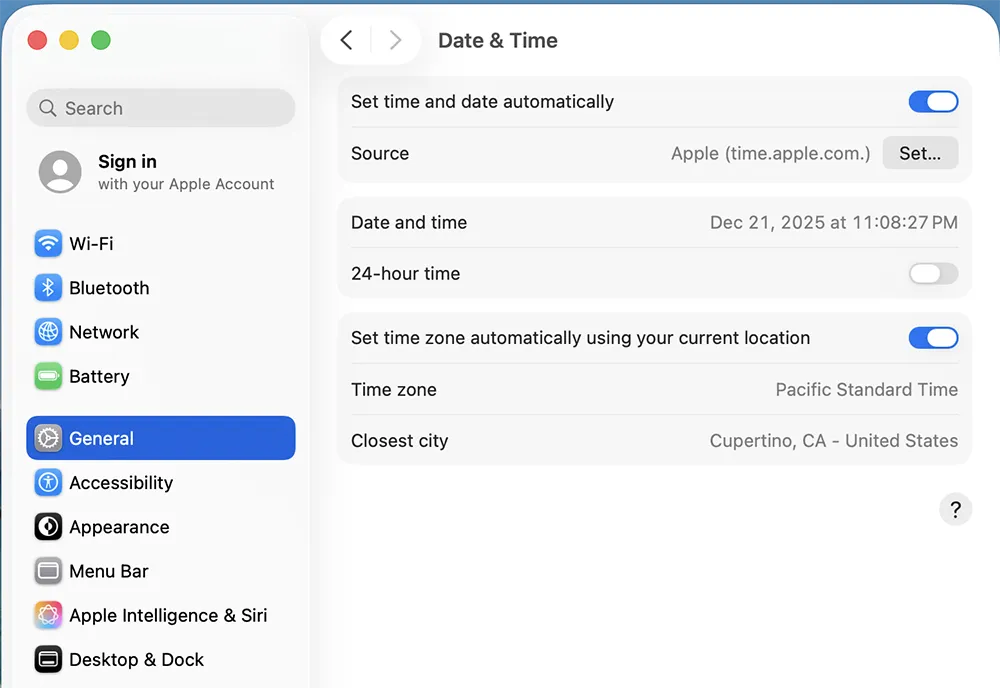
- Open System Settings → General → Date & Time
- Enable Set time automatically
- Restart the Mac and retry installation
Step 4: Re-download the macOS Installer to Eliminate Corruption
macOS installer downloads can become corrupted due to interrupted downloads, low storage during download, or background system interruptions. Even if the installer launches, internal package corruption may cause it to fail mid-install.
Best practice:
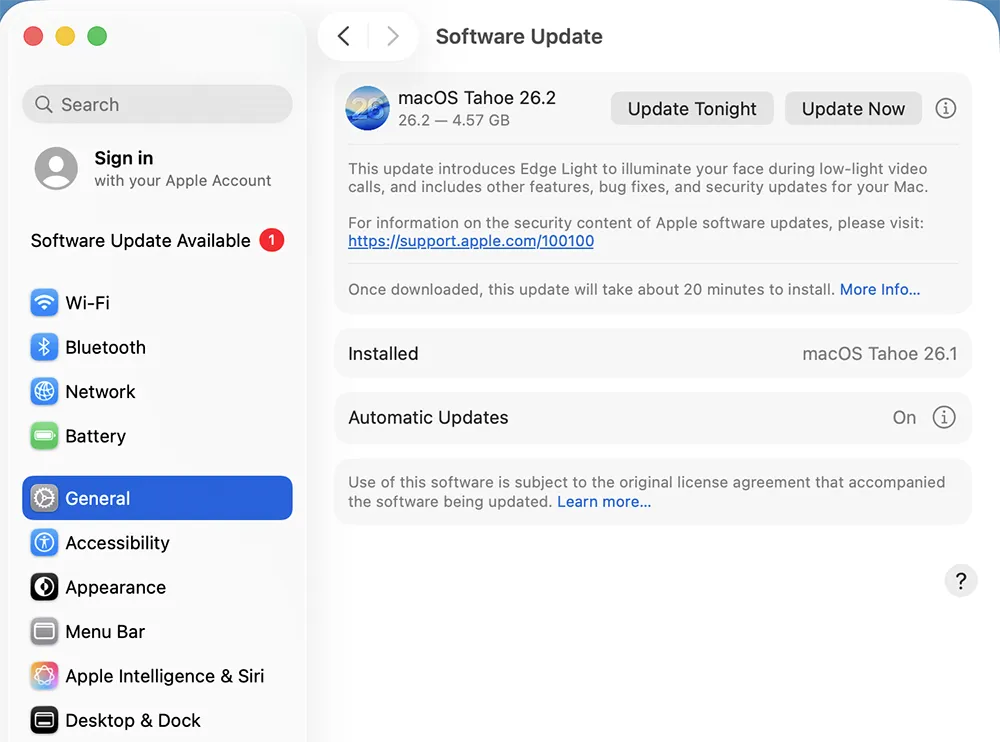
- Delete the installer from the Applications folder
- Re-download macOS using System Settings → Software Update
- Avoid using third-party mirrors or cached installers
If repeated downloads fail, switch to Recovery Mode installation for a cleaner source.
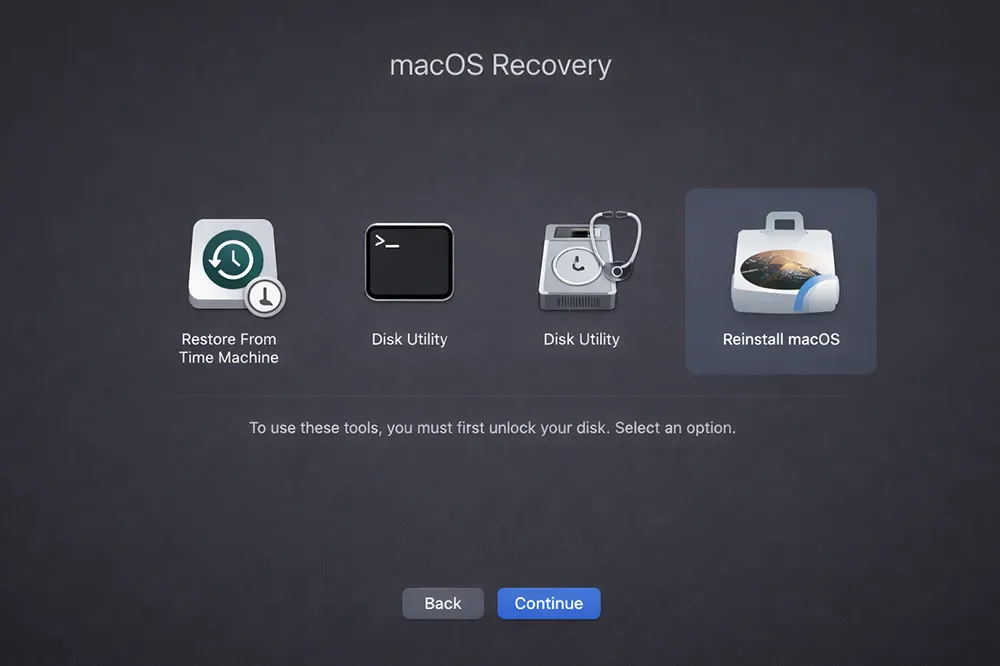
Step 5: Use macOS Recovery Mode for a Verified Reinstall
Recovery Mode installs macOS using Apple’s verified system image, bypassing local installer issues. This method is one of the most reliable ways to resolve installer failures.
How to enter Recovery:
- Apple Silicon: Shut down → hold Power → select Options → Continue
- Intel Mac: Restart → hold Command + R
Select Reinstall macOS and follow on-screen prompts. This process typically preserves user data unless the disk is erased.
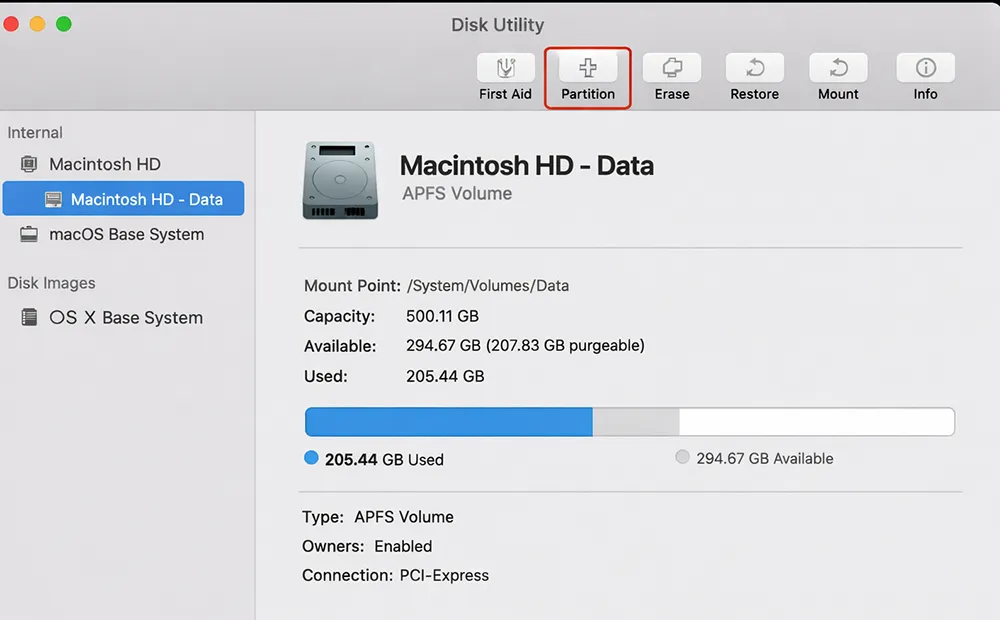
Step 6: Repair Disk Errors Using Disk Utility First Aid
File system inconsistencies can prevent macOS from writing system files or creating required snapshots during installation. Running Disk Utility First Aid verifies and repairs the startup volume.
- Boot into Recovery Mode
- Open Disk Utility
- Select the system volume (usually “Macintosh HD”)
- Click First Aid and confirm
If First Aid reports errors it cannot repair, a clean reinstall may be required after backing up data.
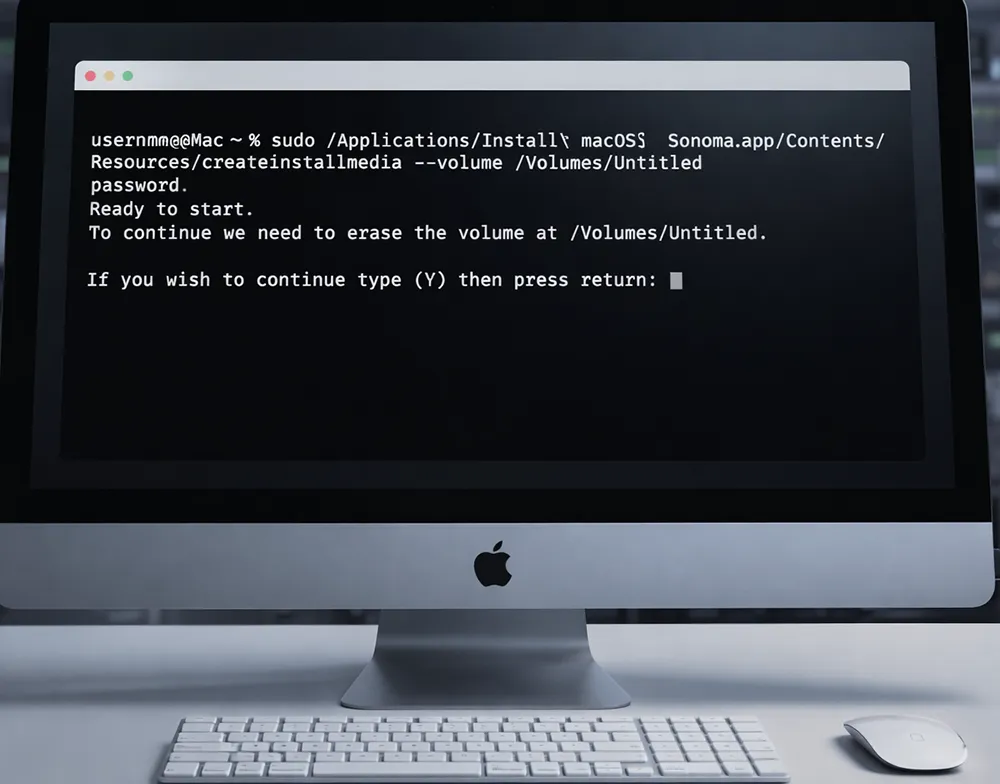
Step 7: Create a Bootable macOS USB Installer
A bootable USB installer provides maximum control and reliability, especially when Recovery Mode or standard installation fails repeatedly. This approach is commonly used by IT professionals and administrators.
Follow this guide:
How to Create macOS Bootable USB.
Step 8: Erase and Reinstall macOS (Last Resort)
If installation continues to fail and disk errors persist, erasing the system volume may be required. This removes corrupted system data but should only be done after backups are confirmed.
Use this option only when other methods fail.
Final Thoughts
macOS installer failures are frustrating, but they are usually caused by predictable issues such as insufficient storage, corrupted installers, incorrect system time, or disk errors. By following a structured troubleshooting approach, most Macs can be restored without hardware replacement.
Frequently Asked Questions
Why does the macOS installer fail repeatedly?
Repeated failures are usually caused by corrupted installer files, disk errors, incorrect system time, or insufficient disk space.
Is Recovery Mode safer than installing from Applications?
Yes. Recovery Mode uses Apple-verified installation files and bypasses local installer corruption.
Can I reinstall macOS without losing data?
Yes. Reinstalling macOS over an existing installation does not erase user data unless you manually erase the disk.
Why does macOS say it cannot be installed on my computer?
This usually indicates compatibility issues, disk format problems, or installer verification failures.
Should I use a bootable USB installer?
Bootable installers are recommended when Recovery Mode or standard installation repeatedly fails.