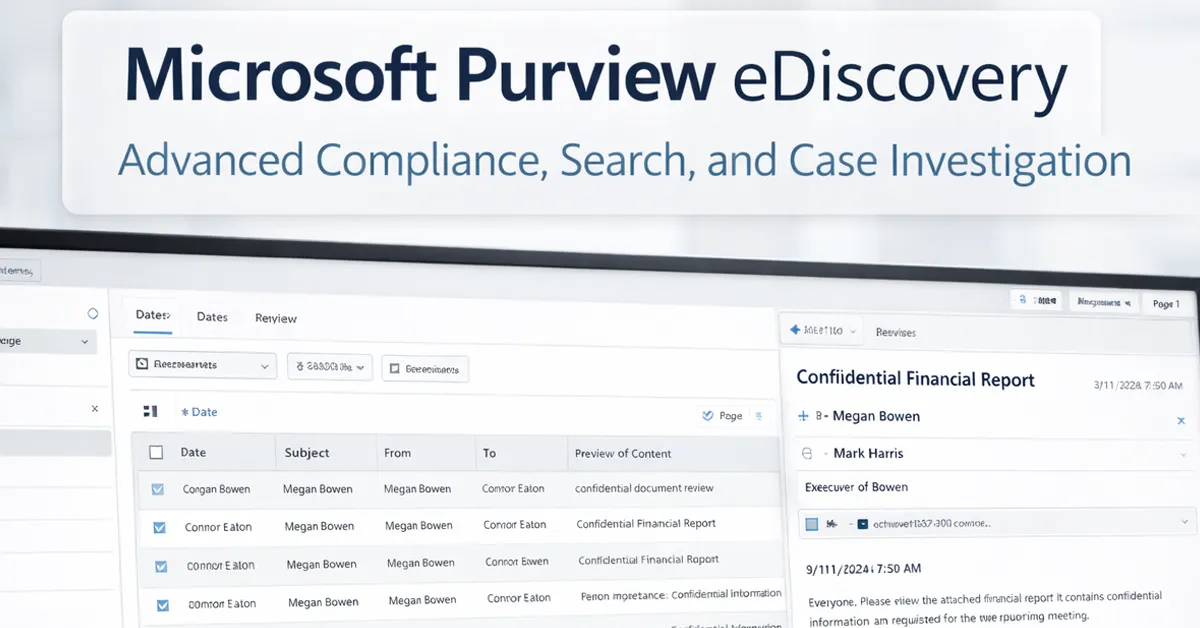
If HR or Legal asks IT to retrieve “deleted” emails or Teams messages, the most important thing to know is this: deleted does not always mean gone. In Microsoft 365, data often moves through a lifecycle where it may remain available for compliance and legal purposes—if retention policies or holds are in place.
This guide explains what “deleted” really means in Microsoft 365, what Purview eDiscovery can and cannot do, and how to run a defensible investigation workflow (case → sources → query → review set → export). It also includes a simple retention vs backup comparison, a visual lifecycle diagram, and common mistakes IT teams make during eDiscovery.
Legal Disclaimer: This article is for educational and IT operations guidance only and does not constitute legal advice. Always follow your organization’s HR policies, legal counsel direction, and local privacy laws. Use eDiscovery only with proper authorization, role-based access, and documented business justification.
What “Deleted” Actually Means in Microsoft 365 (Retention Lifecycle)
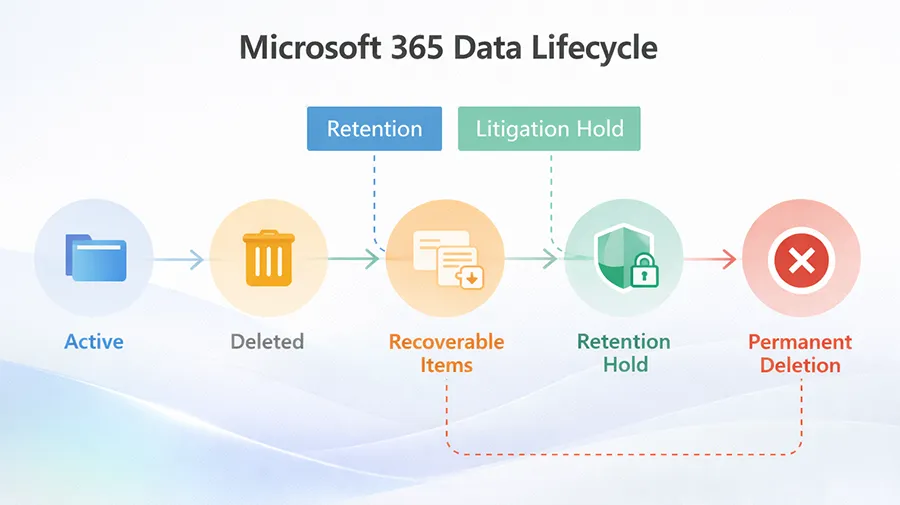
In Microsoft 365, a user action like deleting an email or removing a message can move data into different states. Understanding this lifecycle prevents unrealistic expectations and helps HR understand what is possible.
- Active: Data exists in normal locations (Mailbox, Teams, SharePoint, OneDrive).
- Deleted: Items often move into a deleted state (for example, Deleted Items or similar containers).
- Recoverable / Preservation: Some content may remain recoverable or preserved depending on service behavior and settings.
- Retention Hold / Litigation Hold: Retention policies or mailbox holds can prevent permanent deletion for a defined period.
- Permanent Deletion: Once retention windows expire and no holds apply, content may no longer be recoverable.
If you’re building broader compliance awareness in your org, these related reads help: Multi-Factor Authentication (MFA) and What is Zero Trust Security?.
What Purview eDiscovery Can Do (In Real Investigations)
Microsoft Purview eDiscovery is designed for authorized compliance and legal discovery. In practical HR/legal scenarios, eDiscovery can help IT:
- Create a formal case with controlled access and auditability
- Search scoped data sources for relevant content using keywords + date filters
- Preserve relevant information via hold workflows (depending on licensing and configuration)
- Collect results into a review set for controlled analysis
- Export results for legal review or HR investigation
What Purview eDiscovery Cannot Do (Important Limitations)
These are the most common “hard boundaries” where eDiscovery cannot help:
- It cannot recover what no longer exists: If retention expired and data was permanently deleted, eDiscovery can’t re-create it.
- It is not a backup restore tool: eDiscovery exports data for review; it does not “restore” chat history back to Teams like a backup solution might.
- Wrong scope = missing results: Searching the wrong custodian, wrong locations, or wrong dates leads to incomplete findings.
- Permission and licensing matter: If your environment lacks required licensing/features, certain collection options may be unavailable.
Retention vs Backup (Short Comparison)
HR often expects “deleted = recoverable forever.” This table helps set expectations clearly.
| Category | Retention (Microsoft Purview) | Backup (Separate backup tool) |
|---|---|---|
| Purpose | Compliance: keep/delete content per policy | Recovery: restore after loss/corruption |
| Restores data to user apps | No (export + investigation workflow) | Often yes (restore mailbox/files/chat items) |
| Legal review workflow | Yes (cases, searches, review sets) | Varies by vendor |
| Best used for | Investigations, compliance, defensible exports | Operational recovery, ransomware recovery, accidental deletion |
Step-by-Step: Run Purview eDiscovery for Deleted Email & Teams Messages
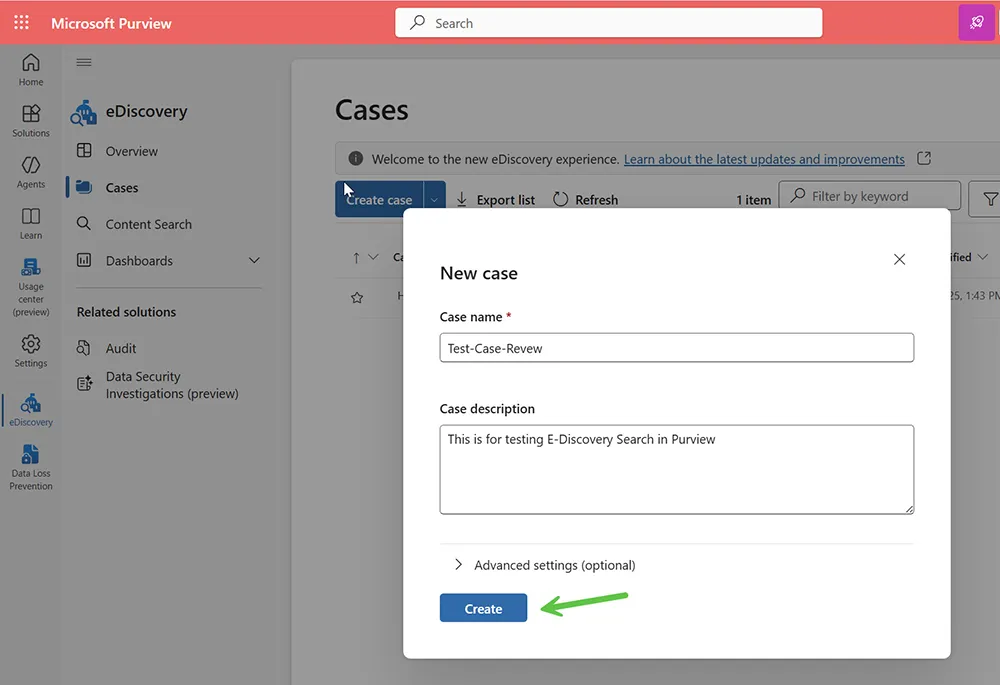
Step 1: Create a Case
Create a case with a neutral, trackable name (example: HR-INV-YYYYMMDD). Avoid writing sensitive allegations in the case description—keep it minimal.
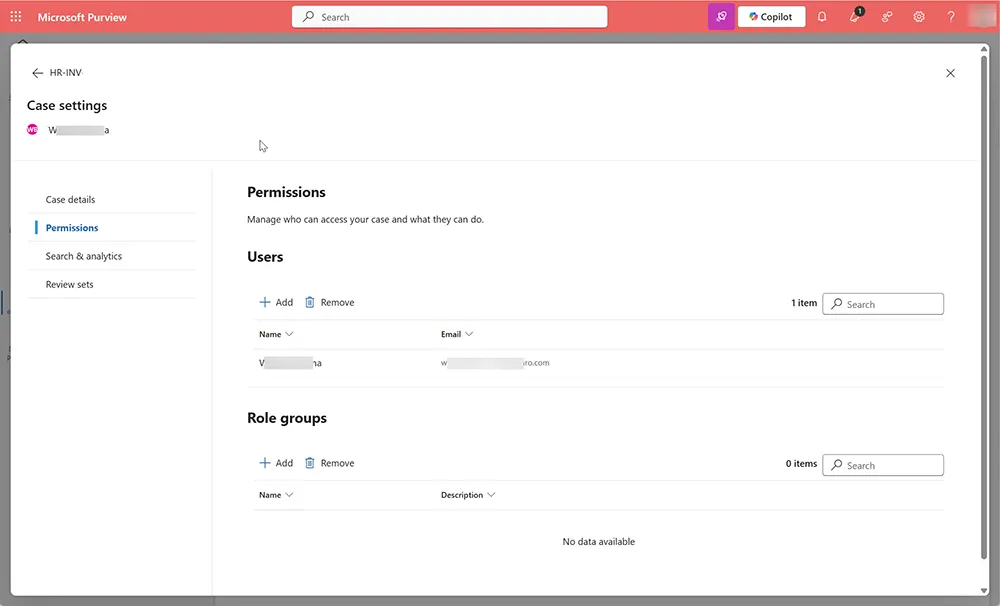
Step 2: Validate Case Access and Permissions
Keep access limited to authorized reviewers only. Too many reviewers increases privacy exposure and risk.
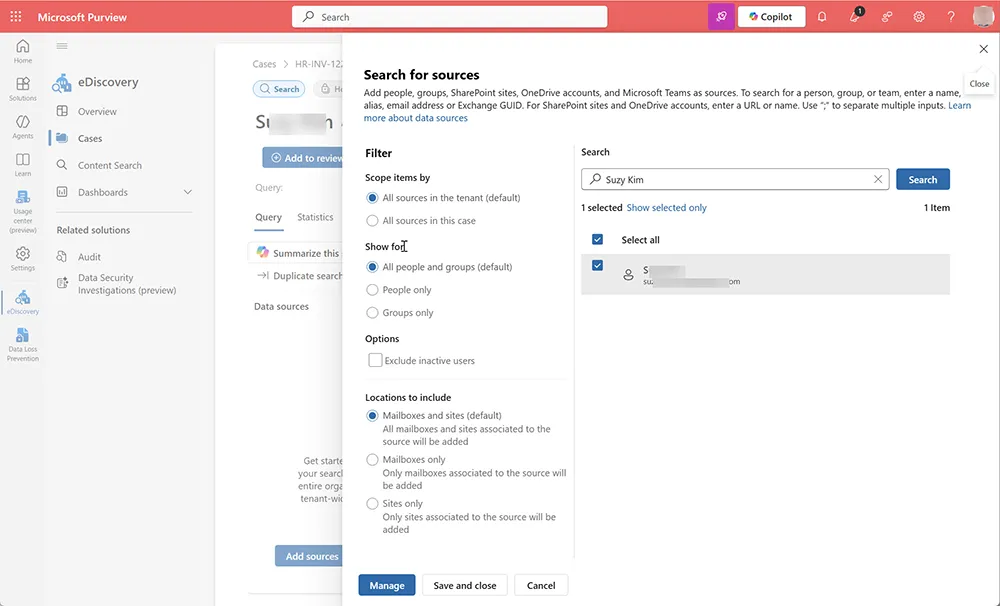
Step 3: Add Custodian / Data Sources
Choose the right custodian(s). If HR wants content for one employee, start with that employee only. You can expand scope later if needed.
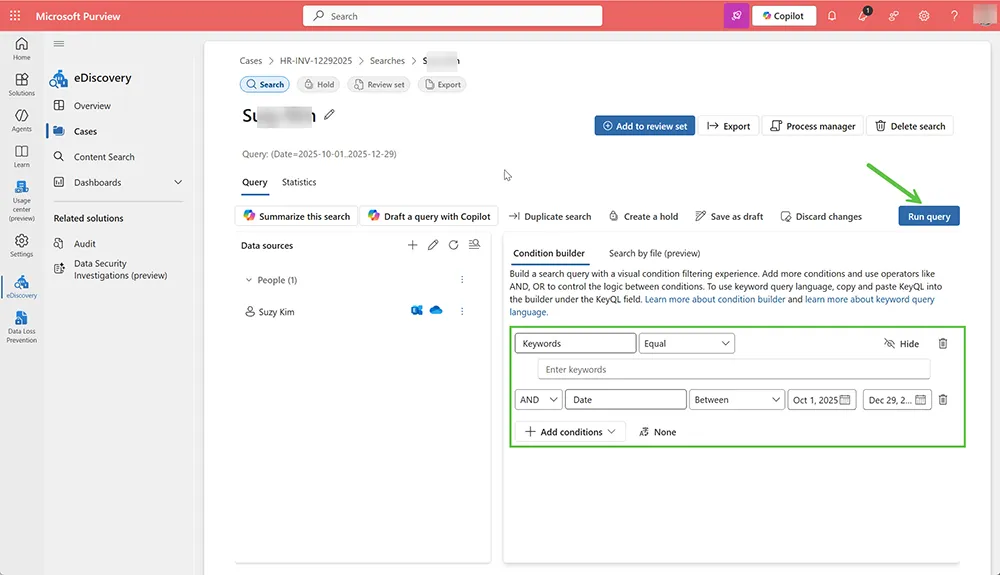
Step 4: Build Your Query (Keywords + Dates)
This is where your results are won or lost. Use a defensible query approach:
- Start broad: Use date range only (no keywords) to confirm hit volume.
- Add keywords: Add names, topics, phrases, project names.
- Narrow slowly: Avoid overly narrow keywords until you confirm you’re not missing data.
If your org is improving identity security posture, see: Password resets & account lockouts and Password recovery tips.
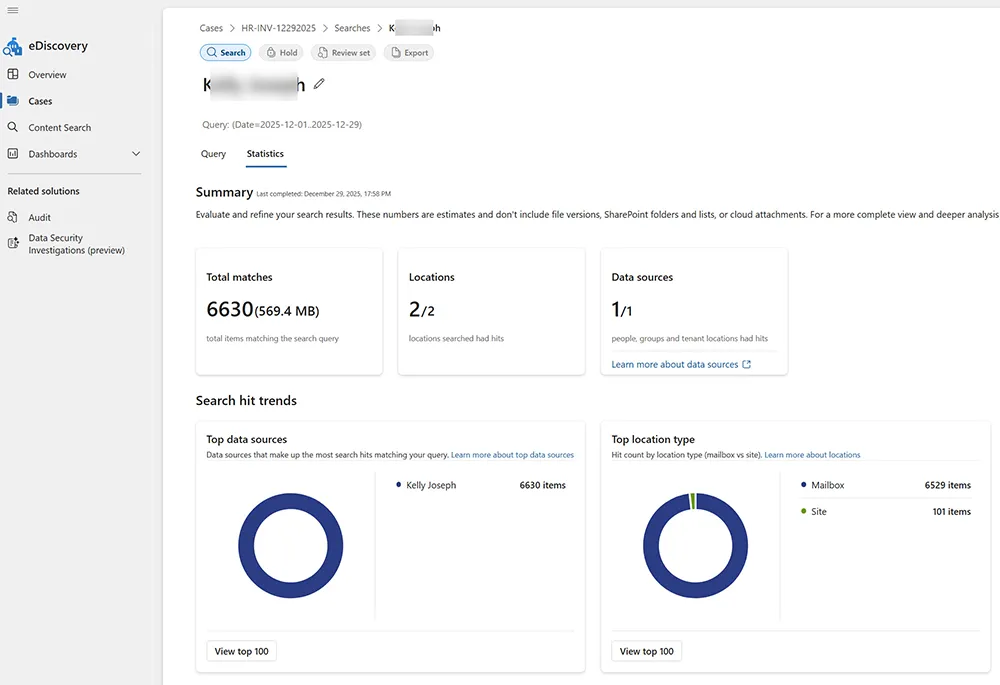
Step 5: Validate the Search Statistics Before Exporting
Before moving to review sets or export, validate the statistics. This helps you confirm:
- Total match count makes sense
- Hits are coming from expected locations (mailbox vs sites)
- Your scope is not too broad or too narrow
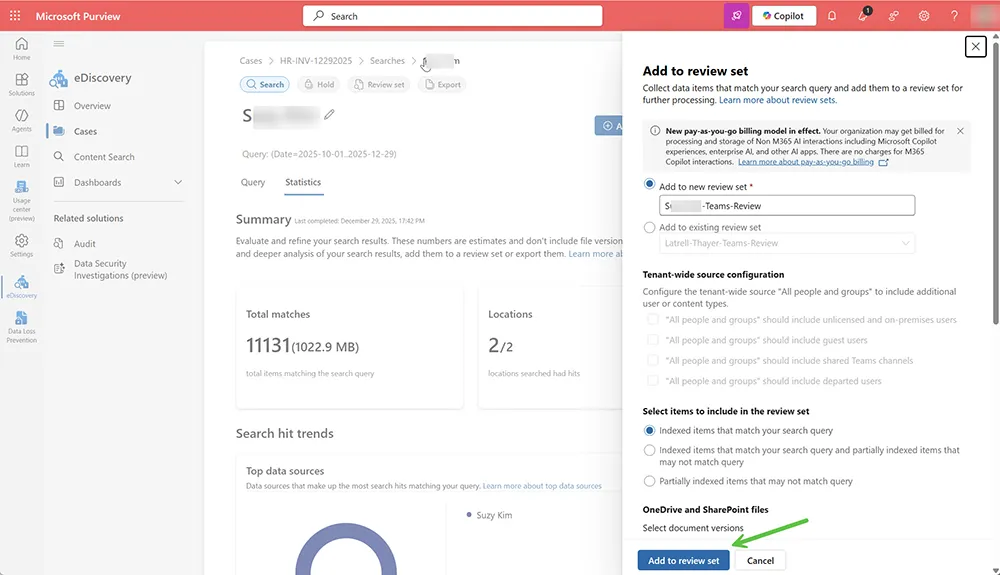
Step 6: Add Results to a Review Set (Critical for Defensible Review)
A review set is where results become a controlled dataset for review and export. This is critical for auditability and legal defensibility.
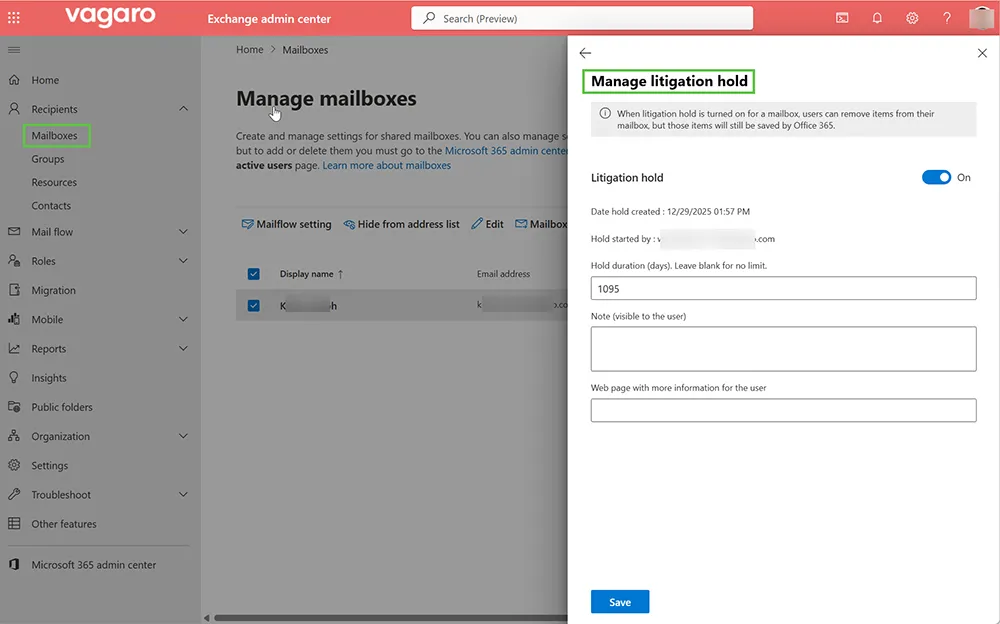
Litigation Hold: What It Is and How IT Applies It
Litigation Hold is an Exchange mailbox preservation feature. When enabled, it preserves mailbox content (including deletions and modifications) so the organization can meet legal obligations.
When HR/Legal should request it:
- Active legal disputes
- Formal investigations where evidence preservation is required
- Any situation where counsel requests preservation
Common Mistakes IT Makes During eDiscovery
- Promising recovery without checking retention/holds
- Over-collecting (too broad scope creates privacy and review problems)
- Not documenting authorization (HR/legal approval should be recorded)
- Adding too many case members (permission sprawl)
- Skipping review sets (exports become messy and less defensible)
People Also Ask (Optimized)
Can IT retrieve deleted Teams messages?
Yes, if the Teams content still exists in Microsoft 365 locations due to retention policies, holds, or service preservation behavior. If the data has been permanently purged and retention is expired, it may not be recoverable.
Does eDiscovery recover permanently deleted emails?
Not if they are truly gone. eDiscovery can collect what still exists in retained locations. Litigation hold and retention significantly increase recoverability.
Why do eDiscovery searches show fewer results than expected?
Common causes include wrong date range, missing custodians, wrong locations, keyword filters that are too strict, or content that has already aged out of retention.
Is a Review Set required?
In most investigations, yes. Review sets provide a controlled dataset for review, tagging, and export.
Is retention the same as backup?
No. Retention is compliance-driven data lifecycle management. Backups are designed for restoring data after loss or corruption.
Related security articles on MagnetClicks: Check if your email was exposed in a breach and How to remove malware and viruses.
Frequently Asked Questions
Can Microsoft Purview eDiscovery retrieve deleted Teams chat messages?
It can retrieve Teams-related content when it still exists in Microsoft 365 locations due to retention policies, holds, or preservation behavior. If content is permanently purged and not retained, it may not be retrievable.
What is the difference between retention and litigation hold?
Retention is policy-based lifecycle management (keep or delete after a period). Litigation hold is mailbox-specific legal preservation that retains deleted and modified items until the hold is removed or expires.
Why do eDiscovery results look incomplete?
Most incomplete searches are caused by incorrect date scope, missing custodians, searching the wrong locations (mailbox vs site), or keywords that are too narrow.
Do I need a review set for every investigation?
In most cases, yes. A review set creates a controlled dataset for consistent review, tagging, and defensible export.
Does eDiscovery work like a backup restore?
No. eDiscovery is for investigation and export, not restoring data back into Teams or Outlook like a backup tool would.