How to Troubleshoot a Palo Alto Firewall: Common Scenarios and Fix Workflow (2025)
Palo Alto firewalls are built for modern enterprise security: application-aware policy enforcement (App-ID), user-aware visibility (User-ID), and deep inspection via security profiles. That power is exactly why troubleshooting needs a disciplined method. If you troubleshoot a Palo Alto firewall like a basic “port/IP” firewall, you’ll waste time—and you may accidentally weaken security by making overly broad changes.
This guide follows a proven, operations-friendly workflow: confirm the symptom, prove what the firewall decided, isolate the enforcement layer, apply the smallest safe change, and validate with repeatable tests. You’ll see common real-world scenarios: “traffic is blocked even with an allow rule,” App-ID shows unknown, VPN tunnel is up but traffic won’t pass, NAT behaves unexpectedly, and performance drops during peak hours.
We’ll also use Microsoft-native validation tools on the client side (PowerShell connectivity tests and Windows tracing) to confirm whether the issue is truly the firewall or something upstream/downstream.
Before You Touch Policy: Capture the Minimum Facts
Firewall troubleshooting becomes fast when you make it measurable. Before changing any rules, capture these details from the user or monitoring tools:
- Source: IP address (and user/device name if possible)
- Destination: IP or hostname (FQDN) + destination port
- Application: what the user thinks they’re accessing (Teams, GitHub, RDP, SIP, etc.)
- Where: office LAN, guest network, VPN, data center segment
- When: exact time window (timestamps matter for logs)
- Scope: one user vs entire team vs all sites
For security hygiene during troubleshooting, it helps to align your changes with least privilege and strong segmentation. If you’re designing secure zones/VLANs, reference:
Top 5 Benefits of VLAN Segmentation for Secure Networks and
What is Zero Trust Security?.
Step 1: Prove the Network Path from the Client (Microsoft Tools)
Before blaming the firewall, validate that the client can resolve DNS and reach the target. From a Windows client, Test-NetConnection gives fast evidence: DNS, TCP reachability, and route hints.
Microsoft reference:
Test-NetConnection (PowerShell)
Example: test TCP 443 connectivity
Test-NetConnection example.com -Port 443If the test fails from multiple clients/subnets, you likely have a routing/policy/NAT issue. If it fails only from one user, check endpoint posture, DNS, or local network profile.
Scenario 1: Traffic Is Blocked Even Though “There’s an Allow Rule”
This happens constantly—and the fix is usually not “add another rule.” The correct move is to prove which rule matched and why.
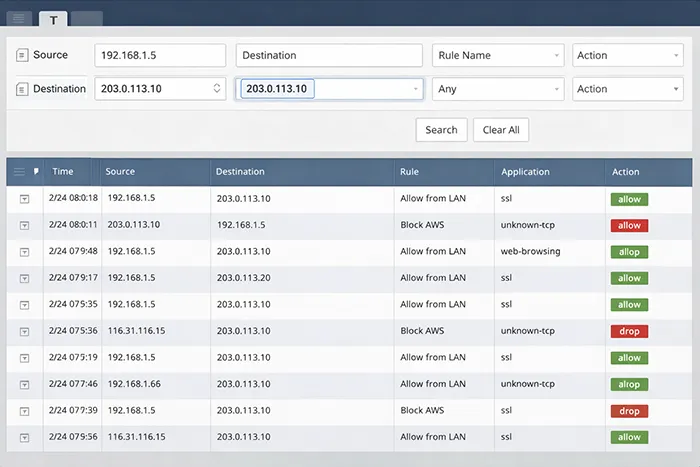
1A) Start with Traffic Logs (not policy guesses)
- Open Monitor → Traffic
- Filter by source/destination IP and time window
- Confirm the Rule Name, Action, and End Reason
1B) Check Rule Order and Zones
Security policy evaluates top-to-bottom. The first match wins. Most “phantom blocks” come from:
- A broad deny/cleanup rule above the allow rule
- Wrong source zone or destination zone
- Rule constrained to the wrong service or app
- User-ID expectations not matching the session (unknown user)
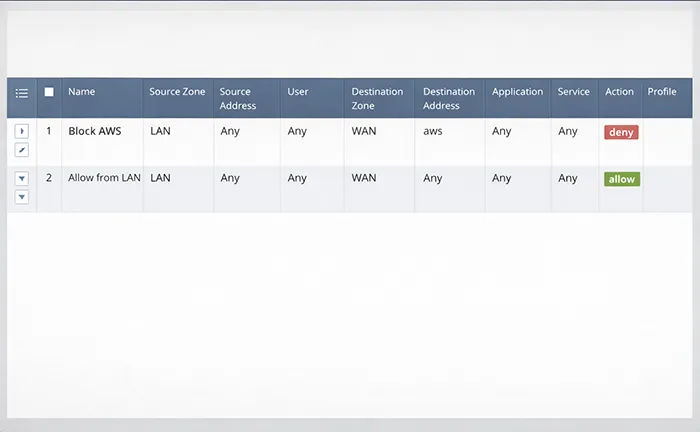
Safe fix: adjust rule order (or narrow the deny rule), then validate again using the same traffic log filter. Avoid creating duplicate “temporary allow” rules that remain forever.
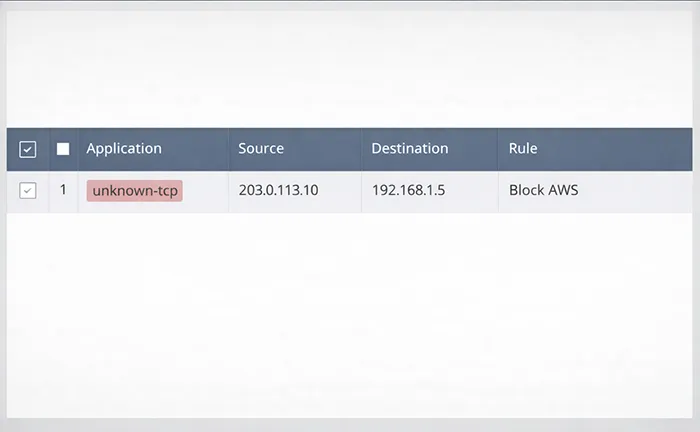
Scenario 2: App-ID Shows unknown-tcp or unknown-udp
When App-ID can’t classify traffic, application-based rules may not work as intended. This is common when traffic is encrypted, uses non-standard ports, or requires multi-stage negotiation.
2A) Confirm whether the app “evolves”
In logs, watch if the app stays unknown or later becomes a known application after handshake/inspection. If it stays unknown, policy may need to be adjusted to allow identification without opening the floodgates.
2B) Use least-risk rule refinement
- Prefer application-default when applicable
- Keep scope narrow (specific source subnets/users)
- Validate using logs (not user “it works now” only)
Security-aware troubleshooting matters. If you want incident-driven lessons on how small policy mistakes become big problems, see:
Cybersecurity Incidents: Real-World Lessons and
5 Cybersecurity Tools.
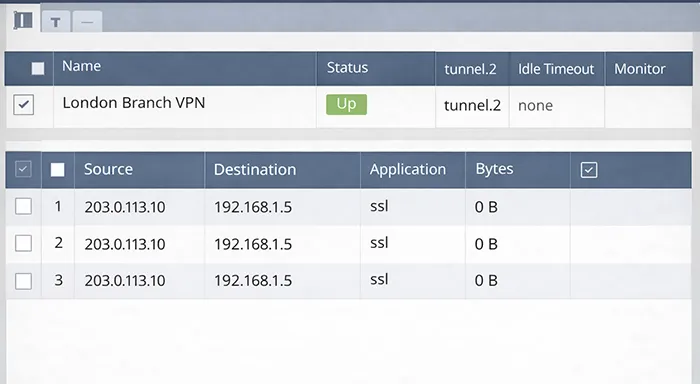
Scenario 3: IPSec VPN Tunnel Is Up, But No Traffic Passes
“Tunnel is up” confirms negotiation, not traffic flow. Data plane issues usually come down to policy, routing, NAT, or selectors.
3A) Validate policy between VPN zones
Make sure you have an explicit allow rule from the VPN zone to the internal zone (and reverse if needed). Palo Alto won’t “imply allow” just because the tunnel exists.
3B) Validate routes for remote subnets
If the firewall doesn’t have a route to the remote subnet, it can’t forward traffic correctly—even if Phase 1/2 is perfect.
3C) Ensure NAT is not rewriting VPN traffic
A common failure: an internet-bound NAT rule accidentally matches VPN traffic. Use logs to confirm the egress interface/zone and whether translation occurred.
Scenario 4: Logs Are Not Enough — Take a Packet Capture (pcap)
When issues are intermittent or protocol-level (TLS, MTU, retransmits), packet capture is the fastest way to stop guessing.

To complement firewall captures, Windows can generate network traces using netsh. This is especially useful when users are remote or you need endpoint-side proof.
Microsoft reference:
netsh trace (Windows)
Example:
netsh trace start capture=yes report=yes persistent=no maxsize=512 filemode=circular
netsh trace stop
Scenario 5: Users Report Slowness or Random Drops (Performance)
Performance complaints are tricky because the firewall might be the symptom—not the cause. The goal is to identify whether the firewall is resource constrained, or if the issue is upstream (ISP), downstream (server), or endpoint-related.
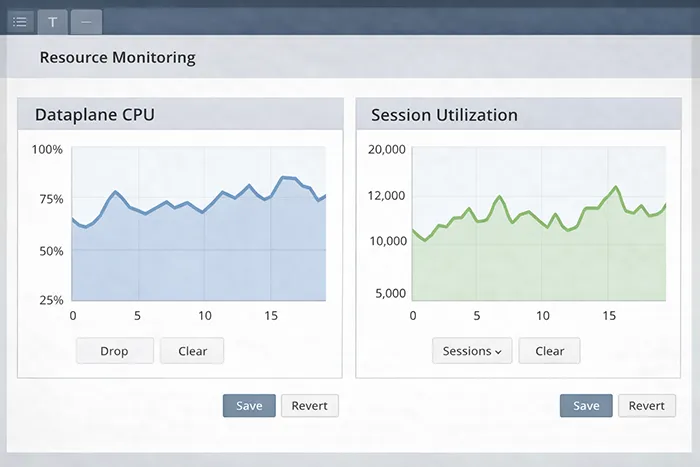
5A) Check dataplane health and session pressure
- Look at CPU and dataplane utilization during the incident window
- Compare session count and session setup rates to your normal baseline
- Check whether specific security profiles correlate with spikes
5B) Confirm the endpoint is not the bottleneck
If only one or two users are slow, confirm the endpoint isn’t suffering from local performance problems or malware. These guides help standardize endpoint verification:
- Speed Up Your Computer
- How to Remove Malware and Viruses
- Types of Malware and How They Infect Your Computer
Scenario 6: NAT Is Not Working as Expected
NAT issues are usually not “bad NAT.” They’re typically mismatched zones, rule order problems, or unexpected matching due to overly broad criteria.
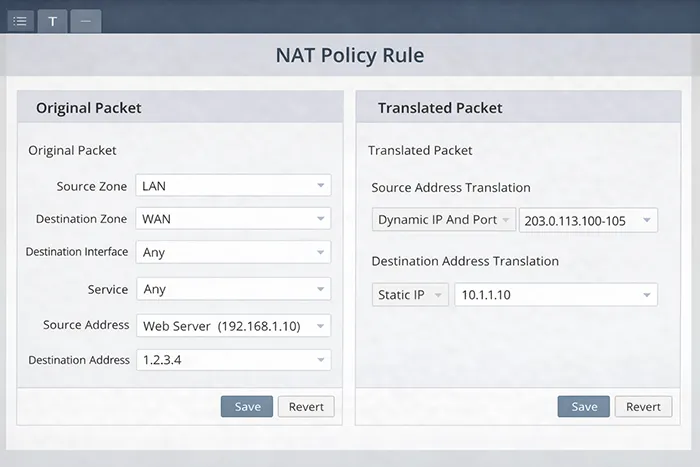
6A) Use a repeatable NAT validation method
- Confirm the NAT rule’s source zone and destination zone
- Verify NAT rule order: specific above general
- Confirm the translated address/service matches the design
- Check Traffic logs to validate translation behavior
Security Notes: Troubleshooting Without Weakening Your Posture
When a service is down, the temptation is to “allow any any” temporarily. In real environments, those temporary exceptions become permanent risk. Instead:
- Scope changes to a single source subnet or test user
- Use time-bound change tickets and remove temporary rules
- Prefer targeted rule edits over adding duplicate rules
- Maintain strong authentication for admin access and critical apps
For identity and access hardening concepts that support firewall policy design, see:
Multi-Factor Authentication.
Final Thoughts
A Palo Alto firewall becomes easy to troubleshoot when you follow a strict sequence: validate the client path, read the firewall logs, confirm rule match and zones, isolate App-ID vs policy vs profiles, and use packet capture when logs aren’t enough. The key is to make changes that are small, safe, and reversible—then validate using the same filters and tests that proved the problem.
When troubleshooting is done this way, you restore service quickly without creating long-term security exceptions.
Frequently Asked Questions
What is the first thing to check when traffic is blocked on a Palo Alto firewall?
Start with Monitor → Traffic logs and filter by source/destination. Confirm the rule name that matched, the action taken, and session end reason before changing policy.
Why does my Palo Alto firewall show unknown-tcp or unknown-udp?
This can happen when App-ID cannot classify the traffic due to encryption, non-standard ports, or incomplete negotiation. Validate whether the application evolves and refine policy using least-risk methods.
Why is my VPN tunnel up but no traffic passes?
Most commonly due to missing security policy between VPN zones, missing routes for remote subnets, selector/proxy-ID mismatch, or NAT rules accidentally matching VPN traffic.
How can I verify connectivity from a Windows client during troubleshooting?
Use Test-NetConnection to validate DNS and TCP reachability, and netsh trace to capture endpoint-side network evidence when you need proof beyond firewall logs.
How do I troubleshoot NAT issues on a Palo Alto firewall?
Confirm zone matching and NAT rule order first, then validate translation behavior in Traffic logs. NAT problems are usually caused by zone mismatch or broad rules matching unintended traffic.