

XLOOKUP is Microsoft’s modern replacement for legacy lookup functions like VLOOKUP and HLOOKUP. It was introduced to address long-standing limitations that made older lookup formulas fragile, hard to maintain, and error-prone in real-world spreadsheets.
VLOOKUP still works, but it reflects an older Excel design philosophy where data was static, column order rarely changed, and error handling required extra formulas. Modern Excel workbooks are more dynamic, collaborative, and scalable, which is where XLOOKUP excels. This shift mirrors how Excel has evolved in other areas, such as dynamic data extraction with the FILTER function.
This guide is for Excel users who already understand basic lookup formulas and want to understand why XLOOKUP is now the recommended default in modern Excel.
Platform scope: XLOOKUP is available in Excel for Windows, Excel for macOS, and Excel for the web for Microsoft 365 users. Older perpetual versions of Excel do not support XLOOKUP.
How It Works
Both VLOOKUP and XLOOKUP retrieve values from a table based on a matching value. The difference lies in how they identify data and how flexible they are when the worksheet changes.
VLOOKUP searches vertically from the first column of a table and relies on a fixed column index number. XLOOKUP separates the lookup array from the return array, removing the dependency on column position entirely.
What You Will Learn
- Why VLOOKUP breaks easily in modern spreadsheets
- How XLOOKUP improves accuracy and flexibility
- Key technical differences between the two functions
- When it is safe to replace VLOOKUP
- When VLOOKUP may still be required
Prerequisites
- Excel for Microsoft 365 (Windows, macOS, or web)
- Basic understanding of Excel formulas
- Ability to paste and edit tabular data
Step-by-Step Instructions
Step 0: Set Up the Sample Dataset
Before comparing VLOOKUP and XLOOKUP, start with a clean dataset that reflects a realistic business scenario. This same data will be reused in every step.
Product ID	Product Name	Category	Supplier	Discount Rate	Unit Price	Discontinued
P-1001	Wireless Mouse	Accessories	LogiTech	10%	25	No
P-1002	Mechanical Keyboard	Accessories	Keychron	5%	120	No
P-1003	27-inch Monitor	Displays	Dell	10%	300	No
P-1004	USB-C Docking Station	Accessories	Anker	5%	180	Yes
P-1005	Laptop Stand	Accessories	RainDesign	10%	45	No
Paste the data into cell A1, convert it to a table, and name the table Products. Using structured tables improves consistency across calculations, similar to how conditional aggregation works with the SUMIF function.
To keep examples consistent throughout the tutorial, use the Product ID P-1004 as the primary test value.
Step 1: See How VLOOKUP Breaks When Columns Change
VLOOKUP requires a fixed column index number. In this dataset, retrieving the Unit Price requires referencing a specific numeric column position.
If a new column is inserted between Supplier and Unit Price (for example, Discount Rate), the formula does not adjust intelligently. Instead, it continues pointing to the original column number and silently returns incorrect results.
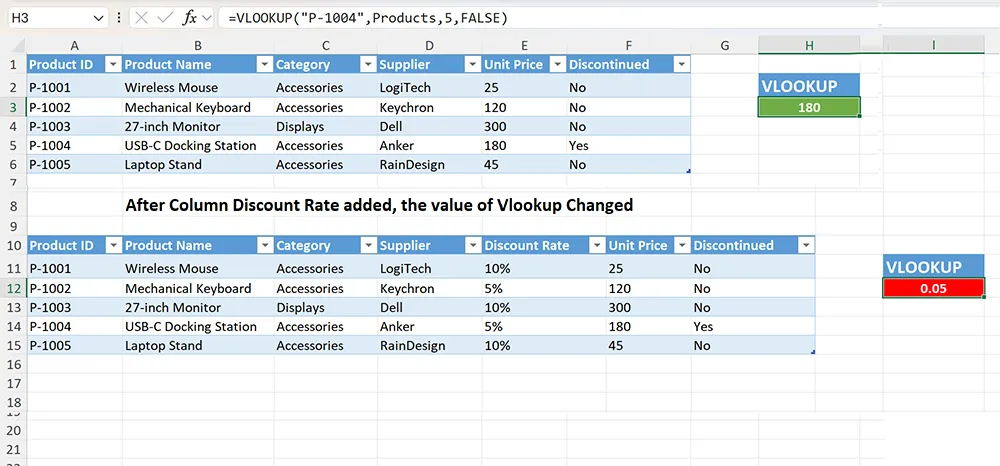
In real workbooks, this is one of the most dangerous failure modes because the formula still returns a value, but the value is wrong. These silent issues often surface later during summary analysis, such as when results are grouped in PivotTables.
Step 2: Use XLOOKUP to Remove Column Dependencies
XLOOKUP eliminates column index numbers entirely. Instead, it explicitly defines where to look and where to return the result from.
Using the same dataset, XLOOKUP continues to return the correct Unit Price for P-1004 even after columns are added, removed, or rearranged.
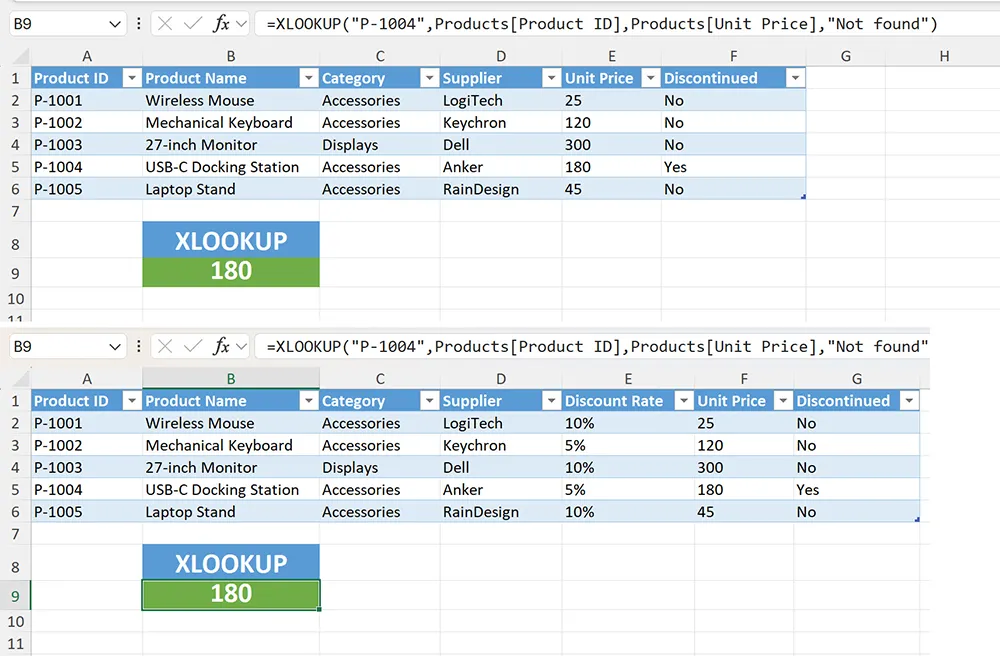
This makes XLOOKUP significantly more reliable in shared workbooks and reporting models that evolve over time.
Step 3: Handle Missing Values Without Hiding Errors
With VLOOKUP, missing values are often handled using IFERROR, which suppresses all errors and can hide genuine data issues.
XLOOKUP includes a dedicated argument for missing values, allowing you to define exactly what should appear when no match is found.
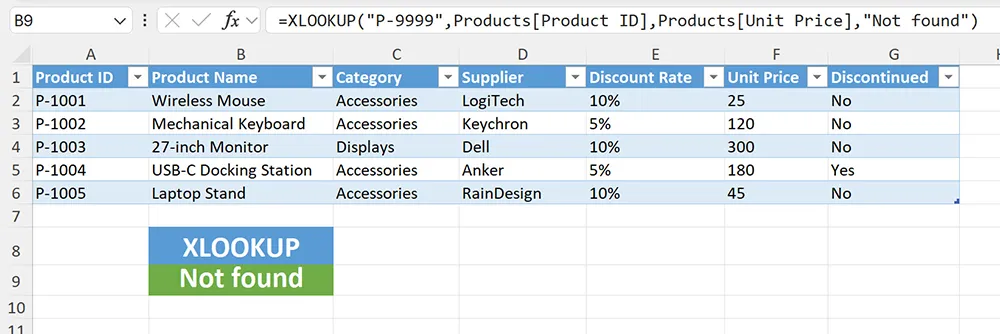
This transparency is especially important in time-based models and projections, such as those that rely on the FORECAST function.
Step 4: Look Up Data in Any Direction
VLOOKUP only works when the return value is to the right of the lookup column. This restriction often forces users to rearrange tables or duplicate data.
XLOOKUP can return values from columns to the left or right, allowing tables to remain logically structured.
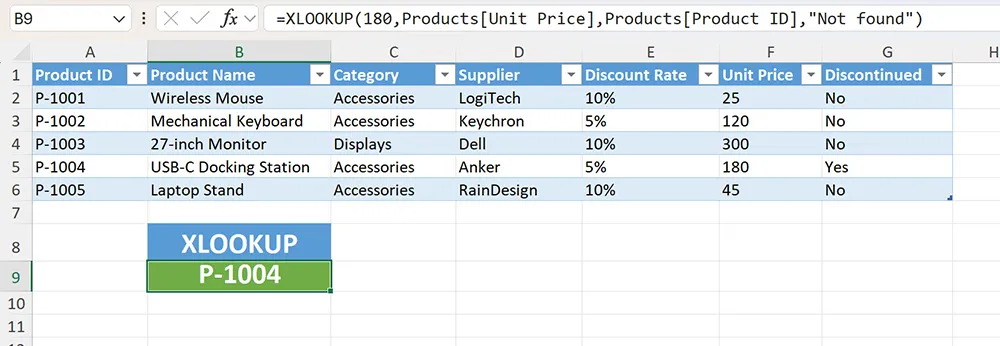
This flexibility is particularly useful when working with period-based data, where month boundaries are calculated using functions like MONTH and EOMONTH.
Step 5: Improve Performance, Readability, and Long-Term Maintainability
Beyond flexibility and error handling, the most important reason XLOOKUP replaces VLOOKUP in modern Excel is maintainability.
VLOOKUP formulas rely on numeric column indexes, which provide no contextual meaning and slow down auditing.
XLOOKUP improves readability by making formulas self-describing, allowing future users to understand intent without documentation.
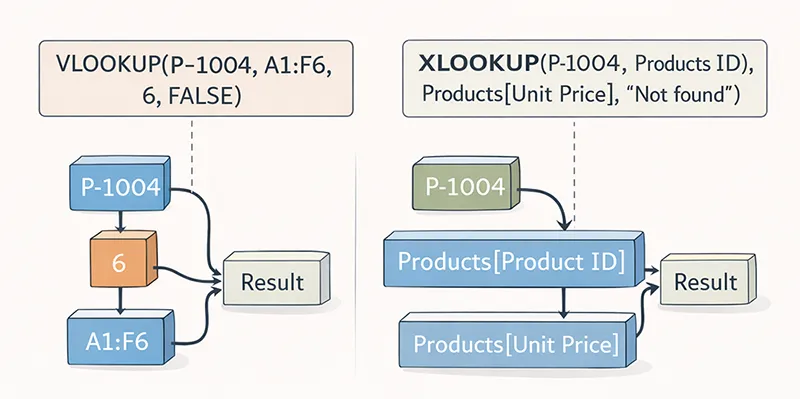
From a long-term perspective, XLOOKUP reduces silent failures and makes structural changes easier to detect during reviews.
Tips and Best Practices
- Prefer XLOOKUP for new workbooks. It is more readable and future-proof.
- Document transitions. If replacing VLOOKUP in shared files, explain the change.
- Keep formulas explicit. Clear references reduce maintenance cost.
- Test dynamic changes. Insert and remove columns to confirm stability.
Practical Use Cases
- Financial models that evolve over time
- Dashboards fed by external data sources
- Shared workbooks used across teams
XLOOKUP may not be suitable if the file must remain compatible with very old Excel versions.
Conclusion
XLOOKUP represents a shift in how Excel handles lookups: from rigid, position-based logic to flexible, explicit references.
VLOOKUP still exists for backward compatibility, but in modern Excel environments, XLOOKUP is the safer long-term choice.