You installed a Windows 11 update, restarted your PC, and now the screen is black. Sometimes you can still see a cursor. Sometimes the screen is completely blank. In other cases, Windows shows spinning dots, a blinking underscore, or nothing at all after sign-in.
A black screen after a Windows update feels serious because there is no obvious button to click, but in many cases the problem is recoverable without reinstalling Windows or losing your personal files. The fix depends on where the black screen appears: before sign-in, after sign-in, during restart, or after a failed update rollback. If the black screen appeared straight after a cumulative update, start with the update-specific fixes in the KB5065426 update error guide.
This guide walks you through the most reliable fixes in the safest order. Start with the quick display and Explorer fixes first, then move to Safe Mode, graphics driver rollback, Fast Startup, system file repair, update uninstall, System Restore, and finally Reset this PC only if nothing else works.
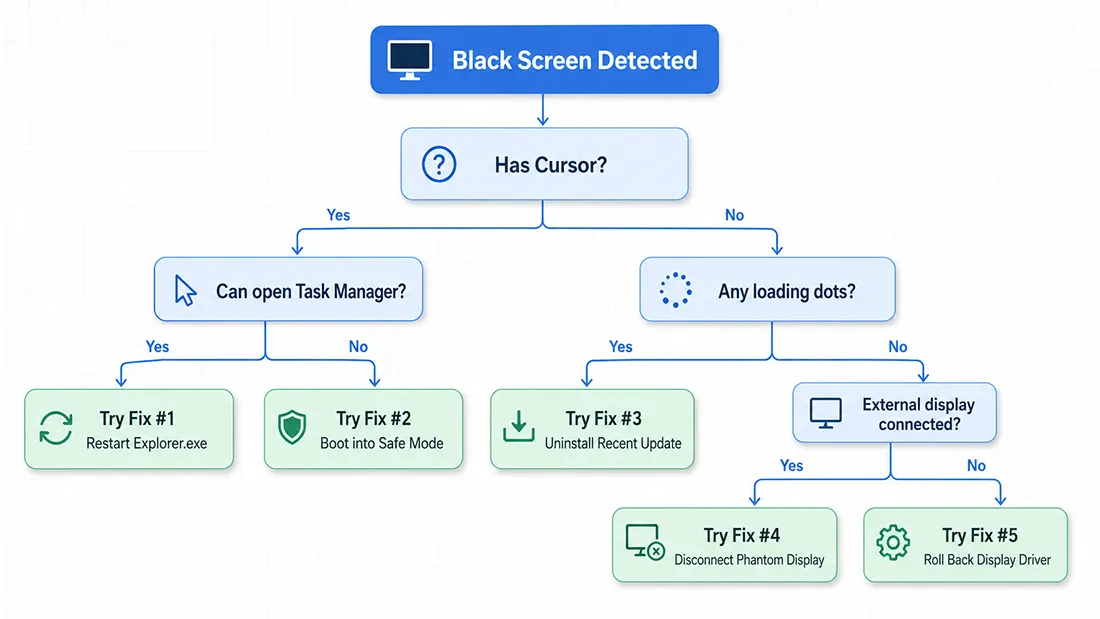
Before You Start: Identify the Type of Black Screen
Do not jump straight to resetting Windows. First, identify what type of black screen you are seeing. This helps you avoid unnecessary recovery steps.
| What You See | Most Likely Cause | Best Starting Fix |
|---|---|---|
| Black screen with a cursor after sign-in | Explorer.exe failed to load, user profile issue, or display driver problem | Fix #2: Restart Explorer.exe |
| Black screen before the sign-in screen | Display output problem, graphics driver conflict, or Fast Startup issue | Fix #1 or Fix #4 |
| Completely black screen with no cursor | Monitor, cable, display mode, GPU driver, or boot problem | Fix #1 and Fix #3 |
| Black screen with spinning dots | Windows is still applying or finalizing an update | Wait before forcing shutdown |
| Black screen with a blinking cursor or underscore | Boot device, BIOS/UEFI, or Windows boot loader issue | Windows Recovery Environment |
Important: If you see spinning dots after an update, wait at least 30 minutes before forcing a shutdown. Interrupting Windows while it is applying update changes can make the problem worse.
If you are seeing a blue crash screen instead of a black screen, use our separate guide on how to fix the Blue Screen of Death in Windows. If the computer is frozen but the screen is still visible, start with our guide on how to fix a frozen Windows or macOS computer.
What Causes a Windows 11 Black Screen After an Update?
Windows 11 black screen problems after updates usually come from one of these areas:
- Graphics driver conflict: A Windows update, optional driver update, or vendor GPU driver may conflict with the current display stack.
- Explorer.exe did not launch: Windows may sign you in, but the desktop shell does not load, leaving only a cursor.
- Display output changed: Windows may try to output to a secondary monitor, dock, projector, or disconnected screen.
- Fast Startup problem: Windows may resume from a hybrid shutdown state that does not match the updated system files.
- Corrupted system files: An interrupted update can damage Windows components or protected system files.
- Corrupted user profile: The black screen may happen only for one Windows user account.
- Boot or recovery issue: If Windows cannot load properly, you may need Windows Recovery Environment, Startup Repair, System Restore, or Reset this PC.
Microsoft also refers to this issue as a blank screen or black screen and recommends checking hardware connections, waking the display, using Safe Mode, rolling back graphics drivers, restarting Windows Explorer, and using System Restore when the issue began recently. You can compare your symptoms with Microsoft’s official Windows blank screen troubleshooting guidance.
Fix #1: Wake the Display with Windows + Ctrl + Shift + B
This is the fastest fix to try because it refreshes the graphics driver without restarting the whole computer.
- Press Windows + Ctrl + Shift + B at the same time.
- Listen for a short beep.
- Watch for the screen to flicker or refresh.
- If the display returns, save your work and restart the PC normally.
This shortcut is useful when Windows is running but the graphics output is stuck. It does not delete files, uninstall apps, or change your settings.
If the screen comes back but the computer still feels slow after the update, you may also want to check our related guide on how to fix Windows 11 slow performance after an update.
Fix #2: Restart Explorer.exe from Task Manager
If you can see a black screen with a cursor after signing in, Windows may have loaded your session but failed to start the desktop shell. Explorer.exe controls the desktop, taskbar, Start menu, and File Explorer windows.
- Press Ctrl + Shift + Esc to open Task Manager.
- If Task Manager opens in compact mode, click More details.
- Click File and select Run new task.
- Type
explorer.exe. - Click OK.
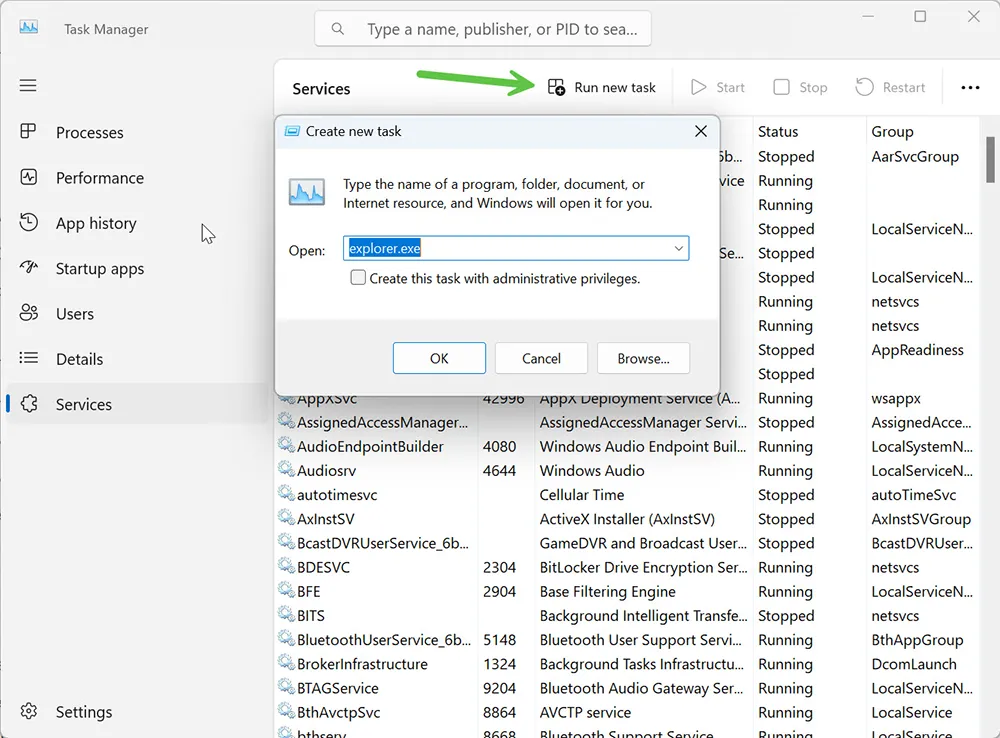
If your desktop returns, restart the computer once. If the issue comes back, run the DISM and SFC repair commands in Fix #6 because the Windows shell or system files may be damaged.
If File Explorer opens but behaves strangely after the update, you may also find this related guide useful: Windows 11 File Explorer flashing white in dark mode.
Fix #3: Disconnect External Devices, Docks, and Extra Monitors
After some Windows updates, display detection can get confused. The PC may try to send video to a disconnected monitor, USB-C dock, KVM switch, docking station, or external display adapter.
- Hold the power button for about 10 seconds to shut down the PC.
- Disconnect all non-essential devices.
- Remove USB drives, printers, external storage, docking stations, hubs, capture cards, and extra monitors.
- Leave only the keyboard, mouse, power cable, and primary monitor connected.
- If you use a laptop, disconnect external monitors and docks first.
- Turn the PC back on.
If Windows loads normally, reconnect one device at a time. Start with the monitor, then keyboard and mouse, then docking station, then other USB devices. This helps you identify whether the black screen is caused by a display path or peripheral conflict.
If your PC also has network issues after the same update, review Windows 11 Wi-Fi connected but no internet after the display issue is resolved.
Fix #4: Enter Safe Mode and Roll Back the Graphics Driver
If the black screen returns after every reboot, the graphics driver is one of the most likely causes. Safe Mode loads Windows with a minimal driver set, which makes it easier to uninstall or roll back the display driver.
BitLocker warning: If your drive is protected by BitLocker or Device Encryption, Windows may ask for the recovery key when entering recovery options. Before making advanced changes, make sure you can access your recovery key from your Microsoft account, work account, or IT administrator. For background, read our guide on BitLocker vs Device Encryption.
How to Enter Windows Recovery Environment
- Turn on the PC.
- As soon as you see the manufacturer logo or spinning dots, hold the power button until the PC turns off.
- Repeat this interruption two times.
- On the third boot, Windows should open Automatic Repair or Windows Recovery Environment.
- Select Advanced options.
- Go to Troubleshoot → Advanced options → Startup Settings → Restart.
- Press 4 or F4 for Safe Mode.
- Press 5 or F5 for Safe Mode with Networking if you need internet access.
Microsoft’s Windows Recovery Environment guide also explains this forced recovery process. You can review the official steps here: Windows Recovery Environment.
Roll Back or Remove the Graphics Driver
- In Safe Mode, right-click Start.
- Select Device Manager.
- Expand Display adapters.
- Right-click your graphics device, such as NVIDIA, AMD, Intel, or Microsoft Basic Display Adapter.
- Select Properties.
- Open the Driver tab.
- Click Roll Back Driver if the option is available.
- Choose a reason and confirm.
- Restart the PC normally.
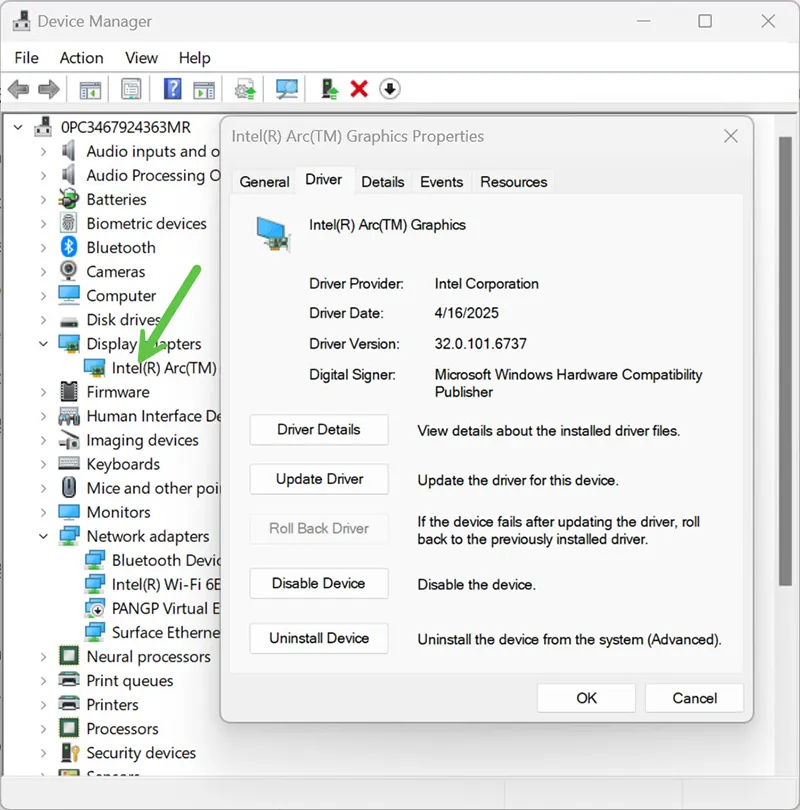
If Roll Back Driver is grayed out, choose Uninstall device instead. If available, check Attempt to remove the driver for this device, then restart. Windows should load with a basic display driver. After the desktop works again, install the latest stable driver directly from your GPU manufacturer.
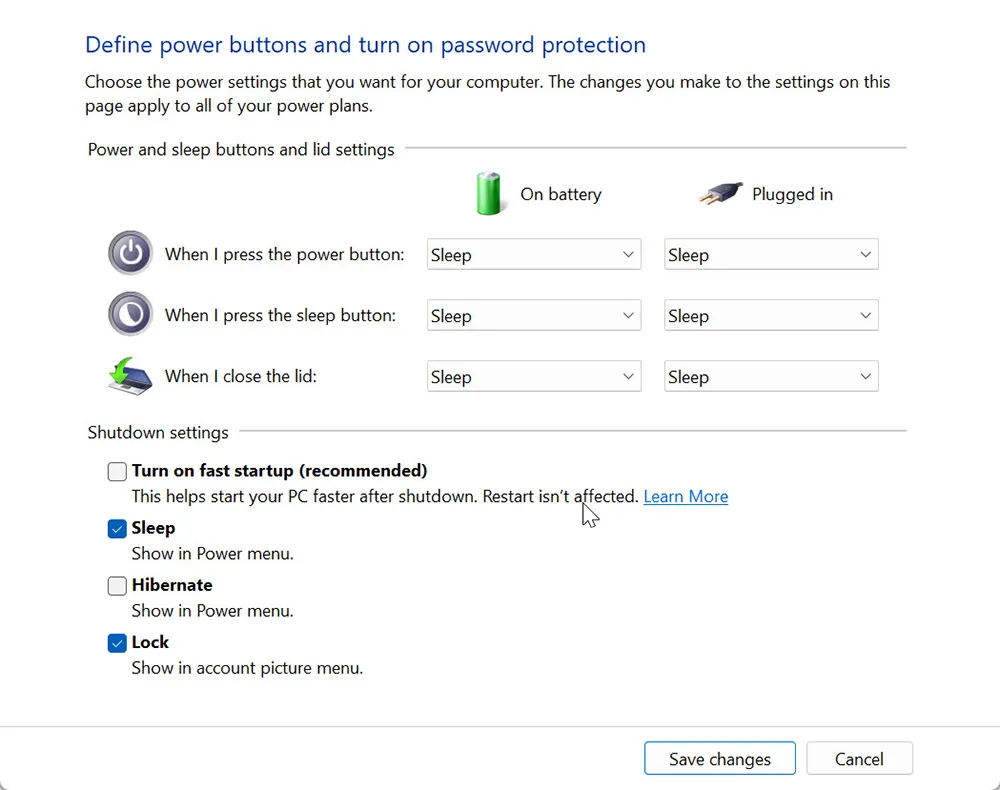
Fix #5: Disable Fast Startup
Fast Startup uses a hybrid shutdown method to help Windows boot faster. On some systems, especially after major updates or driver changes, the saved startup state can cause display or boot problems.
- Boot into Safe Mode if Windows will not load normally.
- Open Control Panel.
- Go to Hardware and Sound → Power Options.
- Click Choose what the power buttons do.
- Click Change settings that are currently unavailable.
- Uncheck Turn on fast startup.
- Click Save changes.
- Restart the PC.
If your PC also fails to power off correctly after updates, read our related troubleshooting guide: how to fix Windows not shutting down after an update.
Fix #6: Repair Windows with DISM and SFC
If Windows loads in Safe Mode or you can open Task Manager, run DISM and SFC before moving to more disruptive recovery steps. DISM repairs the Windows component store. SFC checks and repairs protected system files.
Open Command Prompt, Windows Terminal, or PowerShell as Administrator and run these commands in order:
DISM /Online /Cleanup-Image /CheckHealth
DISM /Online /Cleanup-Image /ScanHealth
DISM /Online /Cleanup-Image /RestoreHealth
sfc /scannow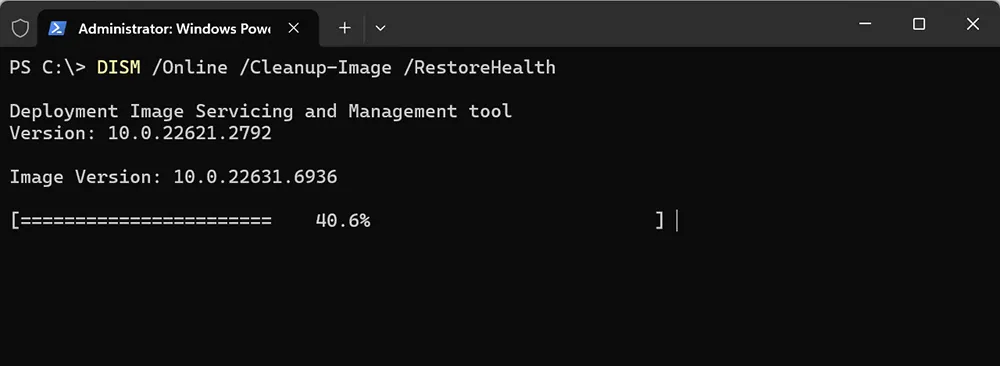
After both commands complete, restart the computer. If SFC says it found and repaired files, test the PC for several restarts before uninstalling updates or resetting Windows.
For a deeper explanation of each command, use our full walkthrough: How to Use DISM and SFC to Repair Windows 11.
Fix #7: Uninstall the Problem Windows Update
If the black screen started immediately after a specific Windows update, uninstalling the most recent cumulative update may resolve the issue. This is especially useful when the same PC worked normally before the update and started failing only after restart.
Do not remove random updates blindly. First, check the update date, KB number, and Microsoft release notes. You can also compare the problem with known update behavior using our guide on Windows 11 update error codes explained.
Uninstall from Settings
- Boot into Safe Mode if normal Windows does not load.
- Open Settings.
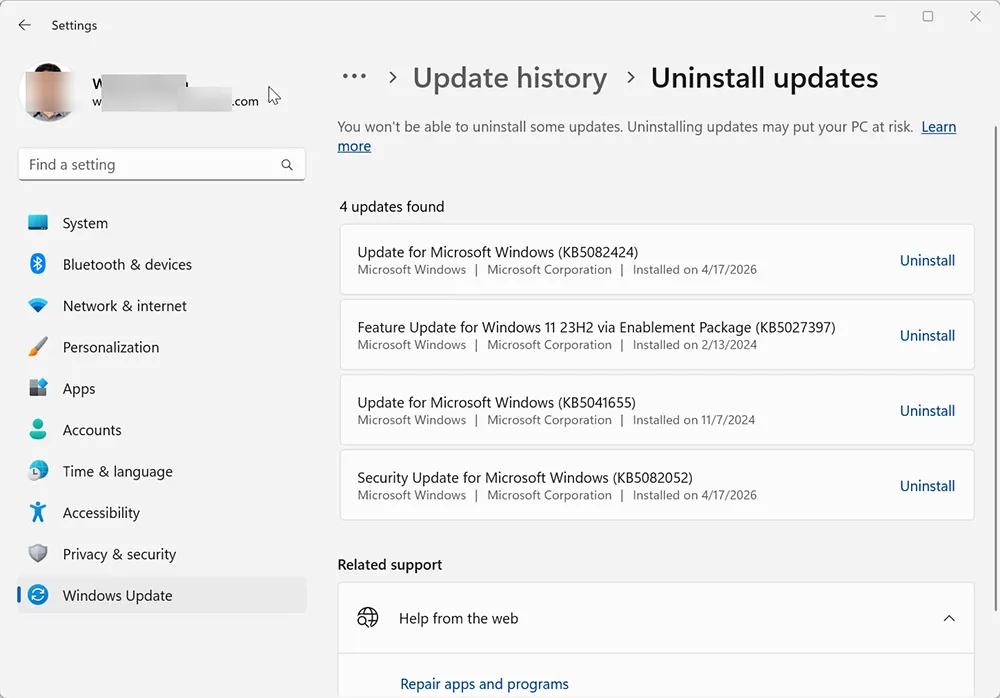
- Go to Windows Update → Update history.
- Scroll down and click Uninstall updates.
- Find the most recent cumulative update by date.
- Click Uninstall.
- Restart the PC and allow Windows time to complete the rollback.
Uninstall from Command Prompt
If Settings will not open, use this command from an elevated Command Prompt. Replace the number with the KB you want to remove:
wusa /uninstall /kb:5074109Do not include the letters “KB” inside the command. For example, use /kb:5074109, not /kb:KB5074109.
If you are troubleshooting a gaming or display-related problem after KB5074109, you may also want to read this related post: Windows 11 KB5074109 causing gaming issues.
Fix #8: Use System Restore to Go Back Before the Update
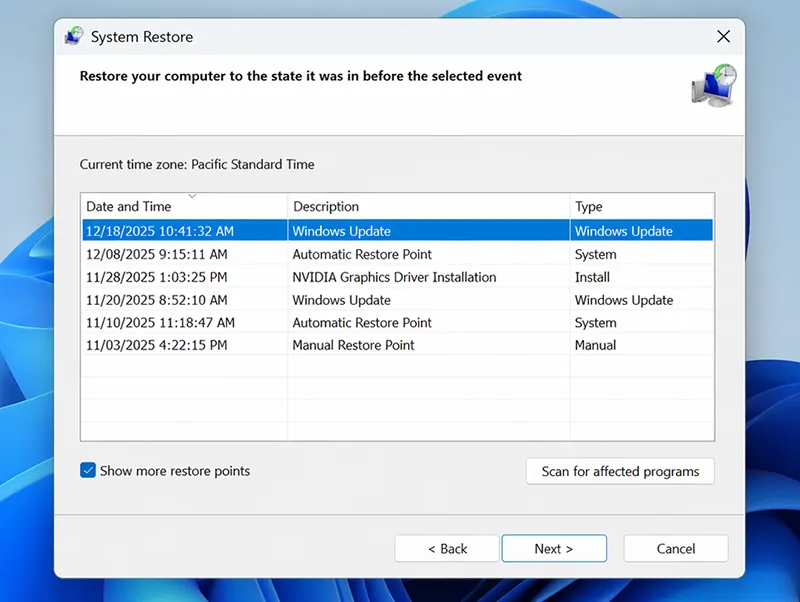
System Restore can reverse system changes without deleting your personal files. It can remove driver changes, registry changes, and update-related system modifications that happened after the restore point was created.
- Boot into Windows Recovery Environment.
- Select Troubleshoot.
- Select Advanced options.
- Click System Restore.
- Select your Windows account.
- Enter your password if prompted.
- Click Next.
- Check Show more restore points.
- Choose a restore point dated before the update or driver change.
- Click Next → Finish.
After the restore completes, pause Windows updates temporarily and check Microsoft’s Windows release health page before reinstalling the same update. You can find official update status information here: Windows 11 release information.
2026 Recovery Note: Try Quick Machine Recovery When Windows Will Not Boot
Newer Windows 11 recovery builds include Quick Machine Recovery, a cloud-assisted recovery option designed to help devices recover from widespread boot problems by applying remediations through Windows Update while the device is in Windows Recovery Environment.
This does not replace the fixes above, but it is worth checking before you reset the PC. If Windows Recovery Environment offers a recovery option connected to Windows Update or Quick Machine Recovery, follow the on-screen instructions and keep the device connected to power and internet.
Fix #9: Create a New User Profile
If the black screen happens only for one user account, but another account signs in normally, the problem may be a corrupted user profile. In that case, creating a new profile can be faster and safer than trying to repair the old one.
- Sign in with another administrator account.
- Open Settings.
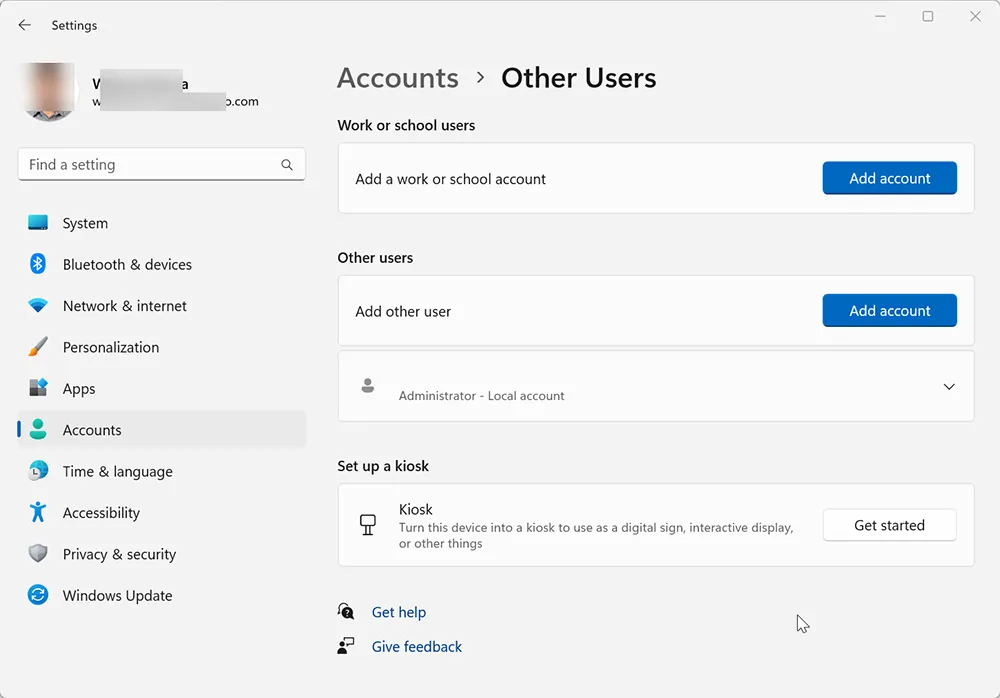
- Go to Accounts → Other users.
- Click Add account.
- Select I don’t have this person’s sign-in information.
- Select Add a user without a Microsoft account.
- Create a temporary local user.
- Restart and sign in with the new account.
- If the desktop loads correctly, copy your personal files from the old profile.
When copying files from the old profile, copy folders like Desktop, Documents, Pictures, and Downloads. Do not blindly copy hidden profile files such as NTUSER.DAT or the entire AppData folder because that can move the corruption into the new profile.
If the account problem started after password changes, lockouts, or failed sign-ins, review why password resets and account lockouts happen.
Fix #10: Reset This PC and Keep Your Files
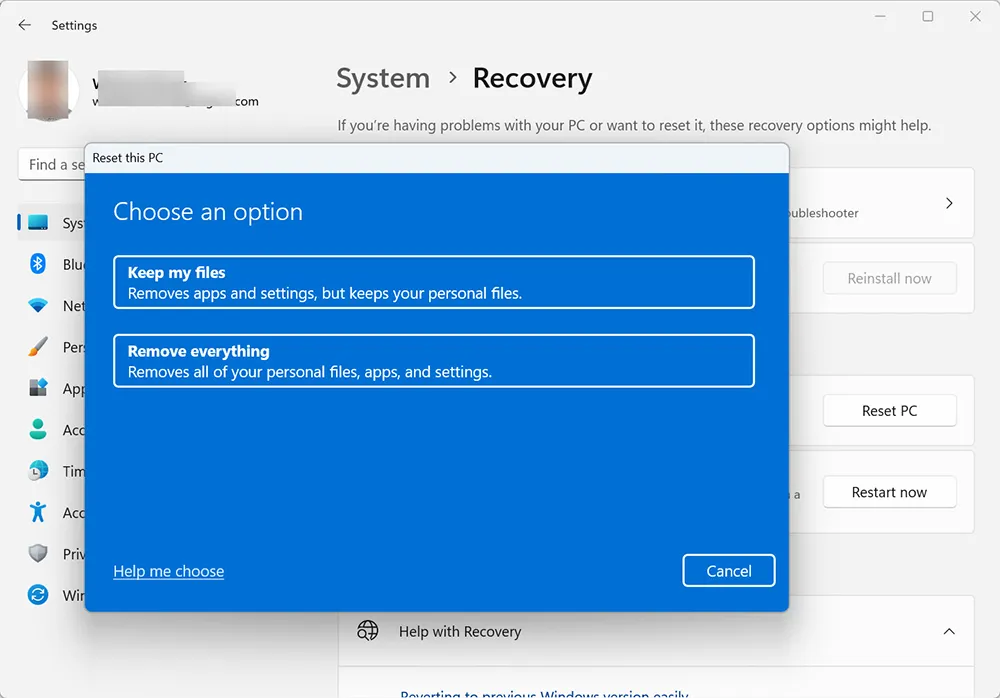
Use Reset this PC only after the safer fixes fail. This reinstalls Windows while giving you the option to keep personal files. It usually removes installed applications, so you should make sure you have installers, license keys, and backups before continuing.
Before resetting: Back up important files if possible. If you need help with missing or deleted files, read How to Recover Lost Data before making more changes.
- Boot into Windows Recovery Environment.
- Select Troubleshoot.
- Select Reset this PC.
- Choose Keep my files.
- Select Cloud download if you have a reliable internet connection.
- Select Local reinstall if internet is not available.
- Follow the on-screen instructions.
If Windows will not reset or the recovery environment is damaged, you may need Windows installation media. Use our guide on how to create a Windows bootable USB before attempting a clean reinstall.
Which Fix Should You Try First?
| Symptom | Try First | Estimated Time | Risk Level |
|---|---|---|---|
| Screen is black but Windows may still be running | Fix #1: Windows + Ctrl + Shift + B | 10 seconds | Very low |
| Black screen with cursor after sign-in | Fix #2: Restart Explorer.exe | 2 minutes | Very low |
| Black screen after connecting dock or monitor | Fix #3: Disconnect peripherals | 5 minutes | Low |
| Black screen after graphics or Windows update | Fix #4: Roll back GPU driver | 15–25 minutes | Medium |
| Black screen returns after shutdown | Fix #5: Disable Fast Startup | 10 minutes | Low |
| Windows loads but behaves strangely | Fix #6: DISM and SFC | 20–45 minutes | Low |
| Problem began after a specific KB update | Fix #7: Uninstall update | 15–30 minutes | Medium |
| Multiple fixes failed | Fix #8: System Restore | 20–60 minutes | Medium |
| Only one user account is affected | Fix #9: Create new profile | 30–60 minutes | Medium |
| Windows remains unusable | Fix #10: Reset this PC | 45–90 minutes | High |
How to Prevent Windows 11 Black Screens After Future Updates
- Do not rush optional updates: Wait a few days before installing optional preview updates unless you need a specific fix.
- Create a restore point before major changes: This gives you a rollback path before installing large updates, GPU drivers, or system tools.
- Keep graphics drivers stable: Use drivers from NVIDIA, AMD, Intel, or your PC manufacturer instead of mixing too many driver sources.
- Keep recovery media ready: A Windows bootable USB can save time if Windows Recovery Environment does not load.
- Check storage health: Low disk space and failing drives can make updates unreliable. If storage usage spikes after an update, review Windows 11 high disk usage after update.
- Clean unnecessary files: Before large feature updates, free up space using our guide on how to clean up disk space on Windows 11.
- Review Microsoft release notes: Check the Windows release health page before deploying updates on important work PCs.
Final Thoughts
A Windows 11 black screen after an update can look like a complete failure, but the cause is often recoverable. Start with the safest fixes first: wake the display, restart Explorer.exe, disconnect external devices, and test Safe Mode. If the issue points to a graphics driver, roll back or uninstall the driver. If Windows files are damaged, run DISM and SFC. If the timing clearly matches a specific update, uninstall that update or use System Restore.
Only use Reset this PC after you have tried the lower-risk recovery steps and backed up important data where possible. With the right order of operations, most Windows 11 black screen problems can be fixed without a clean reinstall.
Frequently Asked Questions
How long should I wait before forcing a shutdown on a black screen?
If you see spinning dots or disk activity after a Windows update, wait at least 30 minutes before forcing shutdown. For large feature updates, waiting longer may be safer. If the screen is completely black with no activity and the PC is not responding, then move to the recovery steps in this guide.
Why do I see a black screen with only a cursor after signing in?
This often means Windows signed you in, but Explorer.exe did not start correctly. Open Task Manager with Ctrl + Shift + Esc, run explorer.exe, and then repair Windows with DISM and SFC if the issue returns.
Can a graphics driver cause a Windows 11 black screen?
Yes. A graphics driver conflict is one of the most common causes of a black screen after a Windows update or driver update. Boot into Safe Mode, open Device Manager, and roll back or uninstall the display driver.
Will Reset this PC delete my files?
If you choose Keep my files, Windows attempts to preserve personal files in your user folders while reinstalling Windows. However, installed apps are usually removed, and some app settings may be lost. Always back up important data before resetting.
What should I do if Windows asks for a BitLocker recovery key?
Stop and locate the recovery key before continuing. You may find it in your Microsoft account, your organization’s Entra ID or Active Directory records, or from your IT administrator. Do not keep guessing because you may lock yourself out of recovery options.
Should I uninstall the latest Windows update?
Only uninstall the update if the black screen clearly started right after that update and safer fixes did not work. Check Update history, confirm the KB number, and review Microsoft release notes before removing updates.
What if none of these fixes work?
If none of the fixes work, use Windows Recovery Environment to try Startup Repair, System Restore, Quick Machine Recovery if available, or Reset this PC. If recovery tools fail, create a Windows bootable USB and consider reinstalling Windows after backing up important files.