Using Dark Mode in Windows 11 is supposed to make late-night work easier on your eyes. But some users are now seeing the exact opposite: every time they open or switch folders in File Explorer, the window briefly flashes bright white before returning to dark mode. This “flashbang” effect is especially annoying on bright or OLED displays and can be visually jarring.
In late 2025, a Windows 11 update expanded dark mode deeper into File Explorer dialogs, but also introduced a known bug where File Explorer flashes white when dark mode is enabled and certain actions are performed (opening a folder, toggling panes, switching views, etc.). Microsoft has acknowledged this issue and is working on a fix in future cumulative updates.
This guide explains why File Explorer flashes white in Dark Mode, what has changed in recent Windows 11 builds, and step-by-step ways to reduce or temporarily eliminate the flashing. We’ll also include troubleshooting steps for older systems where screen flicker may be caused by graphics drivers or display settings. If you are also dealing with activation problems such as Windows 11 activation error 0xc004f213 or need to verify your license, you can follow How to Check Windows Activation Status after you stabilise File Explorer.
What Changed in Recent Windows 11 Updates?
Originally, Windows 11 already supported dark mode for most of File Explorer’s interface, but several legacy dialogs (copy, move, delete, file operation prompts) remained in bright white. Recent updates in 2025 attempted to make the experience more consistent by extending dark mode into:
- Copy, move, and delete dialogs in File Explorer
- Progress dialogs and some legacy system dialogs
- Additional parts of the shell (for example newer context menus and details panes)
However, some of these optional and preview updates also introduced a regression where, in dark mode, File Explorer can show a brief white flash when you:
- Open a new File Explorer window
- Switch between folders (Home, This PC, Gallery)
- Create a new tab
- Toggle the Details pane or Navigation pane
- Expand certain dialog windows
On top of this, an older but related behavior still exists: if you disable certain visual effects such as “Play animations in Windows” under Accessibility, Windows may momentarily draw a light background before applying the dark theme when File Explorer is redrawn.
Because these glitches often show up right after installing updates, it’s a good idea to keep an eye on update health in general. If you routinely run into failed installations or odd side effects, you can use guides like How to Fix Windows 11 Update Error Codes, or deeper system repair steps in How to Use DISM and SFC to Repair Windows 11 before you chase UI bugs.
Is the Flashing a Bug or a Hardware Problem?
In most cases where only File Explorer flashes white in Dark Mode, the cause is a combination of:
- Changes introduced in a recent Windows 11 update
- How Dark Mode is applied while the window is being redrawn
- Accessibility or visual effects settings (for example animations disabled)
If the whole screen flickers randomly—not just File Explorer—then it may be a display driver or incompatible app issue. Microsoft’s official guidance for general screen flickering in Windows is to check Task Manager and then update or roll back the display driver or uninstall conflicting apps.
Think of this article as two layers of troubleshooting:
- Layer 1 – File Explorer specific “white flash” bug: A known Windows 11 issue mostly triggered when Dark Mode is enabled.
- Layer 2 – System-wide display flicker: Possible graphics driver, monitor, or third-party software issue causing broader flickering symptoms. If your system is also freezing or throwing stop errors, it’s worth also looking at how to fix BSOD errors in Windows or CPU problems such as WHEA UNCORRECTABLE ERROR.

Before You Start: Quick Safety Checks
Before you change settings, take a minute to confirm the behavior clearly:
- Switch to a dark desktop background and close all bright apps.
- Set Windows 11 to Dark Mode:
- Go to Settings > Personalization > Colors.
- Set Choose your mode to Dark.
- Open File Explorer, minimize it, and open it again several times.
- Switch between different folders (Home, This PC, Downloads, etc.).
- Note exactly when the white flash appears and whether any other apps flicker too.
If the white flash appears only in File Explorer and only in Dark Mode, you’re very likely dealing with the current Windows 11 bug and not a failing monitor. If you’ve recently reinstalled or changed hardware, you can double-check your license using Windows Activation Status once you’re done with the UI fixes.
Fix 1 – Check for Known Windows 11 File Explorer Dark Mode Bugs
If the flashing started right after a recent Windows Update, especially an optional preview update, the simplest workaround may be to uninstall that update and pause optional previews until Microsoft publishes a fix.
Step 1: Review recent updates
- Open Settings (Windows + I).
- Go to Windows Update.
- Click Update history.
- Look for recently installed updates, especially “Cumulative update preview” entries for Windows 11.
Step 2: Uninstall a problematic update (if available)
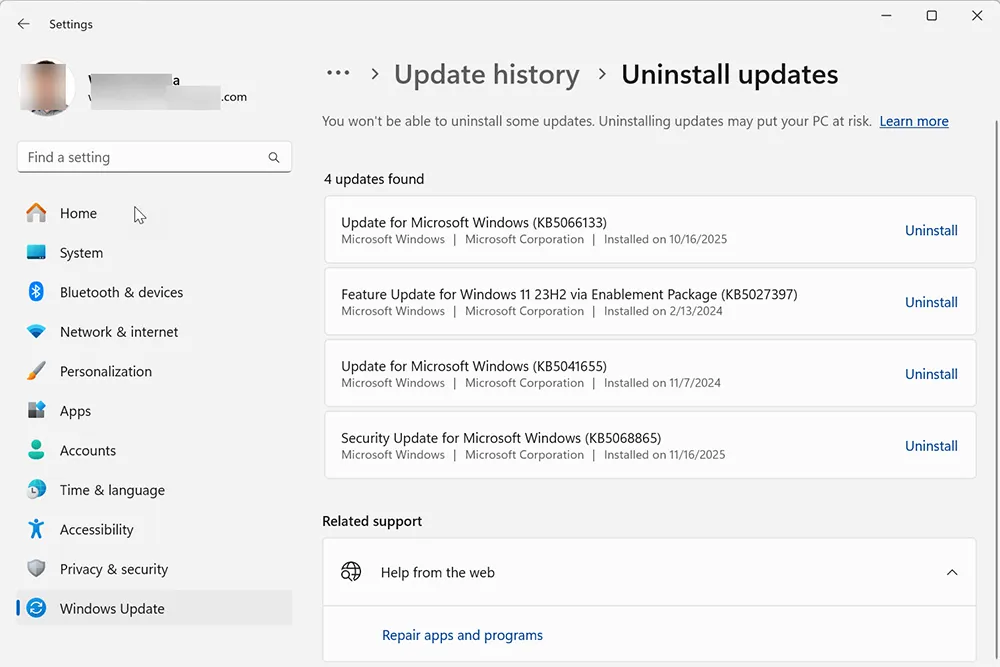
- In Update history, scroll down and select Uninstall updates.
- Locate the most recent optional update installed around the time the issue started.
- Select it and click Uninstall.
- Restart your PC and test File Explorer in Dark Mode again.
Step 3: Pause optional updates temporarily
- Under Windows Update, use Pause updates for a short period.
- Once Microsoft confirms a fix, you can resume updates.
While you’re here, this is a good time to make sure your system is otherwise healthy and up-to-date. Cleaning up old junk files and unused apps can make Explorer feel snappier. You can follow detailed maintenance guides such as How to Clean Up Disk Space on Windows 11 and the more general tutorial How to Clean Up Computer Disk Space.
If you’re hitting a specific update like KB5065426 and it keeps failing or misbehaving, you can also review How to Fix Windows 11 KB5065426 Update Error alongside this UI-focused guide.
Fix 2 – Turn Windows Animations Back On
Several users have confirmed that disabling certain animations can trigger or worsen the white flash in File Explorer Dark Mode. Windows briefly draws a light-colored background, then applies the dark theme, which you see as a flash.
Enable “Play animations in Windows”
- Open Settings.
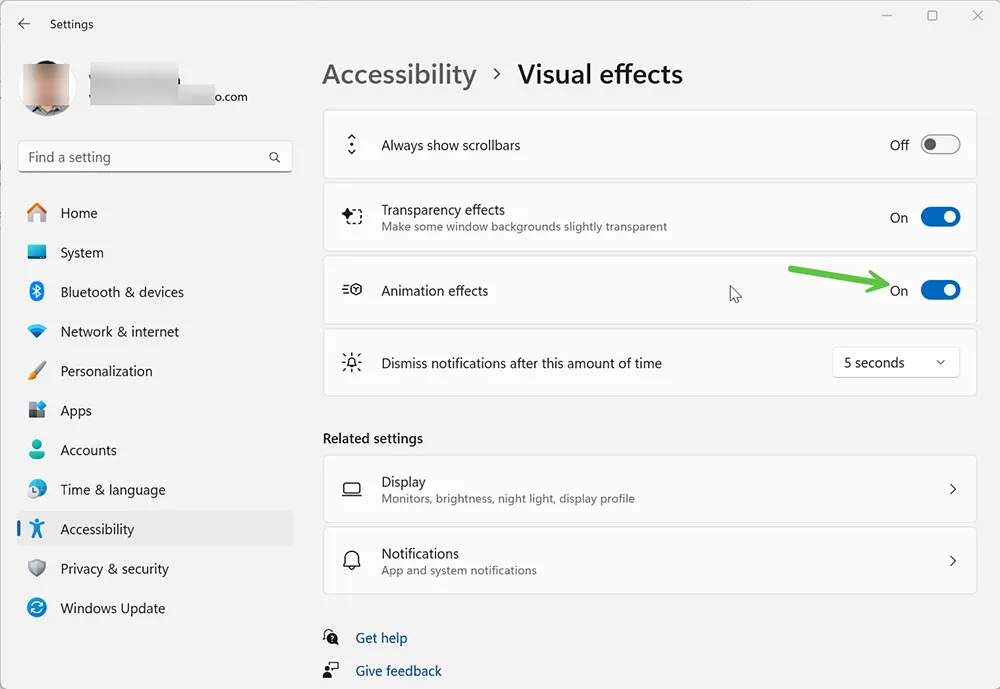
- Go to Accessibility > Visual effects.
- Make sure Play animations in Windows is turned on.
- Close Settings, then open and minimize File Explorer a few times to test.
If you previously turned animations off for performance reasons, consider leaving them on just for testing. If you notice a significant improvement, you can decide whether the slight performance trade-off is worth reducing the flashing. If your PC still feels slow, use the optimisation steps in How to Speed Up Your Computer for a broader performance boost.
Fix 3 – Update or Roll Back Your Display Driver
Even though this particular issue is often a Windows bug, outdated or buggy graphics drivers can exaggerate flickering and redraw problems. Microsoft’s official guidance for flickering screens is to first check whether Task Manager flickers, then update or roll back your display driver if needed.
Step 1: Check if only File Explorer flickers
- Press Ctrl + Shift + Esc to open Task Manager.
- Leave Task Manager open on one side of the screen.
- Open and close File Explorer in Dark Mode several times.
- If Task Manager doesn’t flicker, but File Explorer does, the issue is likely not a full display driver failure, but updating drivers may still help.
Step 2: Update your display driver
- Right-click the Start button and choose Device Manager.
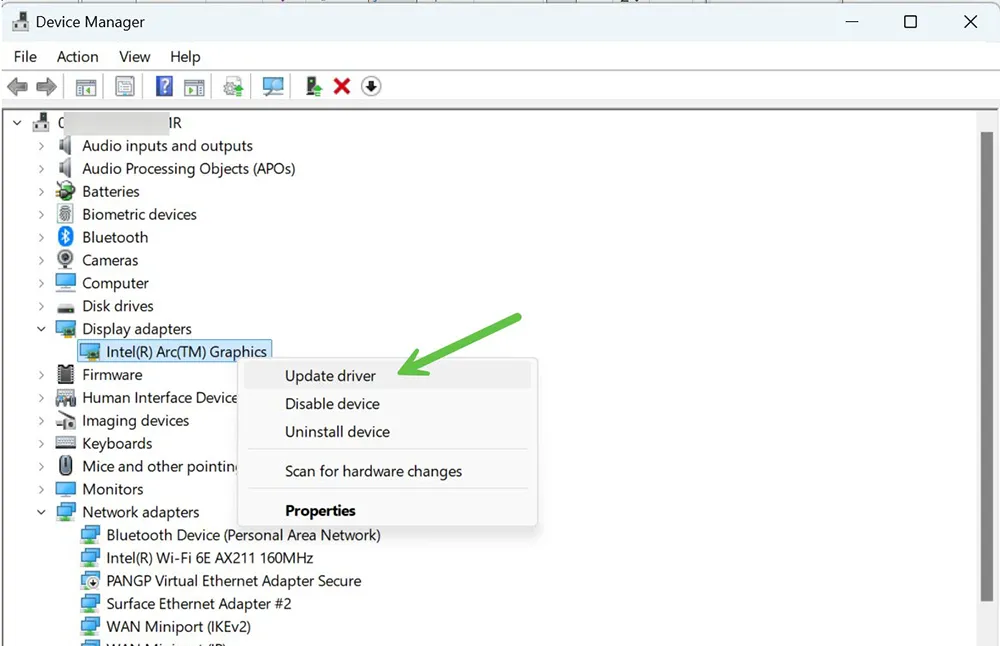
- Expand Display adapters.
- Right-click your GPU (Intel, AMD, or NVIDIA) and select Update driver.
- Choose Search automatically for drivers or use your OEM’s driver package if available.
Step 3: Try rolling back (if the flicker started after a GPU update)
- Right-click your display adapter again and choose Properties.
- On the Driver tab, select Roll Back Driver (if available).
- Reboot and test File Explorer Dark Mode again.
If you’re seeing flicker along with crash codes or stop errors, handle those first. For example, sudden reboots or BSODs can often be resolved using the system tools described in How to Use DISM and SFC to Repair Windows 11 or the troubleshooting in How to Resolve Error 0x80004005 in Windows 10 & 11.
Fix 4 – Reset File Explorer Options and History
Sometimes heavily customized File Explorer settings or third-party shell extensions can create odd redraw behavior. Resetting options and clearing history can reduce the white flash for some users.
Reset File Explorer options
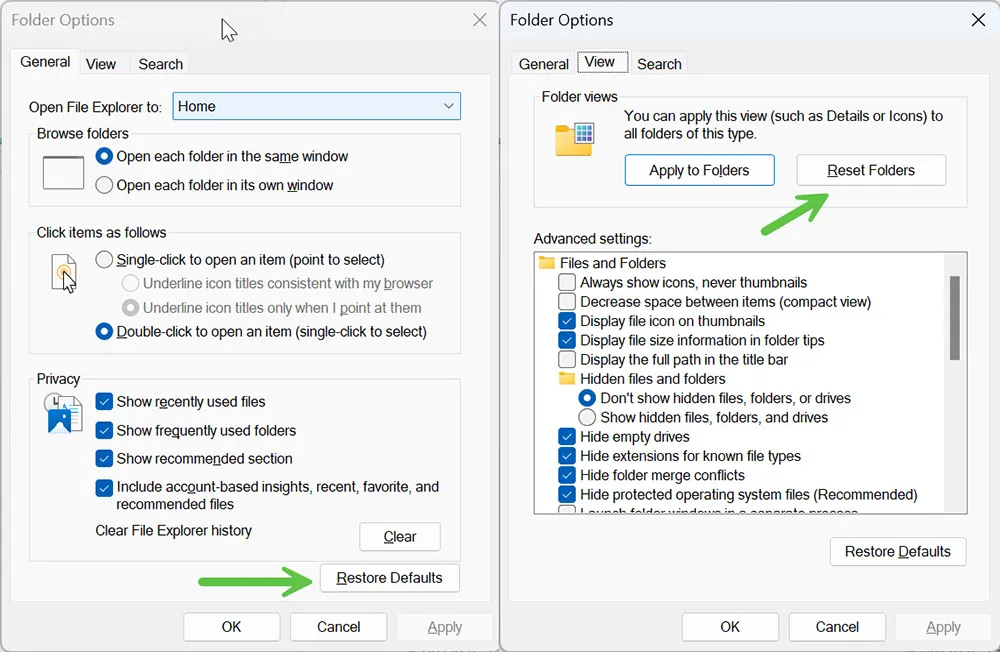
- Open File Explorer.
- Click the three-dot menu in the toolbar and choose Options (or More options on some builds).
- On the General tab, click Restore Defaults.
- Switch to the View tab and click Restore Defaults again.
- Click OK.
Clear File Explorer history
- Return to File Explorer Options (General tab).
- Under Privacy, click Clear next to “Clear File Explorer history”.
- Close File Explorer and reopen it in Dark Mode.
If your organisation already uses best practices around Windows housekeeping—like regularly cleaning up disk space and keeping profiles lean—you’ll likely notice fewer UI glitches over time. For routine clean-up, you can follow How to Delete Temporary Files in Windows 11, or use built-in tools described in How to Use Disk Cleanup to Delete Temporary Files.
Fix 5 – Temporarily Switch to Light Mode or Custom Colors
If you’re especially sensitive to sudden brightness changes, you may prefer to temporarily avoid system-wide Dark Mode until Microsoft ships a fix for your build.
Use Light Mode system-wide
- Open Settings and go to Personalization > Colors.
- Set Choose your mode to Light.
- Restart File Explorer or sign out and back in.
Use a custom color combination
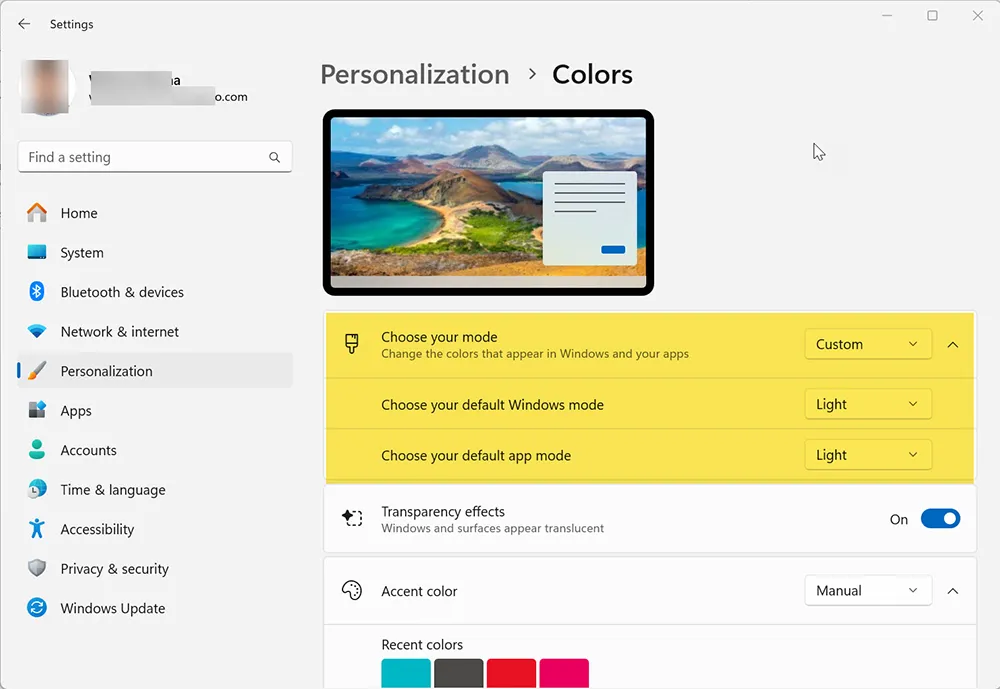
- Under Choose your mode, select Custom.
- Set Windows mode to Light, and App mode to Dark, then test.
On some builds, this hybrid setup reduces the apparent flash by changing how File Explorer and shell windows are drawn.
Fix 6 – Check High Contrast & Accessibility Themes
Windows High Contrast themes and some accessibility settings override the standard Dark Mode pipeline. If you’ve recently experimented with these settings, they can change how quickly the dark background is applied when File Explorer opens.
Disable high contrast themes
- Open Settings.
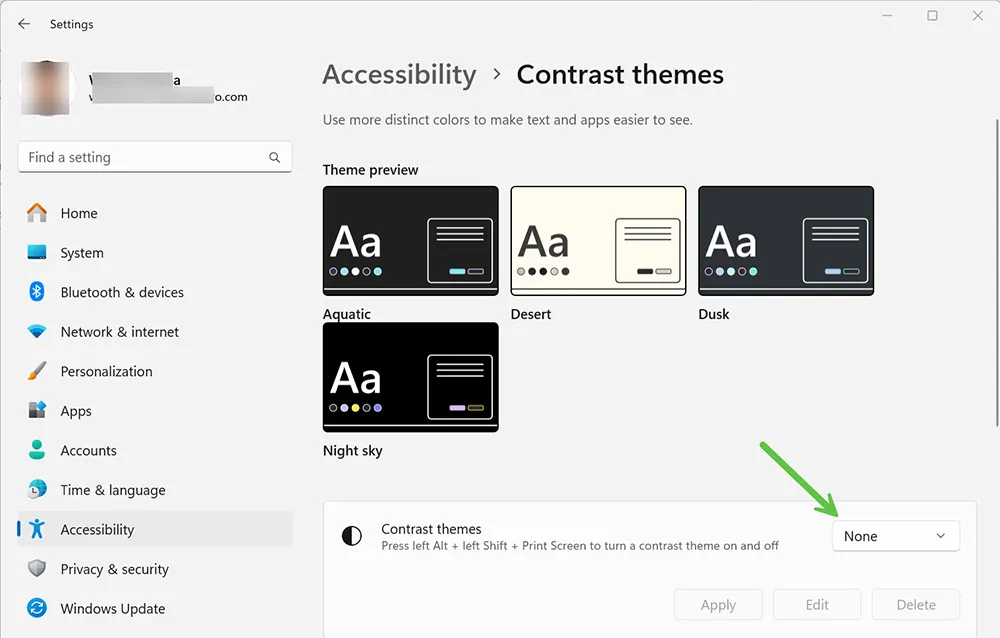
- Go to Accessibility > Contrast themes.
- If a contrast theme is enabled, change it to None, then click Apply.
- Test File Explorer again in normal Dark Mode.
Fix 7 – Test in a New User Profile
If File Explorer flashing is severe and limited to your account, a corrupt profile or accumulated shell customizations may be the cause.
- Open Settings > Accounts > Family & other users.
- Click Add account and create a new local or Microsoft account.
- Sign in with the new account.
- Set Dark Mode again and test File Explorer.
If the flash disappears in the new profile, the issue is likely tied to your old profile’s customizations, shell extensions, or specific app settings. While you decide whether to migrate, make sure important data is backed up. If something goes wrong, you can use the recovery techniques in How to Recover Lost Data or, if the PC freezes during troubleshooting, How to Fix a Frozen Computer.
When to Wait for Microsoft’s Fix (and How to Stay Informed)
If you’ve tried the above steps and still see File Explorer flashing white only in Dark Mode, it is probably a confirmed Windows 11 bug in your current build. In that case, your best long-term options are:
- Temporarily use Light Mode or a light background when doing long file operations.
- Avoid optional preview updates on production machines until they are stable.
- Monitor Microsoft’s release notes and known issues pages for your specific build.
For many users, the issue will be resolved by a future cumulative update, as Microsoft rolls out fixes for dark mode consistency across File Explorer and system dialogs. Treat it the same way you treat other reliability issues: follow structured repair steps like those in How to Use DISM and SFC to Repair Windows 11, keep an eye on update errors via Windows 11 Update Error Code fixes, and then re-enable Dark Mode once the bug is patched.
If you manage multiple Windows 11 devices in an organisation, consider documenting the workaround in your internal knowledge base so users know why File Explorer may behave differently after certain updates. You can even pair this with your existing troubleshooting runbooks built around articles like Password Resets & Account Lockouts Guide to give support teams a single place to handle common Windows issues.
Frequently Asked Questions
Why is File Explorer flashing white in Windows 11 Dark Mode?
In most cases, the flash is caused by a Windows 11 bug introduced in recent updates that expanded Dark Mode in File Explorer. When the window is redrawn, a light background may appear for a split second before Dark Mode is applied, especially when animations are disabled or certain visual effects are changed.
Is the File Explorer white flash harmful to my screen?
No. The flash is a software rendering issue, not a hardware fault. It can be uncomfortable to look at, but it does not damage your monitor or laptop display. However, if you see random flickering across the entire screen, you should still check your graphics drivers and hardware.
Can I completely remove the white flash without turning off Dark Mode?
Depending on your specific Windows 11 build, you may be able to significantly reduce or eliminate the flash by enabling animations, updating display drivers, resetting File Explorer options, or uninstalling the update that introduced the bug. In some builds, however, a small flash may remain until Microsoft releases an official fix.
Does this issue affect all Windows 11 PCs?
No. The File Explorer Dark Mode flash appears to affect specific builds and configurations. Some users never see it, while others experience it consistently after certain updates. Differences in GPU drivers, monitors, and settings can all influence whether the bug is visible.
Is this the same as general screen flickering in Windows?
Not exactly. General screen flickering usually points to a display driver or app compatibility problem that affects the whole screen or multiple apps. The File Explorer white flash in Dark Mode is a more targeted bug that appears only when File Explorer is opened or redrawn while using Dark Mode.