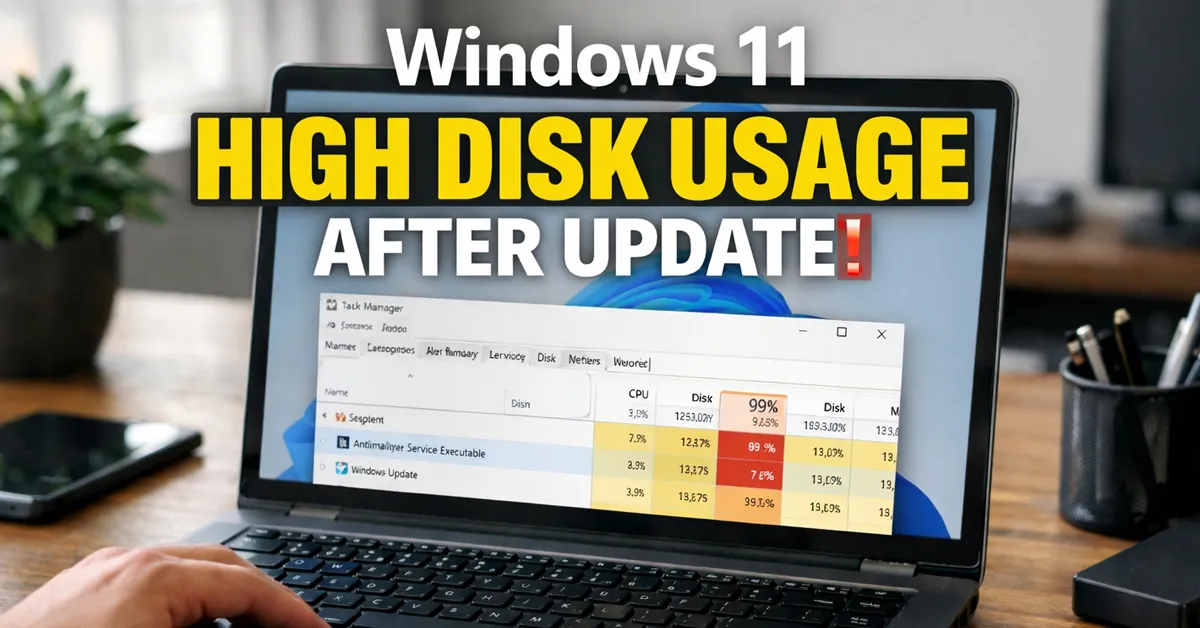
If your computer suddenly becomes slow and Task Manager shows disk usage stuck near 100% after a Windows 11 update, you’re encountering one of the most common post-update performance complaints. Users typically notice delayed app launches, extremely slow File Explorer behavior, freezing taskbar clicks, long boot times, or constant disk activity even when the system appears idle.
In the majority of cases, this behavior is not caused by failing hardware. Instead, it is triggered by legitimate background operations that Windows performs after updates—such as search indexing, component cleanup, update servicing, antivirus scans, or driver reconfiguration. Newer Windows 11 builds (23H2, 24H2, and early 25H2) rely more heavily on background optimization, which makes disk activity far more visible to users.
This guide follows a real-world IT troubleshooting workflow: confirm the bottleneck, identify the responsible process, apply targeted fixes based on the cause, and validate recovery. There are no risky registry hacks or third-party “optimizer” tools here—only Microsoft-aligned and supportable steps.
How to Confirm High Disk Usage Is the Real Problem
Before attempting fixes, verify that disk activity—not CPU or memory—is actually responsible for the slowdown. Misdiagnosis leads to wasted effort.
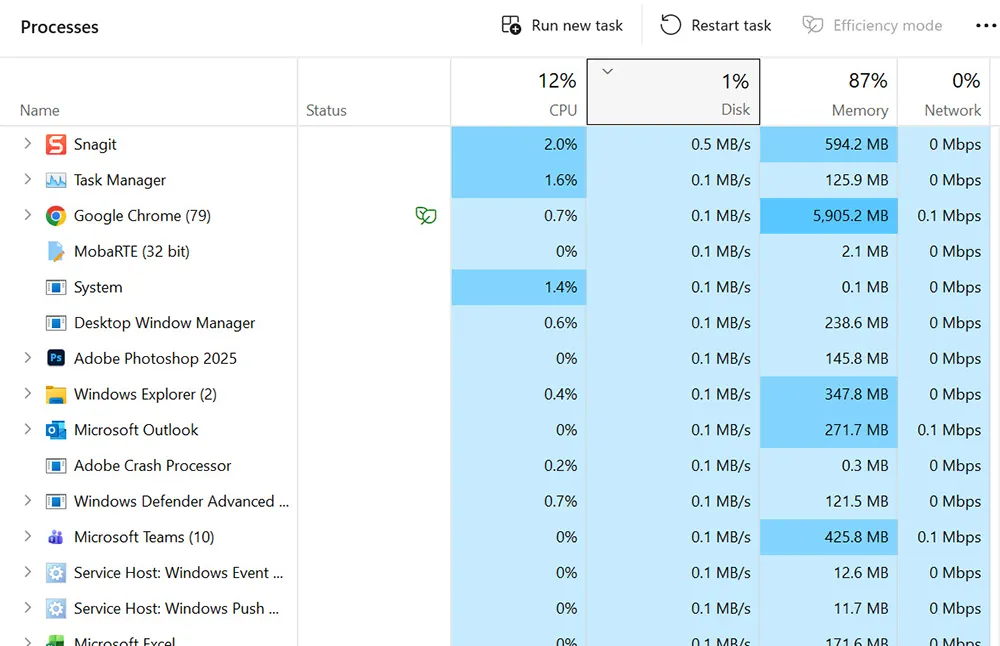
- Press Ctrl + Shift + Esc to open Task Manager
- Open the Processes tab
- Click the Disk column to sort by usage
- Observe activity for at least 2–3 minutes
If disk usage remains consistently above 80–100% while CPU and memory stay relatively moderate, the system is disk-bound. Short spikes are normal; sustained usage is not.
Common Causes of High Disk Usage After Windows 11 Updates
Understanding the cause determines the correct fix. The most frequent post-update disk usage drivers include:
- Windows Search indexing rebuilding its database after system changes
- Windows Update servicing completing cleanup and rollback preparation
- Microsoft Defender running scheduled or triggered scans
- Low available disk space after update files are staged
- Startup applications re-enabled or added by updates
- Driver re-initialization, especially storage or chipset drivers
If disk usage coincides with overall sluggishness, you may also want to review: Windows 11 Slow After Update? Diagnose & Restore Performance.
Step 1: Allow Windows to Finish Background Tasks (First 20–30 Minutes)
Immediately after an update, Windows performs several heavy disk operations in the background. These include rebuilding the search index, optimizing system components, and finalizing update installation.
What to do:
- Leave the PC powered on and plugged in
- Avoid restarting repeatedly
- Monitor disk usage trends in Task Manager
If disk usage gradually declines within 20–30 minutes, the system is behaving normally and requires no intervention.
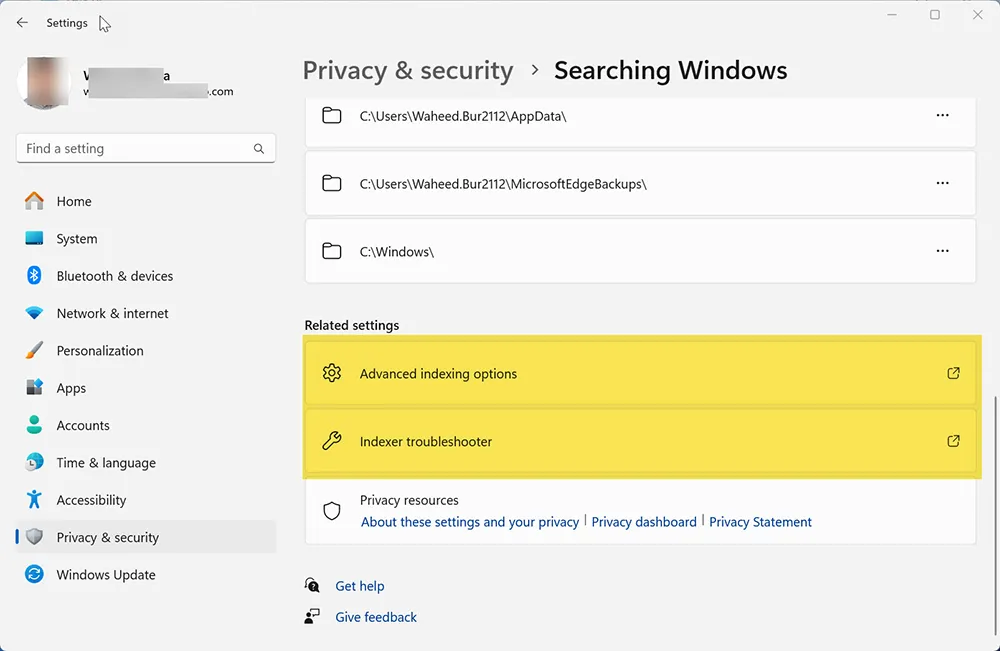
Microsoft reference: Search indexing in Windows
Step 2: Restart Windows Explorer to Break Disk I/O Loops
Explorer-related loops can amplify disk reads and writes, especially after UI changes introduced by updates.
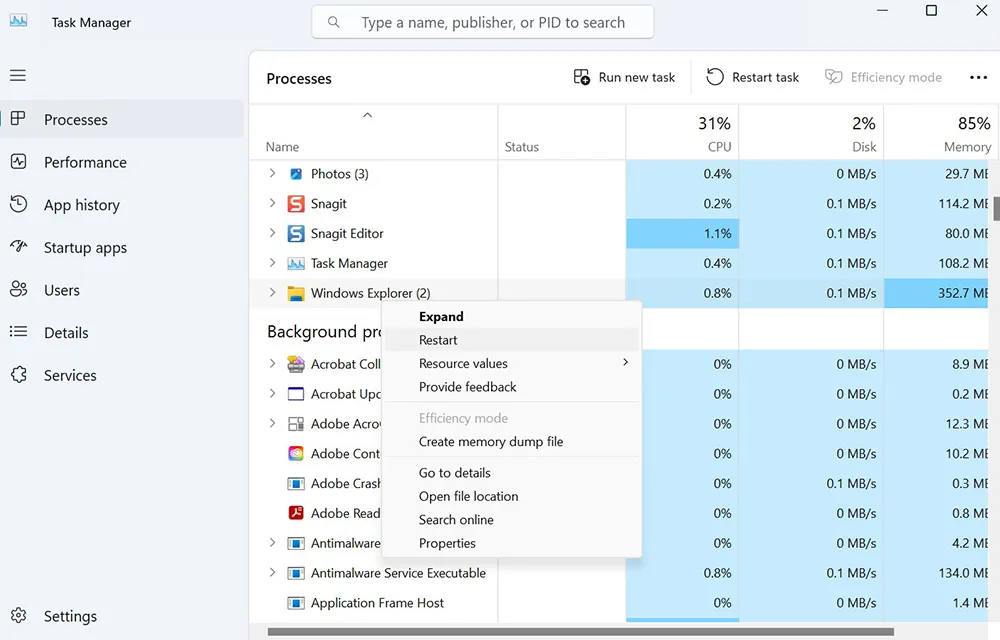
- Open Task Manager
- Select Windows Explorer
- Click Restart
This action reloads the shell without interrupting running applications or requiring a reboot.
Step 3: Free Disk Space (One of the Most Effective Fixes)
Windows requires free disk space to function efficiently. When free space drops too low, the operating system constantly swaps small data blocks, dramatically increasing disk usage.
Recommended actions:
- Delete temporary update files
- Clear Delivery Optimization cache
- Remove unused applications
Follow these detailed guides:
- Delete Temporary Files in Windows 11
- Use Disk Cleanup to Delete Temporary Files
- Clean Up Disk Space on Windows 11
Microsoft guidance: Tips to improve PC performance in Windows

Step 4: Reduce Startup Disk Load
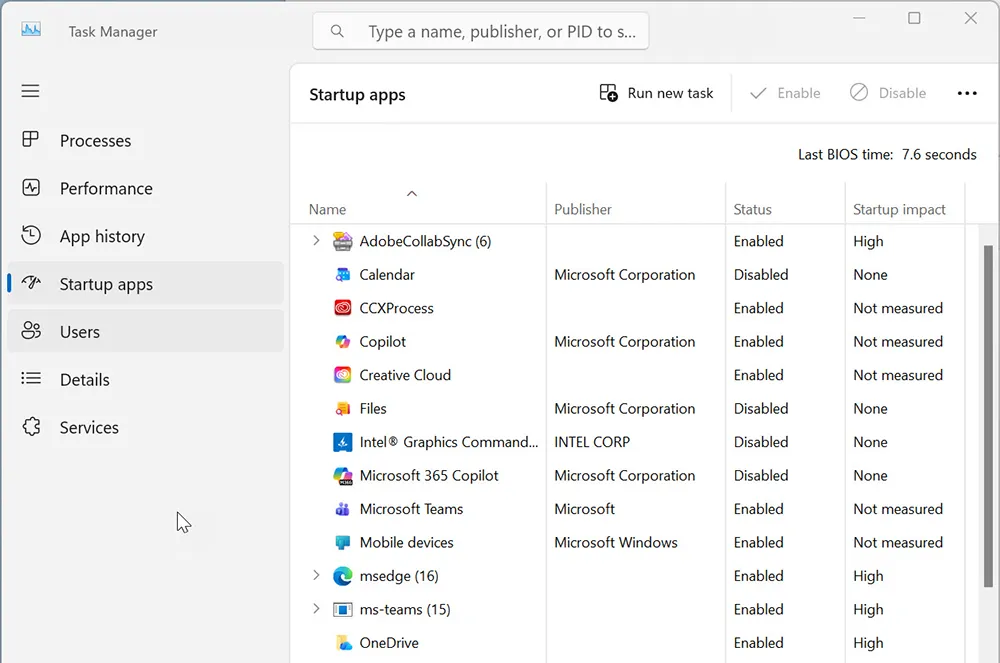
Updates often re-enable background startup applications that continuously read from disk.
- Open Task Manager → Startup apps
- Disable non-essential items (leave security software enabled)
- Restart the PC once changes are applied
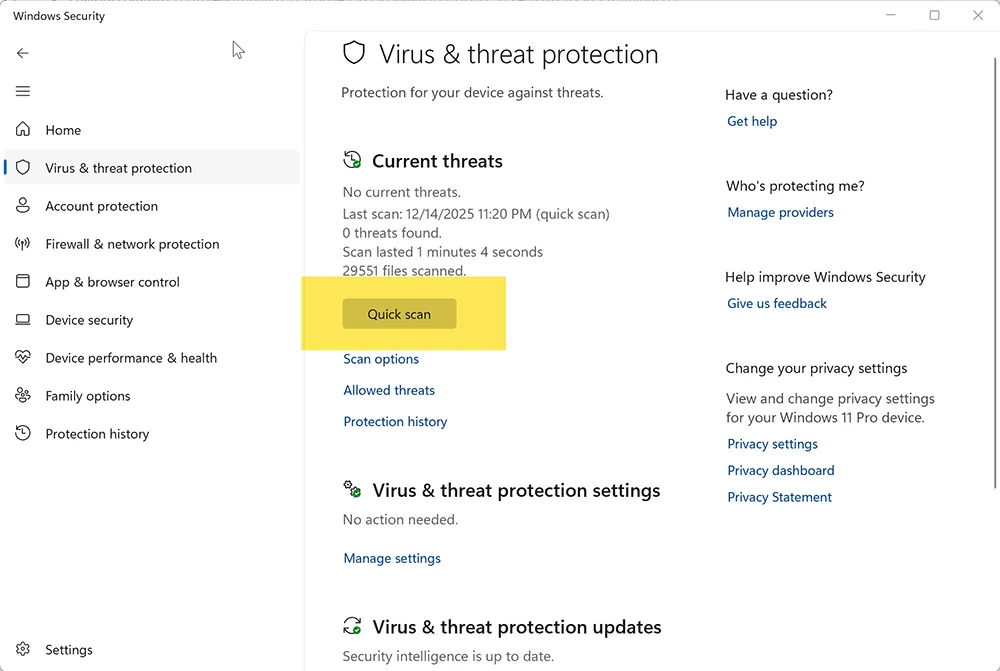
Step 5: Review Microsoft Defender Scan Activity
Microsoft Defender often initiates full or quick scans after system updates. These scans can heavily utilize disk resources, especially on HDD-based systems.
What to check:
- Scan status or recent scan history
- Repeated scans restarting unexpectedly
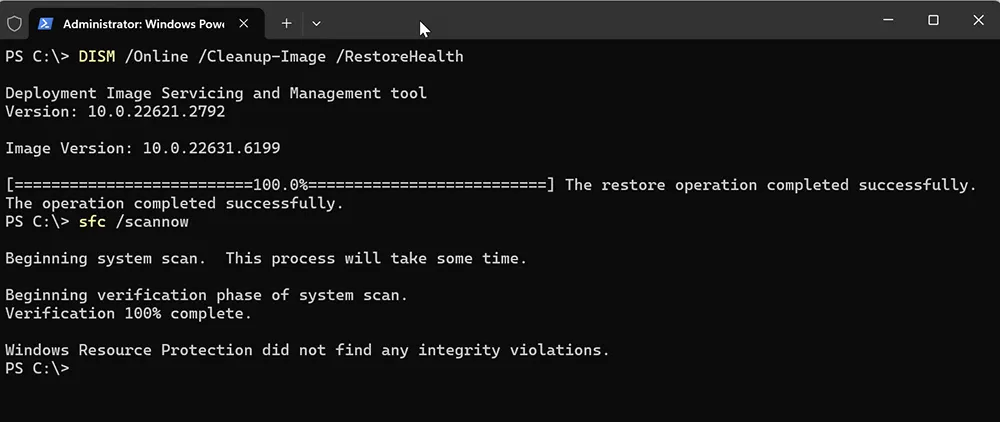
Step 6: Repair System Files if Disk Usage Never Drops
If disk usage remains high even when the system is idle, Windows system files may be corrupted or inconsistent.
Use Microsoft-supported repair tools:
How to Use DISM & SFC to Repair Windows 11
Microsoft reference: Use the System File Checker tool
Step 7: Check Update History and Known Issues
If high disk usage began immediately after a specific update, correlate timing using update history and Microsoft release health advisories.

Final Thoughts
High disk usage after a Windows 11 update is almost always software-related and fixable. By confirming the disk bottleneck, identifying the responsible process, and applying targeted fixes, most systems return to normal performance without reinstalling Windows.
For deeper troubleshooting, see: Windows 11 File Explorer Flashing White in Dark Mode and Fix Windows 11 Update Error Codes.
Frequently Asked Questions
Is high disk usage after a Windows 11 update normal?
Yes, temporary high disk usage is common after updates while Windows completes background tasks such as search indexing, system optimization, and update servicing. This usually settles within 20–30 minutes after the first reboot.
How long should I wait before fixing high disk usage?
If disk usage remains above 80–100% for more than 30–60 minutes with minimal user activity, it’s a good time to start troubleshooting using Task Manager, storage cleanup, and startup optimization.
Which process usually causes high disk usage after updates?
The most common processes include Windows Search (SearchIndexer.exe), Windows Update services, Microsoft Defender scans, and background app activity. Sorting Task Manager by Disk usage helps identify the exact cause.
Does high disk usage mean my hard drive is failing?
No. In most cases, high disk usage after updates is software-related. However, repeated disk errors, system freezes, or unusual noises from HDDs may indicate hardware issues and should be investigated separately.
What should I do if disk usage stays high even when the PC is idle?
If disk usage remains high at idle, check available disk space, reduce startup apps, review Defender scan activity, and repair system files using DISM and SFC. Reviewing update history can also help identify known issues.