If you recently installed the January 2026 Windows 11 security update and started noticing gaming instability, frame rate drops, or graphical glitches, you are not alone. Multiple users with NVIDIA graphics cards report performance problems after installing Windows 11 update KB5074109, prompting NVIDIA to recommend uninstalling the update as a temporary workaround.
This article explains what KB5074109 is, what issues users are experiencing, what NVIDIA and Microsoft have said so far, and what you should do if your system is affected. If your PC also feels sluggish after recent updates (even outside gaming), review Windows 11 slow after update performance fixes.
What Is Windows 11 KB5074109?
KB5074109 is a mandatory January 2026 security update for Windows 11. Microsoft released the update as part of its Patch Tuesday cycle, and it installs automatically on most devices unless Windows Update is paused or deferred.
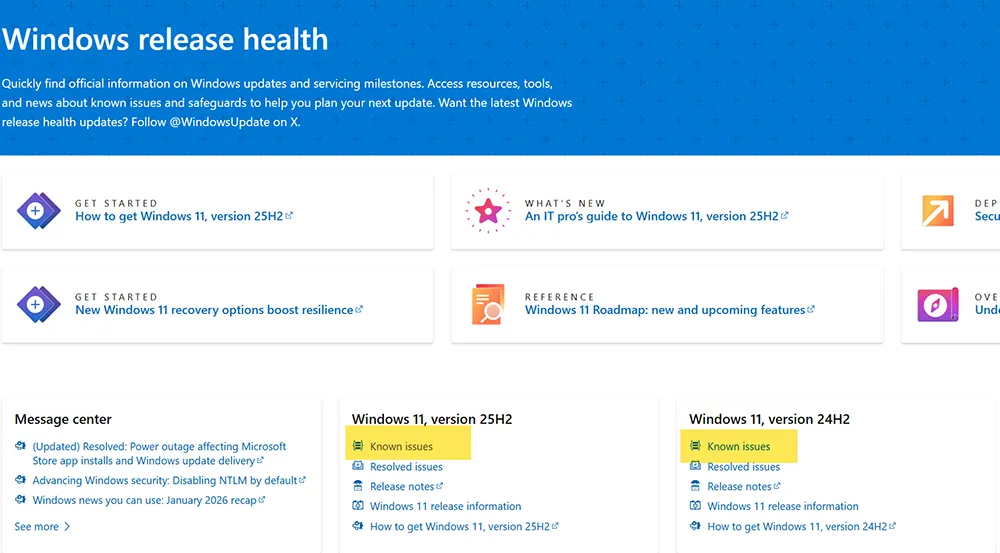
For official Microsoft guidance on Windows update status and known issues, monitor Windows Release Health here:
Windows Release Health.
What Problems Are Users Reporting?
Shortly after KB5074109 began rolling out, gamers started reporting severe performance regressions, especially on systems using NVIDIA GeForce GPUs. Reported symptoms include:
- Sudden and consistent frame rate drops
- Graphical artifacts during gameplay
- Black screens or flickering displays
- Game instability and unexpected crashes
Some users noted that these issues appeared even on high-end systems that previously ran games smoothly, suggesting the issue is not raw hardware performance, but a compatibility problem involving Windows components, drivers, or graphics stack behavior after the patch.
If your PC also shows unusually high disk usage after the update (which can cause stutters and hitching in games), see Windows 11 high disk usage after update.
NVIDIA’s Response to KB5074109
NVIDIA has publicly acknowledged the issue through community support channels and media reporting. NVIDIA representatives indicated they are investigating the interaction between their graphics drivers and the KB5074109 update.
As a temporary mitigation, NVIDIA has advised affected users to uninstall KB5074109 until a permanent fix is identified. This guidance is typically aimed at systems that are actively experiencing performance drops or visual glitches.
If your system becomes unstable while troubleshooting (freezing, black screens, or stuck apps), follow the recovery steps in how to fix a frozen computer. If the issue escalates into a crash or BSOD, see how to fix BSOD errors in Windows.
Why This Is a Complicated Update to Remove
Unlike optional or preview updates, KB5074109 is a security update. Uninstalling it may restore gaming performance, but it also removes important security protections from your system until the update is reinstalled.
Microsoft has not universally confirmed KB5074109 as the root cause in official release notes. That said, compatibility issues between Windows cumulative updates and GPU drivers do happen. If your Windows Update experience becomes inconsistent during this process, use Windows 11 update error codes and fixes as a troubleshooting reference.
How to Check If KB5074109 Is Installed
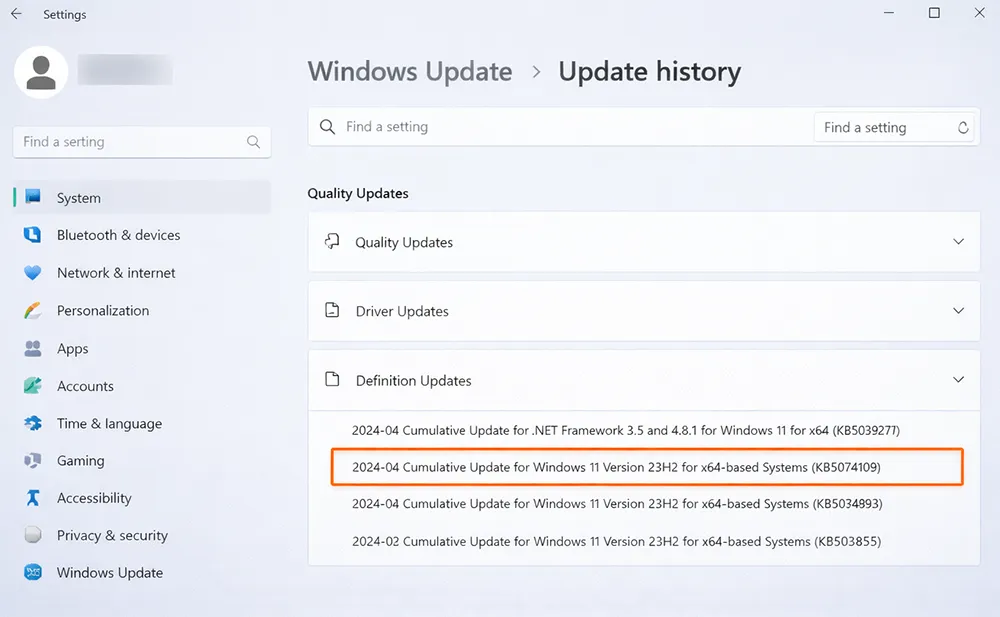
Before uninstalling anything, confirm the update is installed on your PC:
- Open Settings
- Go to Windows Update
- Click Update history
- Look for KB5074109 under “Quality Updates”
Microsoft also documents update history and Windows Update behavior in the Windows release health and update experience documentation.
How to Uninstall KB5074109 (Temporary Workaround)
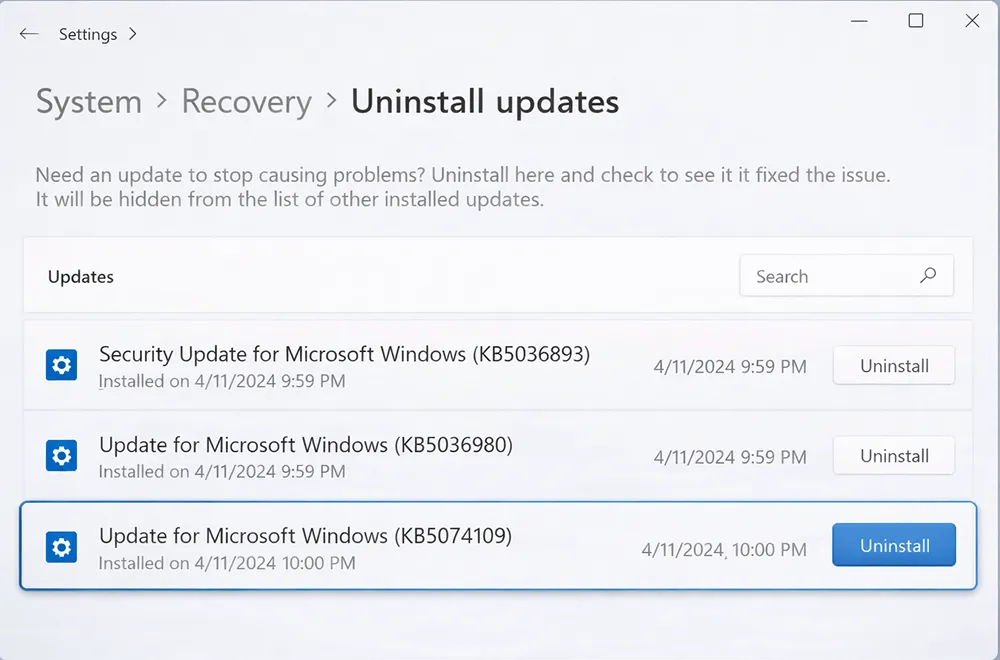
If you are experiencing gaming problems after installing KB5074109, you can remove the update using the following steps:
- Open Settings
- Go to Windows Update → Update history
- Select Uninstall updates
- Locate KB5074109 and uninstall it
- Restart your computer
Alternatively, you can uninstall the update using an elevated Command Prompt:
wusa /uninstall /kb:5074109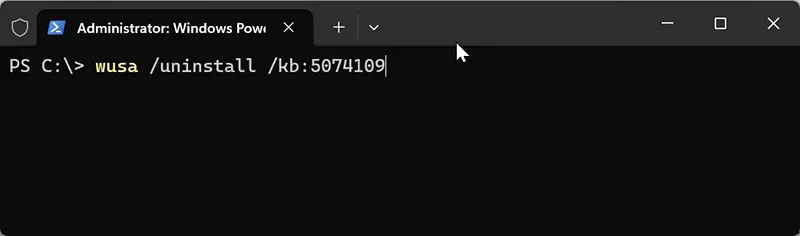
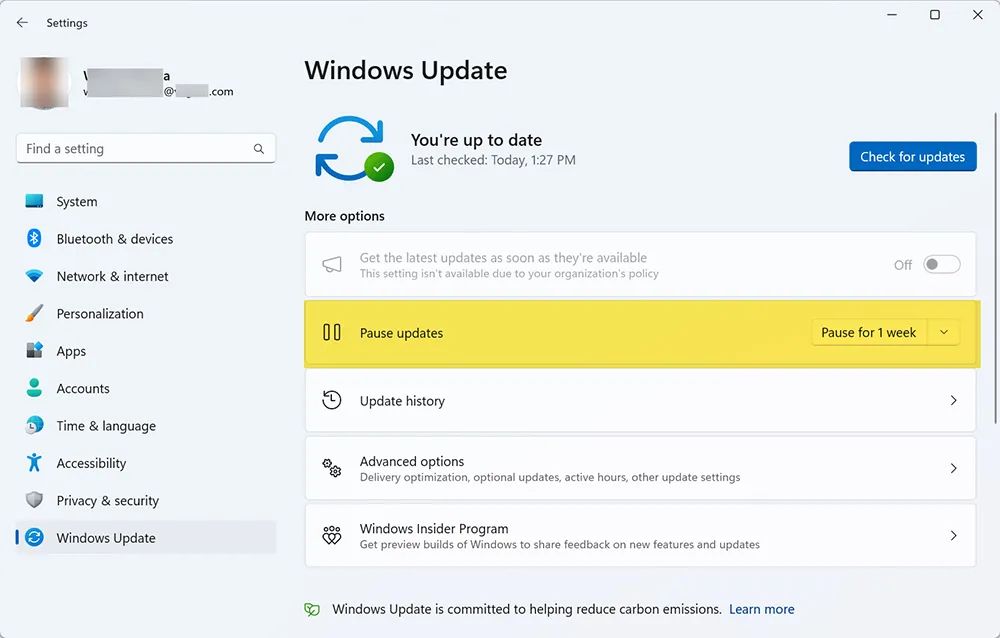
After uninstalling, consider pausing Windows Updates temporarily to prevent the update from reinstalling automatically while you wait for an official fix.
Are There Any Official Fixes Yet?
At the time of writing, Microsoft has not released a definitive fix specifically targeting gaming issues caused by KB5074109. However, Microsoft sometimes publishes follow-up cumulative updates or optional updates to address side effects introduced by Patch Tuesday updates.
If your Windows installation appears damaged after update installs/uninstalls, run system repairs using DISM and SFC repair steps for Windows 11.
Should You Uninstall KB5074109?
Whether you should remove KB5074109 depends on your situation:
- If you are affected: Uninstalling the update may restore gaming performance until a permanent fix is released.
- If you are not affected: Keeping the update installed is recommended to maintain security protections.
If your PC is already running low on storage or cluttered with temporary files, update operations and driver changes can become less stable. Do quick maintenance first using how to delete temporary files in Windows 11 and how to clean up disk space on Windows 11.
What to Expect Next
NVIDIA continues to investigate the issue, and Microsoft is expected to address compatibility concerns in future cumulative updates. A permanent fix may arrive through a Windows update, a GPU driver update, or a combination of both.
Until then, affected users should monitor official Microsoft release health updates and NVIDIA driver announcements closely. If you encounter update failures while troubleshooting, refer to Windows 11 update error codes for fast recovery options.
Frequently Asked Questions
Is KB5074109 mandatory?
Yes. KB5074109 is a mandatory security update for Windows 11 unless updates are paused or deferred.
Does KB5074109 affect all GPUs?
Most reports involve NVIDIA GeForce GPUs. There are fewer reports involving other GPU vendors.
Is uninstalling KB5074109 safe?
It is typically safe as a temporary workaround, but it reduces your system’s security until the update is reinstalled. Only uninstall it if you are experiencing real performance or stability problems.
What should I do if my system becomes unstable after uninstalling?
Restart first. If problems continue, run system repairs using DISM/SFC and review Windows BSOD troubleshooting for recovery steps.
Will Microsoft release a fix?
Microsoft is expected to address the issue in a future update, though an official timeline may not be published. Monitor Windows Release Health for status changes.