It’s common for users to report that Windows 11 becomes slow after an update. Symptoms may include delayed clicks, sluggish startup, high disk usage, slow File Explorer, stuttering animations, or reduced battery performance on laptops.
In most cases, this slowdown is not caused by a “broken” update but by post-update background activity, changed drivers, reset power profiles, or low disk space. In 2024–2025, Microsoft also introduced UI and servicing changes across Windows 11 versions (23H2, 24H2, and early 25H2 builds), making some older performance guides outdated.
This guide follows a real IT troubleshooting workflow: diagnose first, stabilize the system, apply targeted fixes, and validate performance. No unnecessary tweaks, no risky optimizers—only Microsoft-aligned and field-tested steps.
Step 1: Confirm the Problem Is Performance-Related (Not a System Freeze)
Before applying fixes, confirm whether the system is slow or actually frozen. A frozen system requires different remediation.
- Mouse moves but clicks are delayed
- Apps open slowly but eventually load
- Task Manager opens after a delay
If the system is completely unresponsive, follow this guide first: Fix Frozen Computer on Windows.
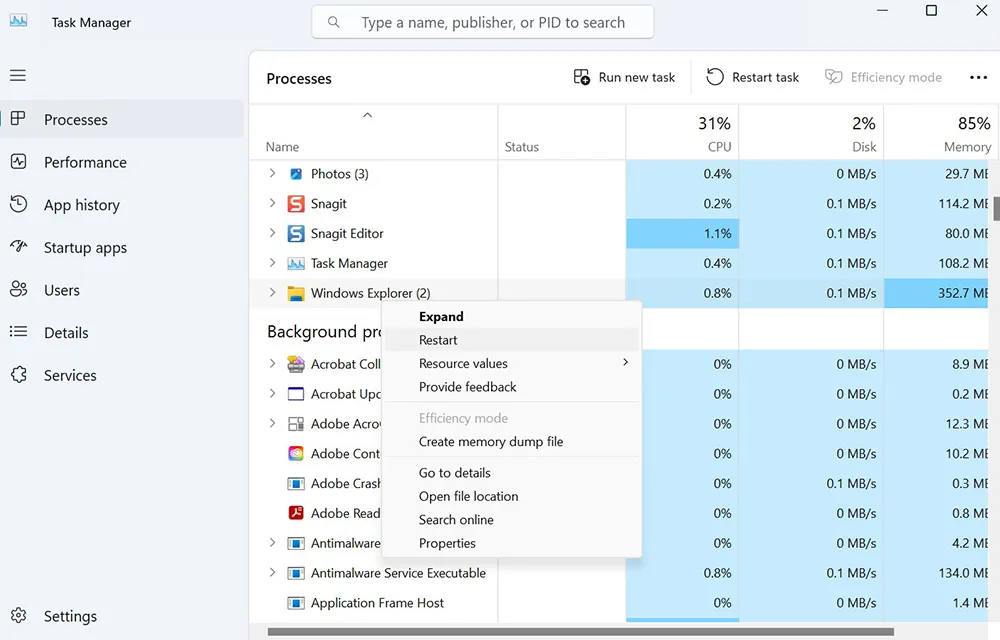
Step 2: Restart Windows Explorer to Stabilize the UI
Windows Explorer controls the taskbar, Start menu, and File Explorer. After updates, it may not reload cleanly.
- Press Ctrl + Shift + Esc
- Select Windows Explorer
- Click Restart
Step 3: Check System Uptime and Perform a True Restart
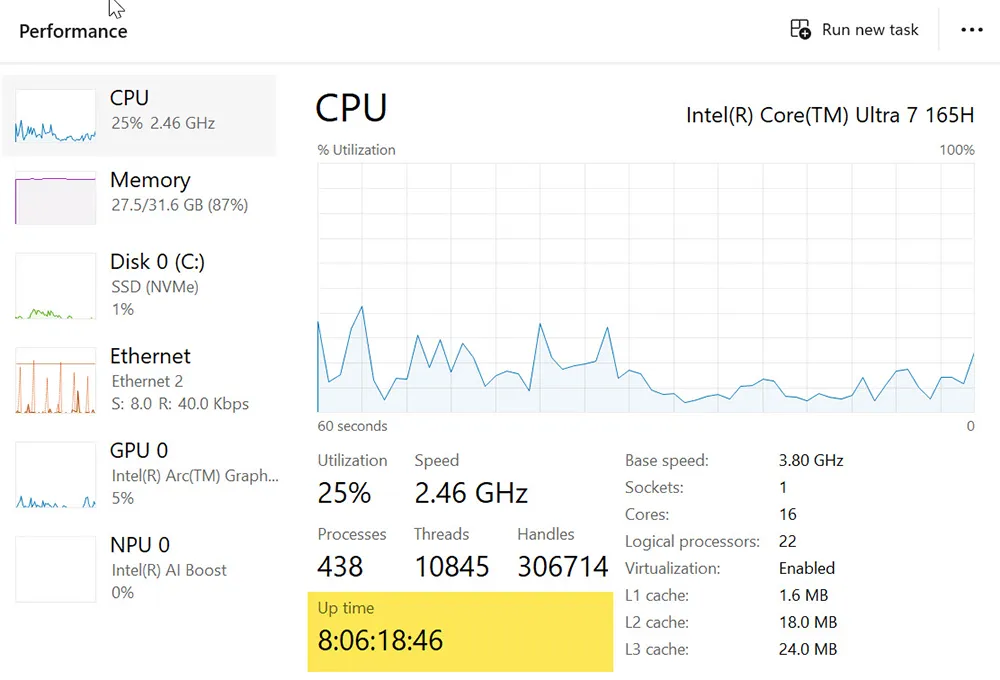
Fast Startup and sleep cycles can leave Windows running for weeks without a full reboot. Updates often require a clean restart to finalize changes.
Check uptime using: How to Check Computer Uptime.
If uptime exceeds several days, perform a full restart.
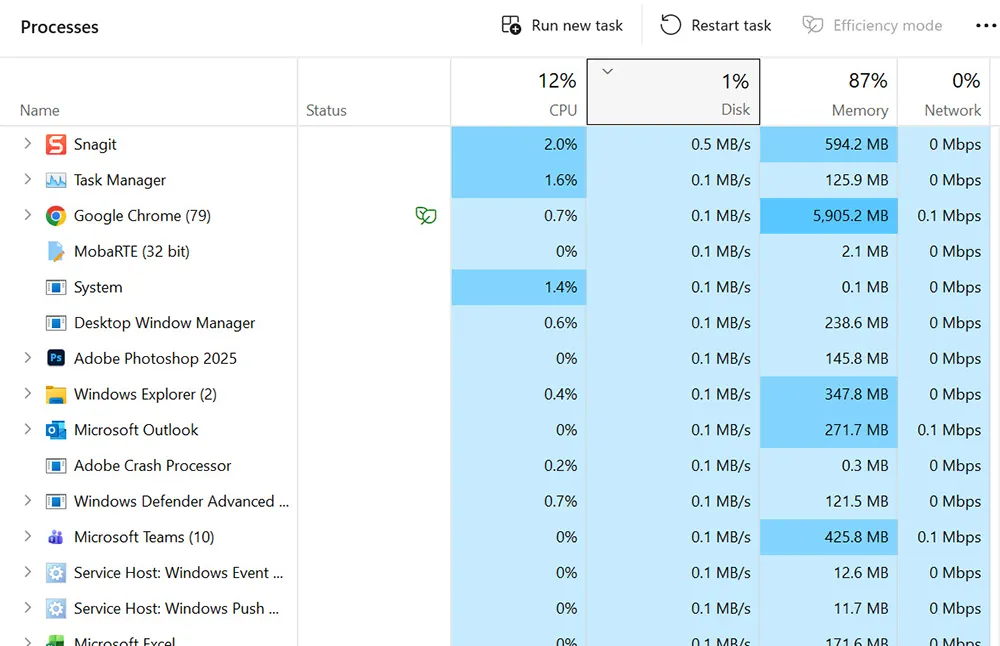
Step 4: Diagnose Resource Bottlenecks Using Task Manager
Instead of guessing, identify what is slowing the system.
- Open Task Manager → Processes
- Sort by CPU, then Disk, then Memory
- Observe usage for several minutes
Common post-update processes include Windows Update, Search indexing, Defender scans, or driver services.
Step 5: Free Disk Space (Critical for Post-Update Performance)
Windows updates create temporary files, rollback data, and cached components. Low disk space severely impacts performance.
Start with these internal guides:
- Delete Temporary Files in Windows 11
- Use Disk Cleanup to Delete Temporary Files
- Clean Up Disk Space on Windows 11
Microsoft reference: Tips to improve PC performance in Windows

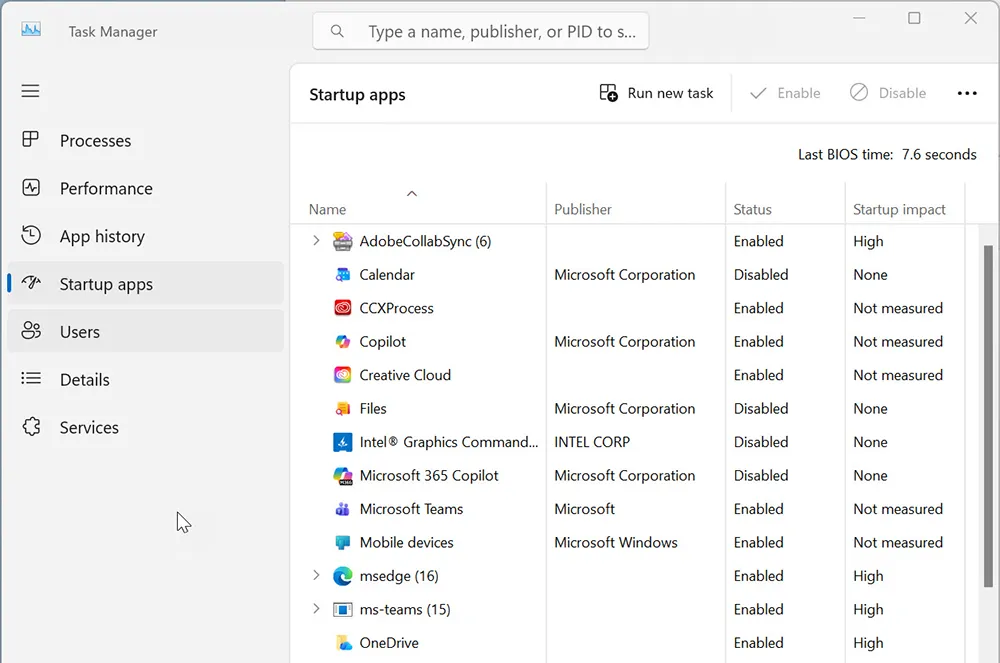
Step 6: Reduce Startup Load
Updates may re-enable startup apps or install new background services.
- Task Manager → Startup apps
- Disable non-essential apps
- Leave security and driver services enabled
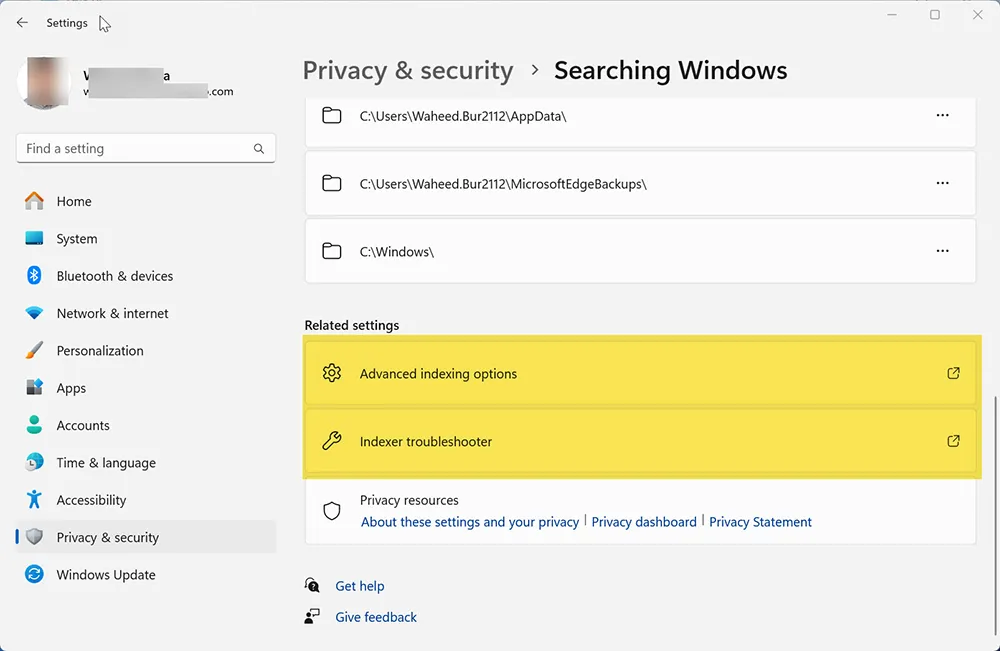
Step 7: Allow or Rebuild Search Indexing
Search indexing commonly spikes disk usage after updates and slows File Explorer.
Microsoft reference: Search indexing in Windows
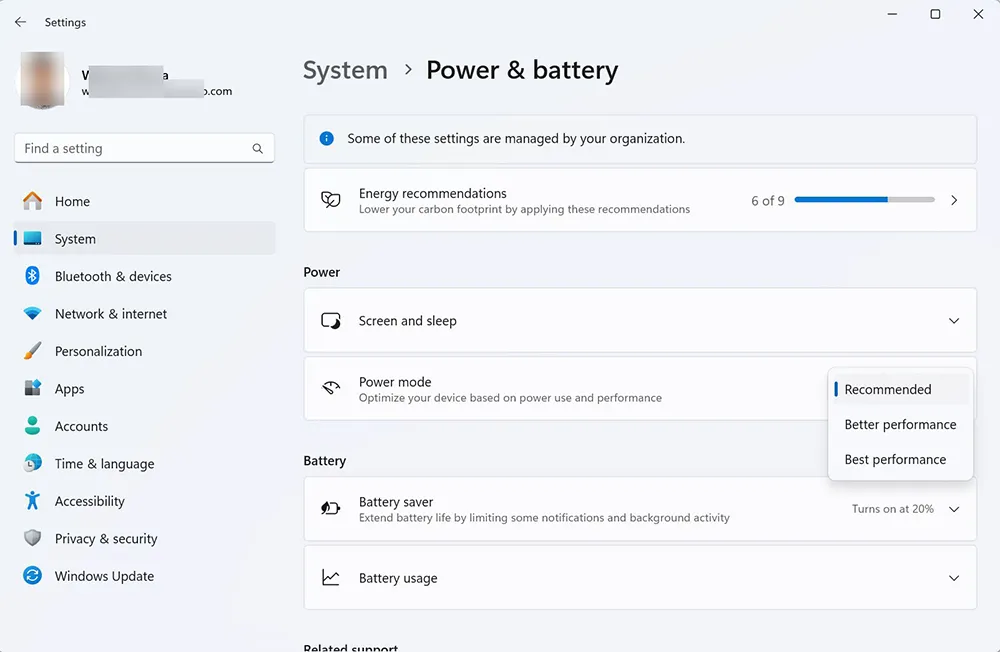
Step 8: Verify Power Mode (Especially on Laptops)
Updates can reset power profiles, causing performance throttling.
Microsoft reference: Change the power mode for your Windows PC
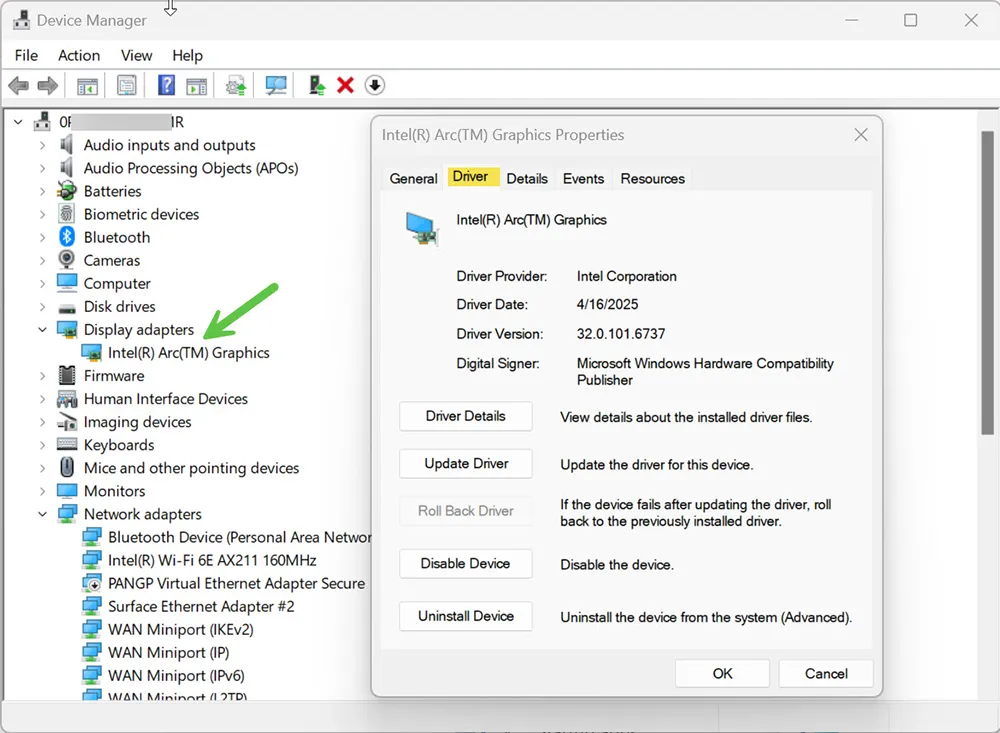
Step 9: Check and Correct Driver Changes
Graphics and chipset drivers are common causes of post-update lag.
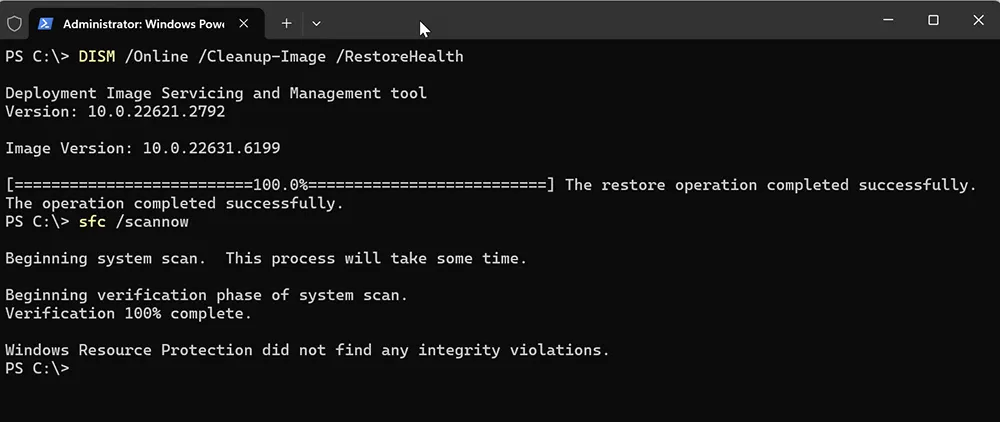
Step 10: Repair Windows System Files
Use DISM and SFC if Windows feels inconsistent or unstable.
Follow: How to Use DISM & SFC to Repair Windows 11
Microsoft reference: Use the System File Checker tool
Step 11: Rule Out Overheating
Thermal throttling can mimic update-related slowness.
Use: Monitor Computer Overheating.
Step 12: Review Update History and Known Issues
If performance issues started immediately after an update, review update history and known issues.
Microsoft references:

Final Thoughts
Windows 11 performance issues after updates are usually temporary and fixable. By diagnosing resource usage, stabilizing the system, and applying targeted fixes, you can restore performance without reinstalling Windows.
For ongoing optimization, see: Speed Up Your Computer and How to Clean Up Computer Disk Space.
Frequently Asked Questions
Is it normal for Windows 11 to be slow after updates?
Yes. Background optimization, indexing, and driver configuration may temporarily slow the system.
How long should I wait before troubleshooting?
Wait 20–30 minutes after the first reboot. If slowness persists, begin diagnostics.
Should I uninstall updates to fix performance?
Only if Microsoft confirms a known issue. Most performance problems resolve without uninstalling updates.
Do performance issues mean my PC is outdated?
No. Even modern PCs can slow temporarily after updates due to background tasks.