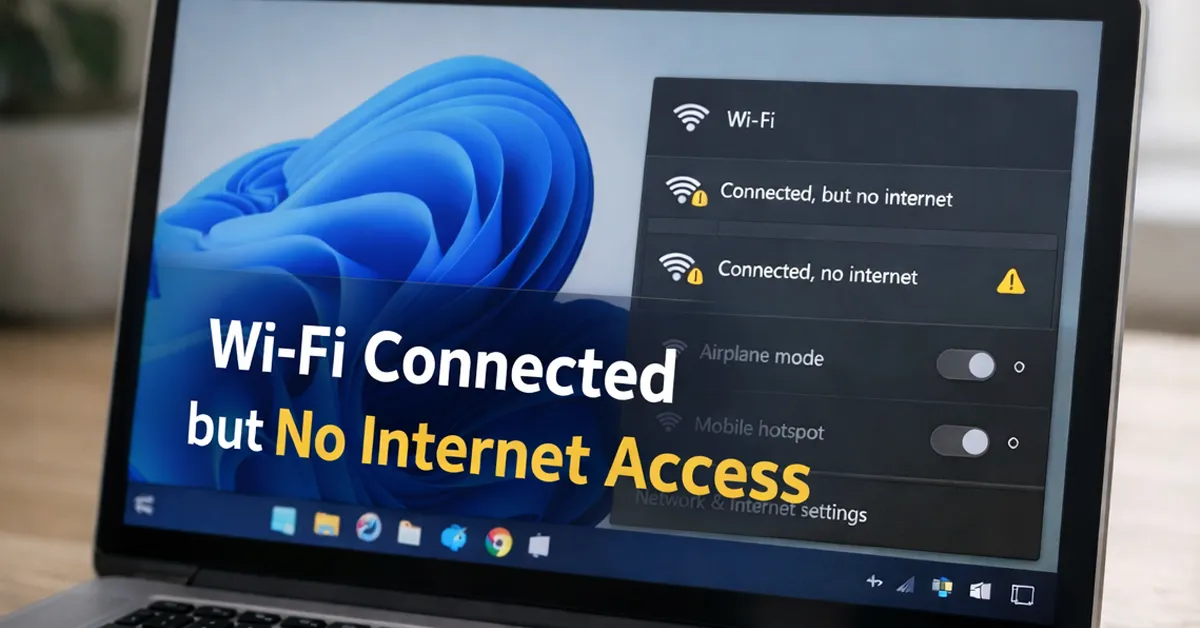
Seeing Wi-Fi: Connected in Windows 11 but no websites load is one of the most frustrating network problems—because it looks “fine” at a glance while everything you need (browsing, Teams calls, email, app sign-ins) fails. In most cases, the issue is not the Wi-Fi signal itself. It’s usually one of these:
- DNS failure (the PC can reach the router, but can’t resolve websites)
- IP configuration issues (bad gateway, duplicate IP, stale lease)
- Router/ISP problems (router is online but upstream internet is down)
- Driver or adapter issues after an update
- Proxy/VPN conflicts or security software intercepting traffic
This guide uses a real troubleshooting workflow that IT teams rely on: confirm the failure type, isolate whether it’s DNS vs IP vs router vs adapter, apply the smallest safe fix, then validate the result. No risky “optimizer” tools and no random registry tweaks.
Step 1: Confirm Whether It’s Internet, DNS, or Only One App
Start by separating “no internet” into the right category. The fix depends on what’s actually failing.
A) Quick checks (60 seconds)
- Try two different browsers (Edge + Chrome), then try a simple site (example: your company portal or a known site you use daily).
- Check if only one app is failing (Teams works but browser doesn’t, or vice versa).
- Try a second device on the same Wi-Fi (phone or another laptop). If other devices work, the issue is likely your Windows PC.
B) Run a simple connectivity test (recommended)
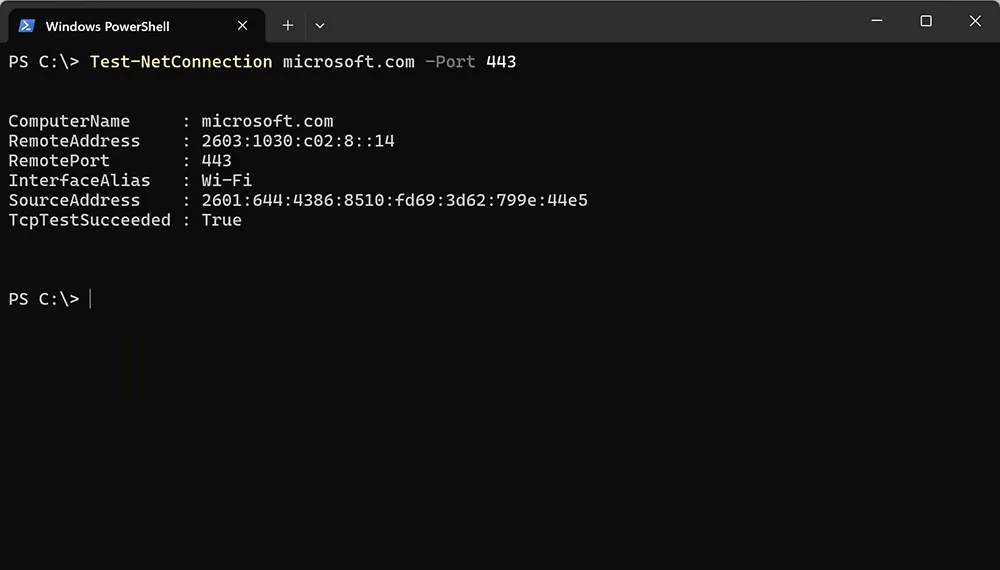
Open Windows Terminal (or Command Prompt) and test DNS + internet reachability. Microsoft’s PowerShell tool Test-NetConnection is excellent for quick validation.
Microsoft reference:
Test-NetConnection (PowerShell)
Test-NetConnection 1.1.1.1 -Port 443
Test-NetConnection microsoft.com -Port 443
How to interpret results:
- If
1.1.1.1works butmicrosoft.comfails, that strongly suggests DNS is broken. - If both fail, you may have a router/ISP problem, a bad IP configuration, or a proxy/VPN/firewall conflict.
Step 2: Do the Router/ISP Reality Check
Before making deep PC changes, prove whether your router actually has internet. Many “connected but no internet” cases are simply upstream outages.
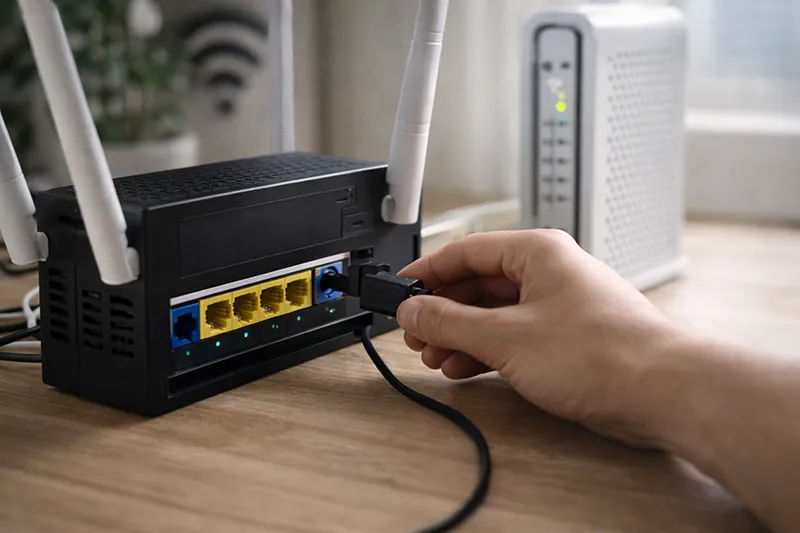
- Power-cycle the router/modem: unplug for 30 seconds, then plug back in.
- Check if the router’s WAN/Internet light is solid or blinking in an error pattern.
- If your phone has mobile data, disconnect from Wi-Fi and confirm the internet works on cellular (this helps prove there’s not a broader outage in your area).
If multiple devices on the same Wi-Fi have no internet, your fix is usually on the router/modem/ISP side—not Windows.
Step 3: Forget the Wi-Fi Network and Reconnect
Saved Wi-Fi profiles can break after password changes, router firmware changes, or Windows updates. Forgetting the network rebuilds the profile cleanly.
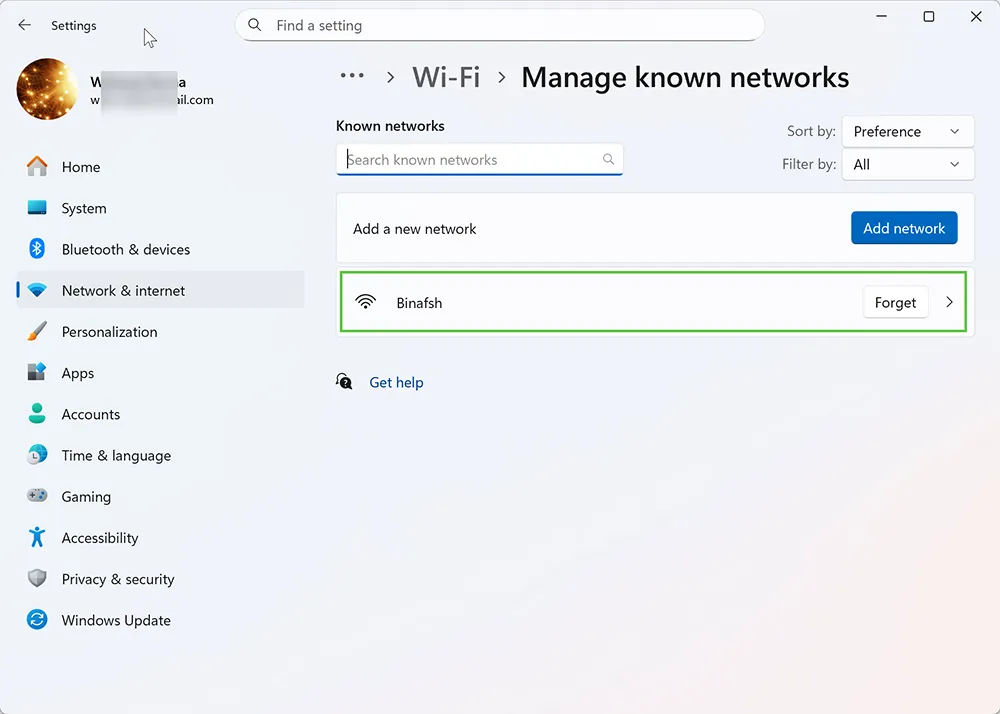
- Open Settings → Network & internet → Wi-Fi
- Select Manage known networks
- Click your Wi-Fi network → Forget
- Reconnect and re-enter the password
If you forgot your Wi-Fi password, use:
Recover Forgotten Wi-Fi Password.
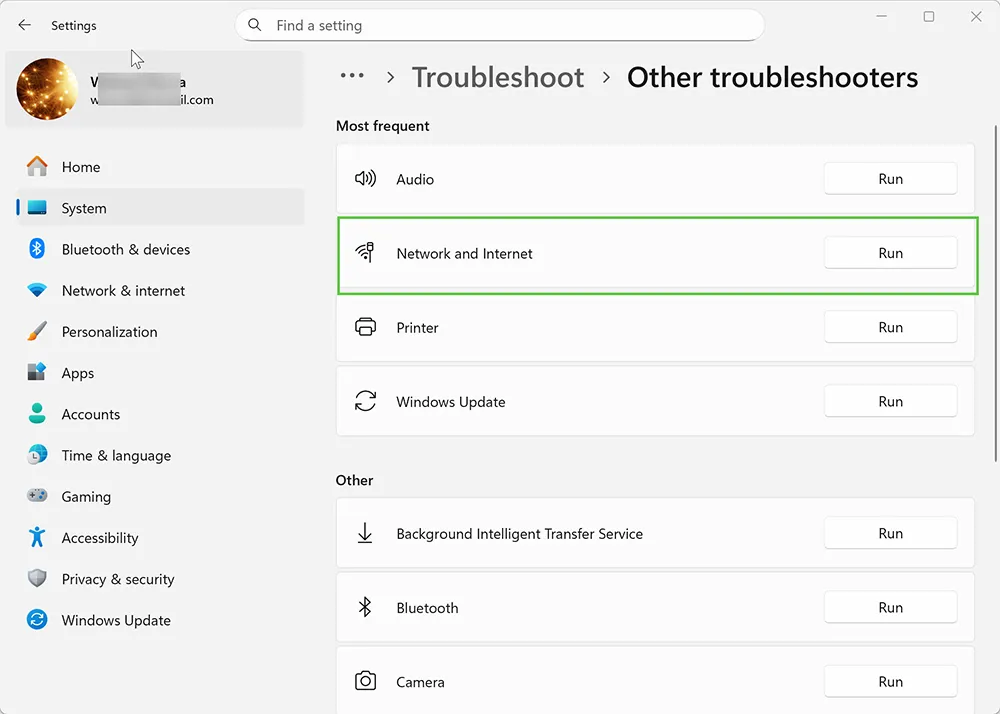
Step 4: Run Windows Network Troubleshooter (Fast Win)
Windows 11 includes troubleshooting wizards that can automatically reset adapter settings, repair common issues, and identify misconfigurations.
- Open Settings
- Go to System → Troubleshoot → Other troubleshooters
- Run Network Adapter
- Apply suggested fixes and restart if prompted
Step 5: Fix DNS Problems (Flush Cache + Renew IP)
DNS issues are the #1 reason Windows shows connected but browsers can’t load sites. A stale DNS cache, a broken DNS resolver, or an ISP DNS outage can all cause this symptom.
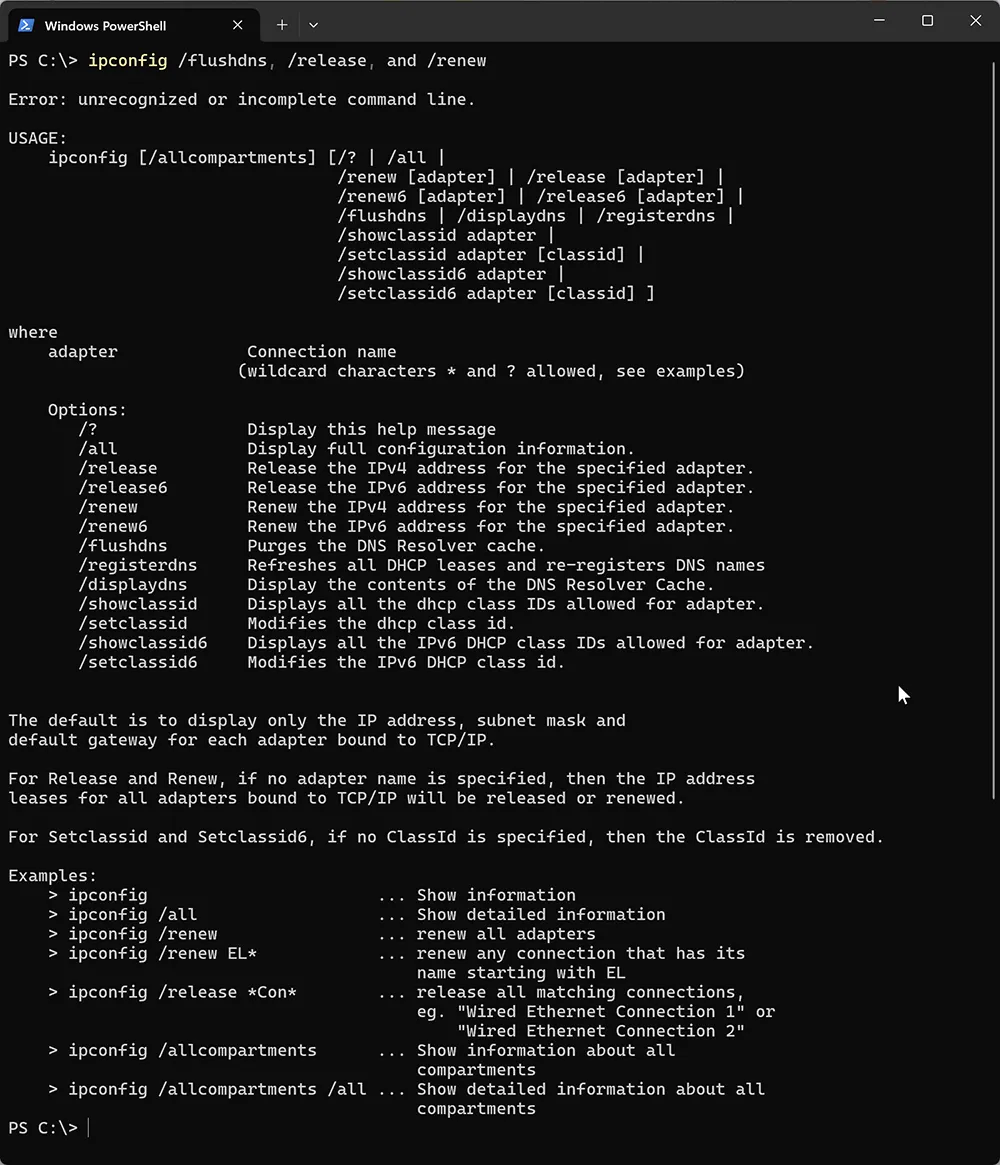
A) Flush DNS (safe and quick)
- Right-click Start → Terminal (Admin)
- Run:
ipconfig /flushdnsB) Release/Renew the IP lease
ipconfig /release
ipconfig /renew
What this does: flushdns clears cached DNS answers, and renew requests a fresh IP + DNS + gateway from the router (DHCP).
Step 6: Reset Winsock and the TCP/IP Stack
If DNS flush/renew didn’t help, reset the Windows networking stack. This can fix corruption caused by VPN clients, security software, or interrupted updates.
Microsoft reference:
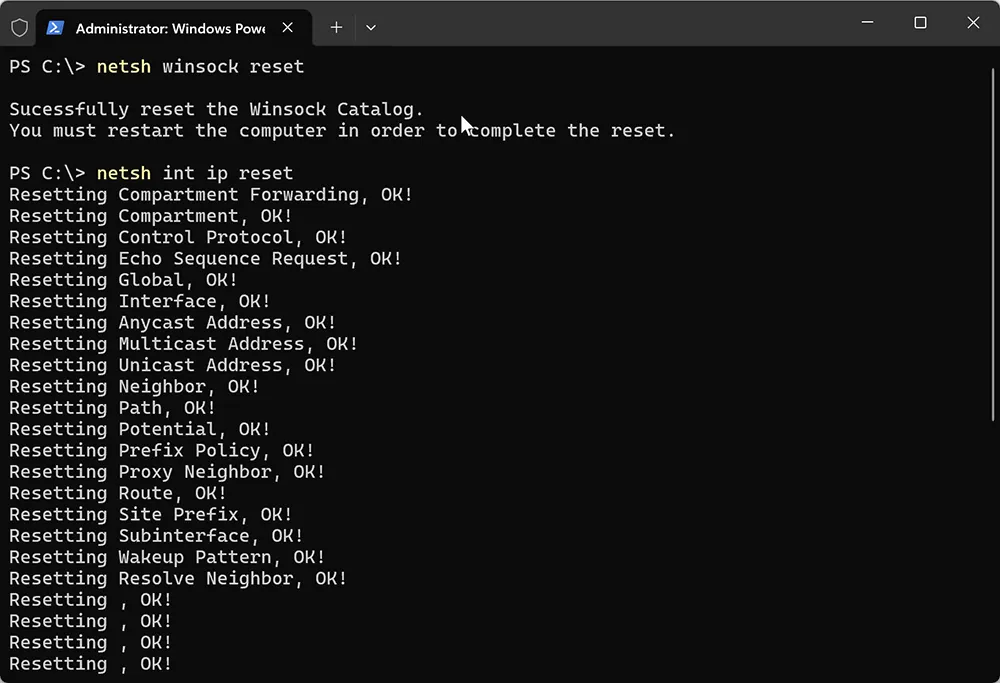
netsh winsock reset
- Open Terminal (Admin)
- Run these commands:
netsh winsock reset
netsh int ip reset- Restart the PC
- Re-test browsing and Test-NetConnection
Step 7: Disable VPN/Proxy and Check Metered Connection
A VPN or proxy can make Windows show “connected” while routing traffic into a dead tunnel or blocked proxy server.
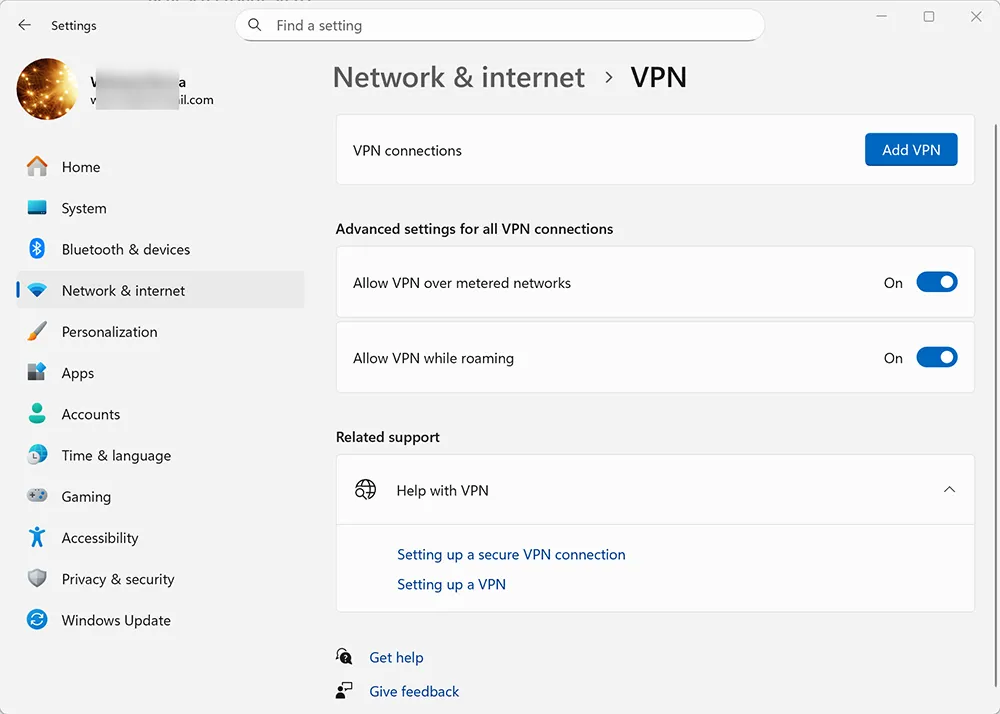
A) Disable VPN temporarily
- Settings → Network & internet → VPN → Disconnect
- Exit any third-party VPN app completely
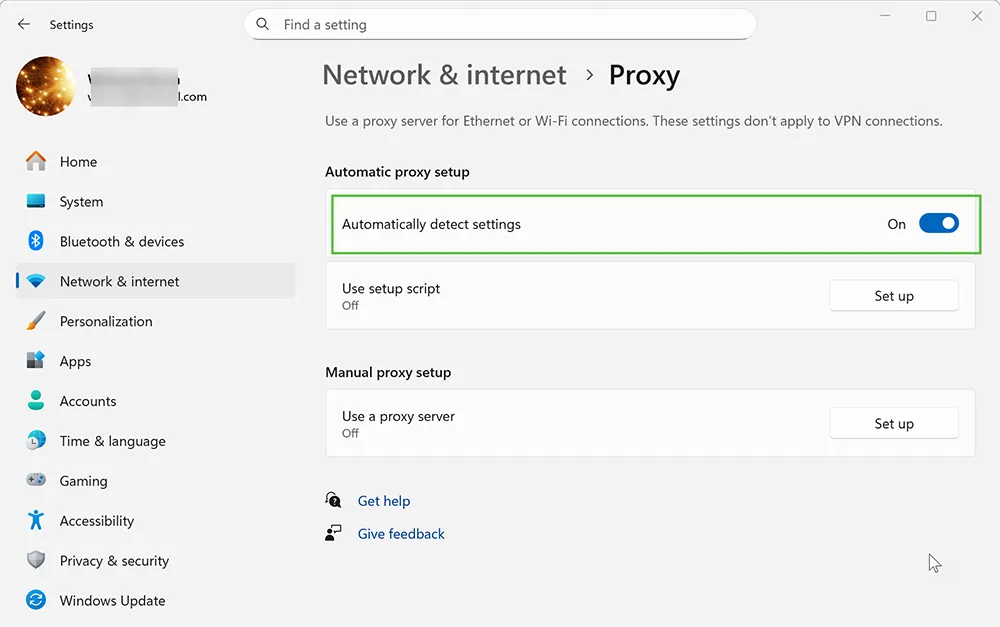
B) Check proxy settings
- Settings → Network & internet → Proxy
- Turn off “Use a proxy server” unless your organization requires it
C) Check metered connection settings
Metered settings usually don’t kill all internet, but they can cause odd “limited” behavior with updates and background connectivity.
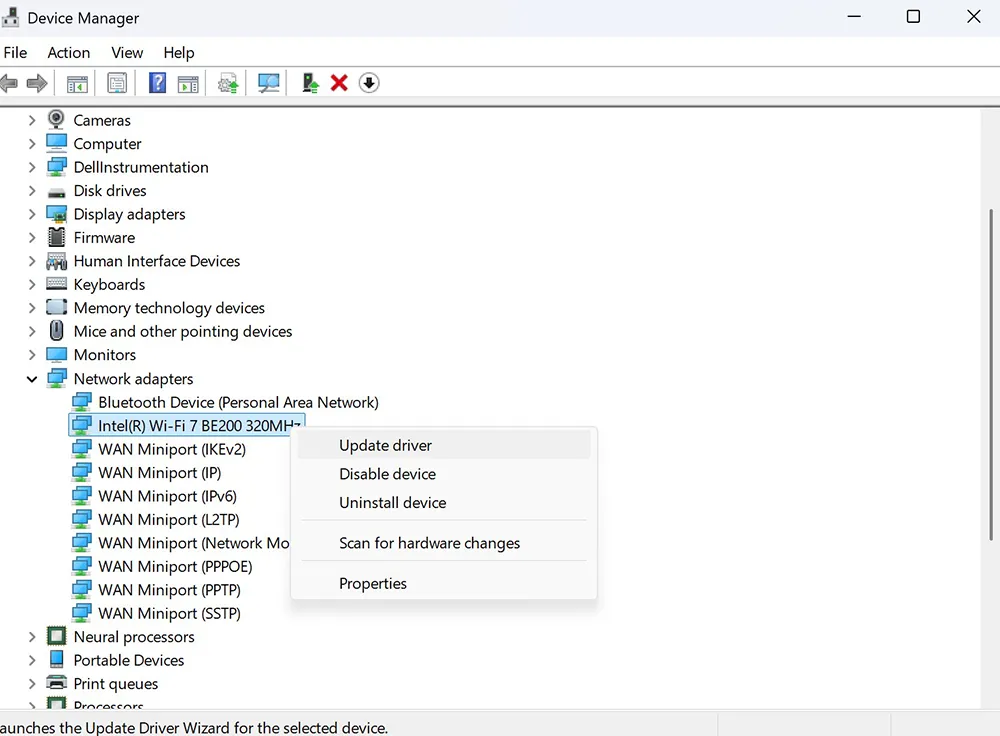
Step 8: Update or Reinstall the Wi-Fi Driver
Wi-Fi drivers can break after Windows updates, especially on laptops with vendor-tuned adapters. Symptoms can include frequent disconnects, “No internet” despite connection, or extremely slow throughput.
A) Update driver (safe first)
- Right-click Start → Device Manager
- Expand Network adapters
- Right-click your Wi-Fi adapter → Update driver
- Restart and re-test
B) Reinstall driver (when updates don’t work)
- Device Manager → Network adapters
- Right-click Wi-Fi adapter → Uninstall device
- Check Attempt to remove the driver (if available)
- Restart the PC (Windows will re-detect and reinstall)
If this issue started right after an update, also check your update health and known issues using your update troubleshooting process:
Fix Windows 11 Update Error Codes.
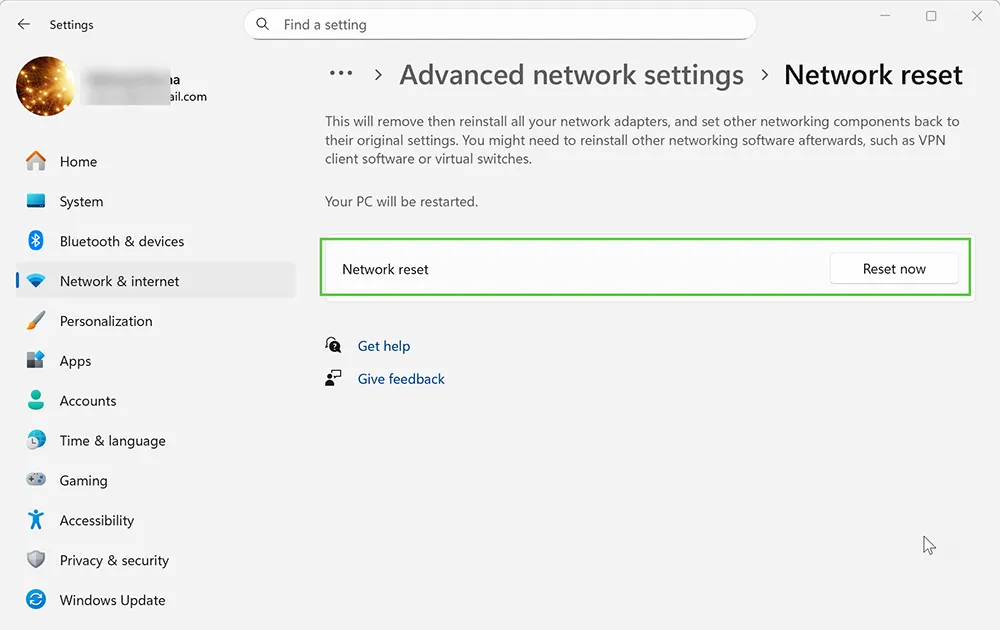
Step 9: Use Network Reset (Last Resort, but Very Effective)
If the problem persists after DNS and stack resets, use Windows 11 Network Reset. This removes and reinstalls network adapters and resets networking components to defaults.
- Settings → Network & internet → Advanced network settings
- Select Network reset
- Click Reset now → confirm
- Your PC restarts (plan for 2–5 minutes downtime)
- Reconnect to Wi-Fi and re-enter the password
Step 10: Rule Out Malware or System Instability
If only your PC is affected and the issue keeps returning, consider two possibilities:
- Security software/VPN drivers repeatedly corrupting the network stack
- Malware/adware intercepting DNS or proxy settings
Use these MagnetClicks guides to standardize the check:
- How to Remove Malware and Viruses
- Remove Malware From Your Computer
- Fix a Frozen Computer
- Speed Up Your Computer
How to Know You’re Fixed (Validation Checklist)
- Websites load in multiple browsers
Test-NetConnection microsoft.com -Port 443succeeds- Windows shows Internet access in Network settings
- No immediate reversion to “No internet” after reboot
If you want to track whether reboots or uptime changes correlate with the issue (useful for corporate troubleshooting), see:
Check Computer Uptime.
Frequently Asked Questions
Why does Windows 11 say connected but no internet?
Most commonly due to DNS failures, a bad IP lease from the router, proxy/VPN misrouting, Wi-Fi driver issues after updates, or an ISP/router outage.
How do I fix DNS on Windows 11 when Wi-Fi is connected?
Flush DNS using ipconfig /flushdns, renew your IP lease with ipconfig /release and ipconfig /renew, then restart. If needed, reset Winsock and TCP/IP.
Will Network Reset delete my files?
No. Network Reset only removes and reinstalls networking components and resets network configuration. You’ll need to reconnect to Wi-Fi and re-enter saved passwords.
Why does the problem happen after a Windows update?
Updates can change driver behavior, reset network stack components, or trigger conflicts with VPN/security filters. Reinstalling the Wi-Fi driver and performing a network reset often resolves post-update failures.
How can I tell if it’s my router or my PC?
If multiple devices on the same Wi-Fi have no internet, it’s likely the router/modem/ISP. If only one Windows 11 PC is affected, focus on DNS, driver, proxy/VPN, and network reset steps.