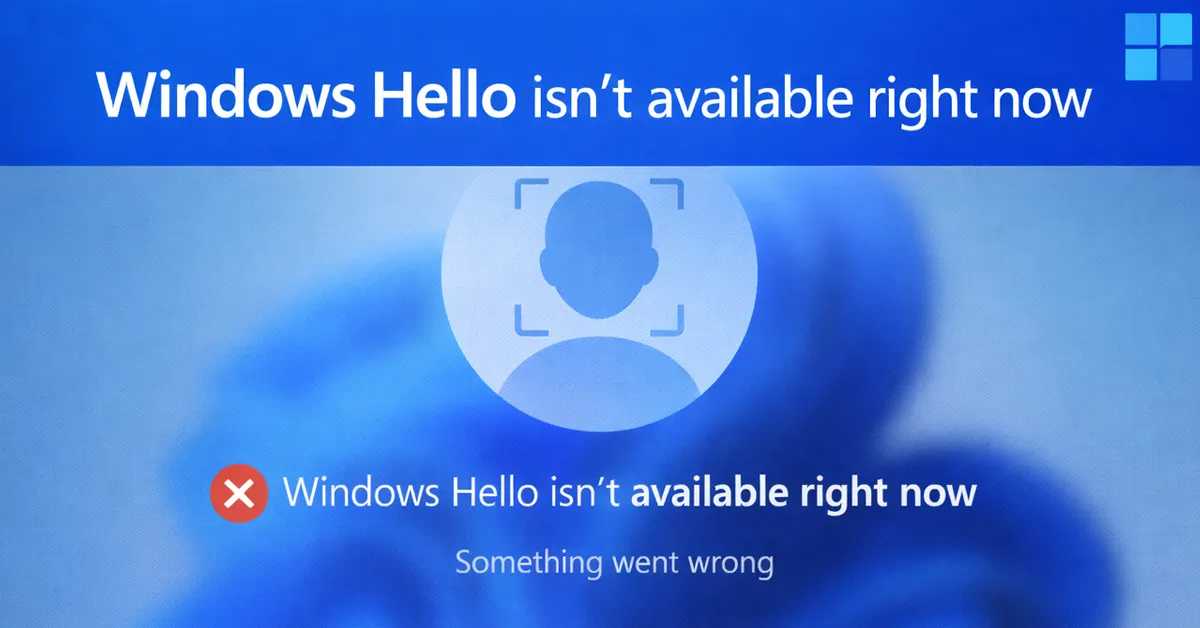
Windows Hello is a core Windows 11 security feature designed to replace passwords with biometric authentication such as facial recognition, fingerprint scanning, or a secure PIN. When Windows Hello stops working, the impact is immediate—users cannot sign in smoothly, HR onboarding is delayed, and IT helpdesk tickets increase sharply.
This article explains why Windows Hello fails on Windows 11, what “not working” actually means under the hood, and how to restore it using a structured troubleshooting approach. The steps below apply to both personal devices and enterprise-managed systems using Active Directory, Azure AD, or hybrid identity.
This guide is provided for troubleshooting and educational purposes only. Changes to authentication, identity, or security configurations should follow your organization’s IT policies and legal/compliance approvals.
Why Windows Hello Stops Working on Windows 11
Windows Hello failures almost always occur after a system change. Common triggers include:
- Windows feature updates (23H2, 24H2)
- Biometric driver corruption or rollback
- TPM or Secure Boot changes in BIOS
- Group Policy or Intune enforcement
- PIN credential corruption
Unlike traditional passwords, Windows Hello depends on multiple system components working together. A failure in any one of them can cause Windows Hello to become unavailable.
Step 1: Check If Windows Hello Is Disabled or Greyed Out
Start by confirming whether Windows Hello options are present.
Settings → Accounts → Sign-in options
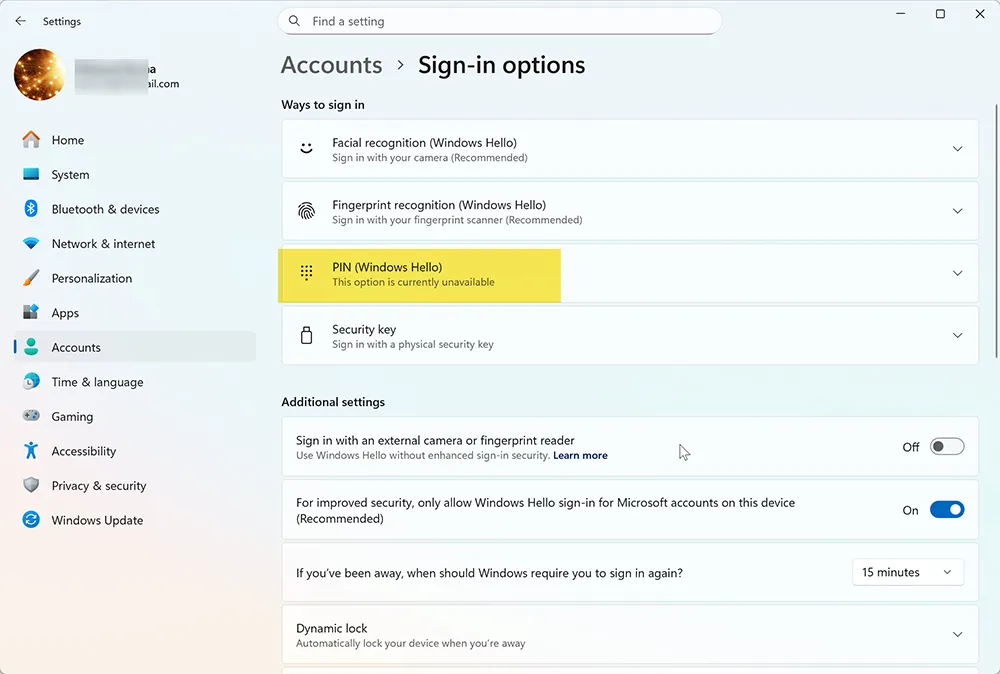
If Face Recognition, Fingerprint, or PIN options are missing or disabled, Windows Hello cannot function and further troubleshooting is required.
Step 2: Restart Windows Biometric Services
Windows Hello relies on background services to communicate with biometric hardware.
- Press Win + R
- Type
services.msc - Restart Windows Biometric Service
- Restart Credential Manager
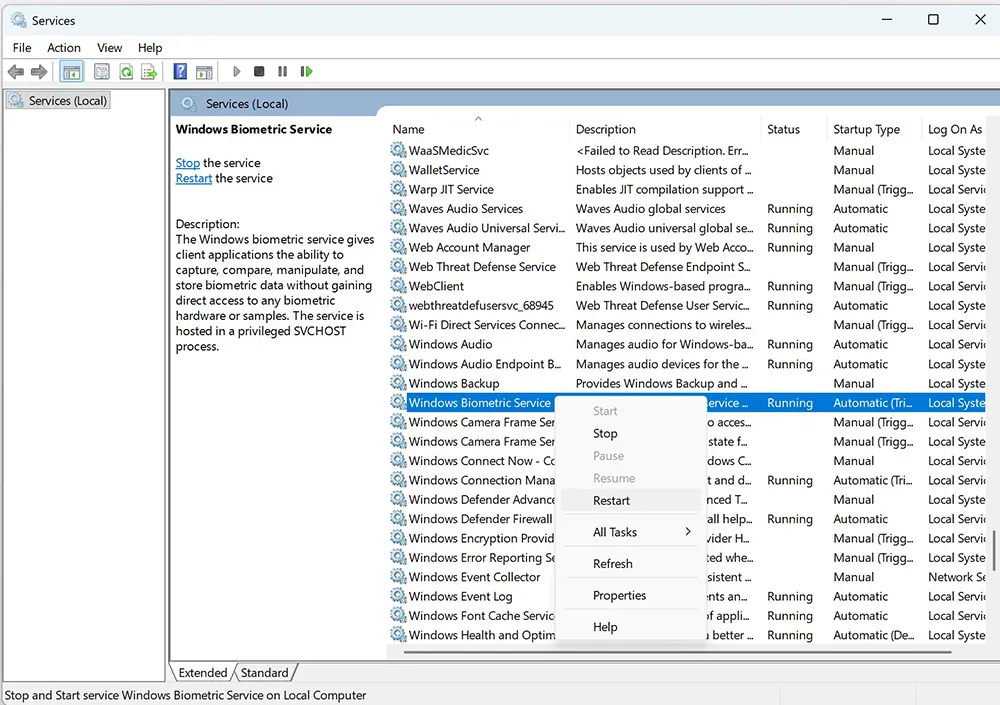
If the service fails to start, driver or policy issues are likely involved.
Step 3: Update or Reinstall Biometric Drivers
Corrupt or outdated biometric drivers are the most common cause of Windows Hello failures.
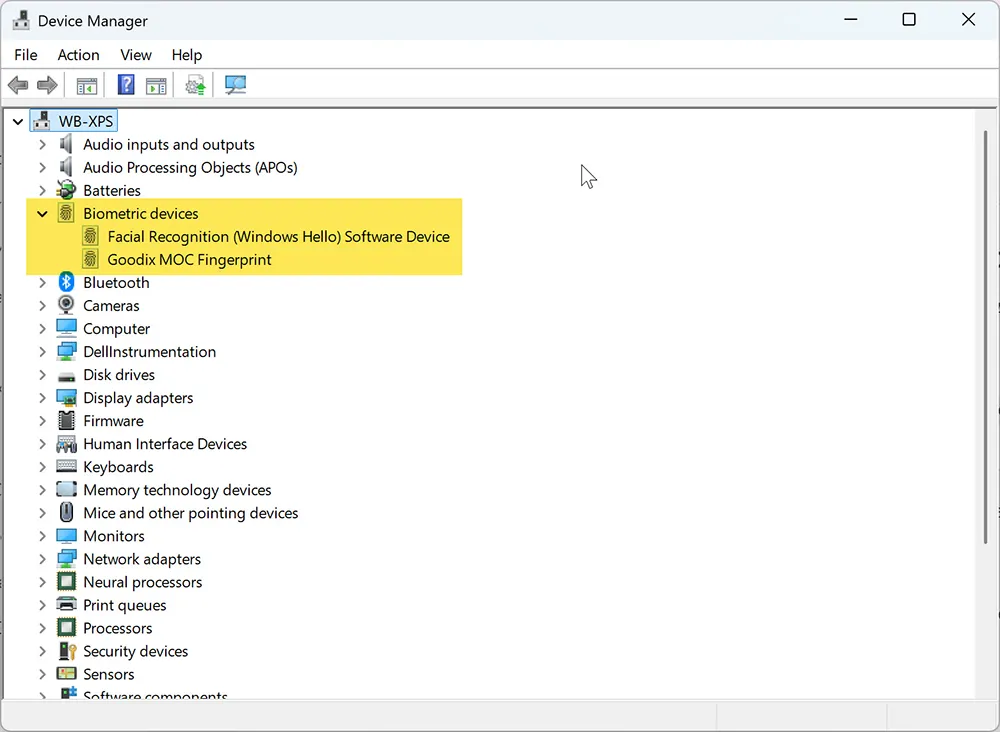
Open Device Manager and expand Biometric Devices or Cameras. If devices show warning icons or disappear after sleep, reinstall drivers from the manufacturer’s support site.
Step 4: Verify TPM 2.0 and Secure Boot
Windows Hello stores cryptographic keys inside the Trusted Platform Module (TPM). Without TPM 2.0, Windows Hello cannot function securely.
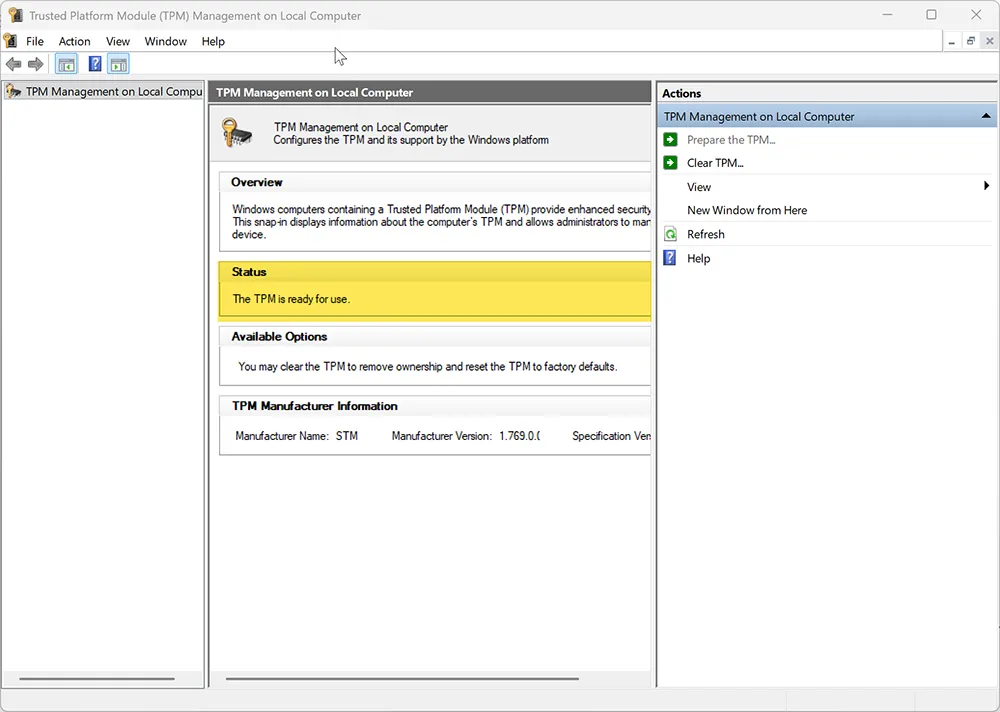
Check TPM status using tpm.msc. If TPM is disabled, enable it in BIOS along with Secure Boot.
Microsoft reference:
Trusted Platform Module overview
Step 5: Fix Windows Hello PIN Errors
Windows Hello authentication depends on a working PIN. If the PIN fails, biometric sign-in will also fail.
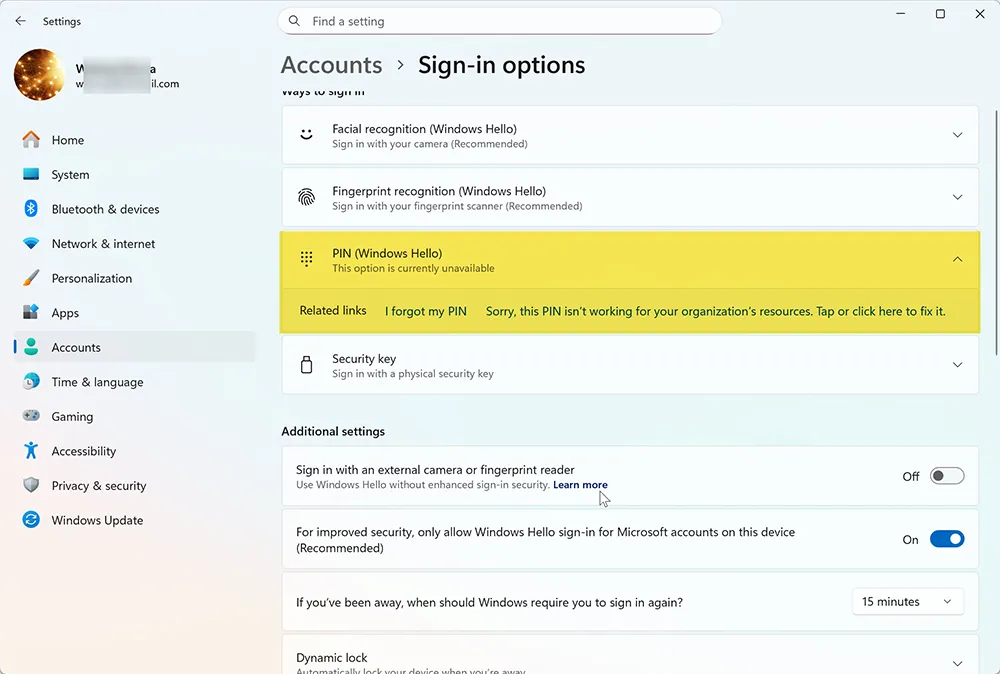
Remove and recreate the PIN under Sign-in options. If the PIN reset fails, system credential storage may be corrupted.
Step 6: Check Group Policy or Intune Restrictions
On managed devices, Windows Hello may be disabled by policy.

IT administrators should verify Windows Hello for Business policies in Group Policy or Intune.
Microsoft reference:
Windows Hello for Business overview
Related internal guide:
Windows Hello Hybrid Setup Explained
Step 7: Repair Windows System Files
Corrupted Windows components can silently break authentication services.
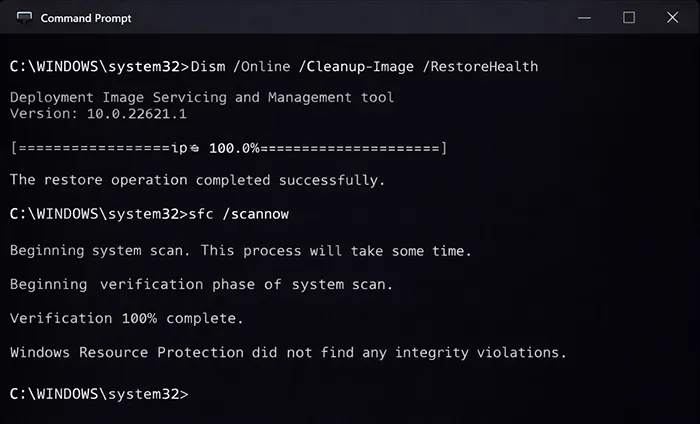
Step 8: Test With a New User Profile
User profile corruption can cause persistent Windows Hello failures. Creating a new local test account helps isolate profile-related issues.
Enterprise Impact: Why Windows Hello Failures Matter
Windows Hello failures affect:
- HR onboarding delays
- Password reset ticket spikes
- Security compliance posture
Related MagnetClicks articles:
Frequently Asked Questions
Why is Windows Hello suddenly not working?
Windows Hello typically fails due to driver corruption, TPM issues, policy enforcement, or Windows updates changing authentication components.
Does Windows Hello require TPM 2.0?
Yes. TPM 2.0 securely stores cryptographic keys required for biometric authentication.
Can Windows Hello work without a PIN?
No. A PIN is mandatory and acts as the fallback credential for Windows Hello.
Is Windows Hello secure for enterprise use?
Yes. Windows Hello uses device-bound credentials and never transmits biometric data.
Should Windows Hello be disabled if it keeps failing?
No. Fix the underlying issue instead of disabling passwordless authentication.