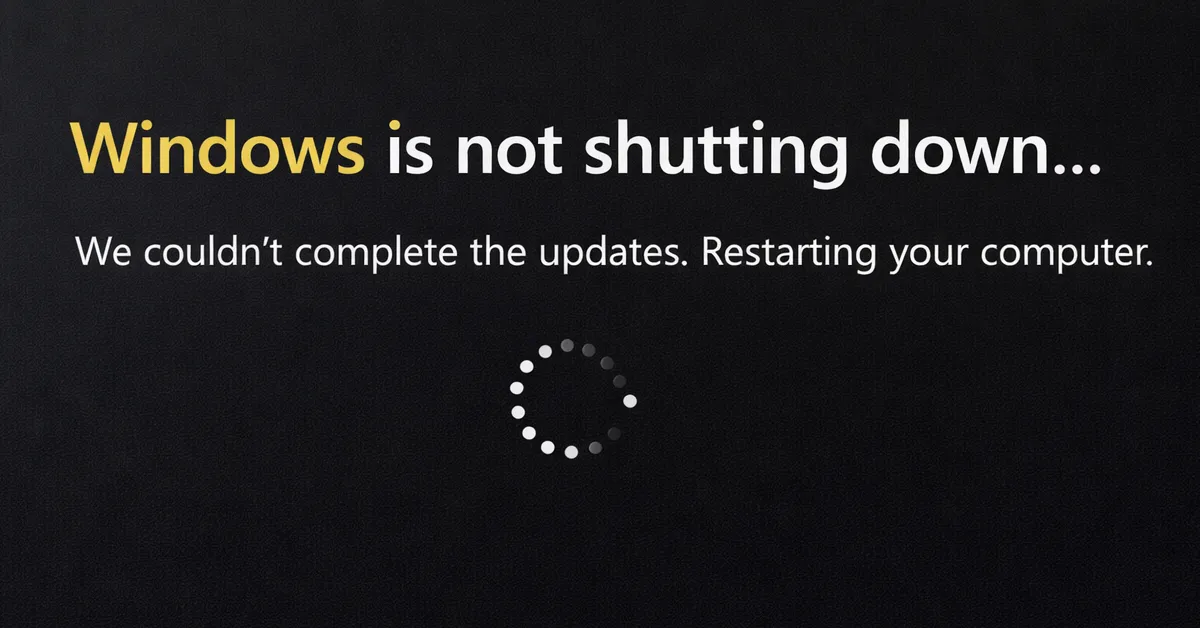
If your Windows PC suddenly restarts instead of shutting down (or refuses to enter hibernation) right after a Windows Update, you’re not alone. In January 2026, Windows 11 devices running version 23H2 (Enterprise / IoT) were impacted by a bug where Shutdown or Hibernate fails and the device restarts instead—especially on systems using Secure Launch, a boot protection feature designed to harden the early startup process against firmware-level threats.
This guide follows a real IT troubleshooting method: you’ll confirm the symptom, verify whether your system matches the affected profile, install the correct Microsoft fix, and validate recovery—without risky registry hacks or “optimizer” tools.
This article is for educational and administrative troubleshooting purposes only. Follow your organization’s change-management policies, test updates in a pilot group first, and consult your compliance/legal team if device behavior impacts regulated workflows. Avoid disabling security protections like Secure Launch unless your organization approves the risk and you have a documented rollback plan.
What Changed in January 2026 (And Why This Matters)
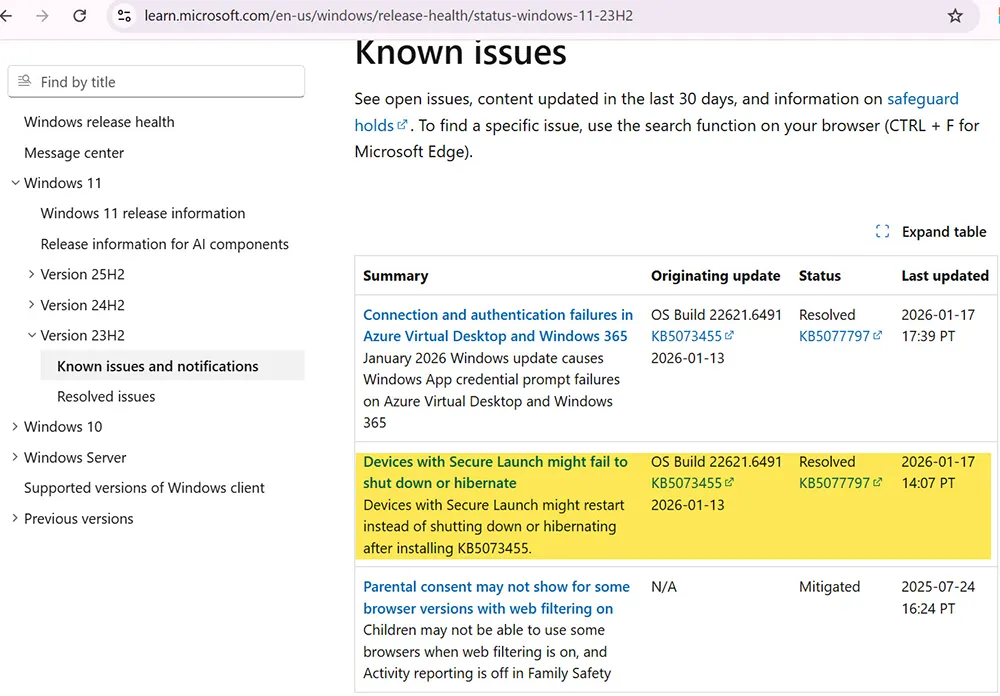
The issue was introduced through the January 13, 2026 Windows 11 security update for 23H2 (KB5073455), where some Secure Launch systems could fail to shut down or hibernate and instead restart. Microsoft later addressed it with an out-of-band update (KB5077797, released January 17, 2026). You can also confirm current status through Microsoft’s Windows 11 23H2 Release Health.
If your system is slow after patching (but shutdown works normally), use this related guide:
Windows 11 Slow After Update? Diagnose & Restore Performance.
Symptoms: How This Shutdown Bug Typically Looks
Users commonly report one or more of the following right after installing the January update:
- Shut down appears to work, but the PC powers back on or restarts.
- Hibernate fails and the device restarts instead.
- The Start menu power action behaves inconsistently (restart/shutdown feels “swapped”).
- Laptops appear “off” briefly, then fans spin up again and the device is running.
- Battery drains overnight because the system never truly powered down.
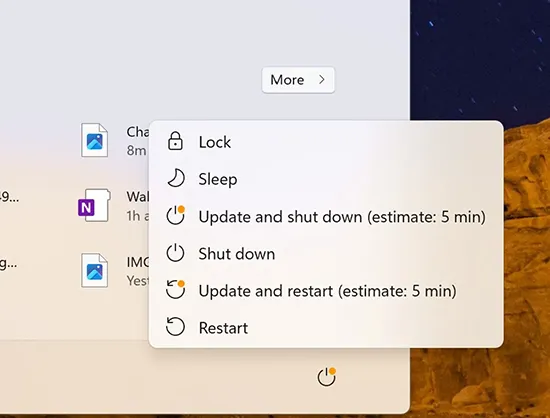
Shutdown vs Restart vs Fast Startup (Why People Get Confused)
Windows “Shutdown” is not always a full power-off. On many PCs, Fast Startup saves parts of the system state to accelerate boot. That can make users think the PC never shut down—especially when uptime looks unusually high.
However, the January 2026 Secure Launch issue is different: the system can actively restart after selecting Shut down or Hibernate. That’s not normal hybrid shutdown behavior. If you want a deeper technical view of boot and shutdown behavior, Microsoft’s guidance on startup and shutdown experience explains what Windows is trying to achieve at the OS level.
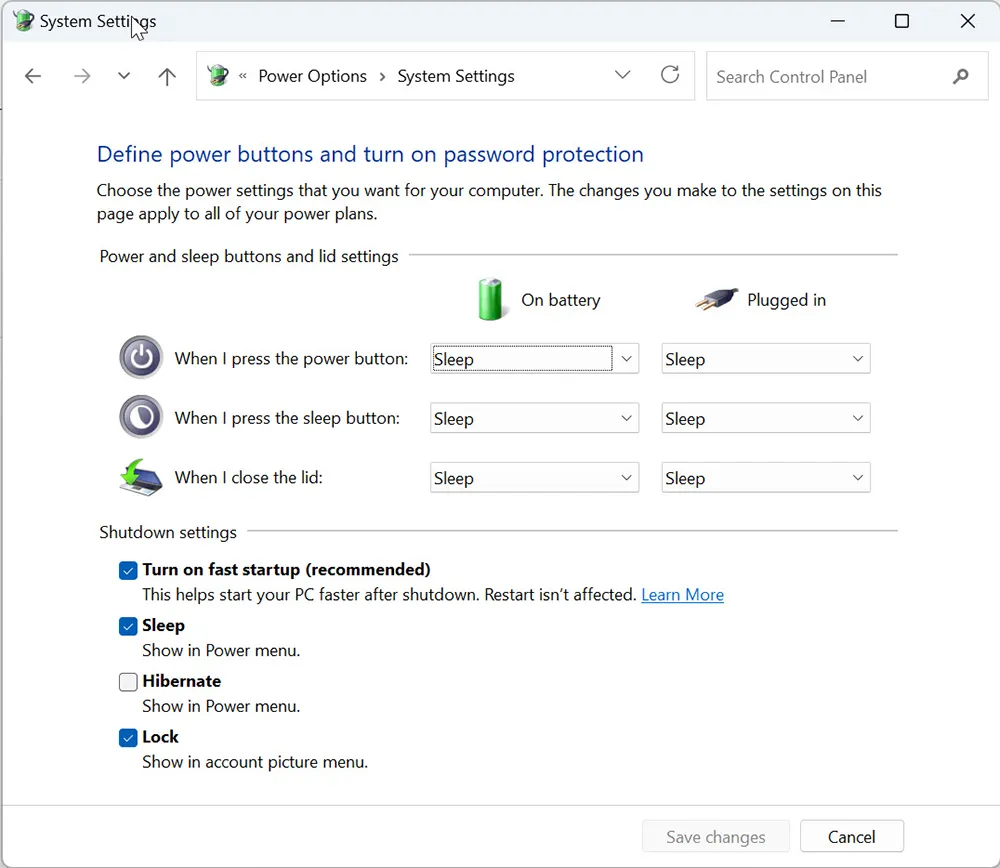
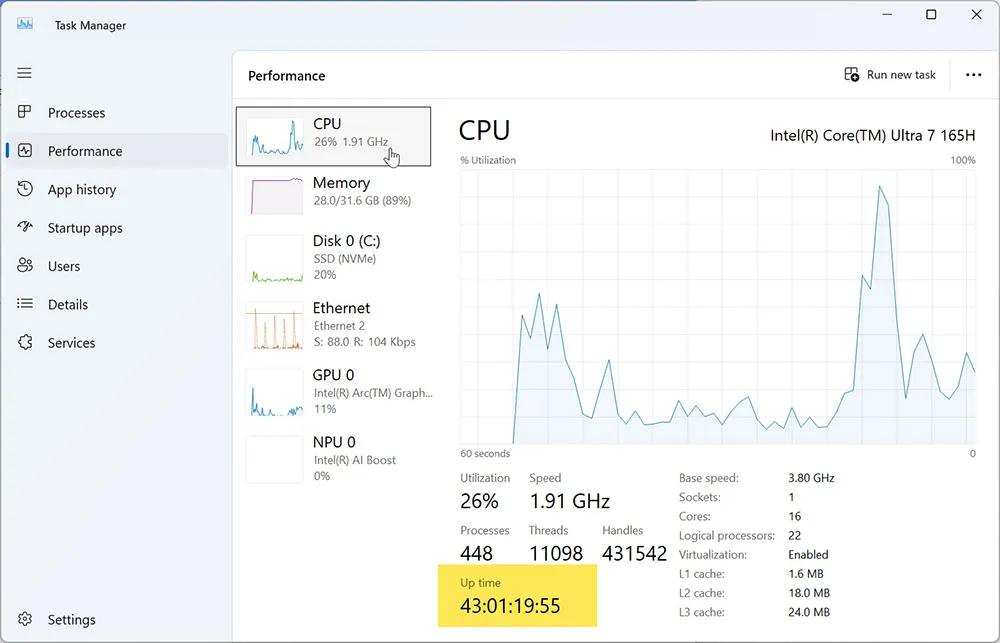
To verify whether Windows truly powered off (and not a hybrid shutdown), check system uptime using:
How to Check Computer Uptime.
Step 1: Confirm You Installed the Affected Update (KB5073455)
First, confirm whether your device installed KB5073455. This ensures you’re targeting the correct root cause and not a separate driver or power issue.
- Open Settings → Windows Update
- Select Update history
- Look for KB5073455 (January 13, 2026)
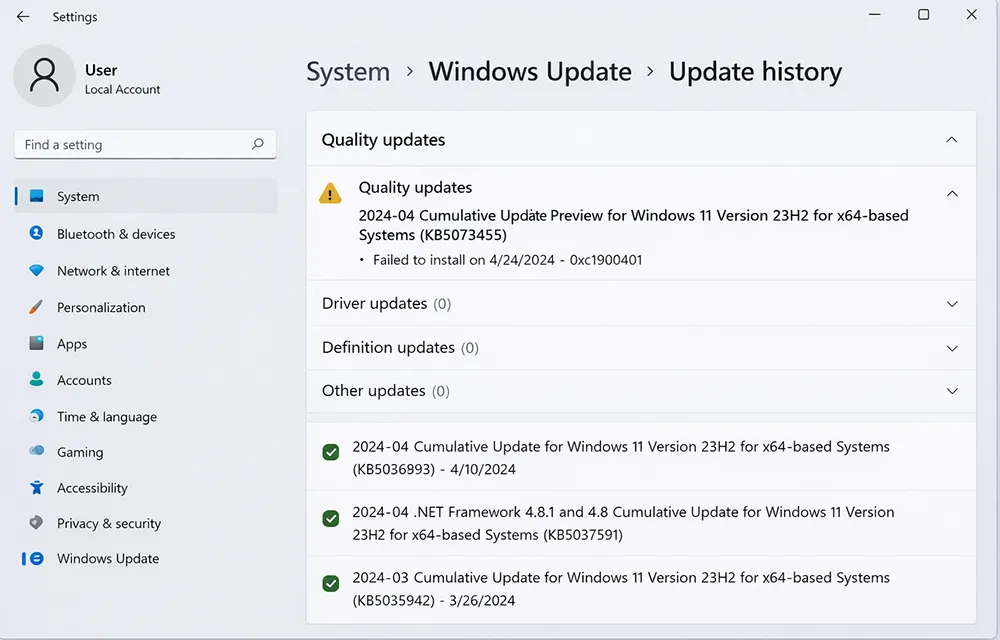
If updates are failing or repeatedly retrying, troubleshoot that first:
Fix Windows 11 Update Error Codes.
Step 2: Confirm Whether Secure Launch Is Enabled (Key Factor)
This shutdown bug is strongly correlated with Secure Launch being enabled. Secure Launch is part of Windows System Guard protections; Microsoft documents it in detail here:
System Guard Secure Launch and SMM protection.
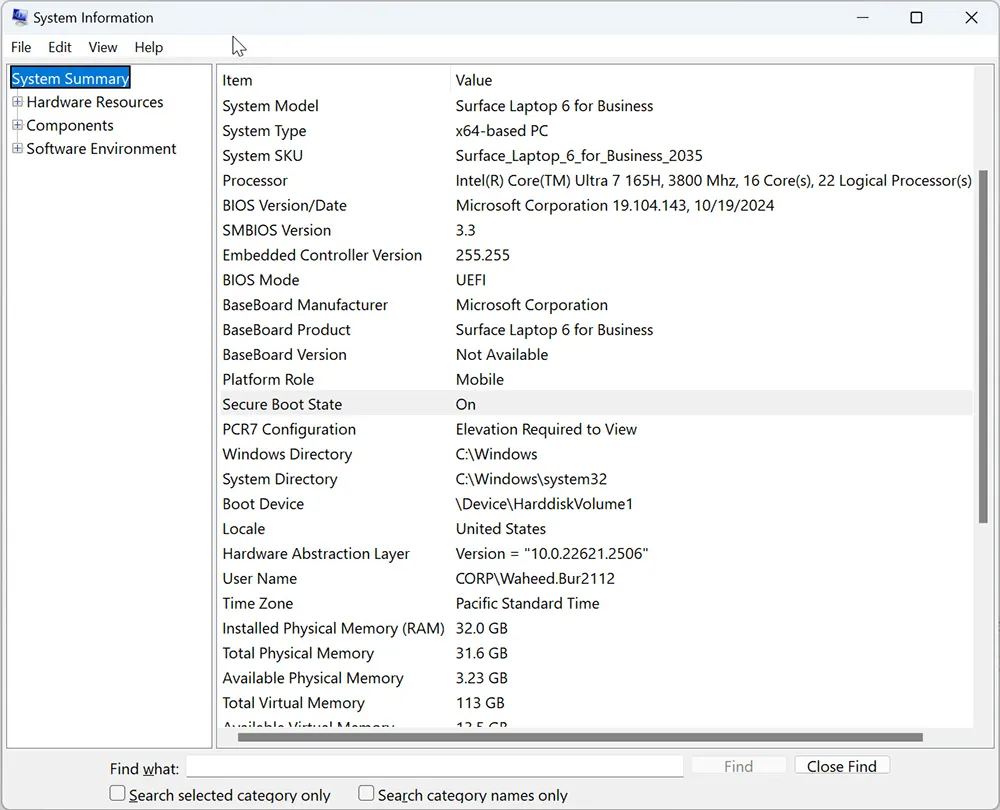
Quick check using System Information (msinfo32)
- Press Win + R, type msinfo32, press Enter
- In System Summary, review Secure Boot / VBS security indicators
- If your organization uses secured-core baselines, Secure Launch may be enabled by firmware and policy
Step 3: Confirm the Known Issue in Windows Release Health
Before changing anything, confirm the issue matches Microsoft’s known issue listing for Windows 11 23H2. This is a fast way to avoid wasting time on unrelated power or driver troubleshooting. Use:
Windows 11 23H2 Release Health.
Step 4: Install the Microsoft Fix (Best Resolution)
The recommended resolution is to install Microsoft’s out-of-band update for Windows 11 23H2:
KB5077797 (January 17, 2026).
Option A: Install via Windows Update (or managed patching)
- Open Settings → Windows Update
- Select Check for updates
- Install the latest cumulative update offered
- Restart when prompted
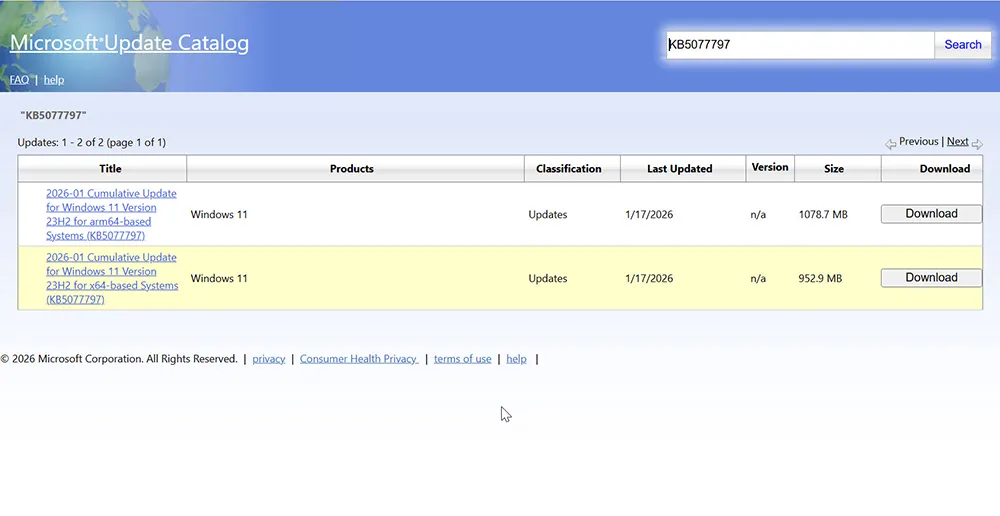
Option B: Manual install via Microsoft Update Catalog
If your environment uses staged deployment or you need a direct installer, search KB5077797 in the Microsoft Update Catalog:
KB5077797 in Microsoft Update Catalog.
Step 5: Verify Shutdown Recovery (Simple Validation Checklist)
After patching, validate that the device truly shuts down and stays off. This is important for user trust and for IT compliance (maintenance windows, battery health, patch cadence).
- Start → Power → Shut down
- Wait 30–60 seconds and confirm the device remains off
- Power back on and check uptime:
Check Computer Uptime - If your org allows it, test Hibernate (optional validation)
Step 6: If You Can’t Patch Yet (Safe Temporary Workarounds)
If your organization can’t deploy the fix immediately due to approval windows or patch rings, use these temporary mitigations only to reduce operational impact (battery drain, overnight restarts). They do not replace the official fix.
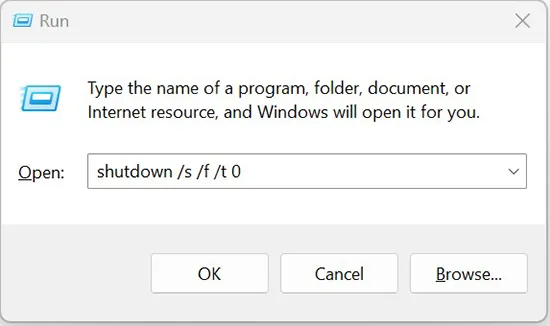
Workaround A: Use a full shutdown command
- Press Win + R
- Run:
shutdown /s /f /t 0 - Observe whether the device stays off
Workaround B: Reduce confusion by temporarily disabling Fast Startup (optional)
Fast Startup can make shutdown appear inconsistent, particularly when users verify shutdown by checking uptime. If users report “shutdown didn’t work” but the PC did not actually restart, temporarily disabling Fast Startup helps isolate the root behavior. This is separate from the Secure Launch bug and is most useful for clarity during troubleshooting.
If the device is low on space after patching, clean up temporary files:
How to Delete Temporary Files in Windows 11.
Step 7: Avoid Risky “Fixes” That Create New Problems
When shutdown issues appear after an update, you’ll find advice online recommending aggressive registry modifications or disabling core security protections. Avoid:
- Registry “power hacks” that disable essential services
- Third-party “PC optimizer” tools that change policies
- Disabling Secure Launch or VBS without approvals
If the device also feels unstable after patching, use supported repair methods:
How to Use DISM & SFC to Repair Windows 11.
Enterprise Notes: Why Secure Launch Is Worth Keeping Enabled
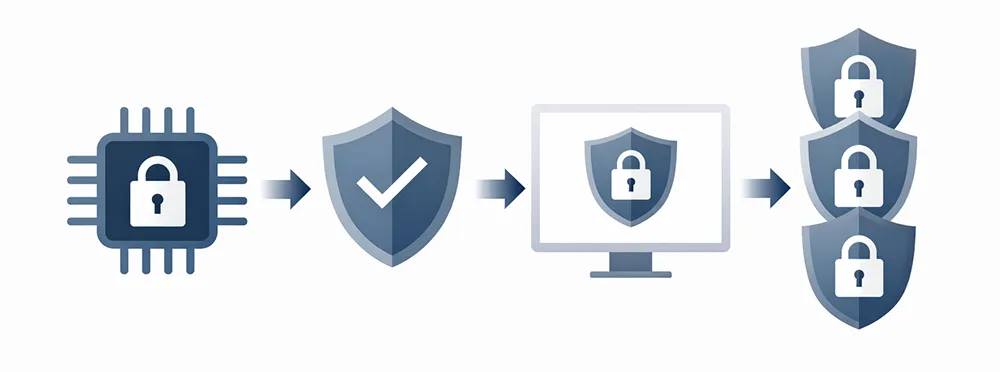
It can be tempting to disable Secure Launch to stop a shutdown issue quickly, but Secure Launch exists to protect against serious threats (bootkits and firmware-level compromise). Many organizations enable it as part of a secured-core strategy. Microsoft’s overview of secured-core Windows 11 systems is here:
Windows 11 Secured-core PCs.
For IT teams, the best practice approach is:
- Deploy the official fix (KB5077797 or later cumulative updates) as soon as approved.
- Track impacted devices and patch status in your endpoint inventory.
- Use pilot rings for Patch Tuesday on high-security device fleets.
Bonus: If Shutdown Still Fails After the Fix
If you installed KB5077797 (or later updates) and shutdown still behaves incorrectly, broaden the scope:
- Driver power state issues (GPU, storage, Wi-Fi)
- Pending reboot flags after servicing changes
- Fast Startup confusion (hybrid shutdown vs full shutdown)
- Security tooling interactions (rare, but possible)
If the device is freezing or unresponsive during power actions, review:
How to Fix a Frozen Computer.
Frequently Asked Questions
Why does my PC restart instead of shutting down after an update?
Some Windows updates can introduce regressions in power handling. In January 2026, Windows 11 23H2 systems with Secure Launch enabled could restart instead of shutting down or hibernating. Installing the fix update and verifying behavior typically resolves it.
How do I know if I’m affected by the Secure Launch shutdown bug?
Check Update History for KB5073455, confirm your Windows version/build, and validate the issue in Windows 11 23H2 Release Health. Devices with Secure Launch-enabled security posture were the primary affected group.
Is it safe to disable Secure Launch to restore shutdown?
Disabling Secure Launch is not recommended unless your organization approves the security tradeoff. The preferred remediation is to install Microsoft’s fix rather than turning off security protections.
Where can I get the out-of-band update if Windows Update doesn’t show it?
Your IT team can deploy it through standard patching tools or download it from Microsoft Update Catalog by searching for the KB number, then install and restart.
How can I prove my PC actually shut down and didn’t do a hybrid shutdown?
Check system uptime after powering back on. If uptime continues across “shutdown,” Fast Startup (hybrid shutdown) may be enabled. If the system visibly reboots after selecting shutdown, that behavior points to a different issue.