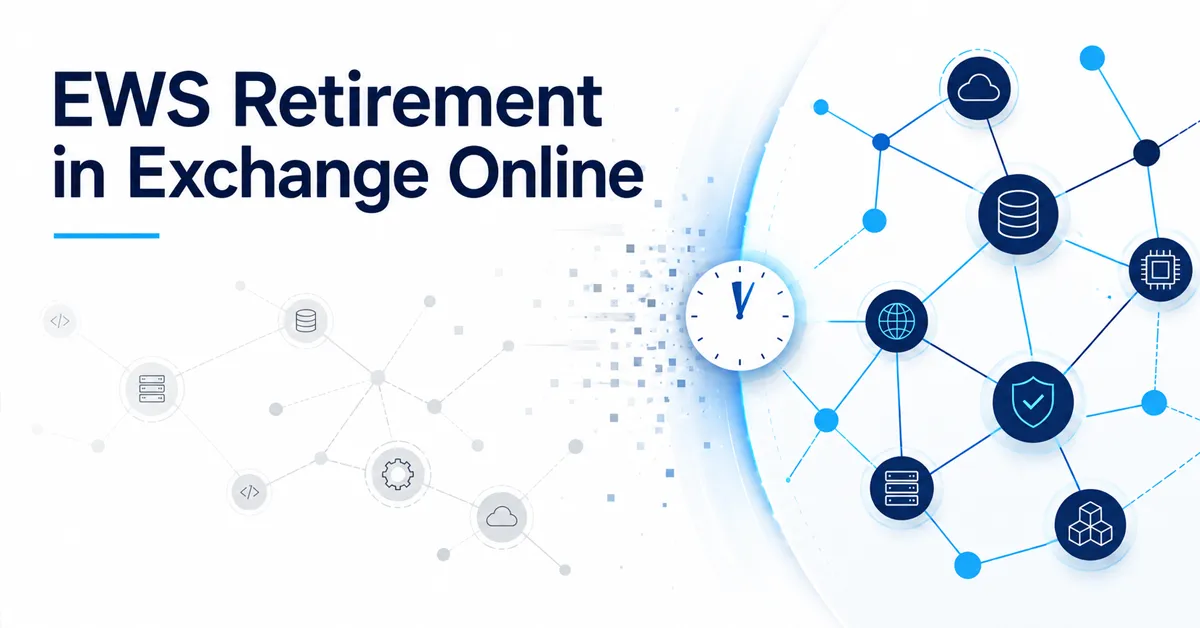
The EWS retirement in Exchange Online is entering its final phase, and enforcement is days away.
Exchange Web Services, or EWS, is an older Exchange API that applications use to reach mailbox data — messages, calendar items, contacts and folders. Microsoft is moving Exchange Online integrations off EWS and onto Microsoft Graph.
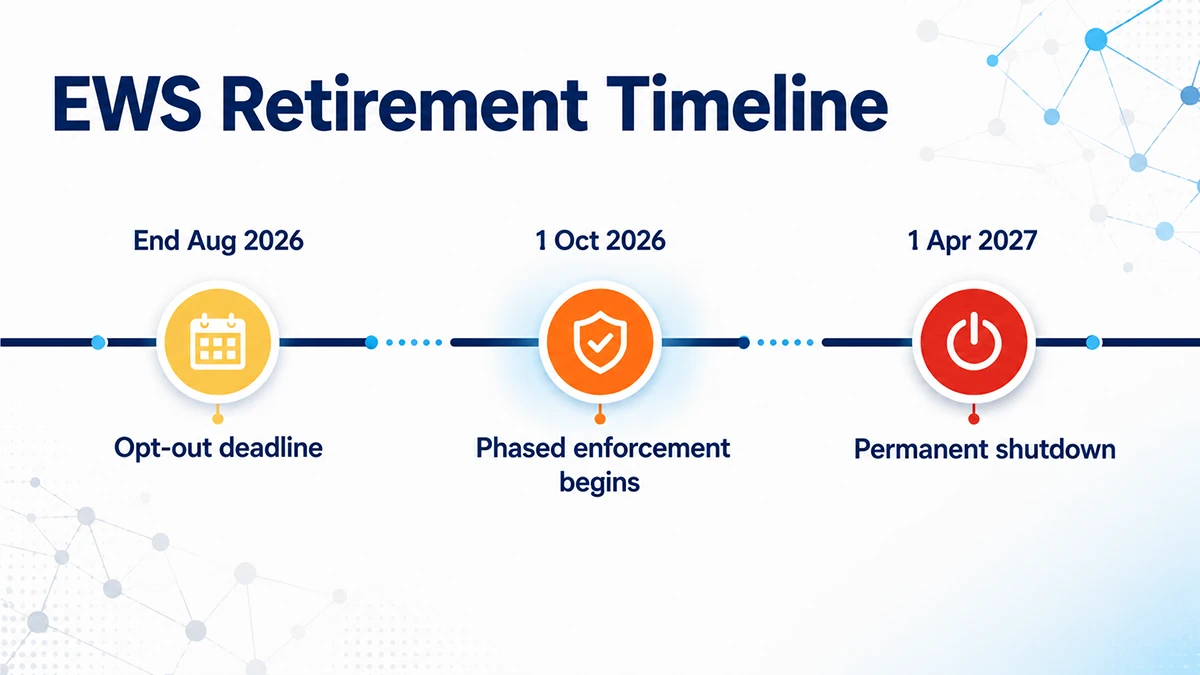
Microsoft begins tenant-level enforcement on 1 October 2026. EWS is not permanently switched off until 1 April 2027. The end-of-August window for opting out of automatic disablement has now passed, which changes what you should be doing: instead of pre-empting the change, you are verifying what Microsoft has configured on your behalf and filling the gaps before enforcement starts.
This guide covers how to find out whether anything in your tenant still uses EWS, how to check and complete your allow list, and what the actual migration looks like.
Why This Is Moving Faster Than Earlier Deprecations
EWS has been formally deprecated since 2018, and for years the retirement felt theoretical. Two things changed that.
The Midnight Blizzard intrusion disclosed in January 2024 involved EWS, which made the retirement feel less like routine cleanup and more like a security-driven priority for many administrators. Around the same period, Microsoft widened the scope from third-party applications to include its own products — Outlook, Office, Teams and Dynamics 365 are all having EWS dependencies removed as part of the same effort.
That is why the timeline now has hard dates attached rather than an open-ended “at some point”.
The Dates That Matter
| Date | What Happens | What You Can Still Do |
|---|---|---|
| End of August 2026 (passed) | Deadline to opt out of automatic disablement | Nothing. This window has closed |
| September 2026 (current) | Microsoft pre-populates allow lists for tenants that did not create one, based on observed usage | Check what Microsoft populated and validate it against your own discovery |
| 1 October 2026 | Enforcement begins. Only apps on the allow list can use EWS. No allow list means no EWS access at all | Add anything missing before this date |
| 1 April 2027 | EWS permanently disabled in Exchange Online, regardless of tenant settings | Nothing. Any remaining EWS dependency stops working |
Microsoft’s published guidance states that Exchange Online EWS enforcement begins on 1 October 2026 with full retirement on 1 April 2027 — see the deprecation of EWS in Exchange Online documentation. Rollout details can change, so check your Microsoft 365 Message Center for tenant-specific notices before making any tenant-wide change. The Message Center is the authoritative source for your own tenant.
Quick Admin Checklist
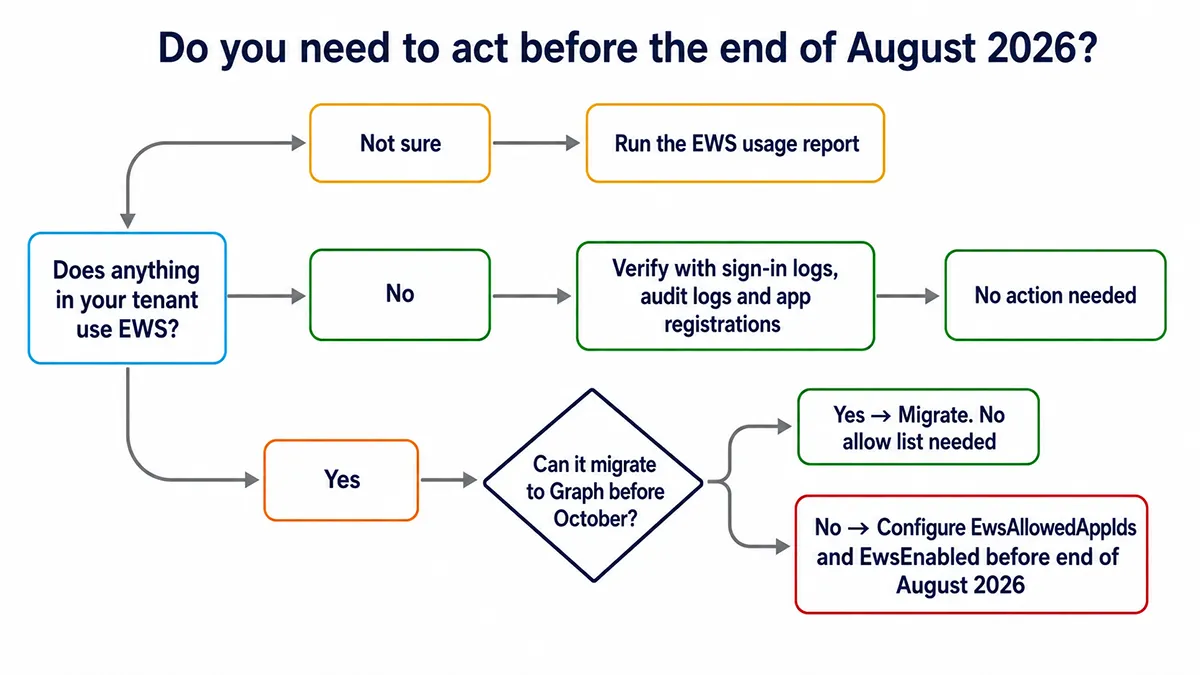
- Check what is already in
EwsAllowedAppIds, including anything Microsoft pre-populated - Run the EWS usage report in the Microsoft 365 admin centre
- Review Entra sign-in logs for applications accessing Office 365 Exchange Online
- Search the Unified Audit Log for
EwsAccessevents - Inventory Entra app registrations holding EWS permissions, both application and delegated
- Run the EWS Analyzer against in-house code that may not appear in any log
- Identify a business owner for every app, vendor product, script and scheduled task you find
- Append anything the pre-populated list missed, before 1 October
- Confirm
EwsEnabledis$true - Plan the migration to Microsoft Graph before April 2027
Understanding the Three States of EwsEnabled
This setting is not a simple on/off switch, and the difference matters for what happens to your tenant in October.
| Value | Behaviour | What Happens on 1 October 2026 |
|---|---|---|
$null |
Default. Never explicitly configured | Treated as disabled. EWS stops working |
$true |
EWS enabled, but only apps on the allow list can actually use it | Listed apps continue. Everything else is blocked |
$false |
EWS blocked tenant-wide | No change. Already off |
EwsEnabled = $true is not sufficient on its own. If no allow list is configured, all EWS access is blocked — enabling EWS without an allow list does not grant access to anything. Only applications explicitly listed in EwsAllowedAppIds continue to work.Who Is Affected
EWS has been deprecated for years, so the instinct is to assume nothing in your environment depends on it. That assumption is usually wrong, because the dependencies tend to sit in tools nobody thinks of as “Exchange integrations”:
- Backup products — several mailbox backup tools still use EWS for item-level access
- Migration tools — tenant-to-tenant and on-premises migration utilities are heavy EWS consumers
- CRM and helpdesk sync — anything that files email against a customer record
- Signature management — several enterprise signature products
- Archiving, journaling and eDiscovery add-ons from third parties
- Room and resource booking panels — meeting-room displays are a common surprise
- In-house scripts — anything written against the EWS Managed API, often years ago by someone who has left
The last one is the dangerous category. Vendor products have vendors who send migration notices. A PowerShell script on a scheduled task has nobody.
This does not mean Outlook or Outlook on the web will simply stop working for your users on 1 October. Microsoft is removing EWS dependencies from its own products as part of the same programme. The risk you can directly control is third-party applications, vendor tools, legacy integrations and custom automation calling EWS directly.
Step 1: Find Out What Actually Uses EWS
Do not guess, and do not rely on a single source. Each method below sees something the others miss.
The EWS usage report
Start in the Microsoft 365 admin centre. The EWS usage report summarises activity across the tenant and breaks it down by which EWS SOAP actions are being called and in what volume over time. It is the fastest way to know whether you have obvious current activity.
Entra sign-in logs
In the Microsoft Entra admin centre, go to Monitoring & health → Sign-in logs and filter on the resource Office 365 Exchange Online. Review the Application column. This gives you named applications rather than raw activity counts, which is what you need in order to contact anyone.
Unified Audit Log
Search the Unified Audit Log for the EwsAccess activity. This catches usage the other two methods can under-report, particularly intermittent or scheduled jobs that only run monthly. If the audit log interface is unfamiliar, the same tooling is covered in our guide to audit and compliance workflows in Purview.
App registrations
Inventory your Entra app registrations for EWS-relevant permissions — full_access_as_app and EWS.AccessAsUser.All in particular. Check both application and delegated permissions: app-only access is typical of backup, migration and service integrations, while delegated EWS access shows up in tools acting on behalf of a signed-in user. An app holding the permission but showing no recent activity is still worth investigating, because quarterly jobs will not appear in a 30-day log window.
EWS Analyzer
Microsoft publishes an EWS Analyzer tool for the case that logs cannot catch: a scheduled task or old .NET service containing EWS calls that simply have not run inside any reporting window. If you have in-house code, this is the only method that finds dependencies before they fire.
Microsoft’s Exchange team has published detailed guidance on finding and remediating EWS app usage, including the discovery tooling and how to correlate results across sources.
Discovery Sources: What Each One Tells You
No single source is complete. This is why the checklist above lists five.
| Source | What It Finds | What It Misses |
|---|---|---|
| EWS usage report | Current activity and SOAP operation volume | Rare jobs, dormant apps, anything outside the reporting window |
| Entra sign-in logs | Named applications and authentication activity | Apps with no recent sign-ins; tells you nothing about ownership |
| Unified Audit Log | EwsAccess events, including intermittent activity |
Anything older than your audit retention period |
| App registrations | Apps holding EWS permissions, active or not | Whether the app is still used or business-critical |
| EWS Analyzer | EWS calls inside your own source code | Third-party binaries you cannot inspect |
| Vendor inventory | Backup, migration, CRM, signature and room panel dependencies | Tools nobody owns and undocumented scripts |
When an App ID has no obvious owner
Reports give you GUIDs, not accountability. When an App ID appears with no clear owner, check the Entra app registration owner field, enterprise application sign-in activity, service principal notes, vendor documentation, the servers running your scheduled tasks, and your helpdesk or backup system configuration.
Do not approve an App ID simply because it appeared in a report. Tie every entry to a business owner and a named system before it goes on the allow list — an unexplained GUID you allow in September is an unexplained GUID you still cannot account for in April.
Step 2: Check Your Current Configuration
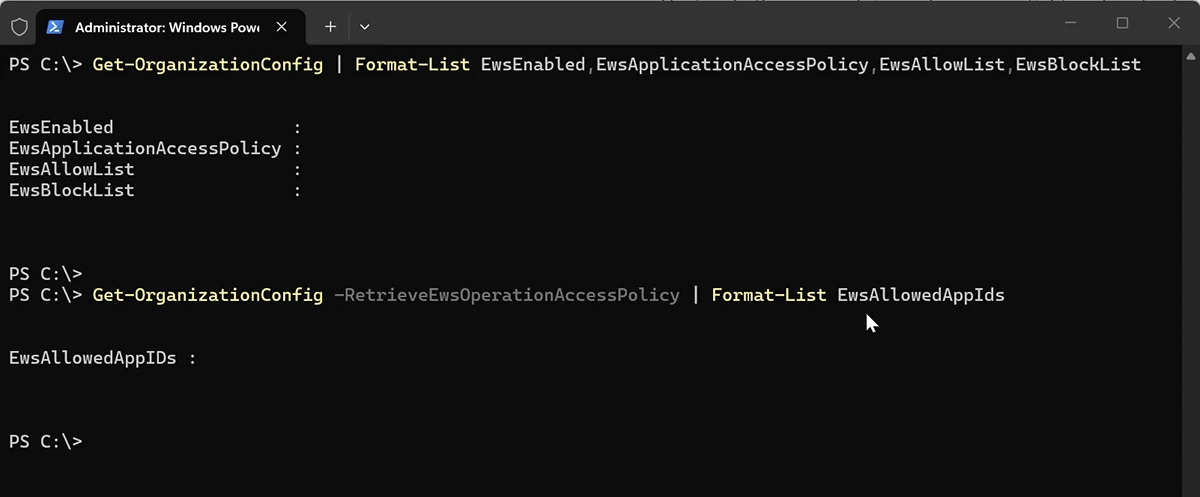
EwsEnabled or EwsAllowedAppIds.Connect to Exchange Online PowerShell and run two checks. This is the same connection you use for Exchange mail flow rules and other tenant-level Exchange work. The new allow list needs its own switch and will not appear in a standard Get-OrganizationConfig output:
Connect-ExchangeOnline

# Tenant-level EWS state and the older user-agent based controls
Get-OrganizationConfig | Format-List EwsEnabled,EwsApplicationAccessPolicy,EwsAllowList,EwsBlockList

# The new application ID allow list
Get-OrganizationConfig -RetrieveEwsOperationAccessPolicy | Format-List EwsAllowedAppIDs
The second command matters. Without -RetrieveEwsOperationAccessPolicy the allow list does not come back, and it is easy to look at an empty result and conclude nothing is configured when something is.
Step 3: Check and Complete Your Allow List
With the opt-out window closed, the job has shifted. Microsoft is populating an allow list for tenants that did not create one, built from EWS usage it observed in your tenant. Your task before 1 October is to check what landed there and add anything it missed.
Telemetry can only see what ran. A quarterly job, a dormant-but-critical integration, or anything that failed during the observation window will not appear. That is the gap you are closing.
What to do before 1 October
- Run
Get-OrganizationConfig -RetrieveEwsOperationAccessPolicy | Format-List EwsAllowedAppIDsand see what is there - Resolve every App ID on that list to a named application and owner
- Run your own discovery — usage report, sign-in logs, audit log, app registrations, EWS Analyzer
- Compare the two lists and append anything missing, using the read-append-write pattern below
- Confirm
EwsEnabledis$true, since an allow list without it does nothing
Add to the list rather than replacing it
This is the step most likely to cause an outage. Set-OrganizationConfig -EwsAllowedAppIDs writes the whole list as a comma-separated string, so passing a single App ID silently removes everything already there — including anything Microsoft pre-populated or a colleague added.
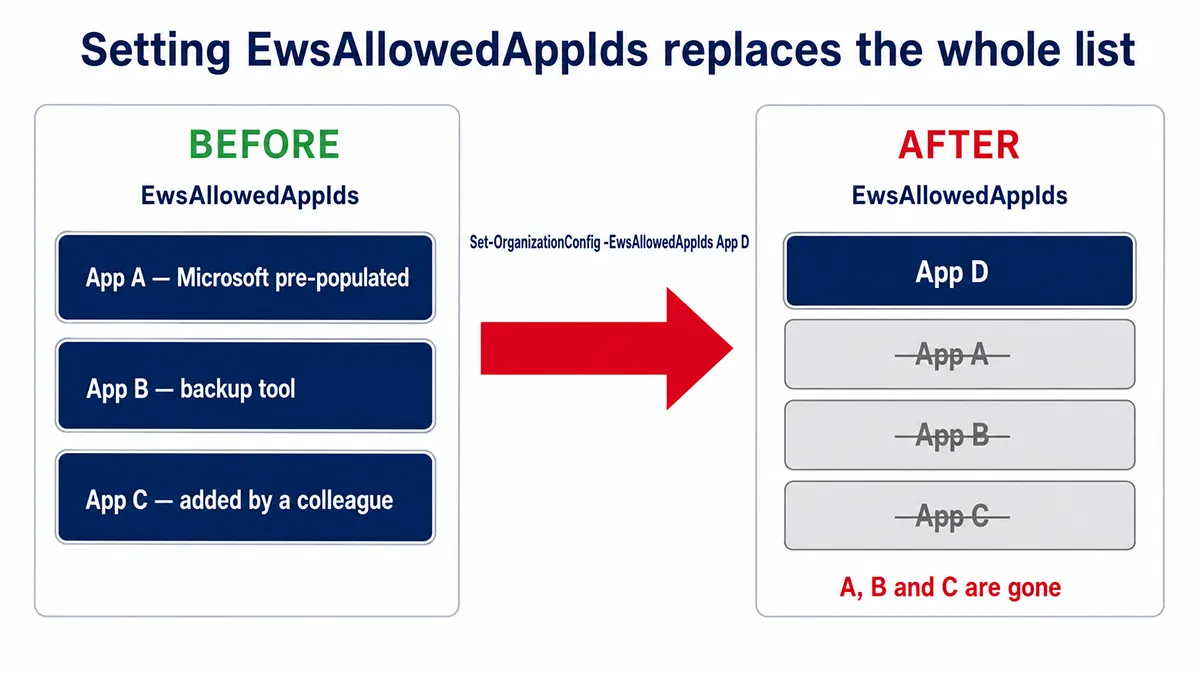
Read the current list, append, then write the combined set back:
# Read what is already configured
$current = Get-OrganizationConfig -RetrieveEwsOperationAccessPolicy |
  Select-Object -ExpandProperty EwsAllowedAppIDs

# Define the new App ID to add
$newAppId = "00000000-0000-0000-0000-000000000000"

# Combine existing and new values, dropping blanks and duplicates
$updated = @($current, $newAppId) | Where-Object { $_ } | Select-Object -Unique

# Write the combined list back as a comma-separated string
Set-OrganizationConfig -EwsAllowedAppIDs ($updated -join ",")

# Explicitly enable EWS at tenant level
Set-OrganizationConfig -EwsEnabled $true

# Confirm both settings applied
Get-OrganizationConfig -RetrieveEwsOperationAccessPolicy |
  Format-List EwsEnabled,EwsAllowedAppIDs
Note the -join ",". This parameter expects a comma-separated string rather than a PowerShell array, which is a common cause of the command not behaving as expected.
Replace the sample GUID with a real application ID from your Entra app registrations or your vendor’s documentation. The placeholder value is illustrative and will not match anything in your tenant.
EwsAllowedAppIDs is the new application-level allow list built for this retirement and identifies apps by application ID. It is not the same as the long-standing EwsAllowList and EwsBlockList parameters, which filter by user agent string. Setting the old ones does nothing for this change. Microsoft’s announcement covers the distinction in Introducing EWSAllowedAppIDs.Step 4: Plan the Migration to Microsoft Graph
The allow list is a stay of execution, not a solution. Everything moves to Microsoft Graph before April 2027.
For each application you identified, the path depends on who owns it:
- Vendor products: contact the vendor for their EWS retirement statement and the version that uses Graph. Most major vendors have published one. Budget for an upgrade, because Graph support is frequently gated behind a newer release rather than a patch.
- In-house code: run the EWS Analyzer first, then use Microsoft’s EWS-to-Graph mapping resources to identify which Graph APIs replace the operations your code actually calls. Microsoft has also published a tutorial for AI-assisted analysis and refactoring of EWS code, worth reviewing before anyone starts rewriting by hand.
- Anything unowned: if nobody can say what an app does or why it exists, that is your answer. Turn it off in a controlled way now rather than discovering its purpose when it breaks in April.
Expect the permissions model to be the real work. Graph uses granular scopes rather than the broad impersonation EWS relied on, so migration usually means revisiting how the application authenticates, not just swapping endpoints.
Prioritise by blast radius, not by ease. A backup product failing silently is far worse than a room booking panel showing an error, even though the panel is the more visible problem.
What Happens If You Do Nothing
On 1 October 2026 enforcement begins. If your tenant has no allow list, every EWS application stops working. If it has a pre-populated list that misses something, only the missed applications stop working — which is harder to spot, because most things keep running and the failure looks isolated rather than systemic.
In practice that tends to mean:
- Mailbox backup jobs stop collecting new items
- Migration batches fail or stall part-way
- CRM and helpdesk sync stops filing messages against tickets
- Room booking panels stop showing availability
- Signature tools stop applying to new or updated mailboxes
- Custom scripts fail with authentication or access errors
The failure mode is what makes this worth acting on early. EWS applications do not usually fail loudly. Backups report success while backing up nothing. Sync jobs stop syncing without alerting. You often find out weeks later, when someone needs the thing that stopped working.
You can still add App IDs after 1 October. But you will be doing it under pressure, with something already broken, and without knowing which of the several things that failed that morning is the one you are being asked about.
Final Thoughts
This is one of those changes where the technical work is small and the discovery work is everything. Setting two PowerShell parameters takes five minutes. Working out which of your integrations depend on EWS, who owns them, and what happens when they stop is the actual project.
If you do nothing else this week, check what is currently in your allow list and run the EWS usage report. Together they take ten minutes and tell you whether the pre-populated list matches reality. If it comes back empty, do not close the risk — an empty report only means nothing called EWS inside the reporting window. Check app registrations, sign-in logs, audit logs, vendor documentation and your own scheduled scripts before you decide the tenant is clear.
For the other requests that land on a Microsoft 365 administrator regularly, see our guide to common Microsoft 365 admin tasks.
Frequently Asked Questions
When exactly is Exchange Web Services being retired?
Enforcement begins on 1 October 2026, when only applications on the allow list can use EWS. EWS is permanently disabled in Exchange Online on 1 April 2027, regardless of tenant settings. The end-of-August 2026 opt-out window for avoiding automatic disablement has now closed.
The August deadline has passed. What should I do now?
Check what is in your allow list, including anything Microsoft pre-populated during September from observed usage. Resolve every App ID to a named application and owner, run your own discovery to find dependencies telemetry missed, and append those before 1 October. Confirm EwsEnabled is set to true, because an allow list without it does nothing.
Does EWS retirement affect on-premises Exchange Server?
No. This retirement timeline applies to EWS in Exchange Online. On-premises Exchange Server is not retired on the same schedule. Hybrid organisations should still check whether any cloud-connected application depends on Exchange Online EWS, because those calls are in scope.
Is Outlook affected by EWS retirement?
This does not mean Outlook or Outlook on the web will simply stop working for users on 1 October. Microsoft is removing EWS dependencies from its own products as part of the retirement work. Administrators should focus on third-party applications, vendor tools and custom automation that call EWS directly.
What is EwsAllowedAppIDs?
EwsAllowedAppIDs is an Exchange Online organisation setting listing the application IDs permitted to access EWS. From the October 2026 enforcement phase, enabling EWS is not sufficient on its own — an application must also appear on this list, and a tenant with no list configured has all EWS access blocked.
Why does EwsAllowedAppIDs return nothing when I check it?
The allow list does not appear in a standard Get-OrganizationConfig result. You need the RetrieveEwsOperationAccessPolicy switch: Get-OrganizationConfig -RetrieveEwsOperationAccessPolicy | Format-List EwsAllowedAppIDs. Without it, a configured list can look empty.
How do I add an App ID without removing the existing ones?
Setting EwsAllowedAppIDs writes the entire list, so passing a single value replaces everything already configured, including entries Microsoft pre-populated. Read the current list first, append your new App ID, then write the combined set back as a comma-separated string using the -join pattern. The parameter expects a string rather than a PowerShell array.
Will Microsoft create the allow list for me?
Microsoft is pre-populating allow lists during September 2026 for tenants that did not create one, based on that tenant’s observed EWS usage. It is a useful safety net but not a complete inventory, because telemetry cannot see dormant applications or jobs that have not run recently. Validate it against your own discovery before 1 October.
How do I find out which applications use EWS in my tenant?
Use several sources together. The EWS usage report shows activity volumes and SOAP actions. Entra sign-in logs filtered on the Office 365 Exchange Online resource give you named applications. The Unified Audit Log EwsAccess activity catches intermittent jobs. Inventory Entra app registrations holding EWS permissions, and run the EWS Analyzer against in-house code that may not appear in any log.
Is EwsAllowedAppIDs the same as EwsAllowList?
No. EwsAllowedAppIDs is the new application-level allow list introduced for this retirement and identifies apps by application ID. EwsAllowList and EwsBlockList are older parameters that filter by user agent string. Configuring the older parameters does nothing for the October change.
What typically still uses EWS?
Mailbox backup products, migration utilities, CRM and helpdesk email sync, enterprise signature management, third-party archiving and eDiscovery add-ons, room booking panels, and in-house scripts written against the EWS Managed API. In-house scripts are the highest risk because no vendor is sending you a migration notice about them.
What should I migrate EWS applications to?
Microsoft Graph API. Most common mailbox operations have direct Graph equivalents, but the permissions model differs — Graph uses granular scopes rather than the broad impersonation model EWS relied on, so migration usually means revisiting how the application authenticates, not just swapping endpoints.
What happens to applications when EWS is disabled?
They stop working, usually without an obvious error. Backups can report success while backing up nothing, sync jobs stop silently, and signature deployment stops applying to new users. The quiet failure mode is the main reason to complete discovery before October rather than after.