Most Microsoft 365 administration is not project work. It is the request that arrives at 4pm on a Thursday from someone who needs something urgently and cannot quite describe it.
Legal wants an email a user deleted six weeks ago. HR needs a leaver’s OneDrive before Friday. A manager wants every message containing a keyword copied to a shared mailbox. Someone’s Windows Hello enrolment is not offering face sign-in, and nobody can say whether that is the policy or the hardware.
None of these tasks are difficult once you have done them. All of them are slow the first time, because the documentation tells you which buttons exist without telling you which order to press them in, or what happens if you get the order wrong.
Exchange Online administrators have one more deadline to clear this year: read the EWS retirement checklist before enforcement begins on 1 October 2026.
This guide covers the five tasks that recur most often in a Microsoft 365 tenant. Each section explains what is actually happening underneath, then links to the full step-by-step walkthrough.
Who This Guide Is For
This guide is written for Microsoft 365 administrators, helpdesk technicians and small IT teams who handle day-to-day tenant requests and do not always have time to search separate documentation pages while a ticket is open.
It is not a substitute for legal, HR or compliance approval. For eDiscovery, mailbox searches, employee data access or leaver content, follow your organisation’s authorisation process before running anything.
The Five Tasks at a Glance
| Request | Tool | The Mistake to Avoid |
|---|---|---|
| Recover deleted email or Teams messages | Purview eDiscovery | Promising recovery before checking retention and holds |
| Access a leaver’s OneDrive | SharePoint admin centre | Removing the licence before delegating access |
| Route mail by keyword | Exchange mail flow rule | Using an inbox rule that dies with the mailbox |
| Deploy Windows Hello for Business | Intune configuration profile | Starting hybrid before the trust model is ready |
| Control browser settings | Intune ADMX-backed policy | Treating enforced policy as a browser fault |
Permissions You Usually Need
Global Admin does not cover everything. Two of these tasks require roles that must be granted separately, and one of them takes time to propagate.
| Task | Role Required | Where It Is Managed |
|---|---|---|
| eDiscovery search | eDiscovery Manager, or an appropriate Purview role group | Microsoft Purview portal |
| Former employee OneDrive access | SharePoint Administrator or Global Administrator | SharePoint admin centre |
| Mail flow rules | Exchange Administrator | Exchange admin centre |
| Windows Hello for Business policy | Intune Administrator or Endpoint Security Manager | Microsoft Intune admin centre |
| Chrome policy through Intune | Intune Administrator | Microsoft Intune admin centre |
1. Retrieving Deleted Email and Teams Messages
The hardest part of this request is the conversation before the technical work: explaining that whether something is recoverable was decided before it was deleted.
In Microsoft 365, “deleted” is not one state. An item a user removes goes to Deleted Items, then to Recoverable Items when they empty that folder, and stays there for the retention window. If the mailbox is under a retention policy or litigation hold, the item is preserved regardless of what the user does, and holds override user actions entirely. If none of that was configured and the window has passed, the item is genuinely gone, and no amount of admin permission brings it back.
That is why the honest answer to “can you get it back?” is almost always “it depends on what was set up months ago.”
Teams messages are not recovered from the Teams admin centre. Live Teams service data is stored separately, but discoverable copies of chat and channel messages are written to Exchange Online mailbox locations that are hidden from normal clients. That is why Teams content is searched through Purview eDiscovery rather than through any Teams admin screen.
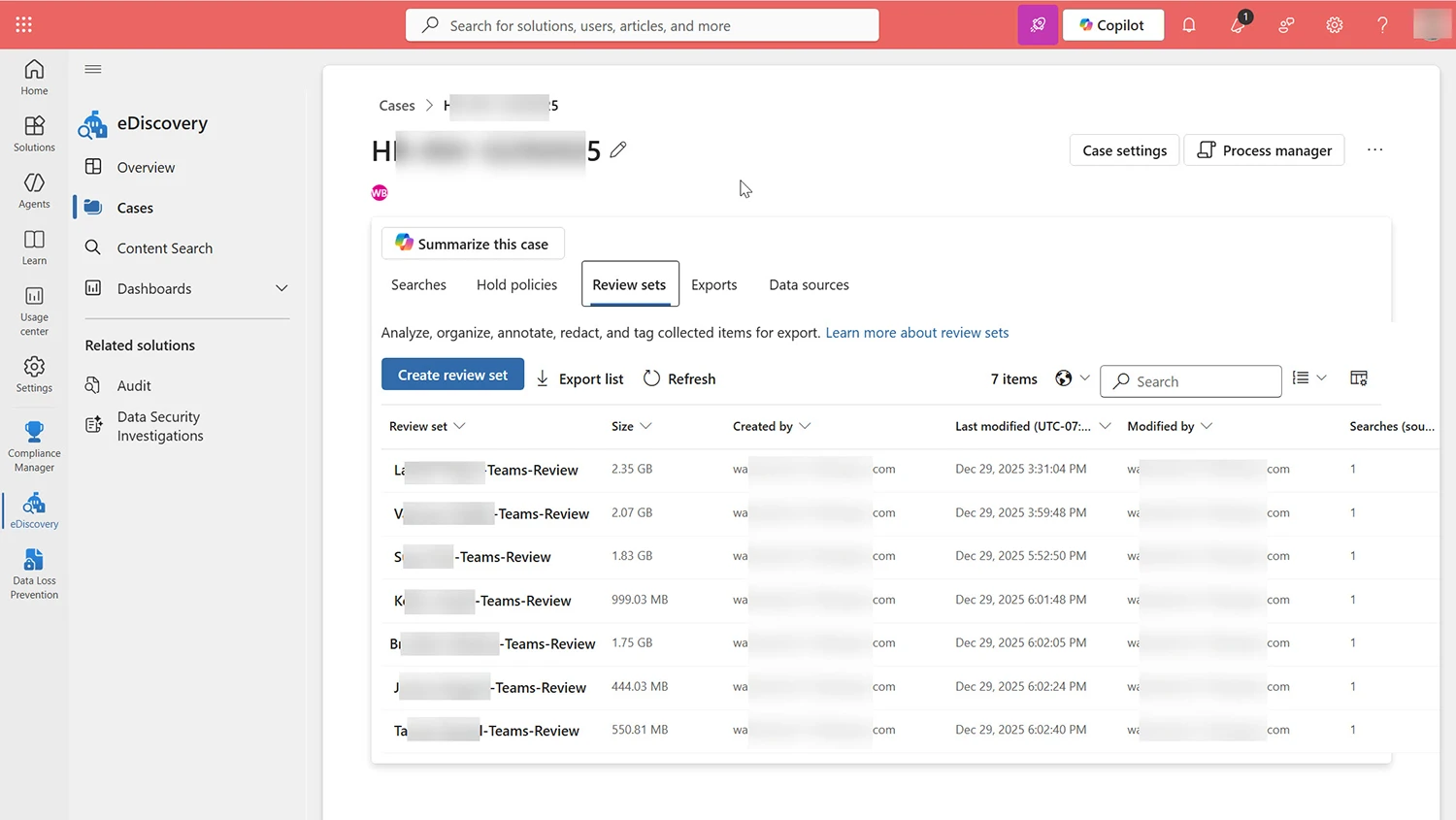
For the full walkthrough, including how to build a search, scope custodians and export results, read how to retrieve deleted email and Teams messages with Purview eDiscovery. Microsoft’s own reference is available at Microsoft Purview eDiscovery documentation.
2. Getting at a Leaver’s OneDrive
The single most expensive mistake in offboarding is removing the licence first.
When a Microsoft 365 licence is removed, the user’s OneDrive enters an unlicensed-account lifecycle. Microsoft’s current default retains that content for 93 days before deletion, but the exact behaviour depends on your tenant’s retention settings, any applied policies or holds, and Microsoft’s storage rules at the time. Check your own tenant’s configuration rather than assuming the default. The account being disabled is not the problem — the licence being removed starts a clock, and nobody receives a warning when it runs out.
The safe operational sequence is:
- Block sign-in on the account so the user cannot access company data.
- Delegate access to the manager or colleague who needs the files.
- Retrieve or transfer the data that matters to a shared location.
- Confirm ownership of the copied data with whoever requested it.
- Remove or reclaim the licence only once the data is safely elsewhere.
Doing steps three and five in the wrong order is how organisations lose a departed employee’s work permanently, and typically only discover it months later.
Delegation is configured in the SharePoint admin centre under More features → User profiles, not in the Microsoft 365 admin centre where most people look first.
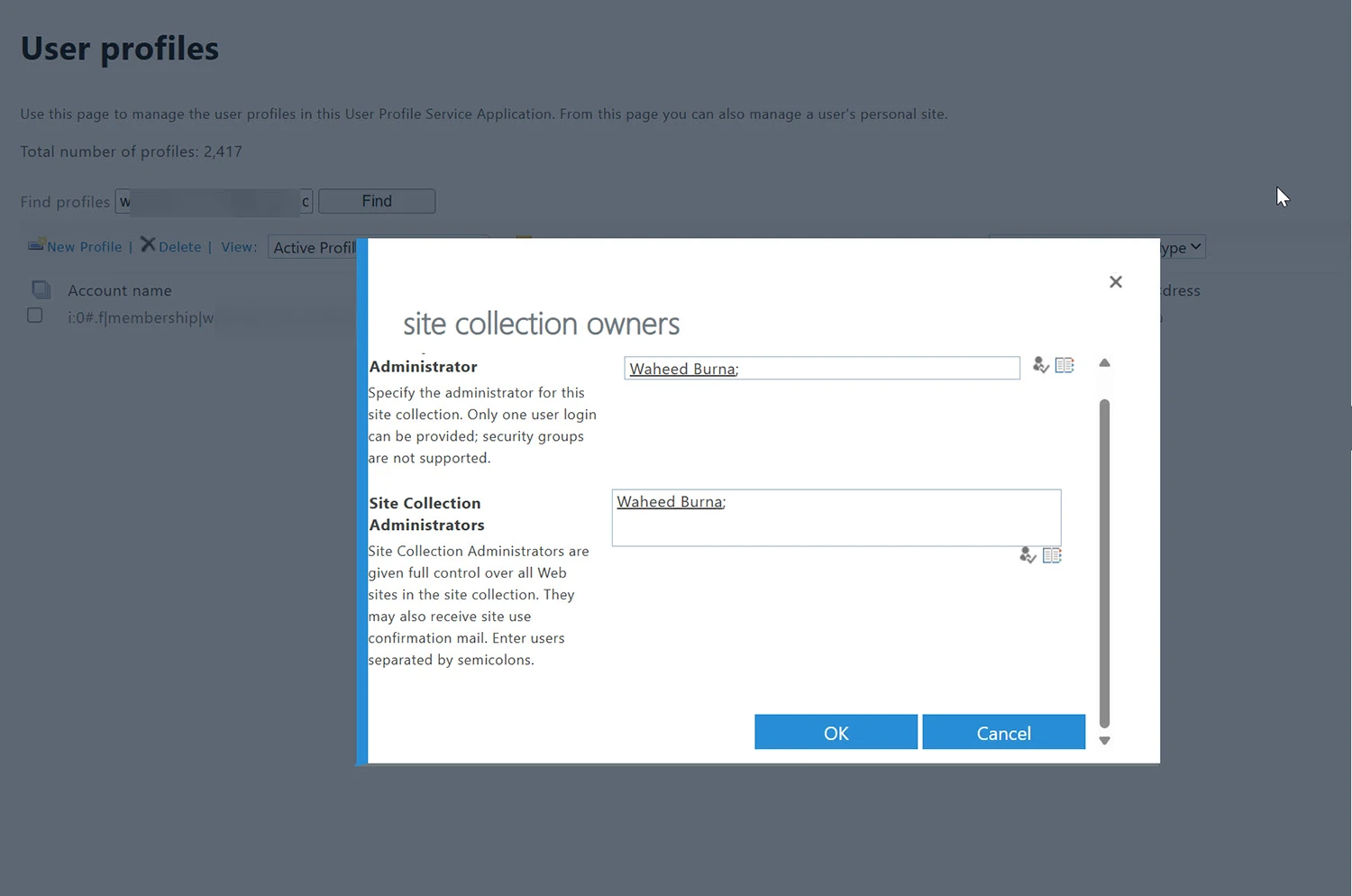
Full steps are in how to give another employee access to a former employee’s OneDrive.
3. Routing Mail with Exchange Mail Flow Rules
There are three ways to move a message in Microsoft 365, and choosing the wrong one is the usual source of trouble.
- Inbox rules: live with the user, run after delivery, and vanish when the mailbox does.
- Mailbox forwarding: a per-user setting that is easy to set and easy to forget. It is also a common data-exfiltration route, which is why it is worth auditing regularly.
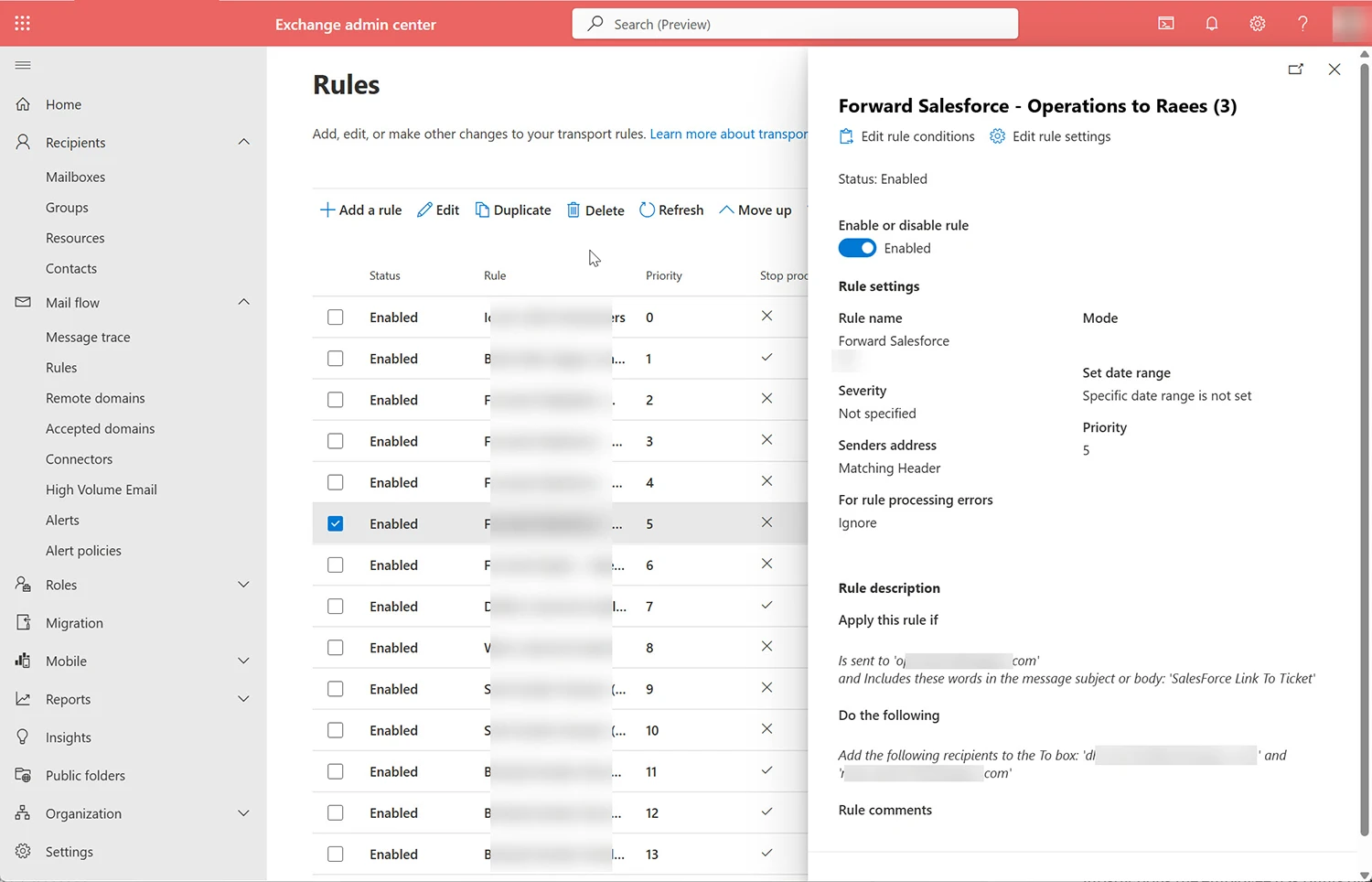
- Mail flow rules (transport rules): run at organisation level, before delivery, and are visible to every administrator.
For anything that should survive staff changes, such as routing keyword matches to an operations mailbox, copying invoices to finance, or appending disclaimers, the mail flow rule is the right answer. It is centrally visible, centrally auditable, and does not disappear when someone leaves the business.
Two things catch people out. Rules apply to all matching mail unless scoped, so a keyword such as “invoice” will match far more than intended without exceptions. And rule priority matters: rules run in order, and a rule with Stop processing more rules enabled will silently prevent everything below it from firing.
To audit existing forwarding across the tenant before you add new rules, run this in Exchange Online PowerShell:
Get-Mailbox -ResultSize Unlimited |
  Where-Object { $_.ForwardingSmtpAddress -ne $null -or $_.ForwardingAddress -ne $null } |
  Select-Object DisplayName, ForwardingSmtpAddress, ForwardingAddress, DeliverToMailboxAndForward
The full build, including conditions, exceptions and testing in a pilot group, is covered in how to forward keyword emails with an Exchange mail flow rule. Microsoft documents the rule engine at Mail flow rules in Exchange Online.
4. Windows Hello for Business Through Intune
The first decision determines everything after it: cloud-only or hybrid.
Cloud-only deployments, on Azure AD joined devices with no on-premises dependency, are straightforward. You create a configuration profile in Intune, assign it to a device group, and the policy applies at the next device check-in.
Hybrid deployments need more planning. Microsoft now recommends cloud Kerberos trust for most hybrid Windows Hello for Business rollouts, with the older key trust and certificate trust models retained for specific environments. The point that matters operationally: hybrid Windows Hello is not an Intune toggle. The identity and trust model has to be ready before any user can enrol successfully, and skipping that is why hybrid rollouts stall halfway.
Before the policy lands, users see Windows Hello options greyed out, partially configured, or simply absent. That is expected behaviour, and it is worth telling your helpdesk in advance, because it generates tickets that look like faults.
Policy application is not instant. Devices check in on a cycle, and enrolment prompts appear at the next sign-in rather than immediately. Plan the rollout in waves rather than announcing a single date.
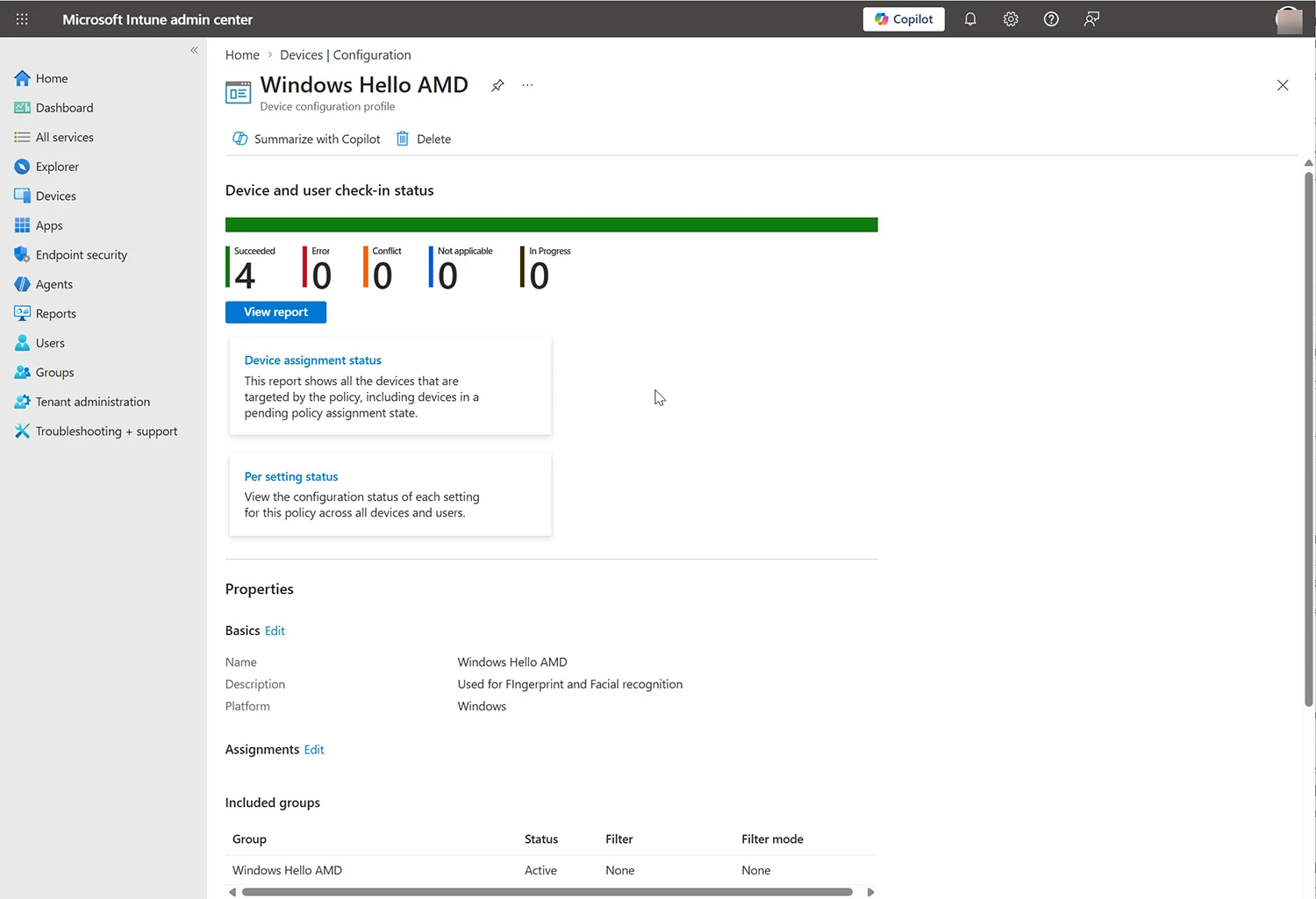
Both paths are documented separately: enabling Windows Hello for Business on Azure AD joined devices for cloud-only, and Windows Hello for Business hybrid setup for mixed environments. Microsoft’s deployment reference is at Windows Hello for Business documentation.
5. Managing Browser Policy Through Intune
This one reaches you disguised as a bug report: “Chrome notifications are broken.”
They are usually not broken. On a managed device, enterprise policy overrides user preference, so a user toggling notifications on in Chrome’s settings sees the change refuse to stick. That looks exactly like a fault.
The giveaway is chrome://policy, which lists every applied policy and the source it came from. If the setting appears there, it is configuration, not failure. That single check saves more troubleshooting time than anything else in this section.
Chrome policies are ADMX-backed and delivered through Intune configuration profiles. The same mechanism covers extension allow-lists, homepage enforcement and update behaviour, so once you have built one Chrome profile the rest follow an identical pattern.
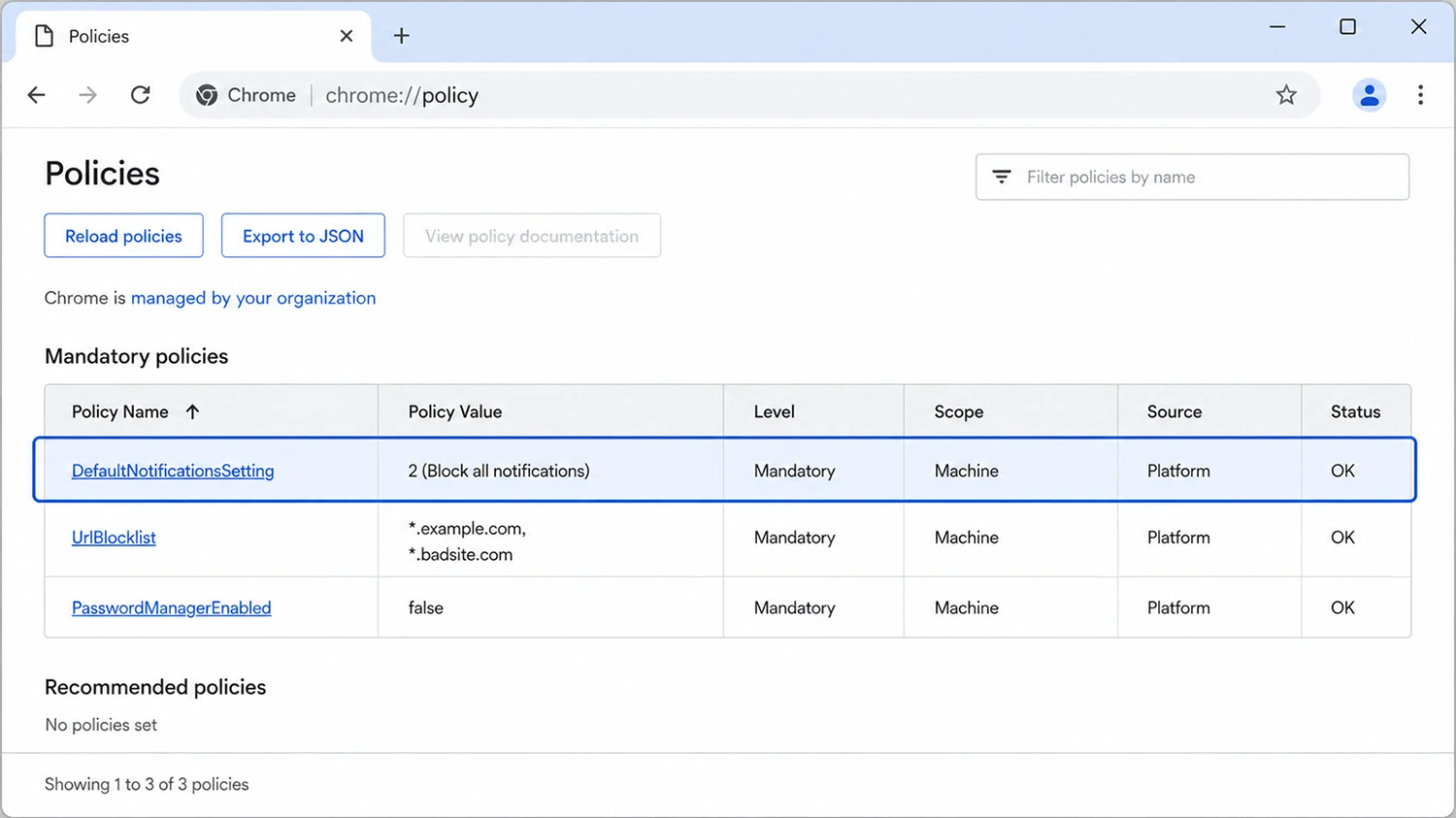
The configuration steps are in how to enable or disable Chrome notifications using Intune.
When to Stop and Escalate
Not everything in this guide is purely technical, and knowing which is which matters more than the button-clicking.
- Involve Legal before you act when a request concerns an ongoing dispute, a departing employee’s communications, or anything that could become evidence. Searching a mailbox is trivial. Searching one without documented authorisation is a problem you cannot undo.
- Involve HR for anything touching a named employee’s personal data. In many jurisdictions the employee retains rights over that data even when it lives in company systems, and the lawful basis for accessing it is HR’s decision, not IT’s.
- Document what you did and who asked. For eDiscovery in particular, the audit trail is part of the deliverable. A search you cannot account for later is worse than one you never ran.
If your tenant is also subject to compliance frameworks, the same documentation discipline applies to infrastructure work. See our Windows Server 2022 hardening checklist for the server-side equivalent.
Final Thoughts
The five tasks in this guide account for most of what a Microsoft 365 administrator is actually asked to do. None of them are technically difficult. What makes them go wrong is order of operations: removing a licence before delegating access, promising recovery before checking holds, building an inbox rule where a transport rule was needed, or starting a hybrid Windows Hello rollout before the trust model exists.
Get the sequence right and each of these becomes a fifteen-minute job. Get it wrong and some of them cannot be undone at all.
Frequently Asked Questions
What are common Microsoft 365 admin tasks?
Common Microsoft 365 admin tasks include user onboarding and offboarding, mailbox and Teams content searches through Purview eDiscovery, delegating access to a former employee’s OneDrive, creating Exchange mail flow rules, deploying Intune device configuration profiles, rolling out Windows Hello for Business, and managing browser policy on managed devices.
What is the difference between the Microsoft 365 admin centre, Exchange admin centre, Purview and Intune?
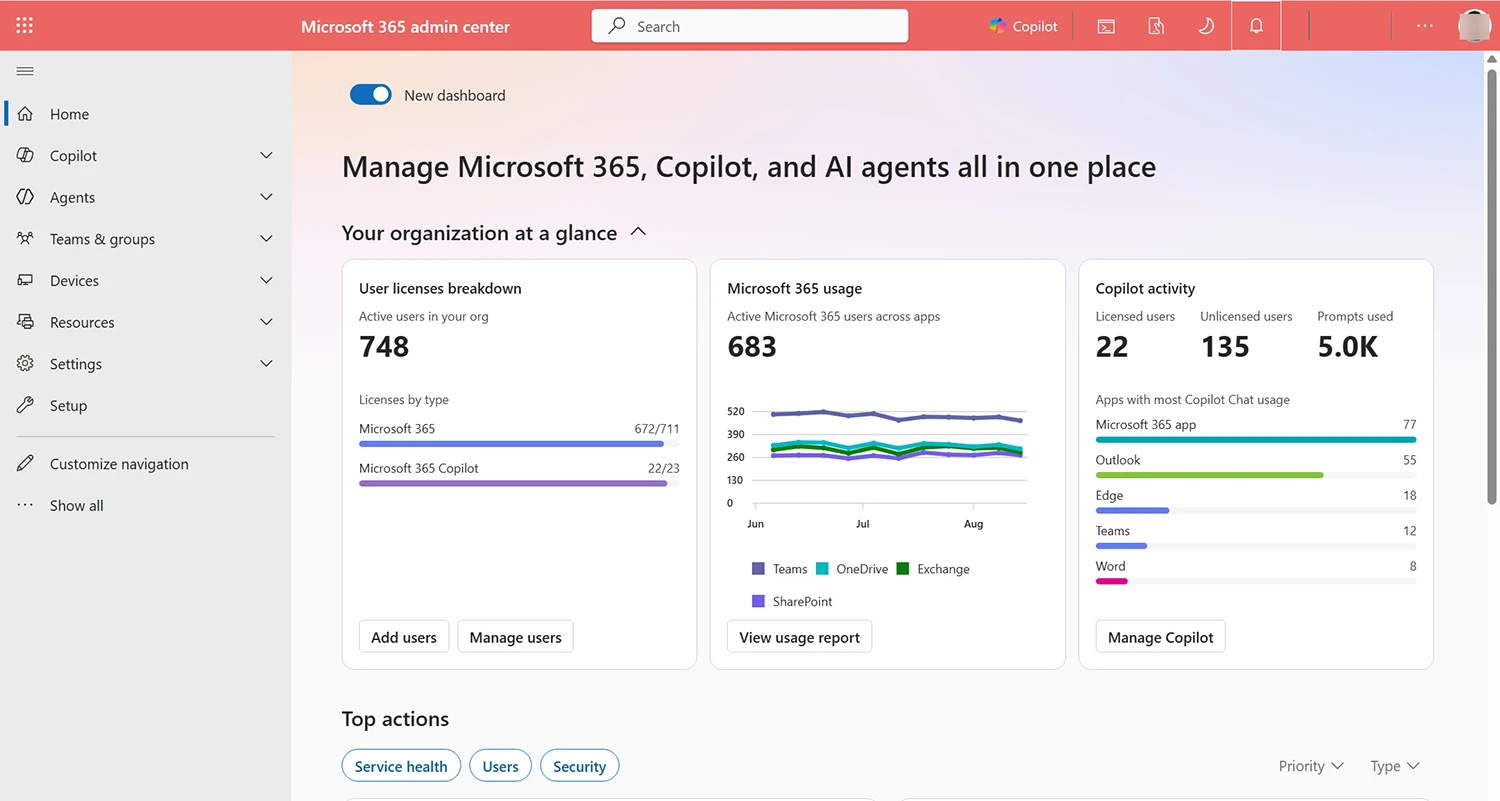
The Microsoft 365 admin centre handles users, licences, billing and general tenant settings. The Exchange admin centre manages mailboxes and mail flow. Purview covers compliance, eDiscovery, retention and audit. Intune manages devices, configuration profiles, Windows Hello and browser policies. Most day-to-day requests land in one of these four, and knowing which saves considerable time.
Can I recover an email a user permanently deleted?
It depends on what was configured before deletion. If the mailbox is under a retention policy or litigation hold, the item is preserved and recoverable through Purview eDiscovery. If no hold applied and the Recoverable Items window has passed, the item is genuinely gone and no admin permission will bring it back.
Do I need Global Admin to run an eDiscovery search?
No, and Global Admin alone is not sufficient. eDiscovery permissions are assigned through Purview role groups, typically the eDiscovery Manager role. Role assignments can take up to 24 hours to propagate, so request the access before you need it.
What happens to a user’s OneDrive when I remove their licence?
Removing the licence moves the OneDrive into an unlicensed-account lifecycle, with a current default of 93 days before deletion. The exact behaviour depends on your tenant’s retention settings, applied policies and holds. Always delegate access and retrieve the data before removing the licence, not after.
Should I use an inbox rule or a mail flow rule?
Use a mail flow rule for anything that must survive staff changes. Inbox rules belong to the user and disappear with the mailbox. Mail flow rules run at organisation level, before delivery, and are visible to every administrator.
Why does Windows Hello show greyed-out options before the policy applies?
That is expected. Until the Intune configuration profile reaches the device, Windows Hello options may appear unavailable or partially configured. Devices check in on a cycle, so the change is not instant. Warn your helpdesk before rollout, because it generates tickets that look like faults.
Are Chrome notifications actually broken on managed devices?
Usually not. Enterprise policy overrides user preference, so the setting refuses to stick. Open chrome://policy on the device to see every applied policy and its source. If the setting is listed there, it is configuration working as intended.
When should I involve Legal or HR before acting?
Involve Legal whenever a request concerns a dispute, a departing employee’s communications, or anything that could become evidence. Involve HR for anything touching a named employee’s personal data. The technical ability to run a search does not establish the authority to run it.