A user calls to say they can no longer remote into their office desktop. The connection does not time out and does not ask for credentials twice — it fails outright with error 0xC000000D and the message “The token that was passed to the function is invalid.”
Administrators can still connect. Only standard users are refused. And the machine they are connecting to is a Windows 11 device with Administrator protection enabled.
That last detail is the one that catches people out, because as of October 2026 a lot of organisations have Administrator protection enabled without having decided to.
The 60-second answer
| Symptom | Non-admin users cannot establish an RDP session. Error 0xC000000D, “The token that was passed to the function is invalid.” |
| Cause | Administrator protection enabled on the destination Windows 11 device, after KB5124010 (22 September 2026) or any later update. |
| Who is refused | Standard (non-administrator) users only. |
| Workaround | Set User Account Control: Configure type of Admin Approval Mode back to Legacy Admin Approval Mode on the RDP host, then restart it. |
| Microsoft status | Mitigated. No fix released. “We are working to address this issue in a future Windows update.” |
| Affected | Windows 11 24H2, 25H2, 26H1, 26H2. No server platforms. |
What the error actually looks like
The failure happens during connection setup, not after sign-in. The client shows:
An authentication error has occurred.
The token that was passed to the function is invalid.
Error code: 0xC000000D
Three things distinguish this from ordinary RDP authentication trouble:
- It is user-specific, not machine-specific. An administrator connecting to the same host at the same moment succeeds. That single test rules out most of the usual suspects — firewall, Network Level Authentication, certificate problems, licensing.
- Credentials are correct. The account is not locked, the password is not expired, and the same credentials work locally.
- It is total, not intermittent. The connection never succeeds, as opposed to dropping after a few minutes, which points at the separate September Remote Desktop Services instability resolved by the 14 September out-of-band update.
If an admin can connect and a standard user cannot, you are almost certainly looking at this issue rather than a configuration fault.
Why October 2026 changes the risk
This is the part worth understanding, because it explains how organisations end up affected without having changed anything deliberately.
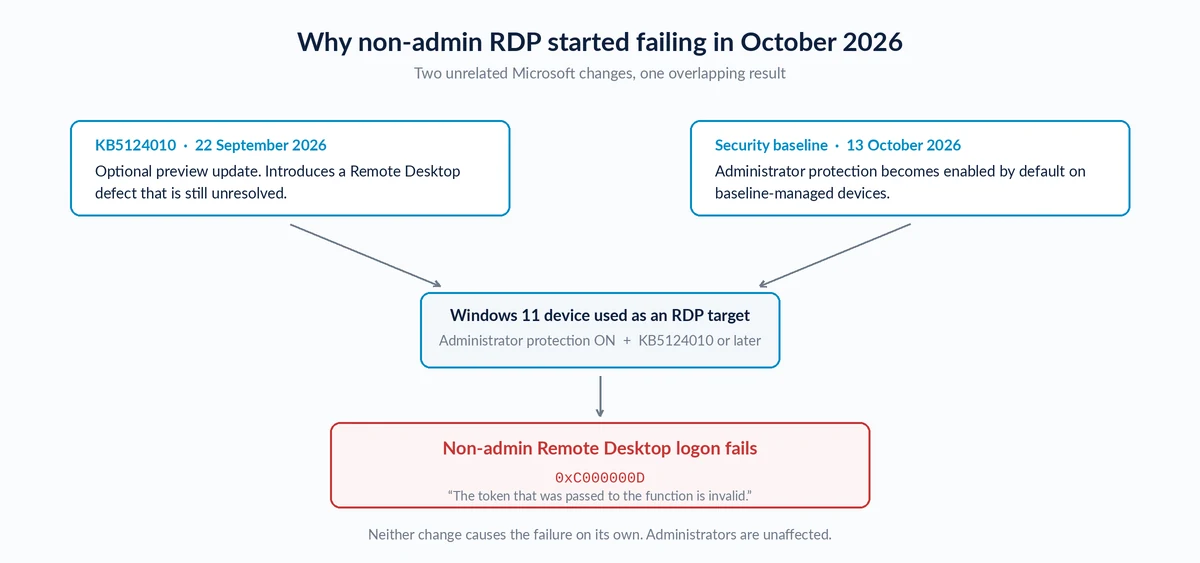
Two separate Microsoft developments have met.
First, the bug. Microsoft opened the known issue on 13 October 2026. It originates in KB5124010, the optional preview update released 22 September 2026, and persists in every update since — including the October security update. Microsoft’s wording is “after installing the September 2026 non-security preview update (KB5124010), or later updates.”
Second, the default changed. Administrator protection has been off by default since it became available in KB5120998 on 27 August 2026. But Microsoft’s Administrator protection documentation now states that if your organisation uses the Windows security baselines, Administrator protection becomes enabled by default with the October 2026 Windows security update, and that the baselines for Windows 11 versions 24H2, 25H2 and 26H2 all carry the new default settings.
The baseline sets User Account Control: Configure type of Admin Approval Mode to “Admin Approval Mode with Administrator protection,” and the elevation prompt to “Prompt for credentials on the secure desktop.”
Put together: the baseline update switches on the feature, and the update you install alongside it carries an unresolved bug that breaks non-admin Remote Desktop on machines where that feature is on.
It is worth being clear about what this is not. Administrator protection is a sound idea: it keeps administrators deprivileged and issues a short-lived, profile-isolated admin token only when a task needs it, verified through Windows Hello. That is textbook least privilege, and it closes a real attack path. The problem is the interaction with remote logon, not the feature’s purpose.
Which devices and users are affected
Most of the confusion here is people assuming the wrong scope, in both directions. Three states matter.
| Device state | Exposed to this bug? |
|---|---|
| Running the October 2026 security baseline with no overriding configuration | Yes — Administrator protection is now on, probably without a specific decision |
| Administrator protection enabled deliberately via Intune, Group Policy or registry | Yes — and has been since 22 September |
| Administrator protection not enabled, or policy explicitly set to Legacy | No |
And the platform scope, which rules out more than people expect:
| Platform | At risk? | Why |
|---|---|---|
| Windows 11 desktops and laptops used as RDP targets | Yes | The main affected population — office machines staff remote into, dev boxes, Windows 11 VDI |
| Windows Server / RDS session hosts | No | The policy is “only supported on Windows Desktop, not Server.” Microsoft lists no affected server platforms |
| Azure Virtual Desktop session hosts | No | Administrator protection is not supported there, and Microsoft advises against enabling it |
| Windows 365 Cloud PCs | No | Not supported, same guidance |
| Windows 11 Home | Unlikely | The feature is listed as supported on Home, but the policy is not — so a baseline cannot switch it on |
So if your remote access runs through an RDS farm or AVD, this one does not touch you. If people remote into their own Windows 11 machines, it does.
Confirming it is this
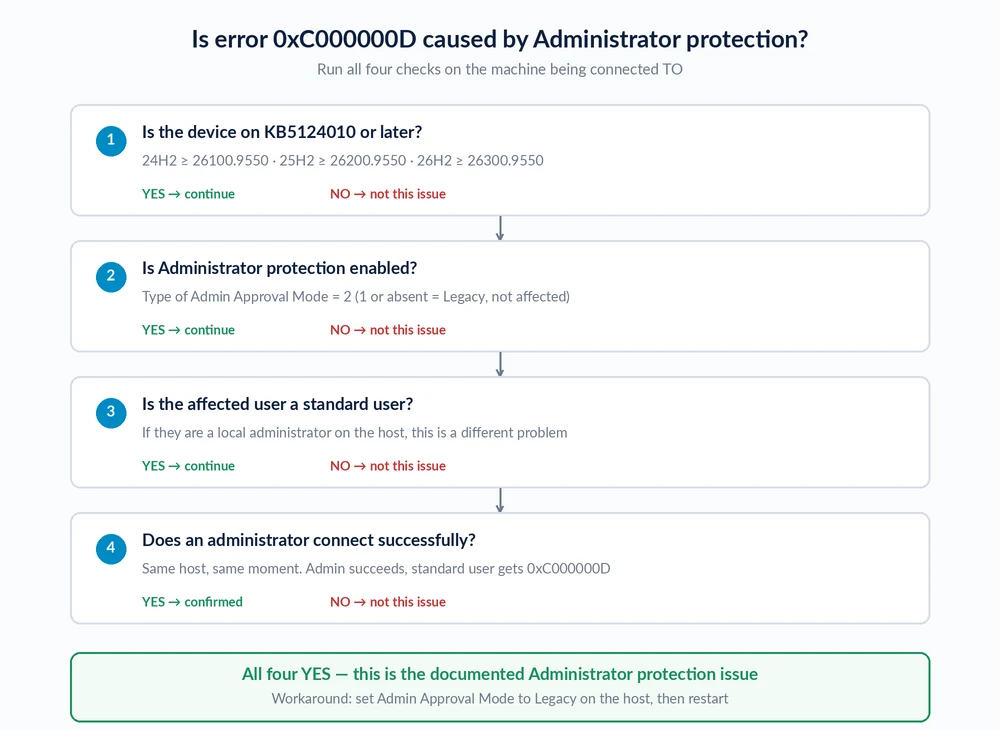
Four checks, on the machine being connected to:
1. Confirm the build. The device needs KB5124010 or later.
Get-ComputerInfo | Select-Object OsName, OsVersion, OsBuildNumberAffected from these builds onward:
- 24H2: 26100.9550 (KB5124010) — October’s KB5127648 brings this to 26100.9711
- 25H2: 26200.9550 — October: 26200.9711
- 26H2: 26300.9550 — October: 26300.9711
- 26H1: listed as affected; October’s update is KB5127646
2. Check whether Administrator protection is on. This is the decisive check, and the setting is the same one the workaround changes.
- On the device: open
secpol.msc, go to Local Policies → Security Options, and find User Account Control: Configure type of Admin Approval Mode. “Admin Approval Mode with Administrator protection” means the feature is on. “Legacy Admin Approval Mode” means it is off, and the device is not exposed to this issue. - Centrally: check the assigned configuration profile or security baseline in Intune, or the applied GPO via
gpresult /h report.html. If the October 2026 security baseline is assigned and nothing overrides it, assume the feature is on.
A machine running Administrator protection also prompts for Windows Hello credentials on the secure desktop for every administrative action, so if elevation behaviour changed noticeably after October’s update, that is the same cause.
3. Confirm the affected user is not an administrator. If they are a local admin on the target machine, this is a different problem.
4. Reproduce the asymmetry. Have an administrator connect to the same host. If that succeeds while the standard user gets 0xC000000D, you have your answer.
Advanced: elevation tracing (supplementary only)
Administrator protection adds two Event Tracing for Windows events under the Microsoft-Windows-LUA provider:
- 15031 — elevation approved
- 15032 — elevation denied, failed, or timed out
logman start AdminProtectionTrace -p {93c05d69-51a3-485e-877f-1806a8731346} -etsBe clear about what this does and does not tell you. These events track administrator elevation, not Remote Desktop connection setup. Neither event ID will confirm that an RDP logon failed because of this bug. They are useful for verifying that Administrator protection is live on the device and for auditing elevation behaviour generally. The four checks above are what actually confirm the issue.
How to restore Remote Desktop access
Microsoft’s documented workaround is to turn Administrator protection off on affected devices. Do it through whatever manages the setting in your environment, or policy will simply reapply it at the next refresh.
Group Policy
- Navigate to Computer Configuration → Windows Settings → Security Settings → Local Policies → Security Options
- Open User Account Control: Configure type of Admin Approval Mode
- Set it to Legacy Admin Approval Mode (Default)
- Restart the device. Microsoft is explicit: “If you change this policy setting, you must restart your computer.”
Intune
Reset User Account Control Type Of Admin Approval Mode in the Settings Catalog policy under Local Policies Security Options. If the setting arrived through an imported security baseline, change it there rather than layering a second profile on top — conflicting profiles are their own troubleshooting exercise.
The underlying CSP value, if you are configuring it directly:
./Device/Vendor/MSFT/Policy/Config/LocalPoliciesSecurityOptions/UserAccountControl_TypeOfAdminApprovalMode

1 = Legacy Admin Approval Mode (default)
2 = Admin Approval Mode with Administrator protection
What you give up
Worth stating plainly, because “turn off Administrator protection” sounds worse than it is.
You are not disabling UAC. Setting the value to 1 returns the machine to Legacy Admin Approval Mode — classic UAC, with elevation prompts intact. What you lose is the newer protection: just-in-time elevation, the profile-isolated admin token, and the requirement to authorise every administrative action through Windows Hello. Administrators go back to holding a persistent elevated token for the session.
That is a real reduction in hardening, and it is a reasonable trade when the alternative is users who cannot work. Log it as a known deviation with a review date rather than letting it quietly become permanent.
What does not fix this
Also unlikely to help, if the four checks above all came back yes:
- Toggling Network Level Authentication
- Clearing cached RDP credentials or deleting the
.rdpfile - Re-adding the user to the Remote Desktop Users group
- Rebuilding the RDP certificate
- Rolling back KB5127648 — the bug came from KB5124010, so you would need to remove that, and doing so re-exposes domain-joined devices to the Machine Identity Isolation trust failure and the AC-3 audio crash fixed in October
Before you deploy the October security baseline
If you have not rolled October’s baseline out yet, this is a short window to avoid the problem rather than troubleshoot it.
Microsoft lists environments where Administrator protection should not be enabled at all. Check these before deployment, not after:
| Do not enable where | Reason |
|---|---|
| Windows 365 Cloud PCs | Not supported |
| Azure Virtual Desktop session hosts | Not supported |
| Devices that require Hyper-V | Documented incompatibility |
| Devices managed with LAPS | Documented incompatibility |
| Machines running apps that share files across profiles | Elevated and unelevated profiles are separate |
| Developer machines using WSL or Visual Studio elevated | Distros and tooling must be reinstalled in the elevated profile |
Two further behaviours to expect even where the feature is appropriate: single sign-on credentials from the standard session are not available to an elevated session, so domain or cloud authentication has to be re-established inside it; and network drives are not reachable from elevated apps without a credential prompt.
The practical sequence:
- Identify your Windows 11 RDP targets. Which machines do people remote into? Those are the ones at risk.
- Pilot the baseline on a ring that includes at least one of them, and test a standard-user RDP connection specifically. An admin test will pass and tell you nothing.
- Decide per device group, not estate-wide. A machine nobody remotes into can take Administrator protection today with no exposure to this bug.
- Record the deviation wherever you set the policy to Legacy, so it gets revisited when Microsoft ships a fix.
Final thoughts
This is a short-lived problem with an awkward shape: the workaround is to undo a security improvement, and the improvement was applied by a baseline rather than chosen.
The useful habit it points at is testing baselines with the right account. Almost every compatibility problem Administrator protection introduces shows up for standard users, elevated applications, or remote sessions — and an administrator testing from the console will sail through all three. If your baseline validation is one admin confirming a machine still boots and signs in, this class of issue will keep reaching your users first.
For other problems traced to recent Windows updates, see our guides to Windows 11 update error codes and applications closing after KB5124010.
This guide covers the Remote Desktop failure with error 0xC000000D affecting non-admin users on Windows 11 devices with Administrator protection enabled, originating in KB5124010 (22 September 2026) and unresolved as of 14 October 2026. Status, affected builds, policy values and platform scope reflect Microsoft’s published release health, Administrator protection documentation and Policy CSP reference. This issue is listed as Mitigated with no fix date — always confirm current status in your Microsoft 365 Message Center before changing update rings or security baselines. Last updated: 14 October 2026.
Frequently Asked Questions
What causes RDP error 0xC000000D on Windows 11?
Administrator protection enabled on the Windows 11 device being connected to, following KB5124010 (22 September 2026) or any later update. Non-admin users cannot establish a Remote Desktop session and receive error 0xC000000D with the message ‘The token that was passed to the function is invalid.’ Administrators connecting to the same device are unaffected.
Has Microsoft fixed this?
No. As of 14 October 2026 the issue is listed as Mitigated, not Resolved. Microsoft states it is working to address the issue in a future Windows update and has not published a date. October’s KB5127648 did not fix it.
Did KB5127648 cause this?
No. The issue originates in KB5124010, released 22 September 2026, and persists in later updates including KB5127648. October’s update matters for a different reason: for organisations using the Windows security baselines, it is when Administrator protection becomes enabled by default, which is what exposes the existing bug.
How do I restore Remote Desktop access?
On the device being connected to, set ‘User Account Control: Configure type of Admin Approval Mode’ to Legacy Admin Approval Mode, then restart it. In Group Policy the setting is under Computer Configuration, Windows Settings, Security Settings, Local Policies, Security Options. In Intune, reset User Account Control Type Of Admin Approval Mode in the Local Policies Security Options category. Microsoft requires a restart for the change to take effect.
Does turning off Administrator protection disable UAC?
No. It returns the device to Legacy Admin Approval Mode, which is classic UAC with elevation prompts intact. What you lose is just-in-time elevation, the profile-isolated administrator token, and the requirement to authorise each administrative action through Windows Hello.
Does this affect Windows Server or RDS session hosts?
No. Microsoft lists no affected server platforms, and the Admin Approval Mode policy is supported only on Windows Desktop, not Server. Azure Virtual Desktop session hosts and Windows 365 Cloud PCs are also unaffected, because Administrator protection is not supported in those environments.
Which Windows versions are affected?
Windows 11 versions 24H2, 25H2, 26H1 and 26H2. The issue begins with build 26100.9550 for 24H2, 26200.9550 for 25H2 and 26300.9550 for 26H2, and persists in October’s builds 26100.9711, 26200.9711 and 26300.9711.
Why is Administrator protection suddenly enabled when we never turned it on?
If your organisation uses the Microsoft Windows security baselines, Administrator protection becomes enabled by default with the October 2026 Windows security update. The baselines for Windows 11 versions 24H2, 25H2 and 26H2 all include the setting. Devices not using those baselines, or with the policy explicitly set to Legacy, are not affected.
Will the remote logon policies fix this?
No. The policies allowing remote logon with elevated privileges apply to domain users who already hold administrative rights, controlling whether they receive an elevated token remotely. This bug prevents standard users from establishing a session at all, and Microsoft does not offer those policies as a workaround.
Can I just uninstall the update instead?
Not usefully. The bug came from KB5124010, so removing October’s update alone will not help. Removing KB5124010 re-exposes domain-joined devices to the Machine Identity Isolation trust relationship failure and to the AC-3 audio crash that October resolved. Changing the Admin Approval Mode policy is the lower-risk action.