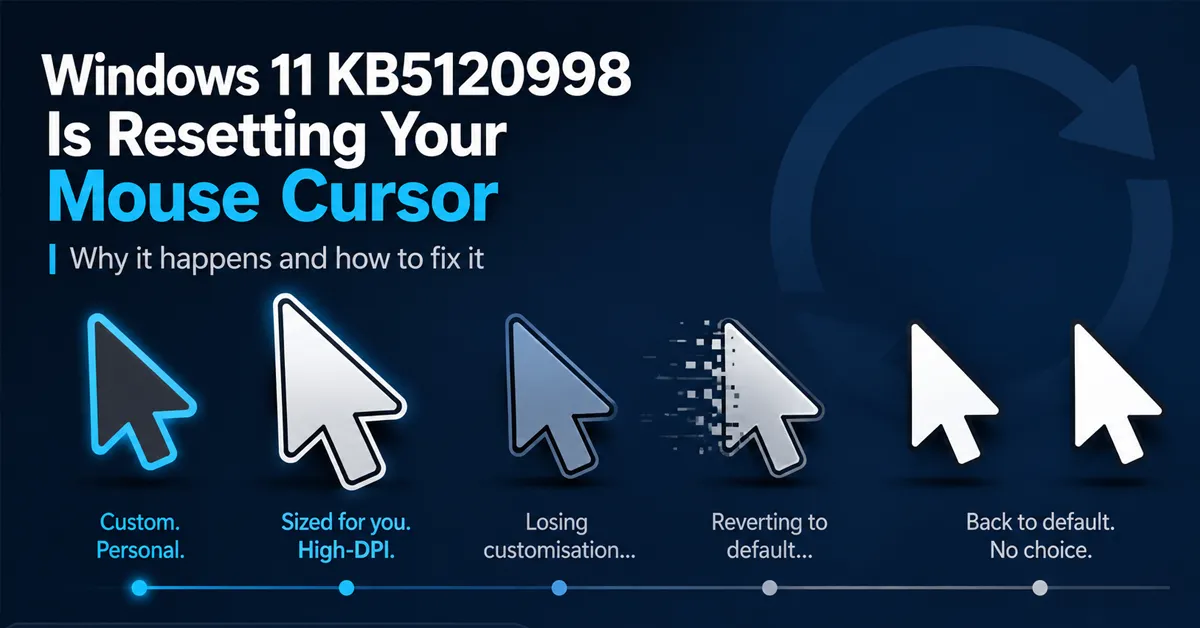
Microsoft released KB5120998 as an optional preview update on 27 August 2026 and has acknowledged reports of cursor personalisation settings reverting after installation. Reported symptoms include high-DPI cursors being replaced with larger white cursors, custom cursor animations reverting to standard settings, and attempts to restore the previous customisation not succeeding.
There is one piece of good news, and it changes how you should respond. KB5120998 is an optional preview update, not a security update. You can remove it without losing this month’s security fixes.
Is This Your Problem?
| Symptom | Matches the reported issue? |
|---|---|
| Custom cursor scheme replaced with the default white pointer | Yes |
| Pointer suddenly much larger than you set it | Yes |
| Animated cursors reverted to static ones | Yes |
| Reapplying your scheme in Settings does not stick | Yes — this is the distinguishing symptom |
| Desktop wallpaper also reset around the same time | Reported by users, not confirmed by Microsoft |
| Cursor disappears entirely or screen is black | No — different issue, see below |
The reapply test is the reliable one. Plenty of things can change a cursor. Only this issue prevents you from changing it back.
Which Systems Are Affected
- Windows 11 24H2 and Windows 11 25H2
- Systems that installed KB5120998, released 27 August 2026
- Most visibly affected: anyone using a custom cursor scheme, an enlarged pointer for accessibility, or animated cursors
If you have never customised your pointer, you may not notice anything. If you rely on a large or high-contrast cursor for visibility, this removes an accessibility setting and does not let you restore it — which is why it is worth acting on rather than waiting.
How to Check Whether You Have KB5120998
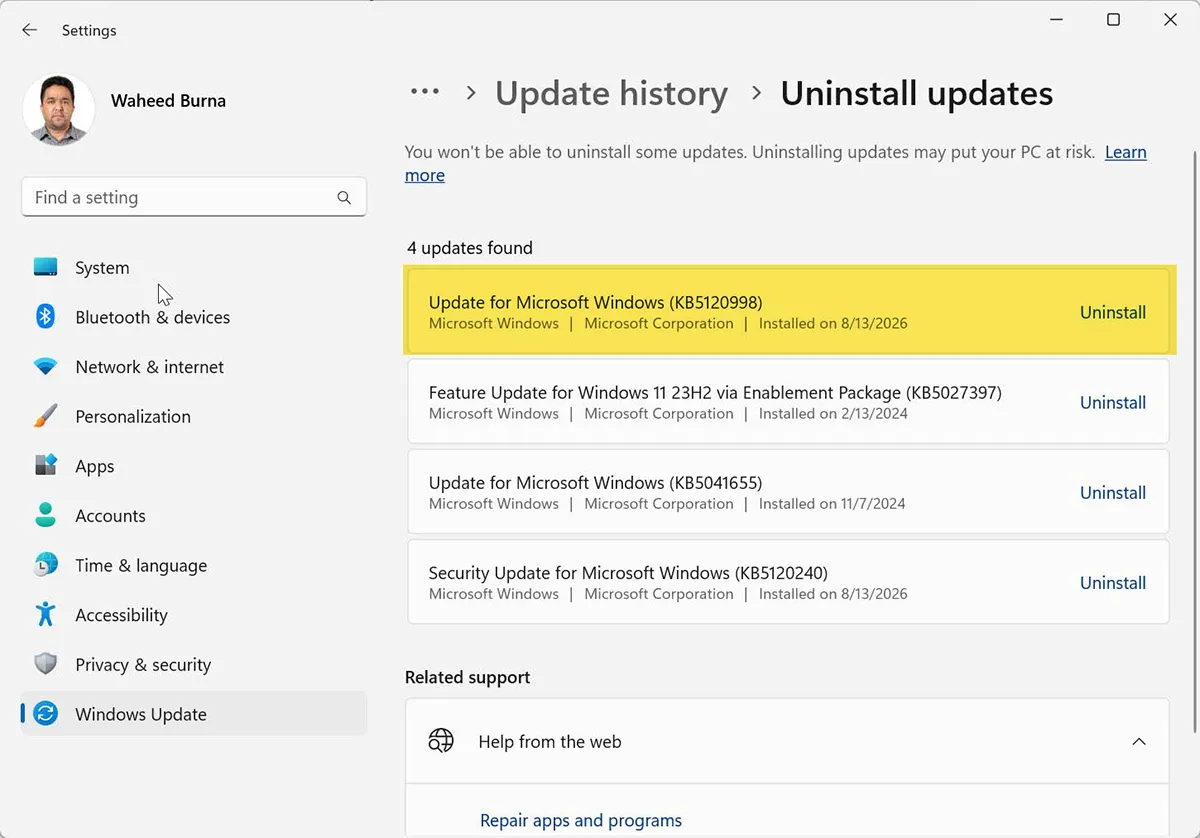
Open Settings → Windows Update → Update history and look for KB5120998 under Quality Updates, dated 27 August 2026.
Or check from a terminal:
Get-HotFix | Where-Object { $_.HotFixID -eq "KB5120998" }If that returns a row, the update is installed. If it returns nothing, stop here and troubleshoot elsewhere.
Fix: Uninstall KB5120998
This is the recommended fix, and it is lower risk than it sounds because the update is optional.
- Open Settings
- Go to Windows Update → Update history
- Scroll down and click Uninstall updates
- Find KB5120998 in the list
- Click Uninstall
- Restart when prompted
If Settings will not open, use an elevated Command Prompt:
wusa /uninstall /kb:5120998Do not include the letters “KB” inside the command — use /kb:5120998, not /kb:KB5120998.
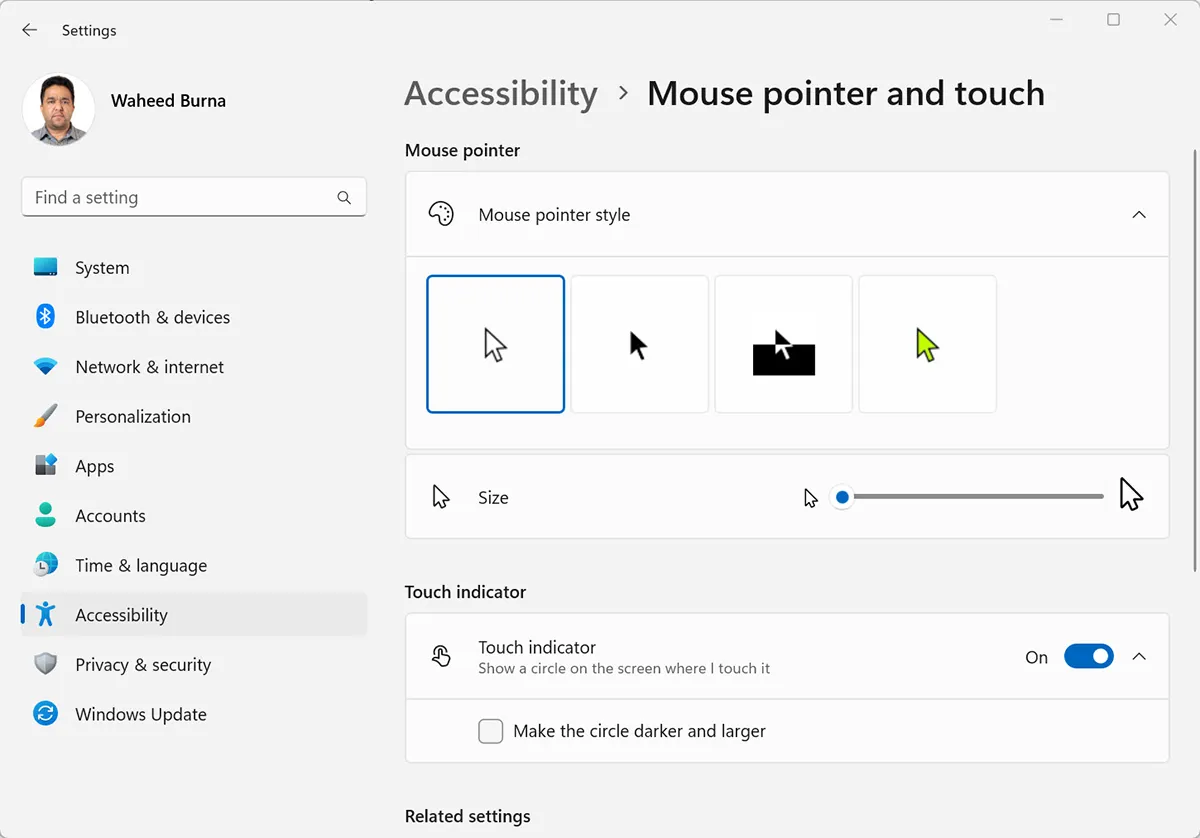
After the restart, reapply your cursor scheme in Settings → Bluetooth & devices → Mouse → Mouse pointer. It should hold this time.
Stop It Reinstalling
Windows Update will offer KB5120998 again. Because it is a preview update, you have a straightforward way to decline it.
Go to Settings → Windows Update and make sure “Get the latest updates as soon as they’re available” is turned off. That toggle is what surfaces optional preview builds. With it off, you receive security updates on the normal Patch Tuesday schedule and skip previews entirely.
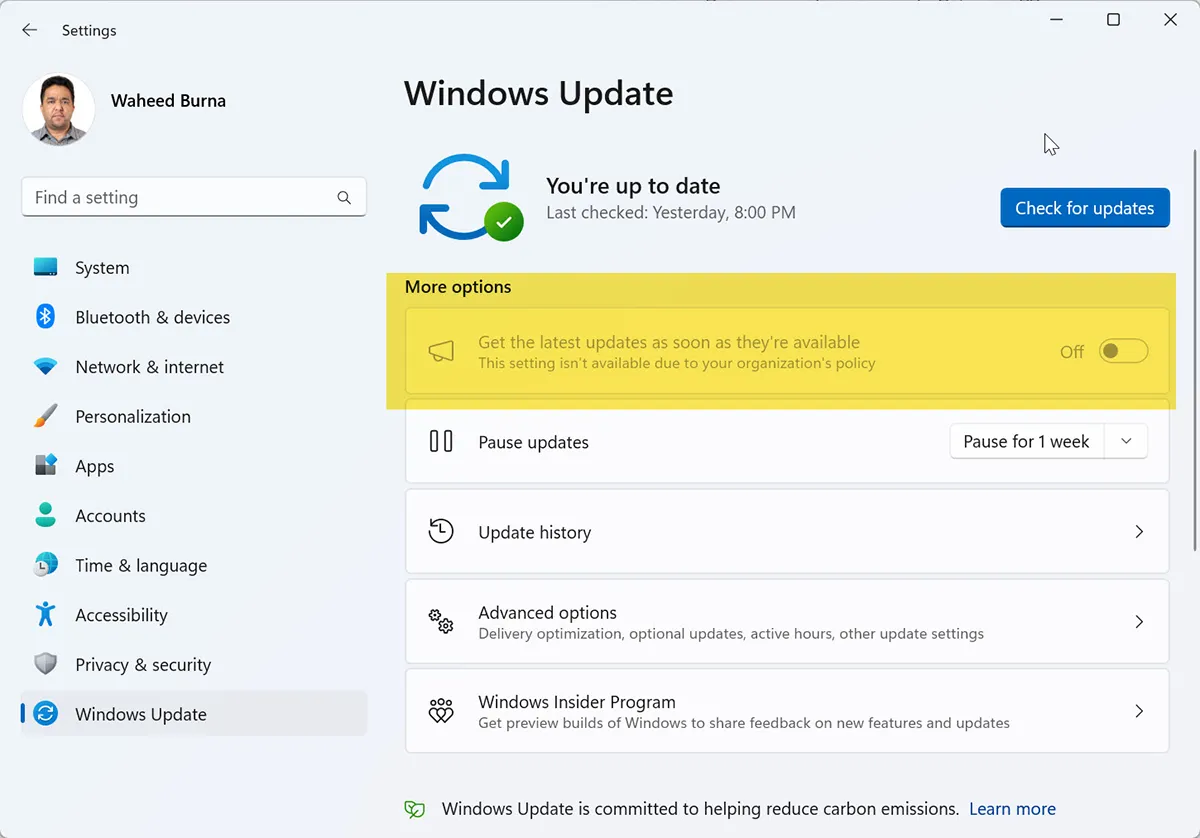
You can also pause updates for up to five weeks from the same screen, which buys time until Microsoft ships a fix.
If You Would Rather Keep the Update
If KB5120998 fixed something else you needed, or you manage machines where removing it is not practical, your options are limited but worth knowing.
- Report it through Feedback Hub. Microsoft is reported to be gathering feedback while it investigates, and a report gives it diagnostic data tied to your specific configuration.
- Create a new local user account and test. Cursor settings are per-profile. If a fresh profile holds a custom scheme correctly, migrating to it may be preferable to removing the update.
- Wait for a fix. Microsoft has acknowledged reports and is investigating. A fix may arrive in a future cumulative update, but no date has been given.
What does not work is repeatedly reapplying the scheme in Settings. That is the defining characteristic of this issue, and trying harder does not change it.
The Wider Lesson on Preview Updates
Optional preview updates exist so Microsoft can validate non-security changes before they reach everyone on Patch Tuesday. Installing them means volunteering as a tester.
That is a reasonable trade on a spare machine. It is a poor one on the computer you work on, and a bad one across a managed fleet. Enabling early access to optional updates on production machines converts a controlled monthly patch cycle into a rolling beta.
Final Thoughts
This is a small issue with an outsized effect, because it removes a setting and then does not let you put it back. For anyone using an enlarged or high-contrast pointer for visibility, that is an accessibility regression rather than a cosmetic one.
The fix is simple and low risk: confirm the update is installed, uninstall it, reapply your cursor, and turn off early access to previews so it does not return.
Related recent update issues: KB5074109, KB5077744 and KB5078127 update problems and the KB5065426 update error.
Frequently Asked Questions
What does KB5120998 do to my mouse cursor?
Reported symptoms include custom cursor schemes reverting to Windows defaults, high-DPI cursors being replaced with larger white cursors, and cursor animations reverting to standard settings. The distinguishing symptom is that attempts to restore the previous customisation do not succeed.
Is it safe to uninstall KB5120998?
Yes. KB5120998 is an optional non-security preview update, so removing it does not uninstall the August Patch Tuesday security fixes. Those are delivered as a separate update and remain installed.
Which versions of Windows 11 are affected?
Windows 11 24H2 and Windows 11 25H2 systems that installed KB5120998, released 27 August 2026.
Why can I not just set my cursor back in Settings?
That is the reported behaviour. Affected systems accept the change in the Settings interface but do not apply or retain it. Reapplying repeatedly will not work, which is how you can tell this apart from an ordinary settings change.
How do I check whether KB5120998 is installed?
Open Settings, go to Windows Update then Update history, and look for KB5120998 under Quality Updates dated 27 August 2026. You can also run Get-HotFix in PowerShell and filter for the HotFixID. Confirm it is present before uninstalling anything.
How do I stop Windows reinstalling the update?
In Settings then Windows Update, turn off “Get the latest updates as soon as they’re available”. That toggle is what delivers optional preview updates. With it off you still receive security updates on the normal schedule. You can also pause updates for up to five weeks.
Did KB5120998 also reset my wallpaper?
Some users have reported desktop wallpaper resetting around the same time, though Microsoft has acknowledged only the mouse settings reports. If your wallpaper also changed, uninstalling the update and reapplying both settings is the practical approach.
Will Microsoft fix this?
Microsoft has acknowledged reports and is investigating. A fix may arrive in a future cumulative update, but no date has been confirmed.
My cursor disappeared completely rather than changing. Is that this issue?
No. A missing cursor, a black screen or an unresponsive desktop points to a different problem, most often a display driver or Explorer issue rather than a settings reset.